Cursor AI review: features, pricing, code quality, and verdict
Being behind major reports like The Mother of All Breaches and RockYou2024, our in-house cybersecurity experts and journalists provide unbiased, real-world testing and in-depth analysis.
We maintain complete transparency by openly sharing our testing methodologies with our audience.
Learn more

Cursor AI is an AI-powered code editor built on top of VS Code. It integrates AI directly into the programming workflow. When considering such a tool, most developers focus on a few key concerns: whether it actually helps them code faster, how reliable the AI-generated code is in real projects, and whether it justifies its price compared to alternatives like GitHub Copilot.
Based on my testing, Cursor AI delivers clear value, especially when it comes to understanding existing code, boosting productivity, and handling multi-file changes. That said, it’s not flawless. The AI can occasionally suggest incorrect or incomplete code, so it still needs manual review. Cursor AI is best suited for experienced developers who want to speed up everyday coding tasks rather than rely on AI to do everything.
In this Cursor AI review, I teamed up with our research team and ran a series of real-world tests to see how the tool performs in practical development scenarios.
Quick overview of Cursor AI
| Best for | Experienced coders looking to improve their productivity |
| Key features | Agents, codebase understanding, model access, autocomplete, smart rewrites |
| Free version | ✅ Yes |
| Starting price | From $20.00/month |
Pros and cons of Cursor AI
Cursor AI is a practical tool for developers that helps streamline workflows and speed up coding. Its AI agents can complete tasks based on your instructions, assist with troubleshooting, and make quick code edits. While it still requires double-checking, it’s a useful tool for completing work more efficiently.
What is Cursor AI?
Cursor is an AI-powered code editor built on the VS Code codebase. It uses large language models (LLMs) to help you write, edit, and debug code faster.
Unlike a standard code editor, Cursor has AI features integrated from the ground up. Instead of just suggesting lines of code, it can work across files, rewrite sections, fix bugs, and apply changes consistently.

It supports popular languages like JavaScript, Python, HTML, CSS, and Rust, and works across major operating systems. Cursor AI is part of the workflow, helping with coding, suggestions, and debugging in real time.
Key features of Cursor AI
To see how it performs in real life, beyond just marketing claims, I tested all features myself. Below are the main features that stood out, which I explore in more detail in later sections:
- AI-powered code generation. Cursor AI can generate code based on prompts, whether you’re creating new code, editing an existing one, or debugging.
- Tab-based code completion. The custom autocomplete model predicts your next steps, allowing you to accept suggestions or jump sections with a single key press.
- Chat sidebar and inline editing. You can search files, ask questions, and generate code by simply typing a prompt via the chat window.

- Composer and multi-file edits. Allows Cursor AI to make changes across multiple files at once. This is especially useful for refactors, feature updates, or structural changes, since the tool can apply consistent edits while maintaining the overall project logic.
Cursor AI in practice
In this section, I share my hands-on experience testing Cursor AI’s features in real-world scenarios. Rather than just listing what it can do, I focus on how it actually behaves during everyday coding, like writing new code, editing existing files, and working on larger projects.
Code generation
All AI interactions happen directly in the chat panel on the right, and I actually really like that setup. It feels clean and focused. What’s even better is that whatever the AI generates shows up right inside your project files, not in some separate preview window. Everything stays in one place, which makes the whole workflow smoother.
I started by asking Cursor AI to generate a simple piece of code. That part was effortless. Within seconds, it returned fully working code that did exactly what I asked for.
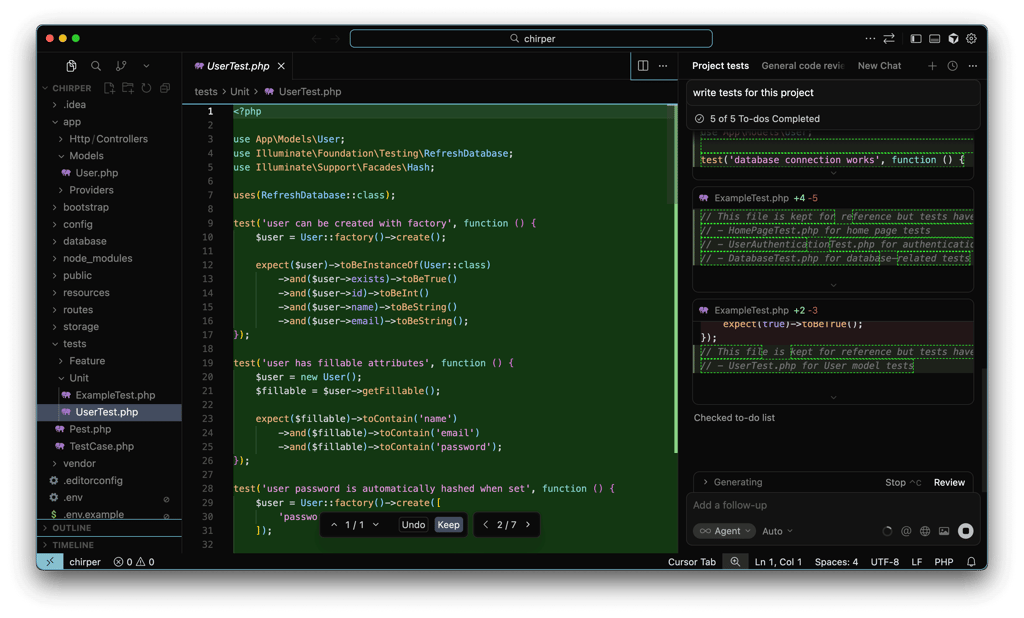
Many use Cursor AI because of its context awareness, so I wanted to see how it actually holds up. To test this out, I uploaded one of my own codebases and asked Cursor AI to explain it. The response was clear and accurate, breaking down what the code does in a way that was easy to follow. Developers spend a surprising amount of time just reading and making sense of existing code, so having that part sped up can save hours.
I think Cursor AI is great for moving around a project, getting quick summaries, and generating useful chunks of code. Where it still falls short is with more complex tasks. I also noticed that it sometimes tries to be too clever and ends up overcomplicating things that could be solved in a much simpler way.
Code quality
Overall, the code quality you get from Cursor AI depends heavily on the model you choose. The good news is that Cursor gives you plenty of options, including Claude 4.5 Sonnet, Composer 1, Gemini 3 Pro, GPT-5.2, and Grok Code. Each model has its own strengths, so results can vary quite a bit depending on which one you’re using.
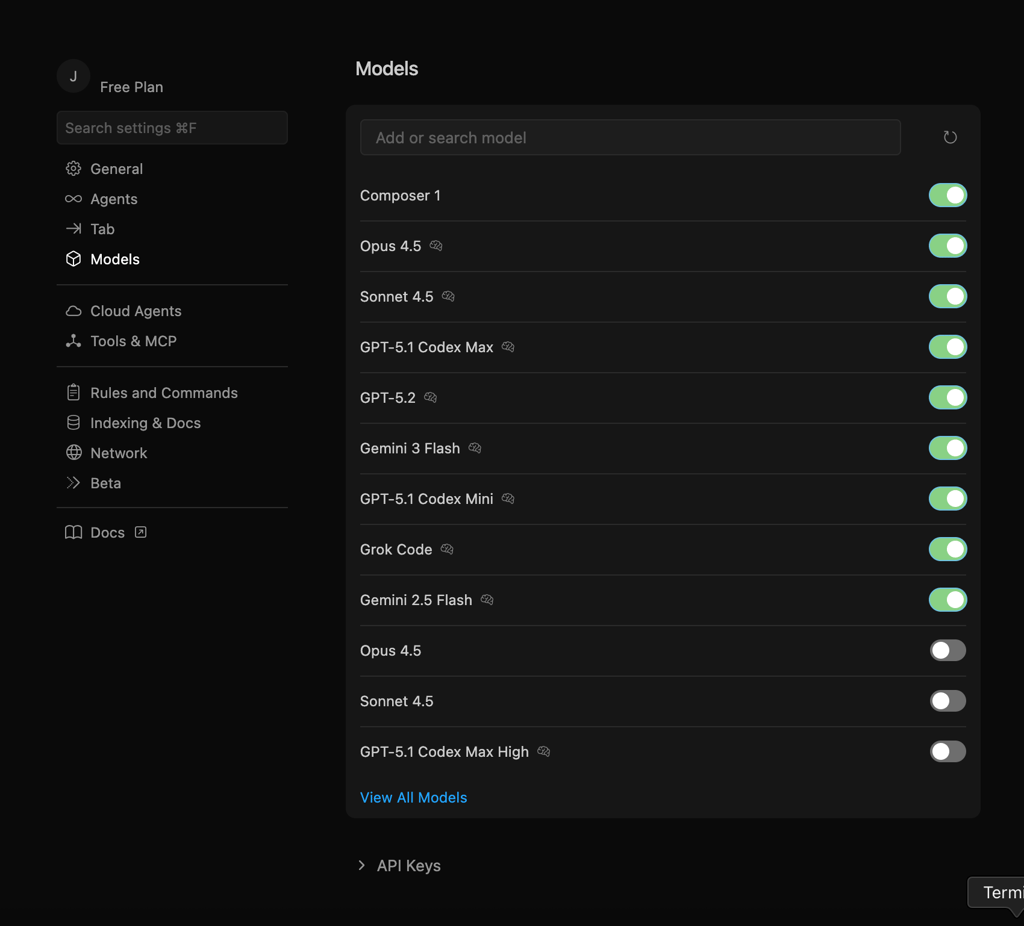
Where Cursor really shines is context handling. It indexes your repository, understands your full codebase, and uses codebase-wide search, so the LLM isn’t working in isolation. Cursor also lets you control which tools the agents can access, which helps keep changes more predictable and relevant. Things like logical correctness, readability, maintainability, and how much cleanup you need afterward mostly come down to the model, not Cursor as a platform.
Speed is also largely model-dependent, but factors like server load, network latency, and context size play a role, too. In our testing, Cursor felt fast and produced solid code. That said, we couldn't test it on very large, complex projects.
To fill that gap, I looked through discussions on the r/cursor subreddit to see what experienced developers are saying. The general consensus is that Cursor does everything it can to deliver good results. I didn’t see many developers calling out speed as a real issue. Most issues come from model limitations and the context size. Programmers consistently highlight how important it is to set up Cursor rules and provide clear context. Those who do this get far better results. Almost everyone agrees on one thing: Cursor still needs human oversight and shouldn’t be trusted blindly.
In short, simple tasks work great right away. When working on larger projects, Cursor can still produce high-quality code, but only if you invest time in providing the context and actively reviewing the output.
Tab completion
The Tab autocomplete feature quickly became one of the tools I reached for the most. It works by predicting what you’re about to do next and letting you accept it by pressing the Tab key. While plenty of AI coding tools, like VS Code and Windsurf, offer autocomplete, Cursor AI takes this much further. It doesn’t just finish a line or two – it can complete multiple lines, entire functions, find bugs, and even recognize when you need to move to a different part of the file and jump there automatically.
I found this feature especially helpful when editing code. If I updated one function, the autocomplete already knew which related parts needed to be adjusted. I could jump through those sections one by one and approve the changes without manually searching through the codebase.
My only minor frustration is the timing. Sometimes, the feature felt a bit intrusive. As soon as I start typing any code, suggestions pop up immediately. That’s great for speed, but it can also be distracting and a little annoying. Also, since the autocomplete relies on tokens, it can also lose context and suggest edits that aren’t quite right. While this didn’t happen during my testing, it could become an issue when working with large codebases.
Chat sidebar, inline editing, and composer
In Cursor, you have three main ways to interact with your code: chat, inline editing, and the Composer. The chat sidebar is where I go when I need to ask questions about my codebase. You can open it with Ctrl+L or Cmd+L and ask questions like how a feature works or where a bug might be coming from. It automatically gathers context, even across multiple files, which makes it great for deeper changes or understanding larger systems. The tradeoff is speed. Since it pulls in a lot of context, it can feel slower and heavier than other options.
Inline editing is my favorite for quick, focused changes. You open it with Ctrl+K or Cmd+K and edit code directly using prompts. It works on a single file only, but that’s also its strength. It’s fast, precise, and perfect for refactoring a function, tweaking logic, or cleaning up a specific section. I also like that you can switch between asking questions, editing a section, or editing the whole file.
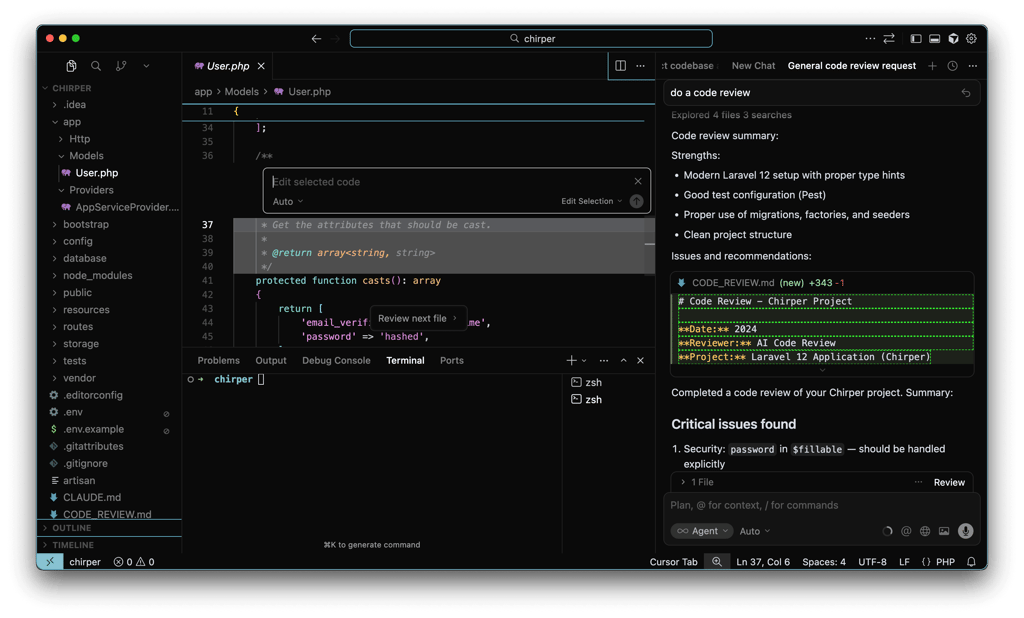
Composer is built for larger, cross-file refactors. It generates changes across multiple files and lets you review diffs one by one. I use it the least, but it offers the best experience when you need structured, multi-step changes across a big codebase.
Limitations of Cursor AI
Cursor AI is a solid tool overall. It noticeably speeds up coding and makes debugging less dreadful. That said, while testing it, I ran into a few limitations worth mentioning:
- Occasional incorrect suggestions. Cursor AI isn’t foolproof. Sometimes, it suggests code that is slightly off, places changes in the wrong spot, or edits parts of the file that should stay untouched. Because of this, it’s crucial to review every change instead of accepting suggestions blindly.
- Overconfidence in AI responses. Cursor AI can sometimes do more harm than good, especially for beginners. For experienced developers, Cursor AI is a great productivity boost, but newer coders may rely too heavily on its suggestions without fully understanding what the code is doing. Since AI isn’t always accurate, this can lead to confusion or bad habits early on. Total beginners might find Base44 a better choice.
- Performance and context limits in large projects. Cursor AI can lose context in very large projects, which may cause inconsistent suggestions. While this isn't unique to Cursor AI, it can still be frustrating for developers working on complex applications.
Pricing of Cursor AI
Cursor AI comes with a free plan, which I see as a big plus. The free version is genuinely usable, with limited Agent requests and Tab completions, plus a 7-day Pro trial. The trial is great because it lets you properly explore the full feature.
The Pro plan costs $20.00/month and unlocks higher Agent limits, unlimited Tab completions, Background Agents, and larger context windows. For most individual developers, this is the plan that makes the most sense. There are also Pro+ and Ultra plans, which mainly increase token limits, and Ultra adds early access to new features.
| Plan | Price | Features |
| Hobby | Free | 7-day Pro free trial, limited agent requests, limited Tab completions |
| Pro | $20.00/month | Extended agent limits, unlimited Tab completions, background agents, maximum context windows |
| Pro+ | $60.00/month | 3 times more usage on all models |
| Ultra | $200.00/month | 20 times more usage on all models, priority access to new features |
| Teams | $40.00/month/user | Shared chats, commands, and rules, centralized billing, usage analytics, privacy mode, role-based access control |
| Enterprise | Custom pricing | Pooled usage, invoicing, AI code tracking API and audit logs, granular admin and model controls, priority support |
For teams, Cursor offers business plans starting at $40.00/user/month. These include centralized billing, analytics, reporting, and organizational controls. Business plans are priced slightly higher than competitors like GitHub Copilot or Amazon Q Developer.
Cursor also offers a Bugbot add-on with a free tier and paid plans starting at $40.00/user/month, plus custom pricing for businesses. Annual plans are available too, offering up to 20% off the monthly price.
Practical use cases
After thoroughly testing and using Cursor AI, I found it’s most useful in the following situations:
- Solo developers. With reasonable pricing and genuinely helpful features, it’s a solid choice for solo devs who want to streamline their workflow, work faster, and debug more efficiently.
- Startup engineers. Thanks to AI Agents, it’s easy to automate parts of the code. This makes Cursor especially useful for startup engineers building products, websites, or apps.
- Learning new languages or frameworks. The chat feature makes learning much easier. You can ask Cursor to explain functions, concepts, or even generate code using natural language, which is great when picking up something new.
- Rapid prototyping. If you need a quick proof of concept, Cursor can generate rough code fast, helping you decide whether an idea is worth it.
- Refactoring existing codebases. Cursor has a strong understanding of the project context, so you can refactor or update existing code using simple prompts instead of manual changes.
That said, I don’t think Cursor AI is a good fit for absolute beginners. It can still make mistakes, which may confuse new developers and lead to bad habits or broken code. While it’s a great support tool and helpful for learning, it can’t replace a solid understanding of coding fundamentals.
Initial setup and learning curve
Installing Cursor AI was straightforward. I downloaded the app from the website, and it installed in just a few seconds. After launching it, I created a project and could start coding right away.

That’s pretty much the entire onboarding process. Create a project, and you’re in. I truly appreciate that Cursor AI doesn’t complicate the onboarding with unnecessary questions and adjustments.
The layout is easy to get used to. On the right, there’s a chat window where I could type prompts or commands, and the AI would generate new code or edit existing files. On the left, you’ll find the project files, so nothing gets lost.
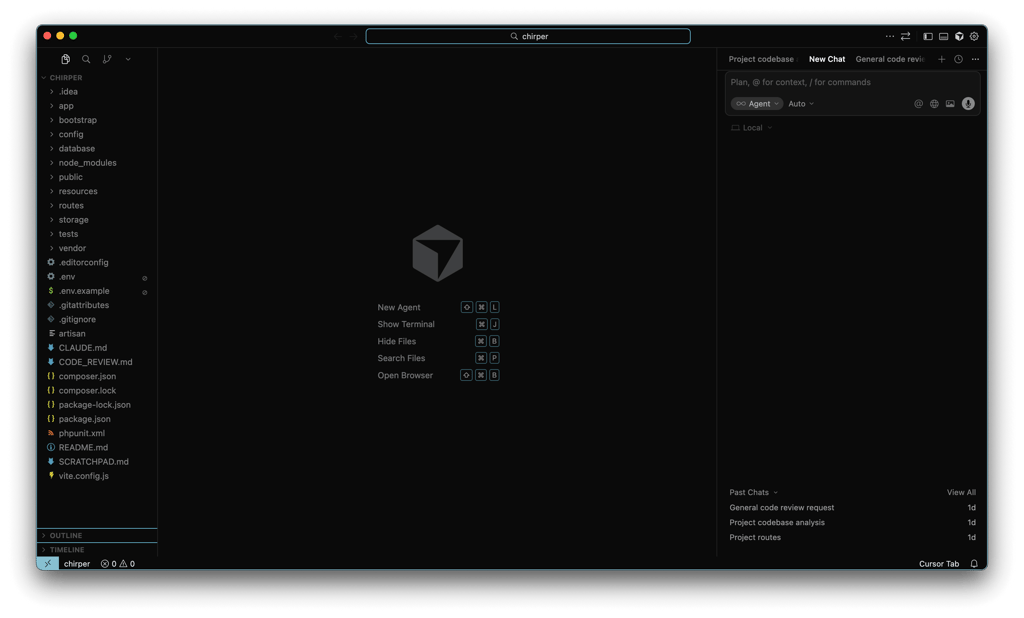
If you’ve used VS Code before, the interface will look very familiar since Cursor is essentially built on top of it. Even so, I think beginners will feel comfortable here too. The AI helps guide you through the interface and can explain things when something doesn’t make sense, which makes the whole experience less intimidating.
Cursor AI vs competitors
There are several tools similar to Cursor AI available on the market. In the table below, I compare some of the most popular options side by side to highlight how they differ.
| Tool | Best for | Learning curve | AI features | Security | Pricing |
| Cursor AI | Advanced AI coding inside an IDE, project-wide context | Moderate | Agents, codebase understanding, model access, autocomplete, smart rewrites | SOC 2 certified, Privacy Mode | From $20.00/month |
| GitHub Copilot | General coding support and autocomplete across many IDEs | Minimal | Chat, coding agent, CLI, code review, text completion, edits | SOC 1, SOC2, SOC 3, ISO 27001:2013, CSA Star Level 2, TISAX certified | From $10.00/month |
| Windsurf | Fast, agentic code editing with natural language workflows | Minimal to moderate | Coding agent, Tab, MCP Support, Lint Fixing, Terminal Command, Memories | SOC 2 certified | From $15.00/month |
| Devin | Autonomous coding agent that executes tasks end-to-end | Steep | Devin IDE, Wiki, API, performance optimization, scraping | SOC 2 certified | From $20.00/month |
Final verdict: is Cursor AI worth it?
Cursor AI is a solid choice for developers who are already familiar with coding and want to work faster. It’s ideal for intermediate and experienced programmers who value quick debugging, smart autocomplete, and help navigating larger codebases.
That said, I don’t recommend it to beginners. The suggestions aren’t always accurate, and without a good grasp of fundamentals, it can create even more confusion. At $20.00/month, it’s a worthy tool for solo developers and small teams who code regularly.
FAQ
What makes Cursor AI stand out?
Cursor AI stands out because it’s a context-aware coding assistant, not just a basic code helper. It understands your project’s structure, so its suggestions, completions, and fixes are more accurate and relevant to your specific code.
What programming languages does Cursor AI support?
Cursor AI supports a wide range of languages, including Python, JavaScript, Java, C++, Ruby, HTML, CSS, PHP, Rust, TypeScript, C#, Swift, Kotlin, R, Bash, Go, SQL, YAML, Docker, and Terraform.
Does Cursor AI replace traditional IDEs?
No, Cursor AI doesn’t replace traditional IDEs. Instead, it enhances them by providing faster coding, contextual suggestions, and real-time fixes while you work within your existing development environment.
Is Cursor AI safe to use with private codebases?
Yes, Cursor AI is safe for private codebases. It’s SOC 2 certified and offers a Privacy Mode that limits stored information. Still, as with any AI tool, the provider advises caution when handling highly sensitive data.
Can Cursor AI be used for large codebases?
Yes, Cursor AI works with large codebases. Features like the chat window and Tab navigation help you explore and navigate large projects efficiently. However, you should keep in mind the limits of its context window when working on very extensive code.