Beginner’s guide to using ChatGPT in 2026
Being behind major reports like The Mother of All Breaches and RockYou2024, our in-house cybersecurity experts and journalists provide unbiased, real-world testing and in-depth analysis.
We maintain complete transparency by openly sharing our testing methodologies with our audience.
Learn more

When I first started using ChatGPT, I was as inexperienced as anyone else using artificial intelligence for the first time (AI). I recall the first errors I made by blindly trusting AI to provide reliable information, the road to understanding how to craft accurate prompts, and the realization that, although it’s a useful tool, the output needs to be verified.
I have created this beginner’s guide to help you learn how to use ChatGPT and share what I have learned about it over the years as a frequent user. Continue reading to find step-by-step instructions, tips, information on advanced features, and practical use cases.
What is ChatGPT?
ChatGPT is a type of generative AI, first released in 2022 by OpenAI. In simple terms, it’s a kind of computer software that accepts various types of user input, including text, images, and audio, to provide help in everyday and professional tasks. Think of it as your personal assistant who has access to a great deal of information on any topic and is ready to help you with different tasks. It provides links to the sources it uses, allowing you to verify the information yourself.
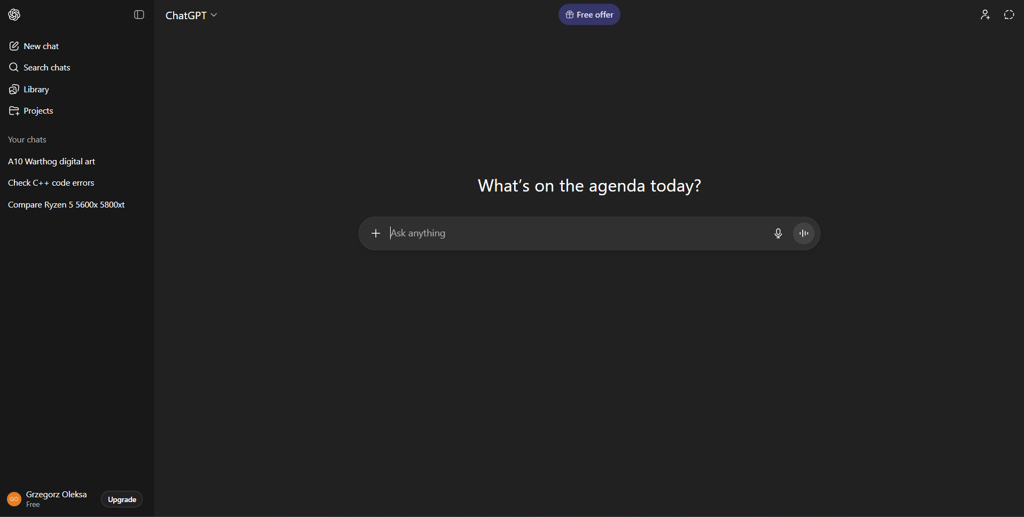
The software constantly evolves, with the recent model being GPT-5. Its improved memory and context preservation allow for longer chats on the same topic without losing track of what was analyzed earlier. There are also paid versions of the software that expand its functionalities, offering more advanced reasoning, improved image generation, extended memory and context, and more.
ChatGPT will help different people in different ways. For example, content creators can use it to generate social media posts, paragraphs, or even entire articles. It can help with ideation when faced with writer’s block. Programmers can use it to help with debugging. ChatGPT will check your code for errors, write code, or suggest improvements. Researchers will find it helpful to gather or summarise large chunks of data quickly. Legal professionals can use it for drafting.
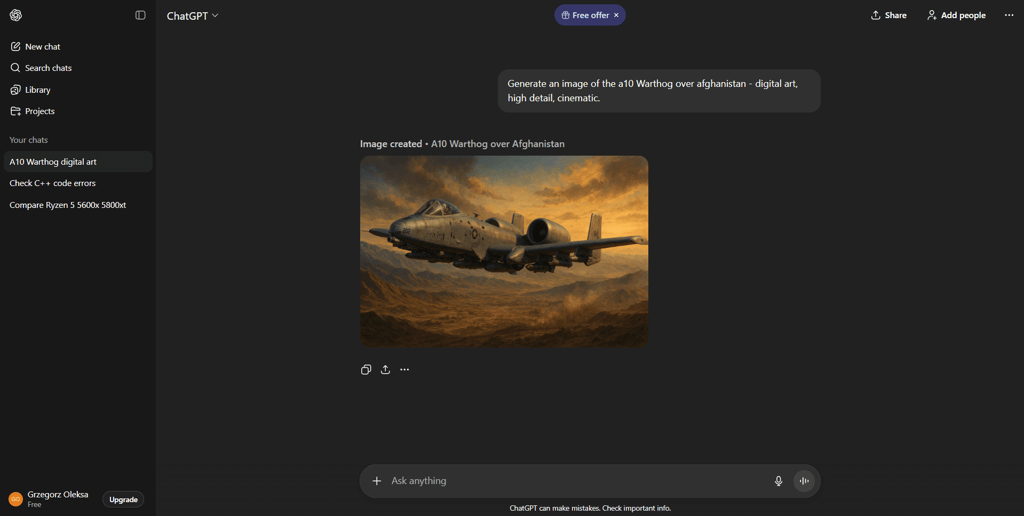
The software can also generate images thanks to access to DALL-E. I use it alongside other apps to create t-shirt designs for my merch store. I also know a few academics who use it to generate images for their scientific papers. The image generation functionality has great potential.
Getting started with ChatGPT: step-by-step guide
I’ll show you, in a few quick steps, how to get started with ChatGPT. You’ll learn how to set up your account, explore the available options, start a chat with a good prompt, and generate images.
Step 1: create your ChatGPT account
You can access ChatGPT by visiting chatgpt.com using any popular browser on both desktop and mobile devices. You can start using the app even without registering, but you’ll get more functionalities if you create an account. Registration is free, and among other benefits, it provides access to your chat history, which is particularly important as you may want to refer back to some of your previous conversations. Paid versions unlock more features and lift restrictions.
It is possible to sign up with one of your existing accounts, such as Google, Apple, or Microsoft. You can also provide your phone number or email address. Depending on the option you chose, you may be asked to create a password for your account, and you will receive a verification code to input in the next steps. After providing your full name and date of birth, you will be asked what brings you to ChatGPT. You can choose from a number of options, such as work or school, which will help AI better understand your needs, or skip this part altogether.
I created a quick comparison table to list the features of the different versions designed for the individual user. There are also business versions of ChatGPT.
| Plan name | Price | Description | Features |
| Free | $0.00/month | Basic AI capabilities | Easy-to-understand and straightforward explanations, short conversations for common questions, basic image generation trials, minimal memory and context retention |
| Plus | $20.00/month | Full functionality | Solve more complex and multi-step problems, maintain longer chats across sessions, produce more images with faster results, retain goals and previous conversation history, use agent mode for planning tasks and trips, customize GPTs and organize projects, generate and publish videos using Sora, write and develop code using Codex |
| Pro | $200/month | Maximum productivity | Handle specialized and advanced tasks, unlimited messaging for large projects, create high-resolution images at any size, full memory capacity for deep context, use agents for research and task planning, automate workflows and scale operations, produce advanced Sora video content, deploy code efficiently with Codex, early access to new experimental features |
Which plan suits you best depends on your needs. Most people I know register and use the free version. Personally, I am considering the Plus plan because I generate a lot of images for my side project. So far, I’ve used a different AI tool specifically designed for image generation, but ChatGPT has come a long way in this field since its early days.
Step 2: explore features and settings
ChatGPT is available both in a browser and as official mobile apps. The core layout is very similar among all of them: there’s a chat list, a main chat area, and a prompt box at the bottom where you interact. Here’s what the browser version looks like on my Android phone:
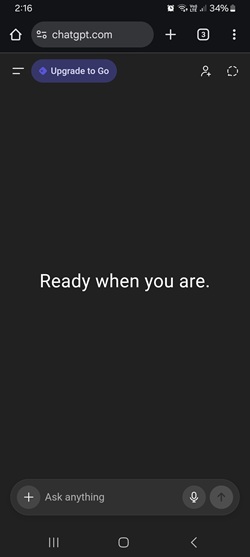
The chat input box is the area where you type in what you need. In the desktop version, when an answer is generated, the box will move to the bottom of the screen to make room for the output.
You can access your chat history through the sidebar on the left side of the screen. On mobile, you can access the sidebar by tapping the double line symbol on the top-left side. This panel also gives you access to new chat creation, your image library, chat search, and projects. This last feature is similar to folders, which are used to categorize your work. Every chat and project can be renamed.
At the bottom of the sidebar, you can upgrade your plan and go to your profile options, where you can customize your experience and receive support. Take a moment to browse through the available options to get a feel for the possibilities. I strongly recommend enabling dark mode if it’s not on by default. In my experience, it’s a significant relief for the eyes when using ChatGPT for extended periods.
Step 3: start your first conversation
There are a few key elements to remember when writing a prompt. Here’s what I usually consider when creating one:
- The goal. What I want to receive in the output, for example, a table with features, a list, a written ad, a product description, an image, a corrected test, etc.
- The context. Words can be understood differently in different situations. Make sure there is no room for misinterpretation. For example, if you’re looking for inspiration for holiday home decorations, make sure your prompt includes the specific holiday, such as Christmas.
- The constraints. If it’s a text, then you can provide an estimated number of words or sentences you expect in the output. It’s better to order long forms in parts, e.g., paragraph by paragraph. You can limit sources to specific links when requiring information. You can restrict the analysis to a document you upload, or provide the aspect ratio of the image you want to generate.
- The target group. If you need a how-to guide for beginners, make sure the output is beginner-friendly. If it’s a scientific piece you’re working on for other professionals, be sure to highlight professional language.
- The format. ChatGPT can output more than just plain text, tables, or images. You can instruct it to create a .pdf file or other file types.
- The reference. Sometimes it makes sense to provide a point of reference if you want to get something similar. This can be a sample text or image, a summary, or you can refer to a particular author, style, etc.
In many cases, it won’t be necessary to consider all of these points when creating a prompt. Generally, the more specific you are with what you ask for, the more accurate the answer you receive. You can start with a detailed prompt or assume a step-by-step approach.
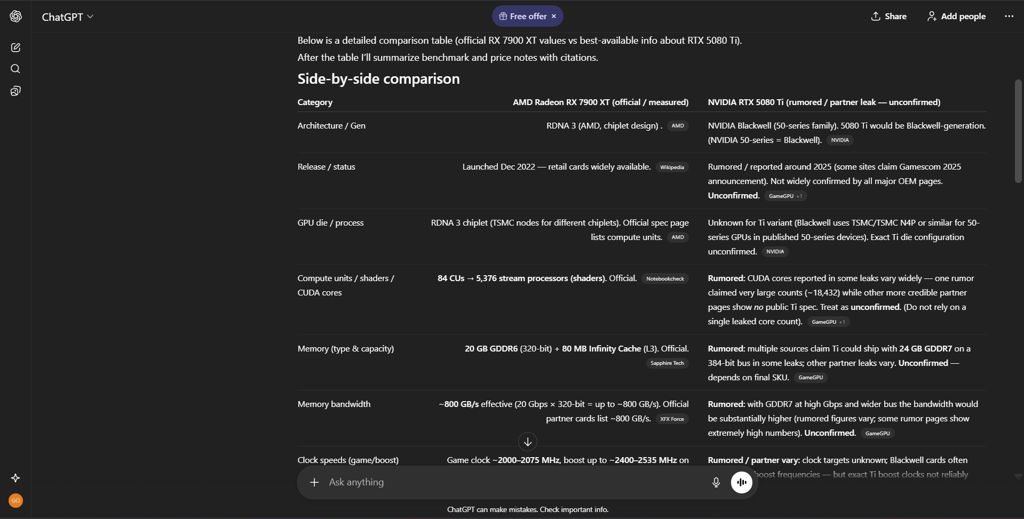
Let’s have a look at some sample prompts and the output they generated. I will use parentheses to point out the areas where the key concepts appear in the prompts.
Create a detailed table (format) comparing RX 7900xt with RTX 5080ti (goal). Include technical specifications, benchmark performance, and average prices in the US (constraints).
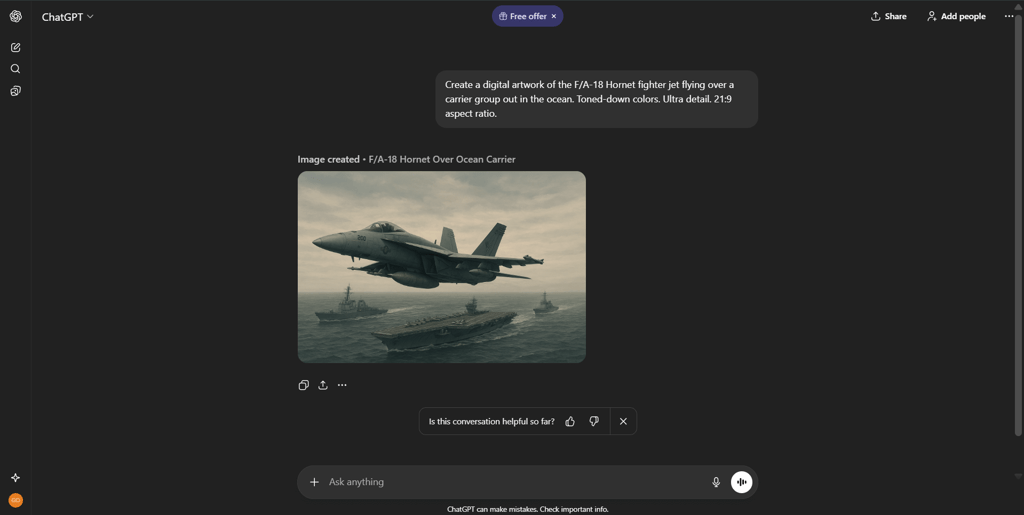
Create a digital artwork (format) of the F/A-18 Hornet fighter jet (goal) flying over a carrier group out in the ocean (context). Toned-down colors. Ultra detail. 21:9 aspect ratio (constraints).
Create a short (constraints) Facebook ad (format) for the product (goal) presented in the uploaded picture (reference). Refer to Christmas. Highlight the joy and happiness of the holidays (context). Include a CTA that encourages potential buyers (target group) to visit the store.
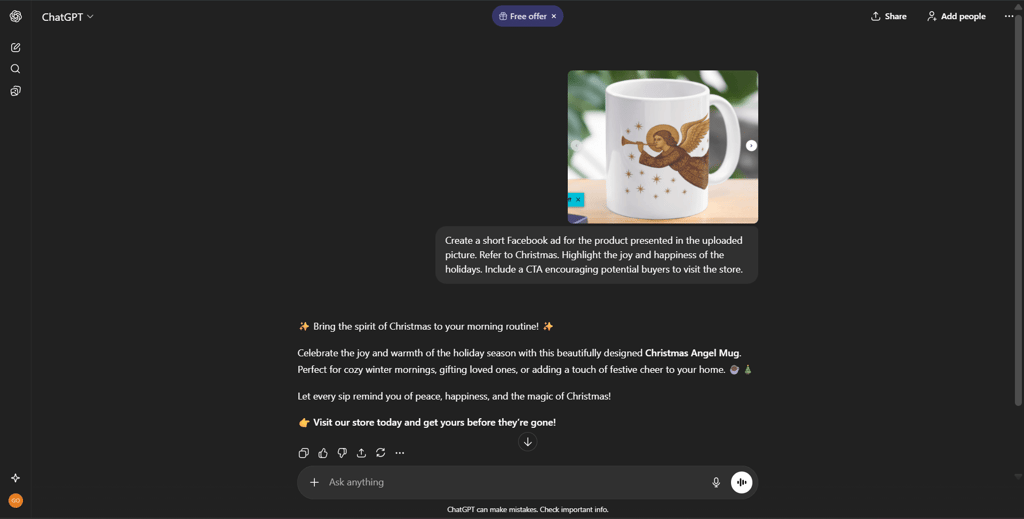
It’s a good idea to use bullet points – I’ll show you more examples later in the article. Don’t be afraid to experiment. Start different chats for different ideas, as it is normal to refine the prompts to achieve the best results.
Interestingly, Polish has been found to be the most effective language. However, you will also achieve very good results when using English or other popular languages.
Step 4: generate and refine content
If you’re new to ChatGPT and AI chatbots in general, it may take a bit of time to discover how to create the best prompts that match your needs. If the initial result is unsatisfying, continue the conversation in the same chat window and suggest enhancements.
Remember to be precise and clearly define what you need, whether that’s a draft, a summary of a topic, or a code snippet. If you don’t like the result, you can ask ChatGPT to create another option using the same prompt. Below is the refinement of the Facebook ad mentioned earlier:
Mention the price of the mug: $7.99 and highlight that all merch in the store is now 33% off.
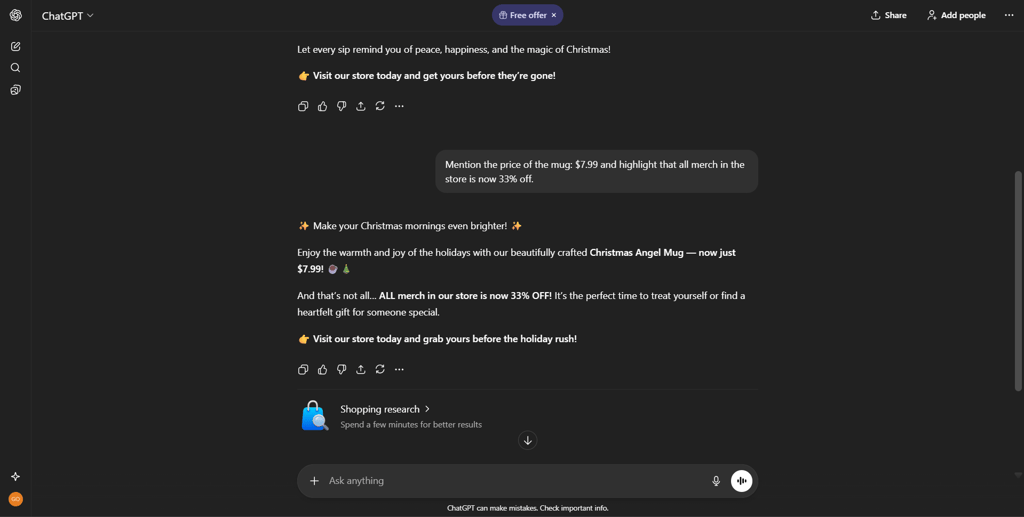
Below is one more example. A follow-up for the prompt with the fighter jet:
Zoom away from the jet and the ships, make the perspective wider. Add more ships.
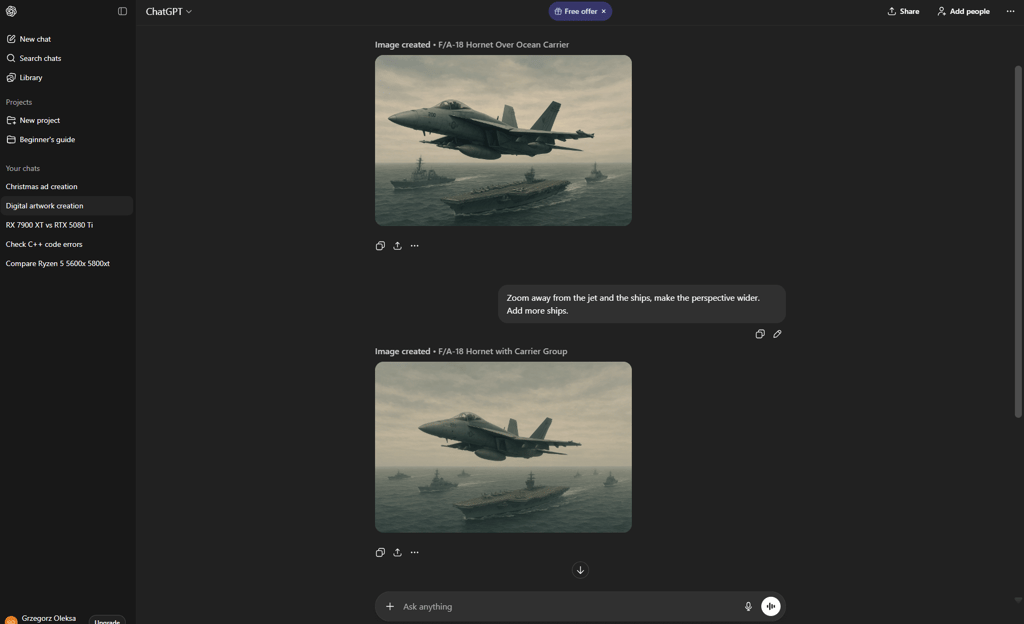
Step 6: fact-check and verify information
Despite years of development and significant improvements, ChatGPT can still provide inaccurate or misleading information. These are referred to as hallucinations because they often seem convincing and credible but are simply not true. This is why it is so important to always verify the output.
Luckily, ChatGPT now provides the sources of the data it used, so you can click the link and verify the accuracy yourself. Human verification is still one of the best methods to validate the output, but there are some tools that can help. For example, Guardrails AI can detect hallucinations and check for other issues with AI output.
Step 7: customize ChatGPT for your use case
As mentioned earlier, it’s beneficial to use separate chat windows for different tasks, as ChatGPT retains the context, requirements, and subsequent iterations of the prompt. By doing so, you create a sort of profile, which you can quickly access whenever you need.
Below are some template examples in bullet points for specific profiles. The text in the brackets needs to be provided by the user:
Digital marketing
You can create a template for your marketing materials. An example prompt written with bullet points:
- Act as a senior digital marketer for a [industry] brand.
- The goal is to [increase sign‑ups, sales, awareness].
- Target audience: [who].
- Channel: [email, Instagram post, LinkedIn post, landing page].
- Write [3 ad variants, one email, landing page outline] in a [playful but professional] tone.
- Include: [CTA, key benefit 1–2, urgency or social proof]. Keep it under [length].
Coding
Specify the coding task. In the example below, I used the following prompt and pasted the code fragment for a simple calculator app in C++:
- Explain the following code.
- Use comments after each section: [code]

Academic research
Treat ChatGPT as a research assistant in your writing and data collection. Use it for brainstorming, structuring, and language analysis:
- Project: [thesis, paper, review] on [topic].
- My current question/section is: [give name or question].
- Constraints: [formal scholarly tone and no fabricated references].
- Using the notes below, propose [an outline, an abstract, an improved paragraph, a summary].
- Highlight anything that needs human fact‑checking.
Legal drafting
Be extra careful with legal tasks and always verify the output. Here’s an example for drafting:
- Jurisdiction: [country or state].
- Document type: [NDA, SaaS agreement, policy].
- Purpose and context: [product/service, key risks].
- Task: [draft a first‑pass clause, suggest structure, rewrite for plain language].
- Constraints: neutral, professional tone.
- Flag any assumptions or missing info.
Creative writing
Highlight the style and constraints, such as perspective, the length of the text, or the number of paragraphs:
- Act as a creative writer.
- Form: [short story, scene, poem, script].
- Genre: [genre + subgenre].
- Perspective and style: [1st person, present tense, slow‑burn, descriptive].
- Premise: [1-3 sentences].
- Task: [generate an outline, write the opening 300 words, suggest 5 plot twists, deepen selected character].
- Constraints: [avoid graphic content, keep language PG‑13, focus on dialogue]
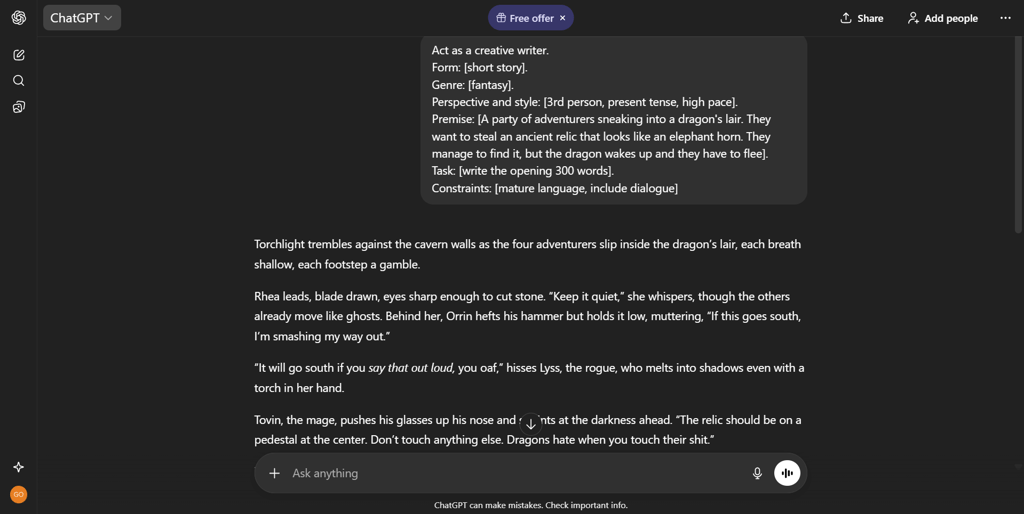
The most important thing to remember is to provide clear instructions and context for your prompts. Leave little room for interpretation. Bullet points improve readability and AI understanding.
Step 8: generate images and visual content
ChatGPT uses another AI tool called DALL-E to generate images. Again, a clear description of what the image is supposed to include is necessary. For this task, you can also specify a few technical details, some of which may only be available in the paid versions. Examples of technical information include image aspect, resolution, and format.
You can upload an existing image and ask ChatGPT to modify it. I sometimes ask the app to remove the background from the designs I create. To upload an image, you can simply drag and drop it into the prompt box, or click the plus icon and select Add photos & files. ChatGPT is getting better at adding text to images, something that AI used to struggle with in the past.
In the example below, I asked ChatGPT to add a caption to the image generated earlier:
Add a caption just above the jet: Defending the fleet.
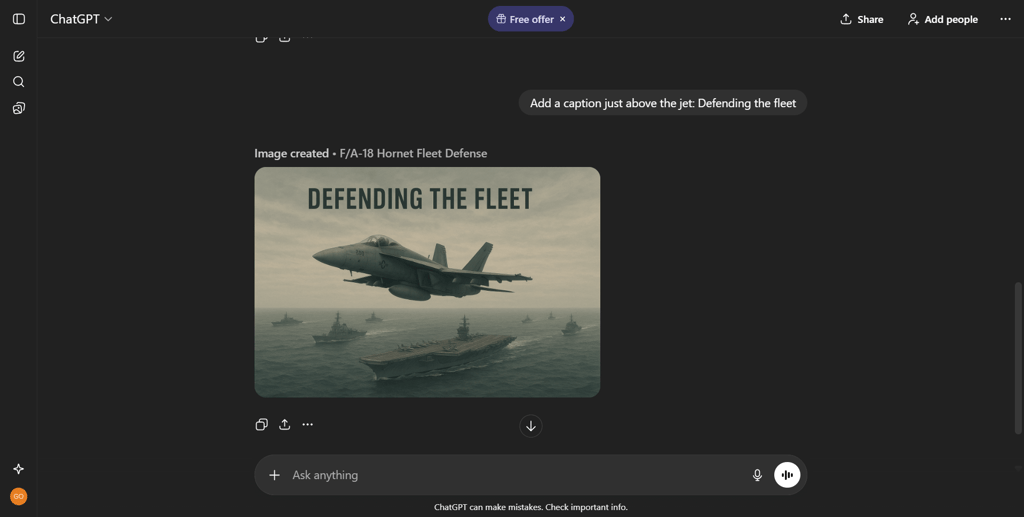
You can ask ChatGPT to generate an image based on the style of a specific author or work of art. However, be careful as using such images in certain contexts may lead to copyright problems. Using my own example, I created products that included AI-generated images, which received copyright warnings when I published them on Amazon and Redbubble.
Temporary chats and privacy settings
Temporary chats allow you to use ChatGPT in a way that doesn’t train AI models. The app does not retain memory of the conversation, and it is not visible in your chat history. If you close the browser, the session is over. When you think about it, it’s a bit similar to incognito mode, featured in most modern search engines.
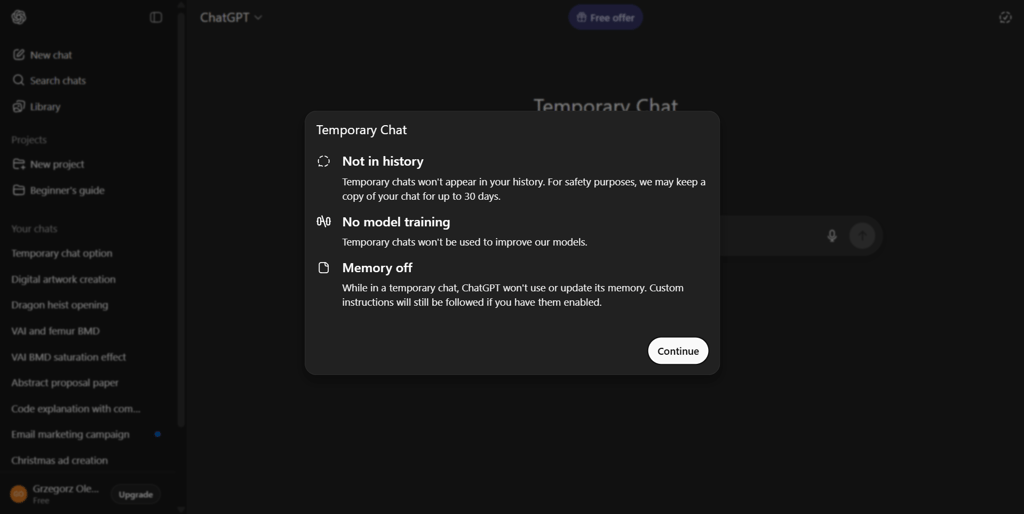
To enable a temporary chat in the browser version:
- Click on New chat in the top left corner of the screen
- Click on the circular icon in the top right corner of the screen
- When the notification pops up, click Continue
Remember that AI companies use your input to train and improve their AI models. This may pose a privacy and confidentiality hazard. You should not upload or enter sensitive information into ChatGPT.
You can also opt out of using data for AI training for all of your chats. Here’s how:
- Click on your profile name in the bottom-left corner
- Go to Settings > Data controls
- Toggle Improve the model for everyone off
Deleting and archiving conversations
Archiving keeps a conversation available for later use, while deleting removes it from your history, making it impossible to retrieve.
To archive or delete a conversation:
- Hover the mouse cursor over a conversation of your choice in the sidebar
- Click the three dots
- Click Archive or Delete
Token limits and managing long chats
Token limits are like a character limit that covers both what you send to ChatGPT and what it sends back. Tokens are small chunks of text, and each model can only consider a fixed number of tokens at once in one window. Your input tokens and ChatGPT’s output tokens must stay under the limit, so very long chats can cause older parts of the conversation to be dropped.
This is the main reason why it is important to use different chat windows for different tasks. You want to retain the memory of your conversations because then, you will get better answers.
If you have an overly long conversation and are afraid that some of the data might get lost, ask ChatGPT to summarize the key elements in a concise bullet list, and start a new conversation. Next, instruct ChatGPT to use the summary as a reference point.
Tips for getting the most out of ChatGPT
Below are a few practical steps that may help you achieve the best experience using ChatGPT.
Apply iterative prompting
In most of the templates I presented earlier, I included a lot of details, but some users prefer to start broad and then narrow their focus. Here is a 3-step, iterative prompt example:
- Give me 10 ideas for a productivity newsletter.
- Pick idea #3 and outline 5 email topics.
- Draft email 1 in a friendly, concise tone.
This method shapes the output gradually, rather than expecting perfection in one shot.
Combine text, images, and voice
Use different kinds of input for better results and speed. For example, speak a voice prompt like: “Summarize this meeting,” then paste the main notes, and add a screenshot of a whiteboard.
Preserve and reuse context
Remember to use the Projects functionality when working on a subject for an extended period to keep everything organized and quickly access chats with the proper context. As mentioned earlier, you can copy a summary of the conversation to a new chat window to retain the context.
Use multi‑step workflows for productivity
You can break down complex tasks into a series of prompts. Treating ChatGPT like a pipeline makes big tasks less overwhelming and more controlled. Here are the steps you could take to create a blog post:
- Give me 5 ideas for a blog post for a travel company website.
- Select a topic from these 5 ideas.
- Create a detailed outline for the chosen topic.
- Draft section 1 only.
You can review the draft and continue with the remaining sections.
Save your best prompts
When you hit the jackpot with a prompt, you might want to save it for later in a separate file outside of ChatGPT. This is particularly useful for recurrent tasks. I use the same prompts across multiple AI tools and choose the output that best suits my expectations, especially when generating images.
Final thoughts
GPT-5 is a versatile AI that can handle everyday and professional questions. It can help you with both your daily tasks, such as searching for information, ideation, or planning, and at work, when you need to create drafts, generate images, or review your code.
Don’t be afraid to experiment with prompts and find what works best for your needs, whether it’s a bullet-point instruction or an iterative approach. Personally, I transitioned from reluctance to everyday use within a few weeks after experimenting and discovering what works best for me. I encourage you to try a similar approach.
FAQ
Is ChatGPT better than Google search?
It’s difficult to say for sure if ChatGPT is better than Google search. Their main focus is slightly different. ChatGPT is better for customized explanations, drafting, and step‑by‑step help. Google search is better for finding fresh information across the web.
What is ChatGPT most used for?
ChatGPT is mostly used for writing and editing, answering questions, learning, brainstorming, and coding-related tasks.
Is there a free AI better than ChatGPT?
No, but some AI tools are also very effective and offer additional functionalities in their free versions, such as Perplexity AI.
Is ChatGPT safe to use?
Yes, it is designed with safety systems, content filters, and other constraints. However, you should avoid sharing sensitive information, such as personal data, photos, and financial information.
Can I use ChatGPT for coding or debugging?
Yes, ChatGPT is capable of generating, debugging, and explaining code. As with other use cases, remember to verify and test the output.