Zapier review 2026 – is it still the best automation tool?
Being behind major reports like The Mother of All Breaches and RockYou2024, our in-house cybersecurity experts and journalists provide unbiased, real-world testing and in-depth analysis.
We maintain complete transparency by openly sharing our testing methodologies with our audience.
Learn more

Zapier is a codeless workflow automation tool that allows you to integrate 8000+ business apps into a single platform. The idea is for teams, solopreneurs, and marketers to get rid of manual, repetitive tasks and build straightforward workflows in a secure, low-maintenance environment. I like the concept, but I wanted to see if it actually works as smoothly.
I, along with the Cybernews research team, tested and analyzed Zapier’s performance. The research showed that Zapier works best for small and medium-sized businesses that juggle multiple apps in their daily workflow. The learning curve is gentle, and you can easily build linear workflows without coding. Also, it’s SOC and GDPR-compliant, so you can entrust it with your business data. The downside is high prices as your business grows and workflows get too complex, because Zapier charges per task.
Read my full Zapier review to find detailed descriptions of its features, pricing, and comparisons with alternatives.
Quick overview of Zapier
| Best for | Automation of linear workflows and integration of over 8000 apps into one platform for solopreneurs and small and medium-sized businesses |
| Key features | Multi-step automations from a single trigger, workflow branching for different automation scenarios within one workflow, integration with 8000 apps, and AI agents that serve as independent workers |
| Free version | ✅ Yes |
| Starting price | $19.99/month |
Pros and cons of Zapier
Zapier has a few distinctive advantages and disadvantages:

What is Zapier, and how does it work?
Zapier helps you automate tasks in workflows, called Zaps. In each workflow, you don’t only set triggers and actions to be executed, but also specify its flow and logic, i.e., conditions, delays, and human involvement. Aside from that, you can build and integrate your AI agents to act as your workers, visually design your workflows in Canvas, and manage all workflow data through centralized spreadsheets.
Each step in a workflow can involve different apps connected to Zapier via APIs. First, you authorize Zapier to watch for events and perform actions instead of you in a specific app. Then, it works in the background and is only triggered when you instruct it to be. Zapier keeps all task history, lets you replay failed steps, and retries them itself.
Zapier isn’t a native integration, but a third-party orchestration layer for all your tools. It handles all the basic tasks with integrated apps, but it adds more latency compared to native integrations. At the same time, you don’t have to worry about updating each business software, as Zapier updates its APIs itself.
Who Zapier is for (and who it’s not)
Zapier takes a few hours to set up properly and adapt to your workflow. After that, it helps to create effective workflows for the following types of users:
- Small businesses. You can connect email, CRM, accounting, support, and eCommerce tools and control them from one centralized platform. It solves the problem of too few employees, as Zapier acts as a watchdog for new requests, customers, and visitors, automatically creating tasks or performing actions like sending emails or generating invoices.
- Marketing and ops teams. Zapier can automatically post to your social media, route leads to the right salespeople, and update CRMs with new data. Basically, all the incoming information from multiple tools can be neatly arranged within one platform. At the same time, you can monitor all the workflow steps and flows and track performance in real time.
- Freelancers and solopreneurs. You can have accounting, marketing, and client data communicating and triggering each other. For example, calendar invites, follow-up emails, and reminders can be sent automatically once a certain action is performed on your website or social media.
However, it may hinder the work of these users:
- Highly technical teams needing custom logic. Often, the existing Zapier actions and triggers aren’t enough for building complex, non-linear workflow logic. While Zapier offers an option to add your own code in Python and JavaScript, it’s primarily a no-code platform, so it may lack the necessary coding tools. Also, you may probably need to engage extra human resources to do the coding part for you. According to a Cybernews review, a self-hosted n8n platform is more useful and cheaper if your workflows require coding.
- Enterprises sensitive to per-task pricing. Zapier charges per task, so the larger your workflows grow, the more you have to pay. For example, a high-volume eCommerce business that syncs thousands of orders, inventory updates, and customer events every day can quickly generate millions of tasks per month. It’d be more cost-efficient to create a custom event pipeline.
- Users needing real-time or low-latency automations. Since it’s not a single native integration, Zapier has delays when moving data through APIs. I know that financial trading systems, gaming backends, and fraud detection systems require responses in milliseconds. Zapier, on the other hand, operates on a scale of minutes, depending on the pricing plan, triggers, and APIs' response times.
Testing core Zapier features – what stands out?
I tested how the main Zapier features work in practice. Below is a detailed explanation of each.
Automated workflows – Zaps
Zaps are separate workflows. Each Zap consists of two essential elements: Trigger and Action. Other steps are custom and optional. Every Zap can have only one trigger, which starts the workflow, e.g., a new email or a new invoice. After it fires, the Zap runs one or more Actions, e.g., sends a message, creates an invoice, or updates a lead.
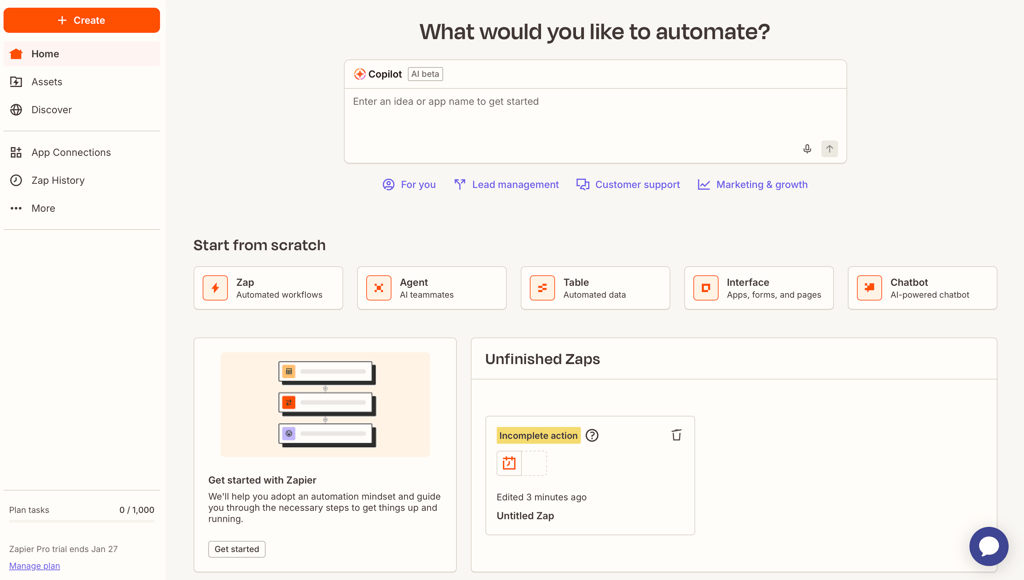
The user interface is very simple and intuitive. I just clicked Zap in the Start from scratch section and built a simple workflow with a time-bound trigger. My Zap means that the platform will find an email, analyze and return data, and send an outbound email every day at a specific time.

Filters, paths, and conditional logic
In each Zap, Actions can flow linearly one by one. However, it’s also possible to apply logic-based rules that trigger an action only if certain conditions are met. That’s why there are Filters – they add conditional logic so the Zap only continues if the trigger data matches the rules the user sets. For example, Zap only proceeds further if a lead is above a specified threshold.
Zapier also has Paths for workflows that require branching. It’s like giving a command to route one way under certain conditions and another way under different conditions. Each Path can contain its own sequence of action steps, so the automation adapts to different scenarios without needing separate Zaps. For example, three types of leads can be routed to three different teams depending on their location – so, you’ll have three paths.


I created Paths and Filters by clicking the plus sign below the trigger. There, you can choose other Flow controls, including Human in the Loop, which automatically sends an action for human approval, and Looping, which runs all the steps located below it repeatedly.
App integrations ecosystem
Zapier has over 8000 integrations, including Salesforce, ChatGPT, ClickUp, and Shopify. Such a broad ecosystem is the main reason why businesses go for Zapier. In most cases, apps’ APIs are automatically updated by the platform. You just need to connect your accounts to Zapier to grant it permission to act on your behalf and re-authenticate them from time to time.
Zapier acts outside of the apps it connects, without embedding directly into them. So, even if you work directly with the tools engaged in Zaps, it won’t interrupt the workflow.
Scheduling and delays
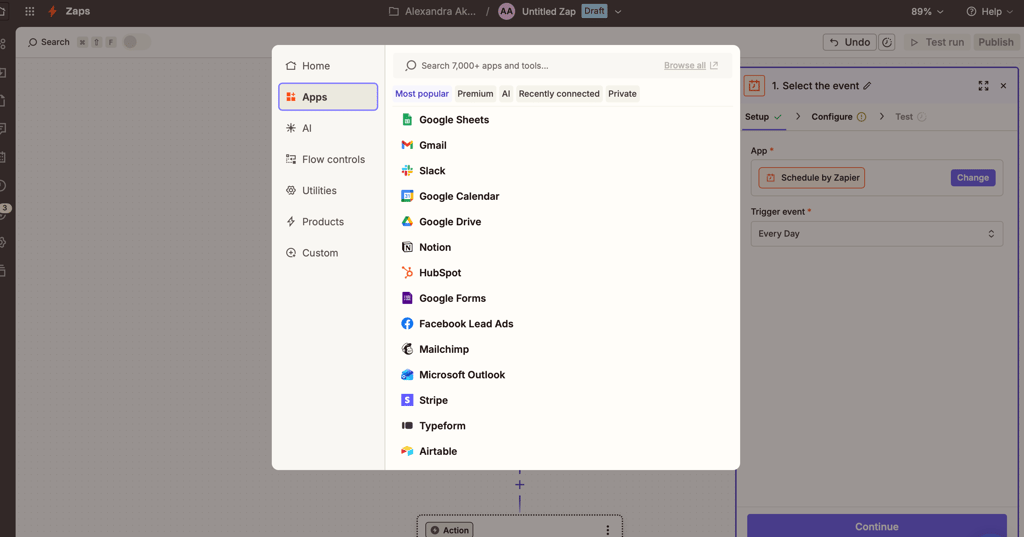
Zapier lets you control when the workflow starts and add delays between steps if needed. When creating my Zap, I used Schedule as a trigger – it starts the workflow based on the chosen timetable (hourly, daily, weekly, monthly, or custom).
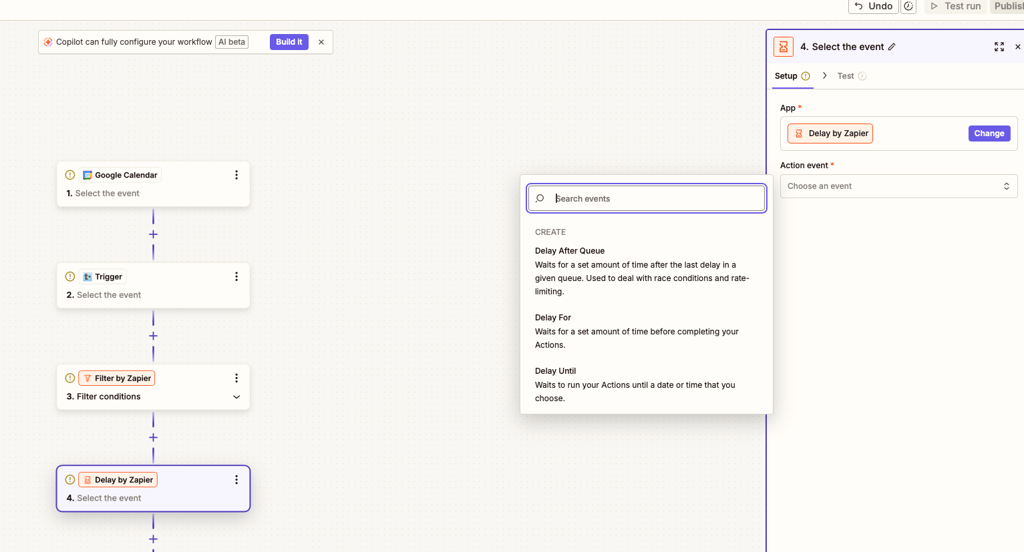
Pauses between steps can be set by clicking Delay in the Action step. There are three Delay types:
- Delay For – pauses an action for a duration, e.g., wait 2 hours before the next action
- Delay Until – pauses an action until a specific date or time
- Delay After Queue – creates a queue of actions and runs them one by one, instead of executing all of them simultaneously
AI-powered automation
Zapier is heavily integrated with AI. It starts with a prompt input window on the homescreen that asks you to describe what you’d like to automate. Based on your prompt, AI generates a workflow that you can further manually modify. Zapier Copilot is also always hanging at the top of Zap, ready to create and enhance your workflow.
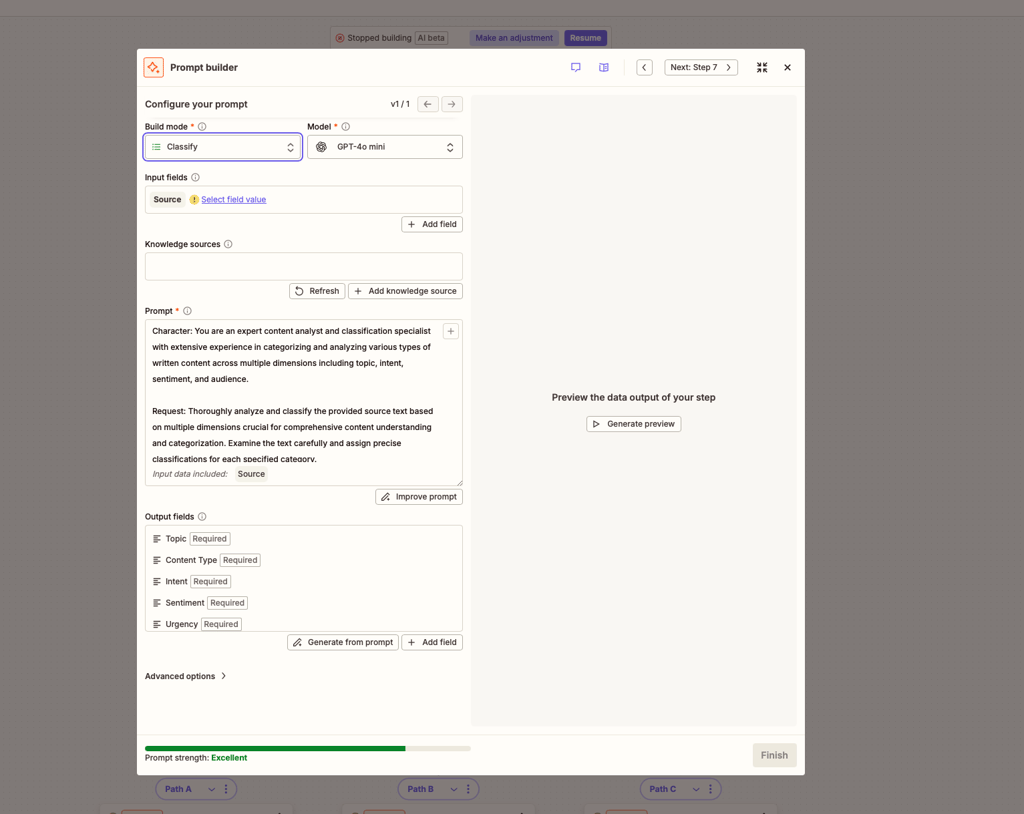
Within the workflow itself, you can add AI by Zapier as an Action step. It can extract, summarize, classify, or generate text so that the steps below receive cleaner, structured inputs. As I clicked AI by Zapier, a Prompt builder opened. There, I could describe in detail what AI had to do with the next steps.
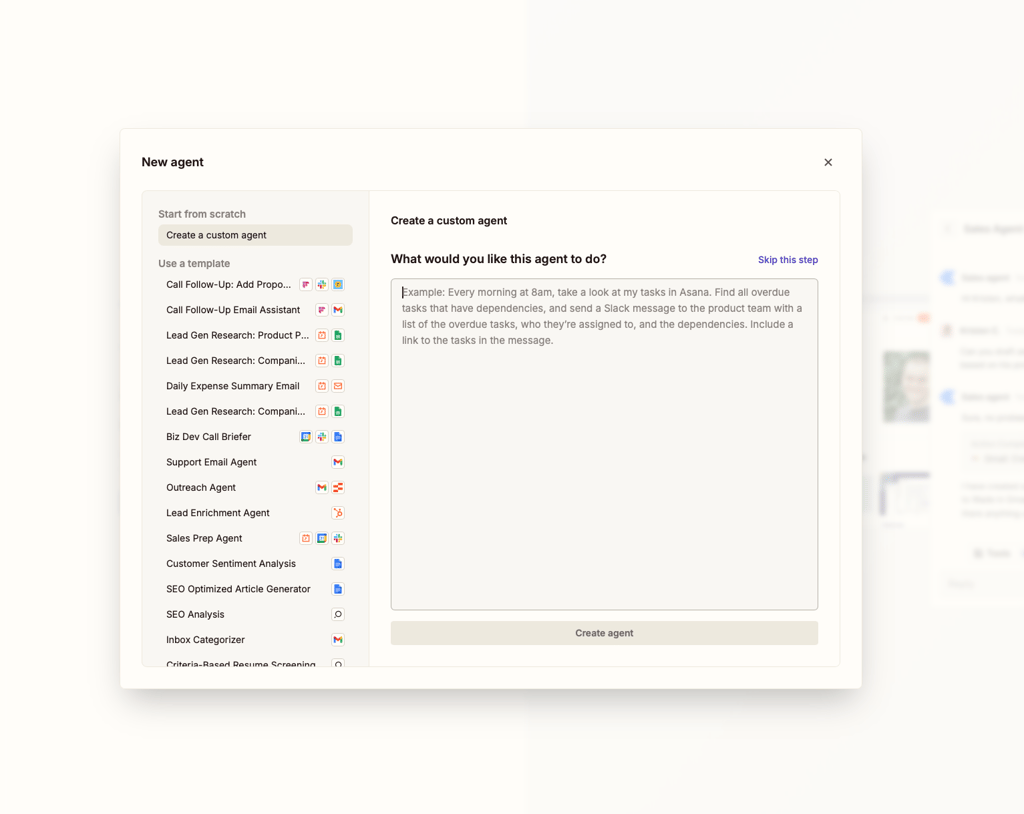
You may also create your own AI agent or choose a template by clicking Agent on the homepage. This agent can be added to any Zap as an Action step to control and modify your workflow. Similarly, you can build a chatbot trained on your internal knowledge base.
Pricing breakdown: is Zapier worth the cost?
Zapier’s plans are based on the number of tasks to be done in all workflows. A task is an action that Zapier successfully completes on your behalf, so commands such as triggers, logic steps, and delays aren’t counted as tasks, as they only describe actions. Failed actions aren’t counted either.
Clients often complain that once you have completed the chosen number of tasks, you need to pay per task. Each extra task costs 1.25 times more than your plan’s task cost.
Overall, there are four pricing plans. The Free plan allows for a maximum of 100 tasks and only two-step Zaps. Polling time, the interval at which Zapier checks for updates, is every 15 minutes. The free version doesn’t have access to AI by Zapier or any kind of customer support.
The Professional plan starts at $19.99/month with 750 tasks. It allows multi-step Zaps, access to all AI products, and a polling time of two minutes. Email support is included, but live chat support is available only for users with more than 2000 tickets per month.
The Team plan starts at $69.00/month with 2000 tasks. It supports up to 25 users and all types of customer support, except for a dedicated technical account manager. The polling time here is one minute. There’s also an Enterprise plan with unlimited users and a custom price.
| Starting price per month | Tasks per month | Number of users | Key limitations | Best for | |
| Free | $0.00 | Up to 100 | 1 | Only two-step Zaps, no customer support, 15-minute polling time | Freelancers with a simple workflow |
| Professional | $19.99 | From 750 | 1 | No team collaboration and no advanced admin and security controls | Building complex workflows without team collaboration |
| Team | $69.00 | From 2000 | 25 | No analytics on Zaps, no sophisticated admin controls, and no dedicated technical account manager | Small and mid-size businesses where multiple people build automations |
| Enterprise | Custom | Custom | Unlimited | Must contact sales to learn pricing and complexity of the platform | Large organizations with high automation volume and strict security |
What real users say about Zapier
The biggest strength noted across Reddit and Trustpilot is the variety of Zapier’s integrations – it lets users connect apps that would otherwise not communicate with each other. Also, many reviewers highlight that Zapier can save hours of repetitive work if set up correctly. All these are especially praised by small businesses and freelancers who don’t require heavy workflows but simple automation of everyday tasks.
The majority of complaints come from users with high automation volume and complex workflows. In their case, the monthly price can increase quickly and surpass $3000.00 as the price for extra tasks is higher. Users conclude that long-term usage must be carefully planned to avoid exceeding the budget.
Also, the learning curve for advanced automation and admin tools can be steep, and initial setup may become complex. Customer support remains another pain point of Zapier. Users report that it’s often slow and unhelpful. Moreover, there’s no support for free users altogether.
Zapier vs other automation tools
Zapier can be compared to three major types of automation tools, each with different trade-offs:
- Make (formerly Integromat)-style platforms. They use a visual canvas, which makes them more suitable for complex automations with multi-branch logic, loops, and data routing. They have a steeper learning curve, but allow users to create non-linear workflows.
- Native integrations. They offer richer functionality and are more time-efficient because they’re built by the same vendor as the app itself. However, when you use a few native integrations, it’s difficult to make them communicate with each other across different platforms.
- AI-first automation tools. They’re outcome-based: you set a goal, and the AI autonomously figures out the steps to achieve it. Zapier has also begun to adopt this approach through AI agents. They can work on their own, as you only set their goals and behavior, and then monitor their activities.
Now, more specifically, Zapier has alternatives on the market that vary in price, functionality, and ease of use. Here are its closest competitors compared:
| Ease of use | Flexibility | Pricing model | Best use case | |
| Zapier | High – easy-to-use, doesn’t require technical skills | Moderate – excellent for simple workflows, but lacks complex branching/loops in basic plans | Task-based – charges for each action in a workflow | Small businesses with simple and moderate workflows and a variety of integrations |
| Make | Moderate – has a steeper learning curve due to the visual canvas | High – has built-in tools for advanced branching, error handling, and data manipulation | Operation-based – charges for each module step | Operations teams that build complex, multi-step visual workflows and complex data mapping |
| Nexos.ai | High – no-code interface built around AI agents and shared workspaces | High for AI-native workflows – supports multi-model use, AI agents, integrations, and operational workflow orchestration | Subscription-based – pricing depends on the selected plan and workspace needs | Teams that want to automate AI-heavy workflows, coordinate agents, and manage operational AI tasks in one workspace |
| WRK | High – user-friendly dashboard and intuitive navigation | Moderate – natively combines human tasks and AI bot tasks | One-time setup fee, and then a credit-based system that charges different amounts for each action (higher cost for human steps) | Businesses that want to automate processes that still require occasional human input |
| n8n | Low – requires technical knowledge and understanding of data structures | Very high – open source, allows custom code, and self-hosting | Execution-based – charges per workflow execution. Free if self-hosted | Developers and privacy-focused teams needing full data ownership and custom logic |
| Power Automate | Moderate – easy for basic flows, but complicated for building advanced logic | High within the Microsoft ecosystem, but limited with third-party SaaS tools | User-based – charges per license | Corporate environments deep in the Microsoft ecosystem |
Best alternative: Nexos.ai
Not everyone choosing an automation tool will need the same setup. Zapier is useful if you want broad app coverage and clear trigger-action workflows, while others may care more about AI-native automation, model flexibility, and a shared workspace for operational AI workflows. That’s where Nexos.ai becomes worth considering.
What stood out to me about Nexos.ai was that it felt less like a direct Zapier replacement and more like an AI-focused orchestration layer. Compared to Zapier, Nexos.ai feels more focused on no-code AI agents, multi-model support, and workflows that can process information, generate content, and work across connected tools. Its approach is more focused on managing AI-driven tasks in a single workspace than on building long chains of app-to-app automations.
Nexos.ai isn’t necessarily the better option if your main priority is Zapier’s huge integration library. However, if your workflows are increasingly AI-heavy, I’d consider it a strong alternative to evaluate alongside Zapier.
Getting started with Zapier: what setup is really like
To start, you only need to provide Zapier with your email address and set a password. Then, you see a home screen with an AI Copilot that can build a rough workflow from a prompt. Alternatively, you can go to the Start from scratch section and select what you’d like to create: a Zap, Agent, Table, Chatbot, or Interface. Check how to build the first Zap in my hands-on test above.
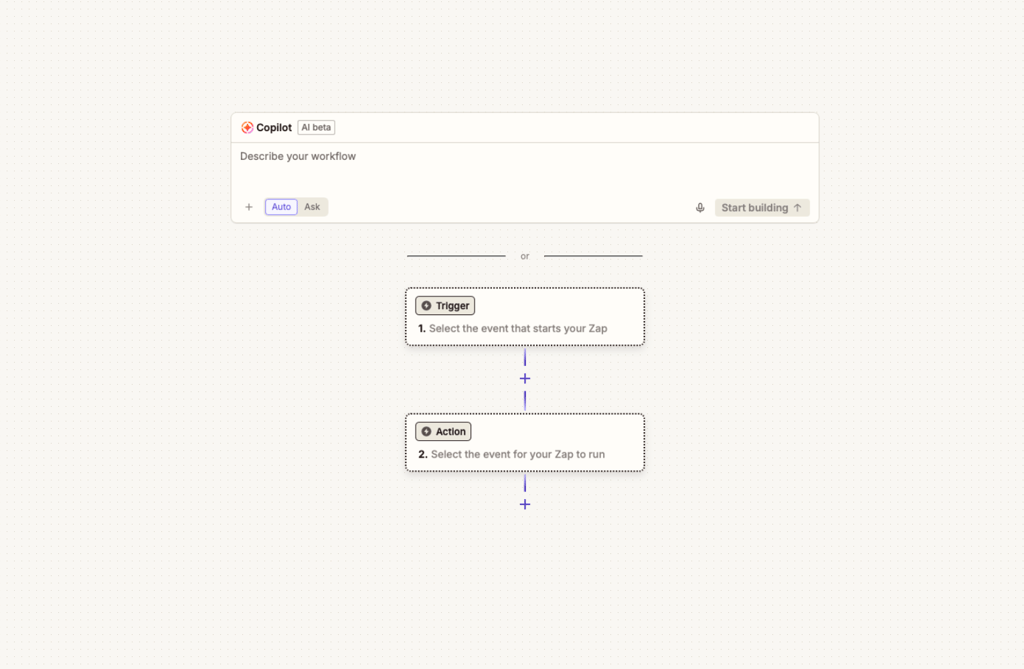
The navigation is intuitive, and AI Copilot can help generate your first workflows. However, the real initial setup is about connecting multiple apps, which takes time. Some apps require admin access, API keys, or additional approval steps. Also, not all apps support deep functionality – some are limited to a few actions and triggers.
As you start Chatbot or Agent creation, you automatically activate a 7-day free trial since these AI-based functionalities aren’t included in the free plan. Also, counting tasks isn’t intuitive at first, so they may pile up quickly. For example, a workflow with only five tasks that runs 1000 times results in 5000 tasks.
Final verdict: should you use Zapier?
Yes, you should use Zapier if you need an automation tool for straightforward, simple workflows that require numerous integrations. Zapier is also easy to navigate and connect to apps, compared to other tools. It’s not the best fit if your workflows have a high automation volume or you’re scaling rapidly – in this case, the price will outweigh the pros.
Zapier remains one of the best automation tools out there, but it’s on the pricier side for large businesses. It has a free 7-day trial, so you can test it out yourself to check if it suits your workflow. You can also experiment with Make, Zapier’s alternative for more complex, non-linear workflows with visual representations, and n8n, a much more technical, but the most cost-effective automation tool.
FAQ
Is Zapier safe and legit?
Yes, Zapier is a safe and legit tool. It’s SOC 2 Type II, SOC 3, and GDPR-compliant, and undergoes independent, third-party audits every year.
Is Zapier free to use long-term?
Yes, Zapier is free to use in the long term, but only for up to 100 monthly tasks. This free plan also has limited access to features, AI, and customer support.
Can Zapier replace custom integrations?
Yes, Zapier can replace custom integrations for many common business workflows like connecting CRMs, marketing platforms, support systems, and internal databases. It allows non-technical teams to build and maintain integrations without complex engineering. However, Zapier can’t fully replace custom integrations when you need very low latency, real-time processing, and deep access to private or undocumented APIs.
Why does Zapier get expensive at scale?
Zapier gets expensive because it uses a task-based pricing system. This means that the larger your workflows grow, the more you have to pay. Also, every task that exceeds your monthly package is charged at 1.25 times the standard price.
What are the best Zapier alternatives?
Make is the best alternative for more sophisticated, non-linear workflows built on a visual canvas with advanced branching and loops. n8n is the most cost-efficient automation tool for a team with technical resources, as it requires a more complex setup and technical knowledge. You can check out our n8n and Make side-by-side comparison for more details.