Claude Code review: an in-depth guide
Being behind major reports like The Mother of All Breaches and RockYou2024, our in-house cybersecurity experts and journalists provide unbiased, real-world testing and in-depth analysis.
We maintain complete transparency by openly sharing our testing methodologies with our audience.
Learn more

Anthropic’s AI code assistant Claude Code is a tool designed to streamline development workflows by providing intelligent code suggestions, automated edits, and context-aware guidance directly within its terminal.
This Claude Code review outlines its core features, compares its performance with other top coding assistants, and breaks down the pricing. Also, I share best practices to help you get the most value out of Claude Code in day-to-day tasks.
What is Claude Code
Claude Code is a developer-focused command-line tool for agentic coding. Available within Anthropic’s Claude AI, it’s designed to generate, analyze, and refactor software. Since it understands natural language requests and can turn them into working code, it’s a great option for beginners and users with limited experience.
Claude Code offers flexibility, as it’s accessible via the CLI, terminal, and can be integrated into IDEs. This allows developers to interact with it directly within their preferred coding environment.
The primary aim behind Claude Code is to reduce repetitive coding tasks and act as a programming assistant. Therefore, it helps you save time as, instead of clicking around in a traditional CLI, you only need to describe what you’re building or debugging, and Claude will respond with structured, context-aware suggestions directly in your console.
Claude’s most notable feature is Plan mode, which outlines step-by-step solutions without making any changes. This way, you can confirm the approach, request adjustments, or go deeper into specific implementation details without a risk of irreversible changes.
Key features and interface
Claude Code makes coding feel more accessible and less tedious, all thanks to its key features like Plan Mode, Scratchpad, and Auto Edit mode. I review Claude Code’s key features and interface in more detail below.
Plan Mode
Plan Mode is great for conducting safe code analysis. It instructs Claude to create a code by analyzing the codebase with read-only operations. Therefore, you can instruct Claude to propose high-level changes and safely review them before application.
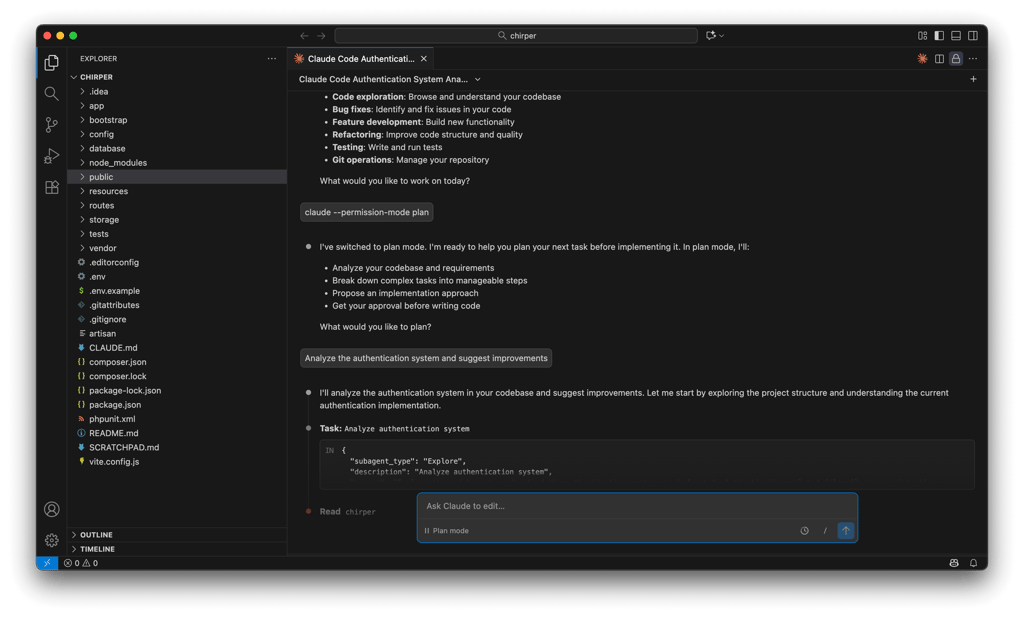
Whether you want to test a multi-step implementation or explore code, Plan Mode gives you a safe environment to do so. And users don’t have to worry about endangering their projects.
Auto Edit mode
Claude Code’s Auto Edit mode lets the assistant modify IDE configuration files automatically when running in JetBrains or VS Code, streamlining certain workflows. While it’s convenient, this mode can bypass permission prompts for bash execution and, as a result, increase security risks. For this reason, it’s recommended to enable manual approval for edits, restrict usage to trusted prompts, and stay aware of which files Claude Code can modify.
Scratchpad
Claude Code doesn’t have a built-in scratchpad panel. Instead, there’s a Claude sidebar for chatting and making code changes. Users can create their own scratchpads as files, such as SCRATCHPAD.md or plan.md, which can be opened in any layout, including tab and split-view.
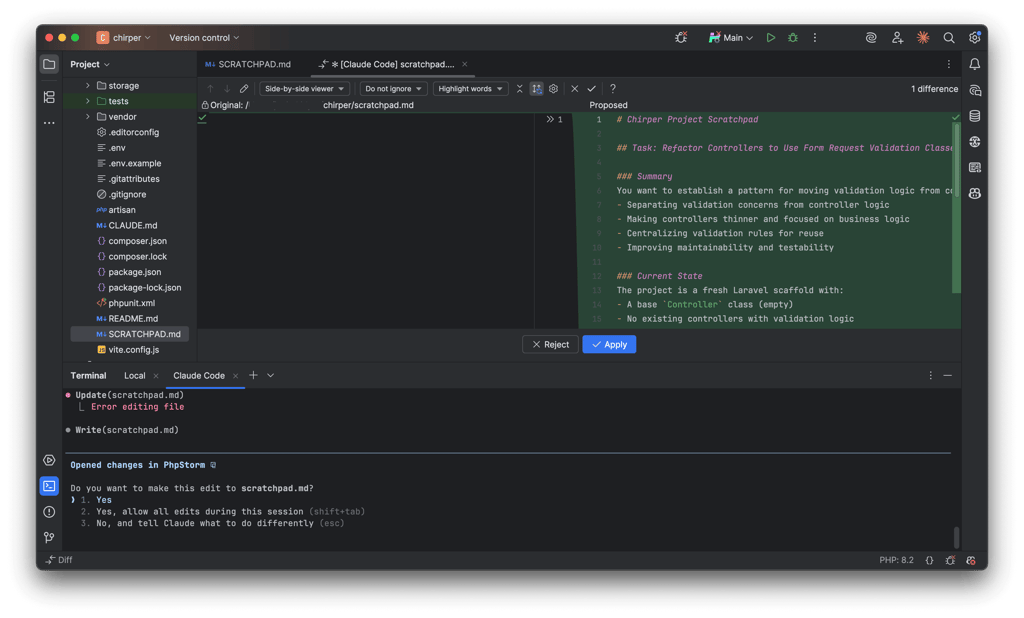
For complex, multiple-step tasks, Claude’s scratchpad can be used to log errors, steps, and progress. Later, it can serve as a checklist to work on each issue separately.
Memory and context management
Claude Code can remember your settings across sessions, including style guidelines and common commands, used in your workflow. So your preferences, project rules, and personal shortcuts are automatically applied, keeping your work consistent and aligned across all sessions.
Claude Code has 4 memory types, each serving a different purpose:
- Enterprise policy. It allows setting organization-wide rules, including coding standards, security guidelines, and any compliance requirements developers must follow.
- Project memory. It is shared by the project team and focuses on day-to-day work, such as architecture notes, coding patterns, and the workflows the team relies on.
- User memory. It’s where your personal preferences are stored, including preferred code style, favorite tools, and the shortcuts you use every day.
- Project memory. It’s where your personal settings for a single project are held.
When you launch Claude Code, all memory files are automatically loaded into its context. Higher-level files in the hierarchy are loaded first, providing a foundation that more specific memories can build upon.
Claude Code reads memories recursively, meaning that it starts in the current working directory and then moves up the directory tree (stopping before the root), loading any CLAUDE.md or CLAUDE.local.md files it finds.

In addition, Claude Code looks for CLAUDE.md files inside folders under your current working directory. These files aren’t loaded right away, but are used only when you work with files inside the folders. This way, Claude applies the right rules and settings for both the general folders for your organization and the specific ones for each project.
Integrations and extensions
Claude Code is designed to seemingly integrate into the way developers work. You can use it through popular extensions like VS Code and JetBrains IDEs. The installation is simple. It can be done either through the IDE marketplace or the command line.

Claude Code is built to work smoothly with large projects. Its commands can be customized to help automate routine tasks and establish consistent workflow. This lets teams stay organized and follow coding standards more easily, keeping projects consistent and efficient across the board.
Tips and best practices
To get the most out of Claude Code, it’s good to know what works and what doesn’t. Below, I share some tips and best practices so you can achieve the best results using this tool.
Setup and workflow tips
To get the most out of Claude Code, first, you need to set it up properly. Keep in mind that it automatically pulls context into prompts, consuming time and tokens. However, this can be optimized through environment tuning, that is, creating CLAUDE.md files and adjusting them to fit efficient prompt guidelines.
You can also use Plan Mode to outline tasks and Auto Edit mode to direct changes. Another good practice is to use shortcuts that save time when switching modes. Lastly, consider installing a CLI or a VS code extension to cut down on context switching and speed up routine tasks.
Managing large codebases and permissions
When working with large codebases, managing context and permissions is key. In this case, a good practice is to use @‑tags and memory files to control what Claude Code focuses on, and customize permissions to reduce repetitive prompts. Also, consider using sub-agents to handle heavy searches, keeping your workflow fast and organized.
Comparison with other tools
Claude Code is not the only AI coding tool on the market. Here’s how Claude Code looks compared to other alternative tools:
| Tool | Frontend and UI | Context management | Speed | Cost | Ease of use |
| Claude Code | Terminal, CLI, and IDE | Memory system, CLAUDE.md, @‑tags | Slower search for large codebases | $17.00/month (with Claude Pro) or billed per session | Slight learning curve |
| Cursor | IDE | Session-based, limited memory | Faster for targeted backend tasks | $20.00/month | Simple |
| Codex | Limited UI, API-driven | Limited, session-based | Fast for small tasks, slower on full-stack | $20.00/month | Simple |
Each of these tools has different strengths. Cursor excels at backend refactoring, Claude Code shines in complex full-stack workflows, and Codex is versatile for generating code quickly across multiple tasks. However, which of these tools is the best depends on the type and size of project you’re planning to work on.
In terms of pricing, Claude Code is an accessible option. Its starting price is $17.00/month, while Cursor and Codex start at $20.00/month. However, used via the Claude Console account, Claude Code uses tokens, which might significantly increase its price. On the other hand, Cursor applies a flat fee.
Conclusion
Claude Code is an AI code assistant that combines context-aware suggestions, automated edits, and flexible integration to streamline coding. With features like Plan Mode, Auto Edit mode, and customizable commands, it’s especially useful for handling large projects and maintaining consistent workflows.
However, it has a bit of a learning curve, and its Auto Edit mode carries some security risks. For some users, Claude Code can be a great solution, while others might prefer alternative tools, such as Cursor.
FAQ
Is Claude Code better than Cursor?
That depends on what you are looking for. Claude Code excels in contextual understanding and code explanations, making it great for complex logic. On the other hand, Cursor is faster for in-line code suggestions and integrates tightly with IDEs. Choice depends on whether clarity or speed matters more.
How much does Claude Code cost?
Claude Code’s pricing varies by plan and usage tier. It’s available with Claude’s Pro and Max subscriptions, which range from $17.00/month to $100/month. When used with Claude Console account, Claude Code uses API tokens priced at standard API pricing.
Does Claude Code support large codebases?
Yes, it can handle large projects in chunks or via modular queries, though performance and response times may degrade with very extensive code. Optimal use involves breaking code into manageable segments for analysis or refactoring.
Can beginners use Claude Code?
Yes, Claude Code can be used by inexperienced users. Its explanations are beginner-friendly, offering step-by-step guidance and code suggestions. However, some advanced features may require programming familiarity. Beginners benefit most when combining it with documentation and tutorials.
Is Claude Code available via API?
Yes, developers can integrate Claude Code into apps, IDEs, or workflows through its API. This allows automated code generation, analysis, or refactoring within custom environments, making it versatile for teams and automation.