How to set up a VPN
Our in-house cybersecurity experts and journalists, renowned for major reports like The Mother of All Breaches, conduct transparent, unbiased VPN testing and in-depth analysis.
With 750+ articles crafted based on real-world research, we empower readers to make informed purchasing decisions through first-hand expertise.
Learn more

A VPN, or Virtual Private Network, is a tool that encrypts your internet connection and hides your IP address to improve your online privacy and security. Learning how to set up a VPN is one of the easiest ways to protect your data on public Wi-Fi, browse more privately, and access your online accounts more securely from anywhere.
Fortunately, modern VPN services are designed to be beginner-friendly, and most can be installed and configured in just a few minutes. In this guide, I explain how to set up a VPN. I also cover important VPN settings, troubleshooting tips, and best practices to help you get the most secure and reliable connection possible.
Different ways you can set up a VPN
You can get a VPN on almost any device you have, including smartphones, computers, and even routers. The setup is quite simple, and there are multiple ways you can set it up on your device.
If you’re looking for the quickest way to get a VPN, I recommend installing it via a provider’s app. This is the easiest method. However, more advanced users can also set up a VPN manually or configure it on a router to protect their entire home network.
Here are simple guides showing how to set up a VPN in different ways:
- Set up a VPN via app
- Set up a VPN on Windows
- Set up a VPN on macOS
- Set up a VPN on Android
- Set up a VPN on iPhone
- Create your own home VPN network
Set up a VPN via app
The easiest way to set up a VPN on your device is to use the dedicated apps. Premium providers support all major operating systems, so you can secure your connection within a few clicks. Here’s how to set up a VPN via the app on any device:
-
Download and install a VPN; my top pick is NordVPN, now 75% OFF

-
Open the app and sign in or register for an account

-
Connect to a server of your choice
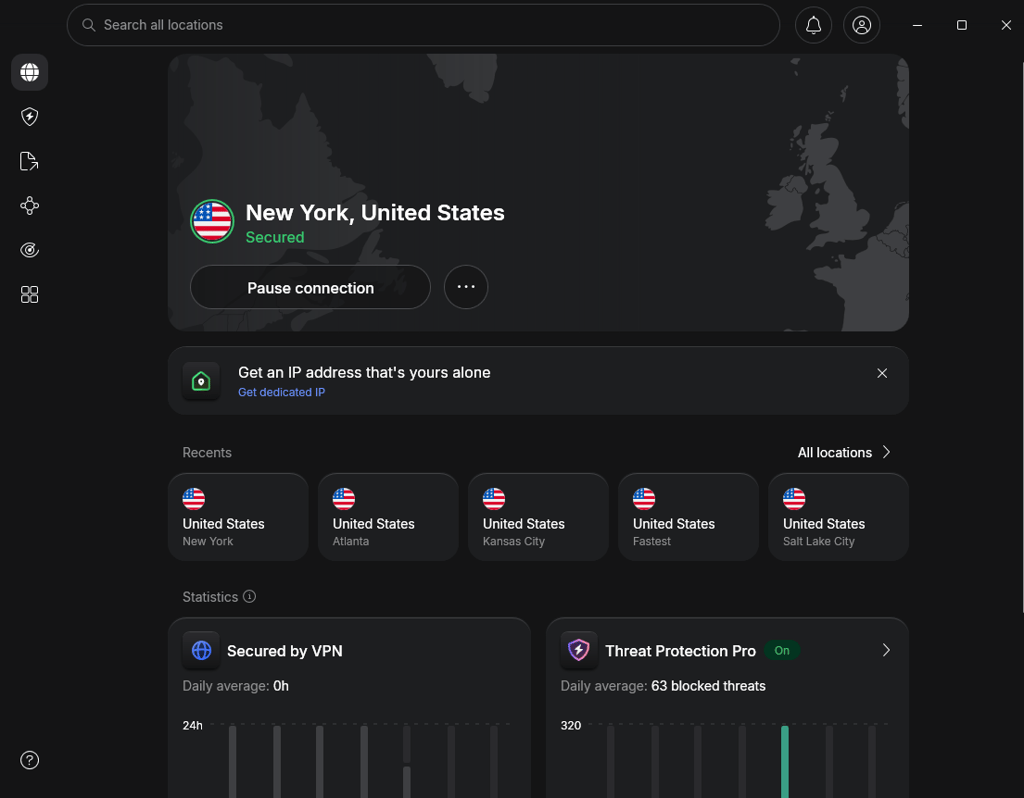
- You’re all set
Set up a VPN on Windows
If you’re planning to set up a manual VPN connection on Windows 10 or Windows 11, it’s important to know that the built-in VPN client has limited protocol support. Most premium VPN providers rely on modern protocols like OpenVPN and WireGuard, which are not supported natively by Windows. Instead, the built-in client mainly supports IKEv2, L2TP/IPsec, PPTP, and SSTP. Because of this, installing your VPN provider’s dedicated app is usually the easier and more secure option.
However, if you're still wondering how to go about doing it, here are the steps that you should take.
- Find an outside server to use for your connection. You can set it up yourself, or you can use a third-party VPN service provider.
-
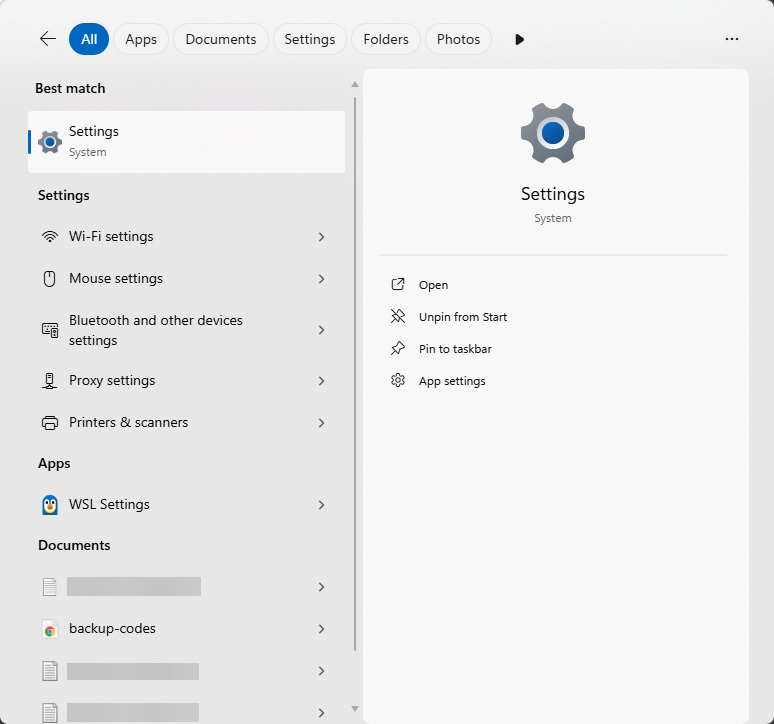
Click on the Windows taskbar, type in Settings, and open it.
-
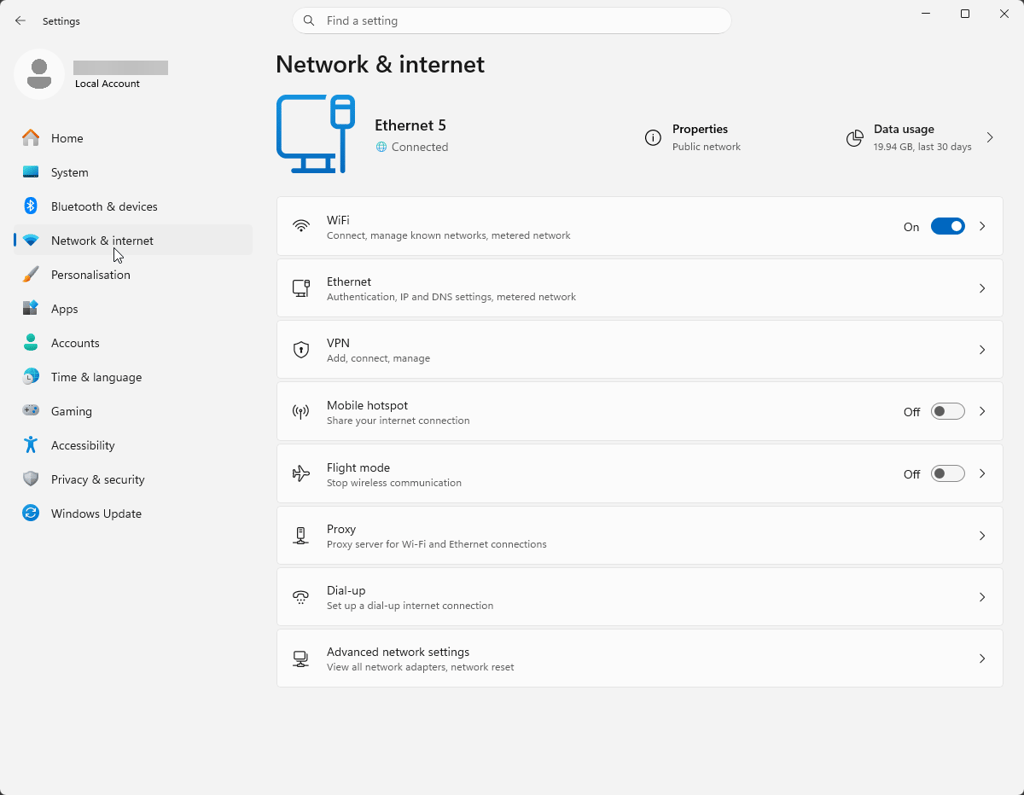
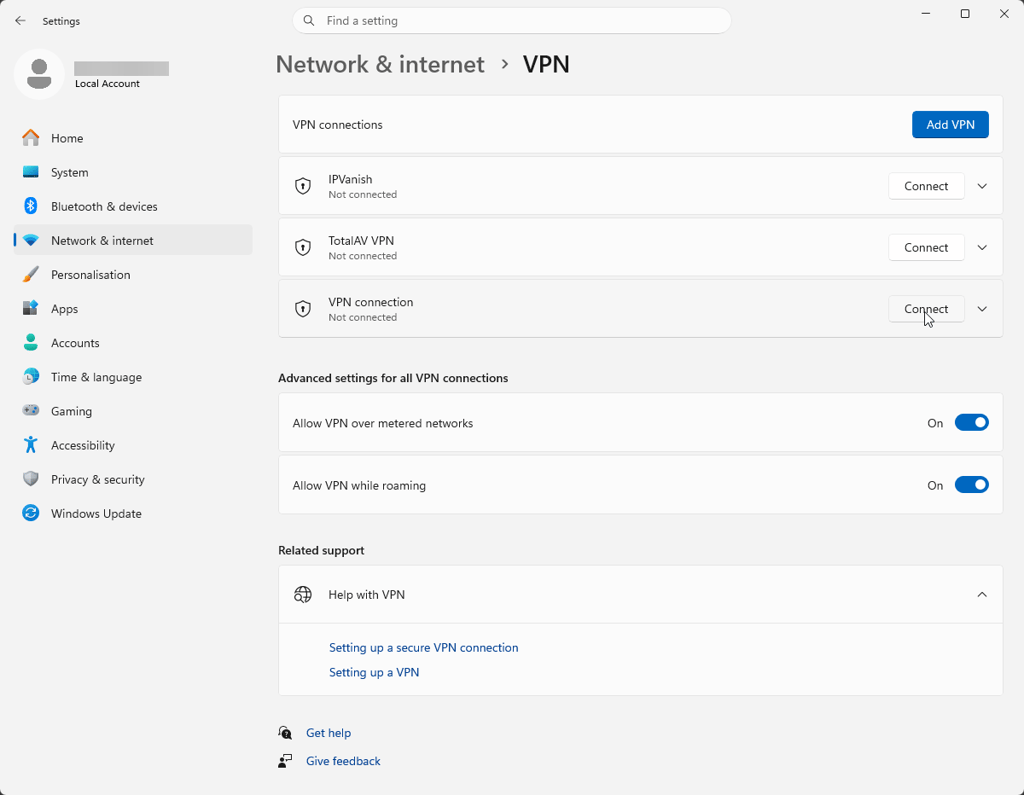
Click on the Network & Internet section from the left-side menu, and then open the VPN subsection.
-
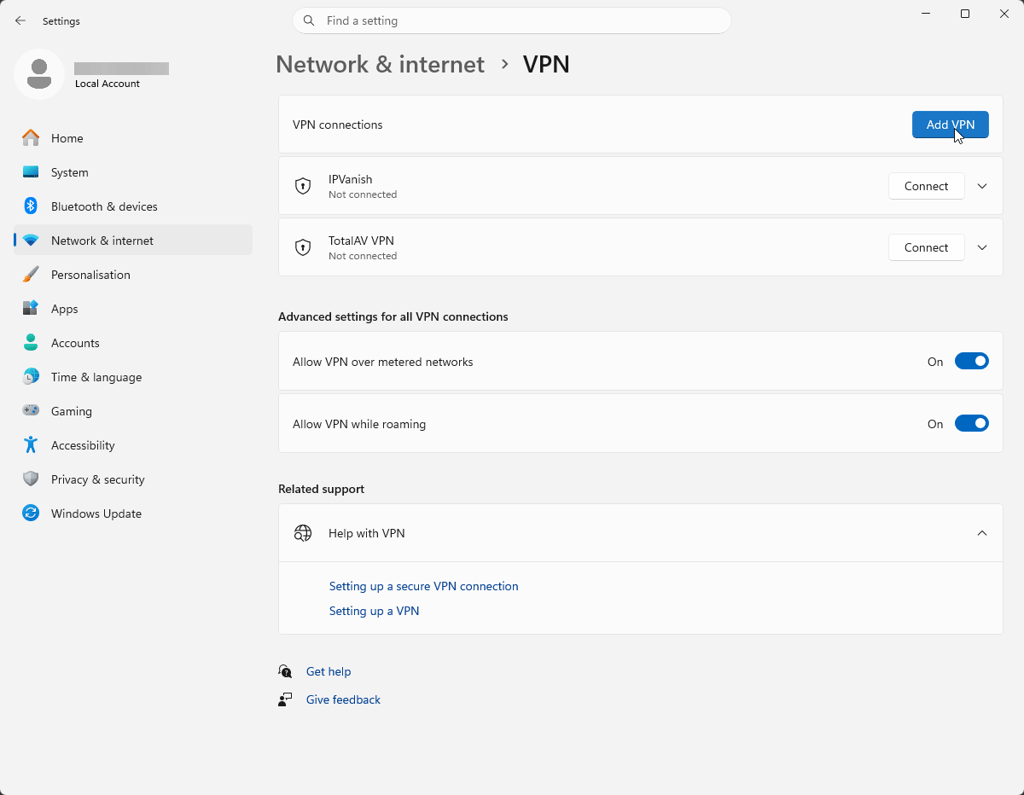
Tap on Add VPN at the top of the VPN subsection.
-
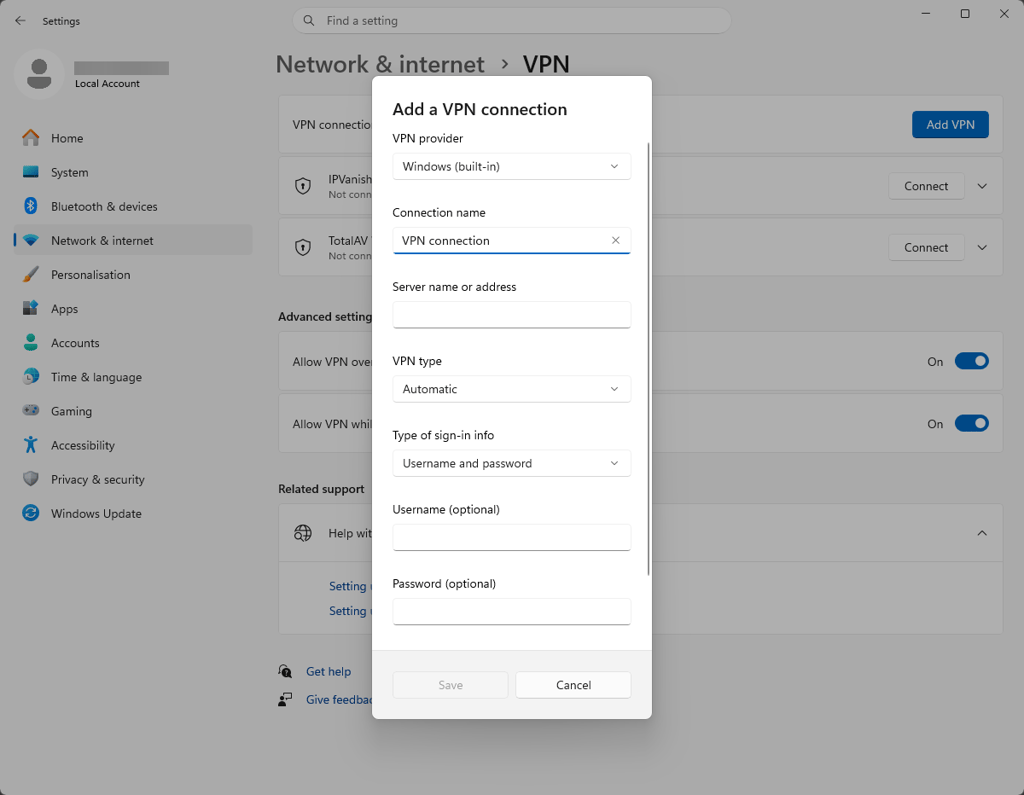
Enter your credentials, and tap Save when you're finished.
-
Once set up, you can connect to the newly created VPN tunnel anytime by two methods: either by navigating to Settings > Network & Internet > VPN and tapping Connect under your newly set-up VPN tunnel, or by navigating to the Quick Settings, tapping VPN, and clicking Connect.
Set up a VPN on Mac
If you'd instead use a built-in client that's included on all macOS versions, your route might take you a bit longer. Plus, you may have to forfeit the bonus features that many VPN providers offer to their clients.
However, here's how to do it:
- Find a server that will make your VPN connection possible.
- Once you have credentials and the server address, head to System Settings and click Network.
- Once you're there, click on the … icon. There, click Add VPN Configuration and select the tunneling protocol.
- Enter admin details.
- Come up with a name and click Create.
- Fill in the data supplied by your VPN service provider.
- Click Authentication Settings and enter your credentials used to log in to your service.
- After it's done, you can click Connect to enjoy your new VPN service.
Setting up a VPN on Android
Getting a VPN to work on your smartphone works pretty much the same way as with the other apps. The quickest way to get a VPN on Android is to install it via the app:
- Open the Google Play Store and find your chosen VPN provider's app. I recommend NordVPN, now 75% OFF
- Press the Install button and wait for the installation to finish
- Open the VPN app and sign or log in
- Connect to a server and you’re all set
TIP: If you're using a smartphone that got cut off from the Play Store (Huawei), you can likely find the .apk files on your VPN provider's page. Then, you'll have to install it from the downloaded files.
You can also set up a VPN on Android manually:
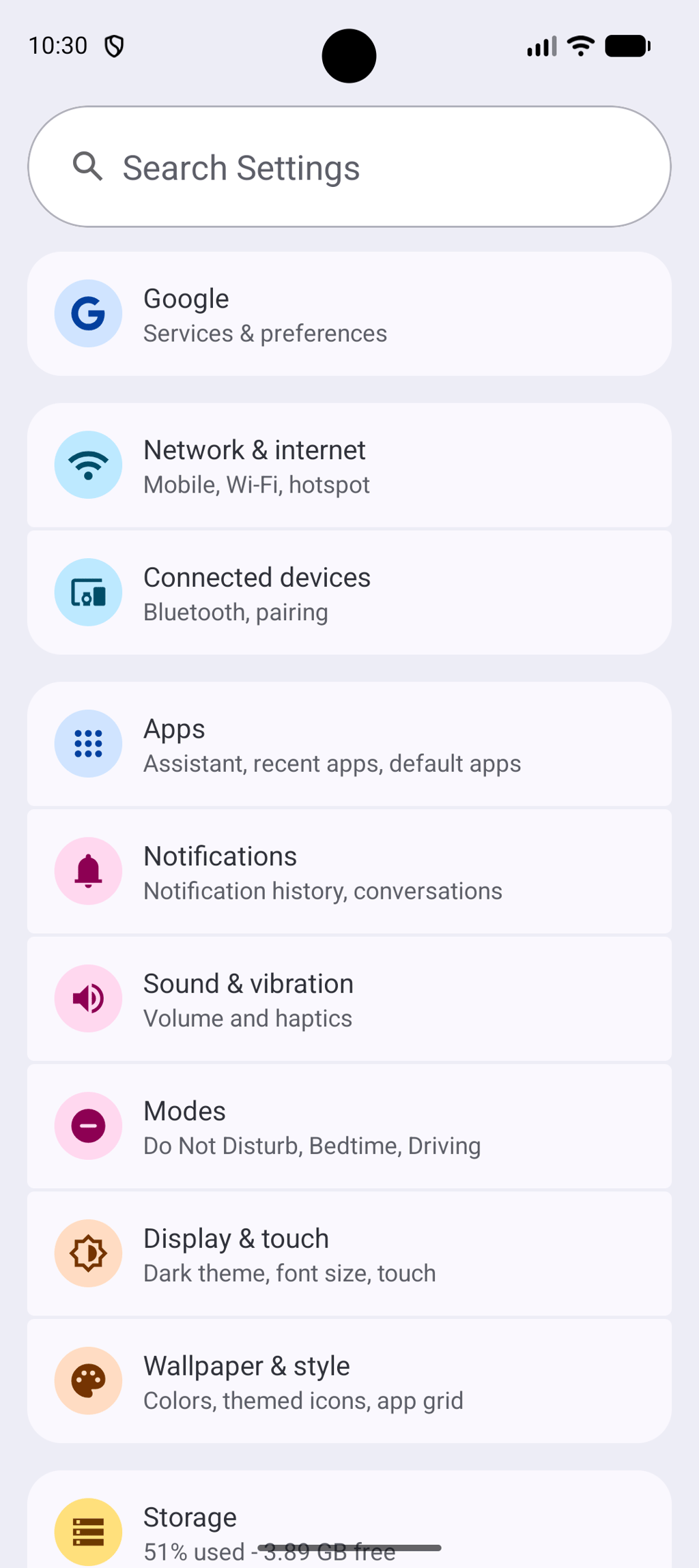
- Open the Settings menu on your Android phone or tablet
-
Go to network settings: Network & internet
-
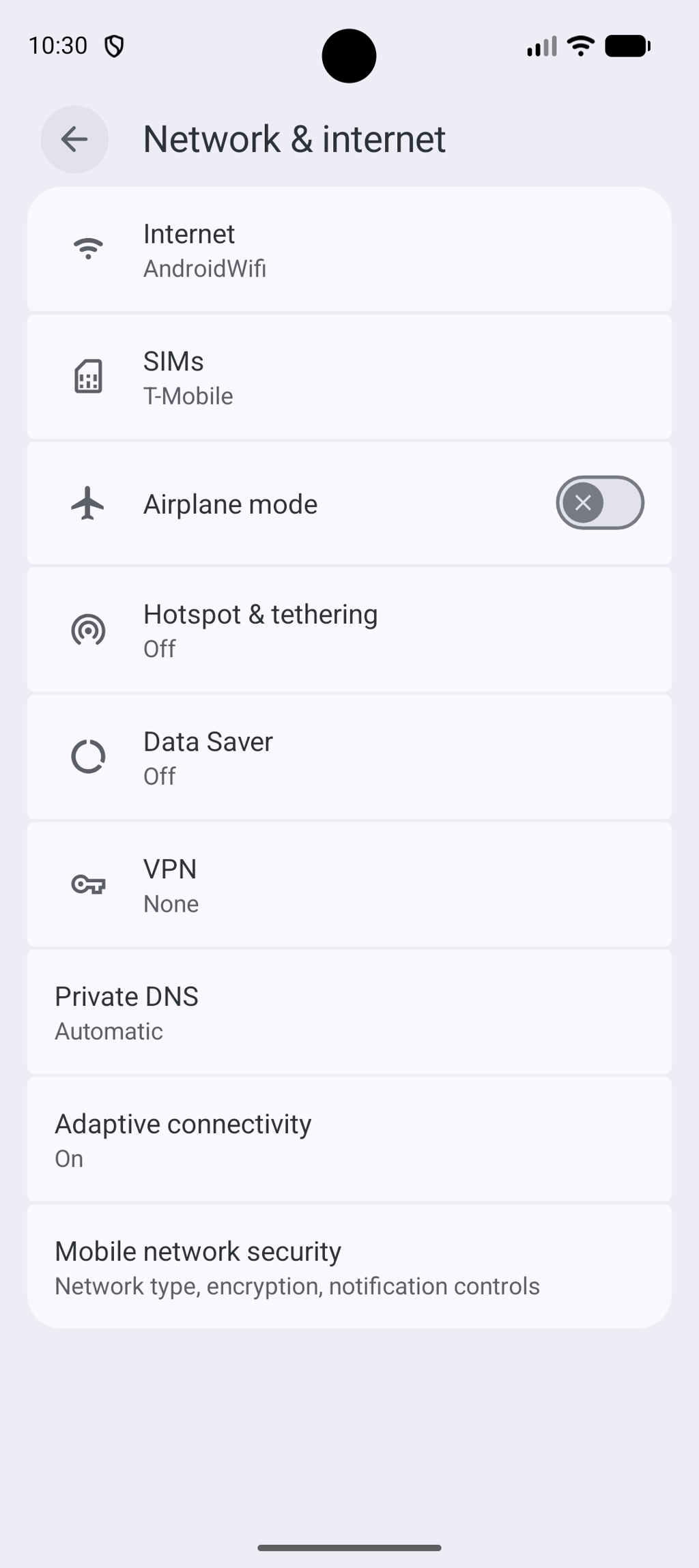
Select VPN and press on the plus (+) button
-
Enter your VPN provider’s information
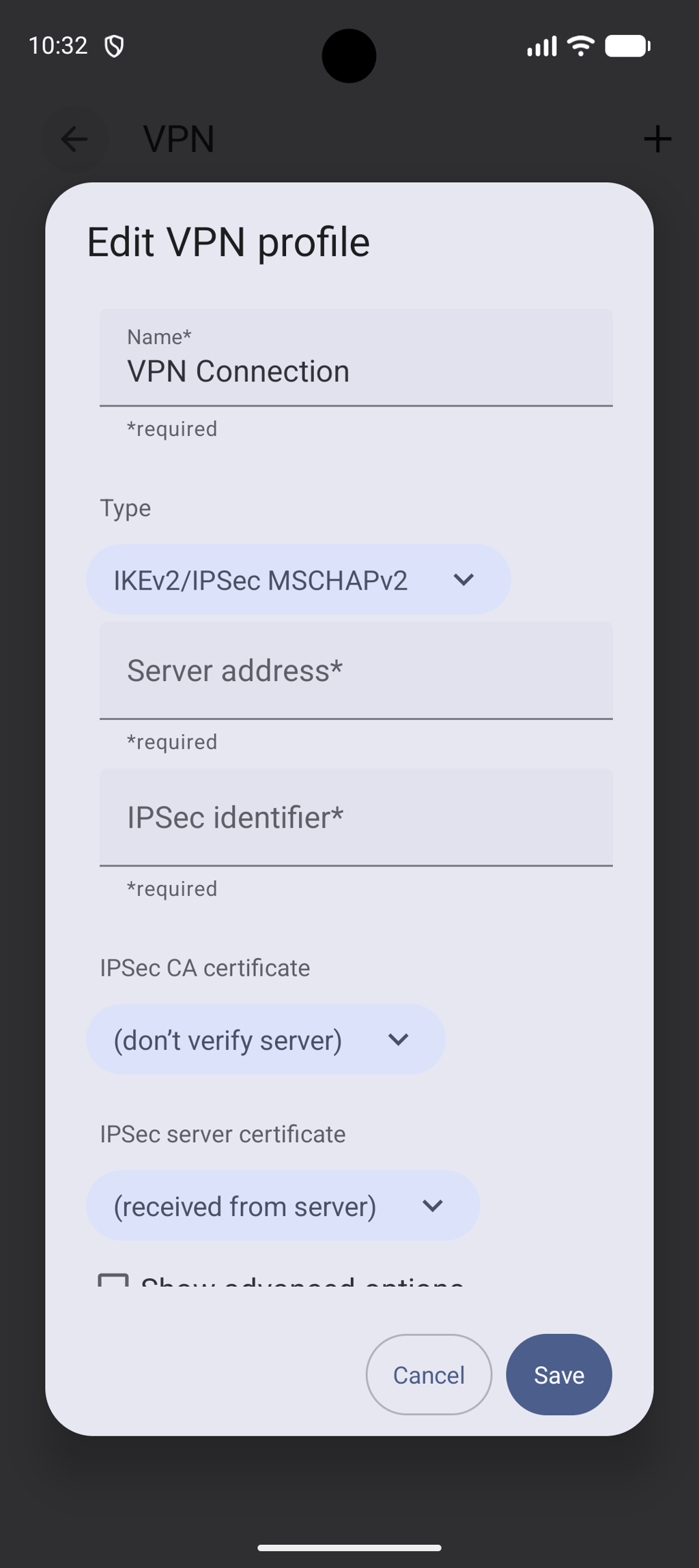
- Hit Save and you’re done
Setting up a VPN on iPhone
Whether you're using an iPad or iPhone, your route to getting a VPN will be identical. The easiest way is to install a VPN on iOS via the app:
- Open Apple’s App Store and search for a VPN provider's app; my top pick is NordVPN, now 75% OFF
- Tap Get and wait until the installation is complete
- Then, go to the app and log in or register an account
- Connect to a server and you’re all set!
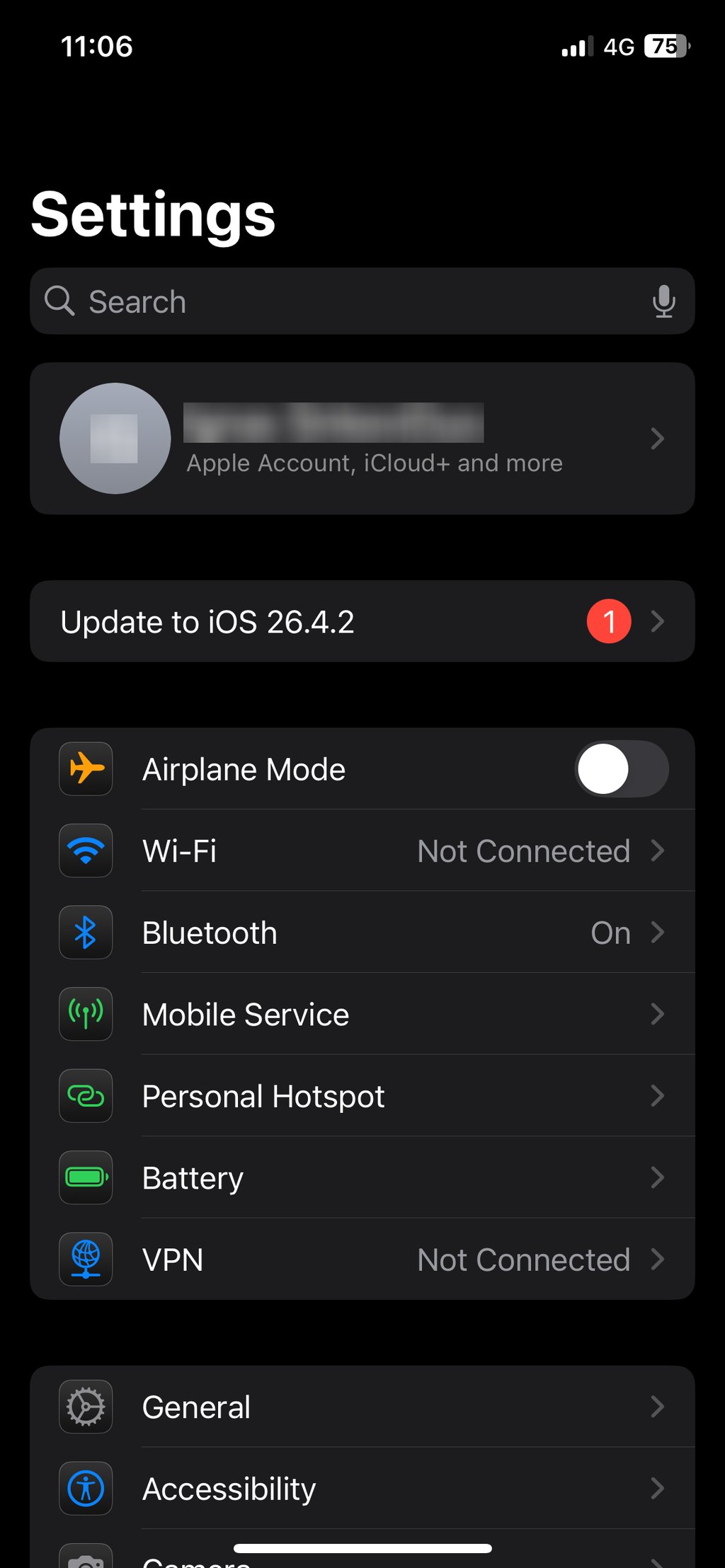
Alternatively, you can set up a VPN on iOS manually:
- Go to Settings on your iPhone or iPad
-
Navigate to Settings > VPN
-
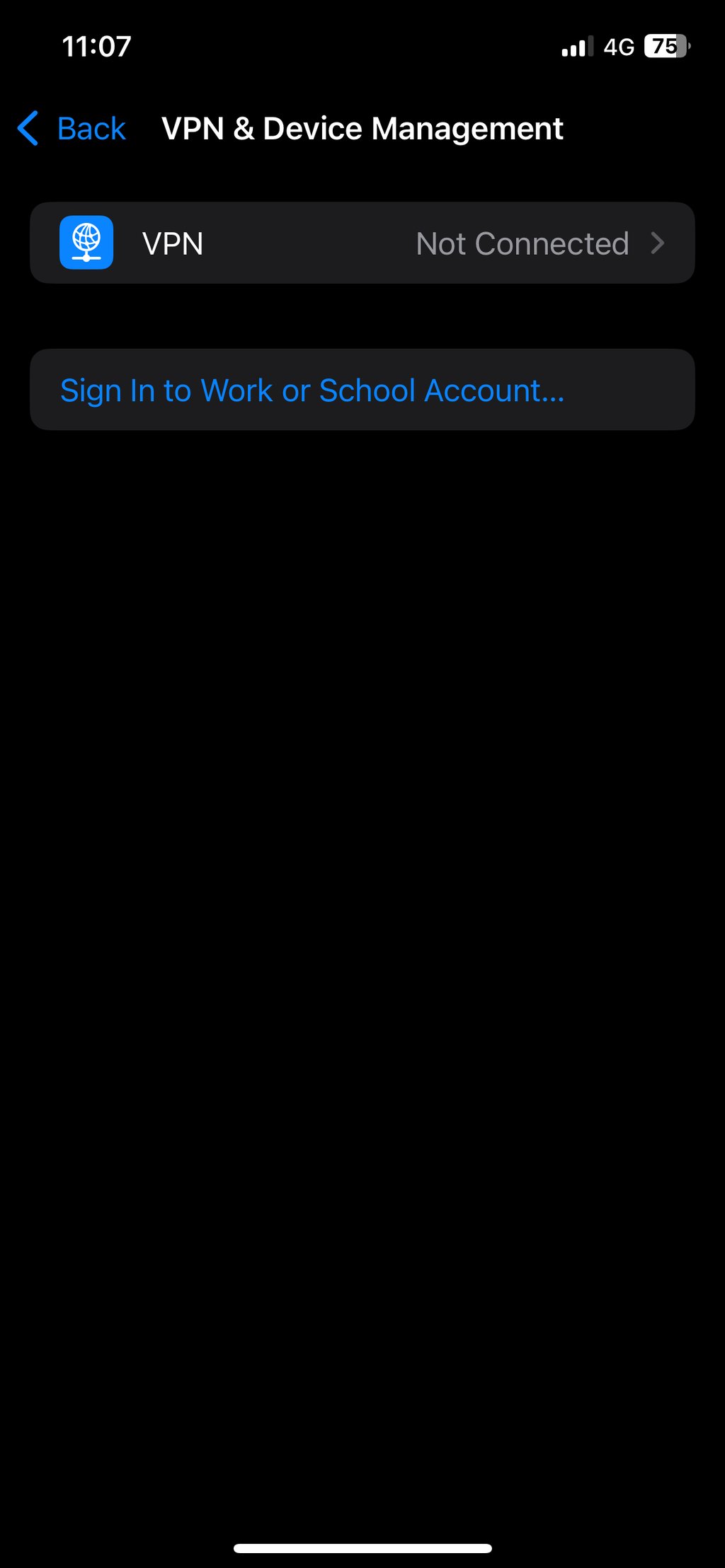
Add VPN Configuration
-
Pick the tunneling protocol and enter the VPN provider’s information
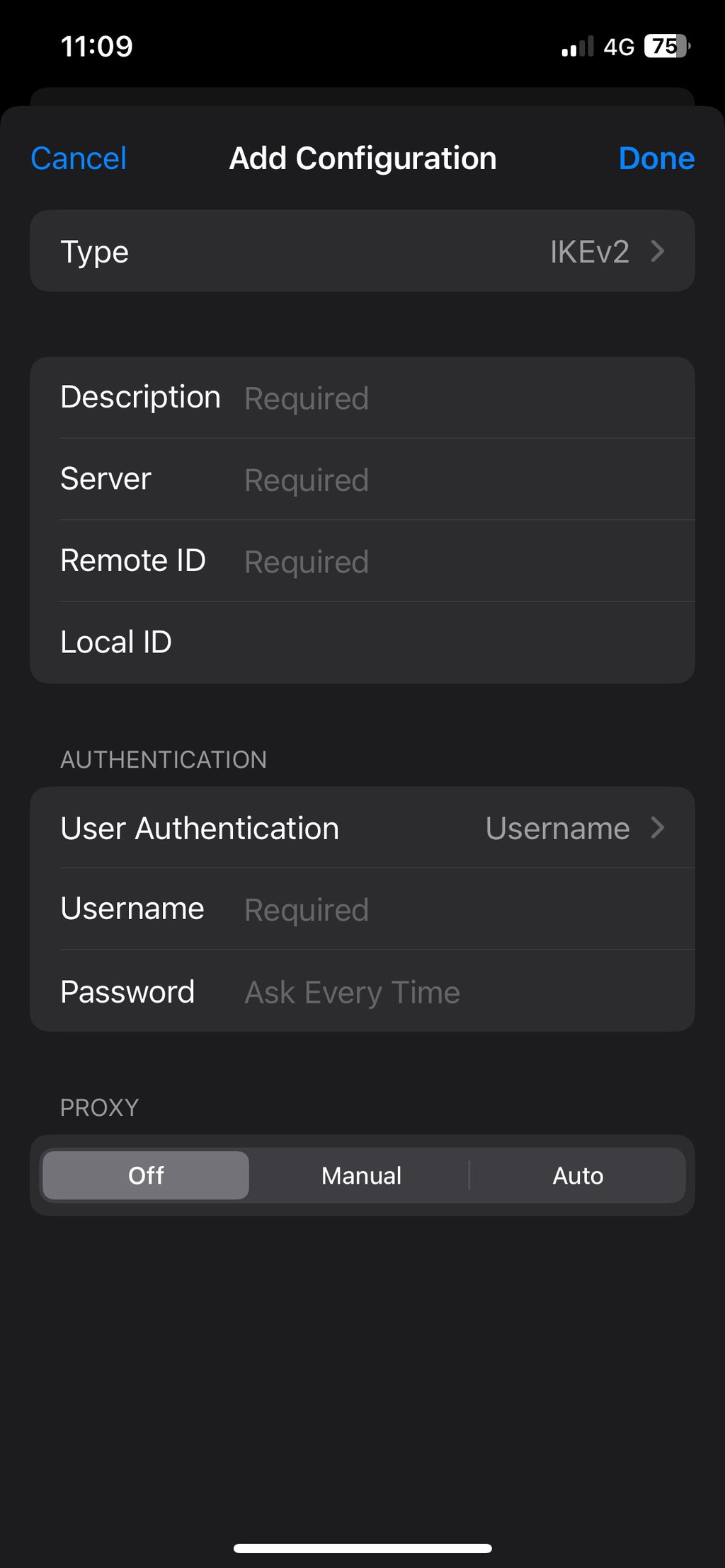
- Click Done and you're all set
How to set up your own VPN
If you're tech-savvy, hosting your VPN servers might also be a good option. There are many ways to do it: you can set it up in the cloud as a virtual private server, on your router, or on a separate dedicated physical machine.
You can read our detailed guide on how to set up your own VPN server.
Setting up a VPN on a router
Before you start setting up a VPN, you first have to make sure that your router supports VPNs. Some of them can only act as a VPN server themselves, while others can be VPN client compatible. You can configure the latter with the best router VPN.
In case your router supports a VPN client, the setup process is usually similar across many router models:
- Log in to your router’s admin panel.
- Go to the Advanced tab or settings section.
- Locate and enable the VPN client feature.
- Create a new VPN profile.
- Choose a supported protocol, such as OpenVPN or WireGuard.
- Upload the configuration file provided by your VPN service.
- Save the profile and enable the VPN connection.
Please note that the exact steps may vary depending on your router brand, model, and firmware version.
Rather not deal with the steps above? The Privacy Hero II from FlashRouters takes care of setup for you. This cloud-managed VPN router sets up NordVPN on its own during activation. No admin panel to log into, and no config files to deal with.
You get a free year of NordVPN, along with NordLynx and WireGuard support for speeds close to your original connection. On top of that, there's ad and malware blocking, parental controls, and streaming relocation, all controlled from a single dashboard.
It’s a great fit if you want your whole home protected without any of the setup work.
Set up a virtual private server
To make it work, you'll need to subscribe to a service that offers cloud hosting for a monthly fee. After you get your subscription, you'll need to install and configure the software that your VPN server will be using. Once you go through all of that, you can just connect and enjoy your private VPN server. Just make sure your cloud hosting company isn't logging your data.
Use a dedicated physical machine
You could start from something as small as a Raspberry Pi or as extreme as a fully-fledged server. That way, you're skipping all the middlemen and are the direct owner of the devices that will route your connection. Still, you'll need to install and configure all the necessary software, which can be challenging if you have never done it.
For starters, you can check out our guide on the best VPNs for Raspberry Pi.
How to choose a VPN?
Before you can set up a VPN, you need to pick a service provider. How to know which is the best one? That depends on several factors.
- Security measures. Look for military-grade AES-256 encryption and secure tunneling protocols like WireGuard, OpenVPN, or IKEv2. It's a good way to make sure that your connection remains private. Also, features like a kill switch can ensure your IP address and identity don't accidentally leak.
- Privacy policy. If your ISP can politely ask for the data from your VPN provider, your security becomes essentially null. For this reason, your chosen VPN needs to be no-logs. Just Google your potential VPN provider's name, and you can quickly find which service providers have given away user data.
- Jurisdiction. Your VPN is as privacy-friendly as the government it functions under. For example, if the VPN operates out of one of the 14-Eyes countries, there's a good chance the NSA could get your data. When choosing a provider, select a country that is off limits from these influences.
- Features. VPNs aren't made equal. If one can unblock Netflix and the BBC, that doesn't mean a different one will. You'll have to read up on what the service can do in advance. Double-check the community forums and read independent reviews to verify if the service actually does what it promises.
When should you use a VPN?
VPN creates an encrypted tunnel from your device to a remote server in order to access the Internet via an intermediary. The connection is encrypted and your ISP can only see you connecting to the VPN server, so no one can know what you're doing online. It makes a much safer web experience that doesn't leave any digital footprints that could be traced back to you. Like you would be wearing a mask.
For this reason, VPNs are popular in high-censorship or high-surveillance countries. When you're connected to an intermediary server, you get a different IP, so the restrictions that apply to the Internet service providers in your region no longer apply to you. That's why with a VPN, you can unblock banned websites or protect your privacy and anonymity. The point is, when you set up a VPN at home, you can enjoy everything the Internet has to offer.
If you need more information on how to use a VPN, feel free to read our guide.
Free vs paid VPNs
There are many VPN services that you can use without spending a dime. In all of these cases, you should ask yourself, why is that? Most often, it means that the service is kept afloat by selling your data or feeding you ads. In other words, you're just switching the surveillance of your ISP into the surveillance of your VPN provider. That's the worst trade deal in the history of deals.
The only case when a free VPN is acceptable is when it's a restricted version of a premium VPN (freemium). That way, it acts as a demo version that creates an incentive to switch to paid. In most cases, your privacy is safe, and you get a decent service. However, these services are limited in various ways. For this reason, if you want the best possible service, these will be paid VPN providers.
Paid VPNs will give you unrestricted access to their vast server networks. You'll be able to surf the web anonymously with the ability to also set up a VPN on your other devices. Most providers will let you connect multiple devices with one subscription, so you'll be able to protect the whole household against a garden variety of cybersecurity threats.
Read more: Is a VPN worth it?
More on VPNs
The best VPN providers are useful for streaming services. If a service is unavailable in your region, like Hulu is in Europe, you can unblock it with a reputable VPN. Connect to a server in a country where the service is available, then go to the streaming service's website. If you have a subscription, you will now be able to use it.
If you already have a Netflix account, it's very easy to switch your region with a VPN. With it, you can unblock entire libraries intended for other regions. It dramatically expands the total number of shows if you've run out of things to watch during the quarantine. You don't even need a separate subscription. If you already have a Netflix account in your country, it will work with the one you connected via a VPN. That way, you can jump around the regions by simply connecting to VPN servers in different countries. Be sure to check out our in-depth guide on the best VPNs for Netflix.
Also, you may be interested in: How to change Netflix region
If you're using Kodi for all your entertainment needs, it doesn't have VPN add-ons. Its derivatives, LibreELEC or OpenELEC, can indeed support VPNs with configurations, but it's hardly a walk in the park. Plus, it might not be the Kodi version that you had in mind. The easiest way to set up an unmodified Kodi with a VPN is to install and enable it on the device itself. If you need a reliable VPN, check our list of the best VPNs for Kodi.
Hulu is the only place to watch The Handmaid's Tale and Castle Rock. Yet, it's only available to US users. To watch these series anywhere else, you'll need a VPN. There's no way around it. Be sure to check our best VPNs for Hulu list.
FAQ
How much does it cost to set up a VPN?
Setting up a VPN can cost anywhere from $2 to $8 per month if you get a long-term subscription. Usually, the price depends on your chosen provider and the subscription duration. Monthly subscriptions are typically more expensive than 1-year or 2-year plans.
Is it hard to set up a VPN?
If you're sticking to VPN apps, installing them is all it takes to set up a VPN. Just click install, log in to the service, and you're good to go. There's no need for complicated manual configurations. They don't add any additional safety.
Is it illegal to use a VPN?
VPNs are perfectly legal in the vast majority of countries. However, if you're using a VPN and committing a cybercrime, it still counts as an illegal act. You can find the full list of countries where VPNs are illegal here.
Can you be tracked if you use a VPN?
No. If you use a good VPN (like NordVPN) your original IP address can’t be tracked by anybody. However, search engines and certain websites might know that you use a VPN but can’t actually track you.
What country should I set my VPN to?
Usually, the best countries to pick for your VPN locations are those with no data retention laws or are otherwise unaffiliated with Eyes surveillance alliances.
How do I know VPN is working?
Many websites allow you to check your IP address. If you're connected to a VPN server, you should go there and check what address it displays. If it's different from the one displayed when you're not using a VPN, this means that it's working.