Gumloop AI review 2026
Being behind major reports like The Mother of All Breaches and RockYou2024, our in-house cybersecurity experts and journalists provide unbiased, real-world testing and in-depth analysis.
We maintain complete transparency by openly sharing our testing methodologies with our audience.
Learn more
Gumloop is a codeless platform for automating workflows and building AI agents for marketing, sales, support, and operations teams. I like the promise of fully AI-driven automations, but thanks to the crazy competition in the AI market, I decided to make sure Gumloop is actually worth it in practice.
My research showed that Gumloop’s predictable pricing and easy drag-and-drop interface are great for businesses of any size that need to automate high volumes of tasks without technical engineering resources. Gumloop’s free plan is enough for solopreneurs with simple workflows, too. The platform’s biggest drawback is that complex workflows require learning, while the subscription price can be too high for small businesses.
Read this Gumloop AI review to find an in-depth overview of its features, pricing, competitors, and step-by-step setup guide.
Quick overview of Gumloop AI
| Best for: | AI-based automation of workflows on the flowchart canvas |
| Rating: | 4.7/5 |
| Key features: | No-code AI integration into every step of workflows, ready-made workflow templates, 125 business integrations, and virtual private cloud deployments |
| Free version: | ✅ Yes |
| Starting price: | $30.00/month per 10,000 credits |
Pros and cons of Gumloop AI
Throughout my research, I jotted down a few pros and cons of the platform:

What Gumloop AI is (and what it isn’t)
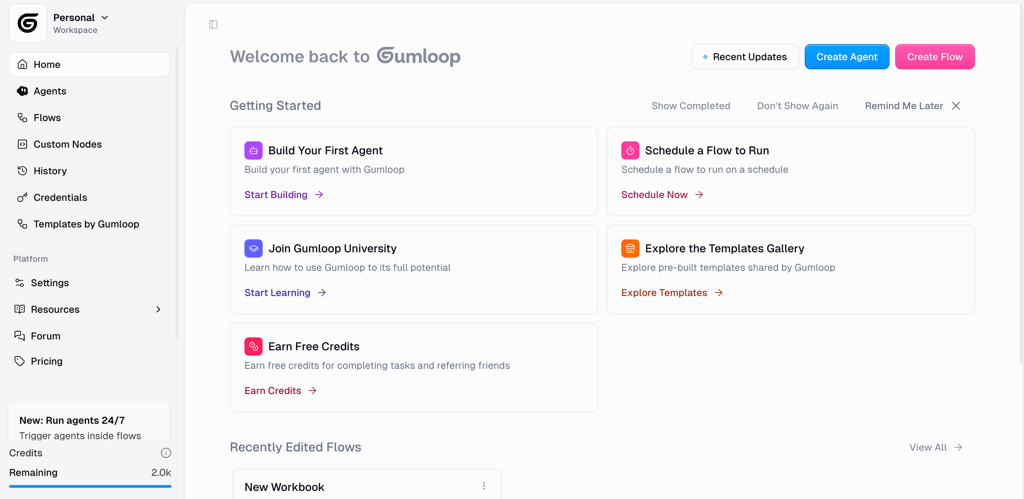
Gumloop is an AI-native SaaS platform for workflow automation. Its main purpose is to build AI agents and workflows using a drag-and-drop interface on an open visual canvas. It communicates directly with the internet and 125 apps to help you catch online trends and turn repetitive tasks into automated processes that run on schedules and triggers.
A typical Gumloop workflow starts with a trigger, followed by steps (nodes in Gumloop), and ends with actions or outputs that deliver results. For example, an SEO workflow may start with a scheduled time trigger that pulls web data and competitor metrics, passes that information through AI nodes to analyze search trends, and finishes by sending a Slack summary message or creating a Google Doc report.
You can also create a flow triggered by manually input data, which works as your personal app that you can access at any time. For example, you can create a flow for creating SEO briefs. It may start with typing a keyword in Gumloop’s AI input field. Then it automatically runs, generates an SEO brief, converts it into Google Sheets, and sends a notification to the necessary employees.
Who's Gumloop best for?
Even though it’s versatile, Gumloop suits best for the following types of users:
- Small teams and solopreneurs who want to automate routines without engineering time. Gumloop has an intuitive interface and, while complex workflows require some learning, most automations are still doable without specialized engineering effort.
- Teams that need automation agents. The best thing about Gumloop is that you can create your own agents to share with your team members. They can scrape the web for new trends, summarize emails, and answer questions based on the internal knowledge base.
- Marketing and sales teams that need structured outputs. Gumloop can turn incoming support tickets, emails, and website actions into structured reports. Basically, all the data on your leads, clients, and website visitors can be automatically analyzed, turned into insights, and trigger the following actions.
Gumloop won’t facilitate the workflow for:
- Strict security environments. Even though it’s SOC 2 Type 2 and HIPAA-compliant and can be hosted on the private cloud, Gumloop isn’t the best choice for highly secure environments. It collects cookies and may share your data with its affiliates and third-party service providers to support its business.
- Users need an offline automation tool. Gumloop is a cloud-based tool, so it works only online.
- Teams wanting deep custom code control. You can insert custom Python and JavaScript code into Gumloop, but it’s still a no-code tool with limited code-based functionalities. So, a tool like n8n is better suited for building highly customized workflows – you can find more details in our n8n review.
Gumloop AI key features and capabilities
I and the Cybernews research team tested Gumloop AI to gain a first-hand perspective on its true capabilities. Below, you’ll find a detailed overview of its main features.
Building workflows and logic
I love that Gumloop has its own training materials with interactive tasks simulating real-world automations. Thanks to them, I’ve learned that every Gumloop’s workflow consists of three main components:
- Triggers are something that start the workflow. For example, an event in an external app, like a new row in Google Sheets, a scheduled time, or manually input data.
- Nodes are specific actions you’d like the tool to perform. For example, send a Slack message to specific employees, crawl the web, or analyze emails.
- Connections are lines that connect triggers and nodes. For example, you can connect a few nodes into one when you want a report to include both clients’ data and an AI summary.
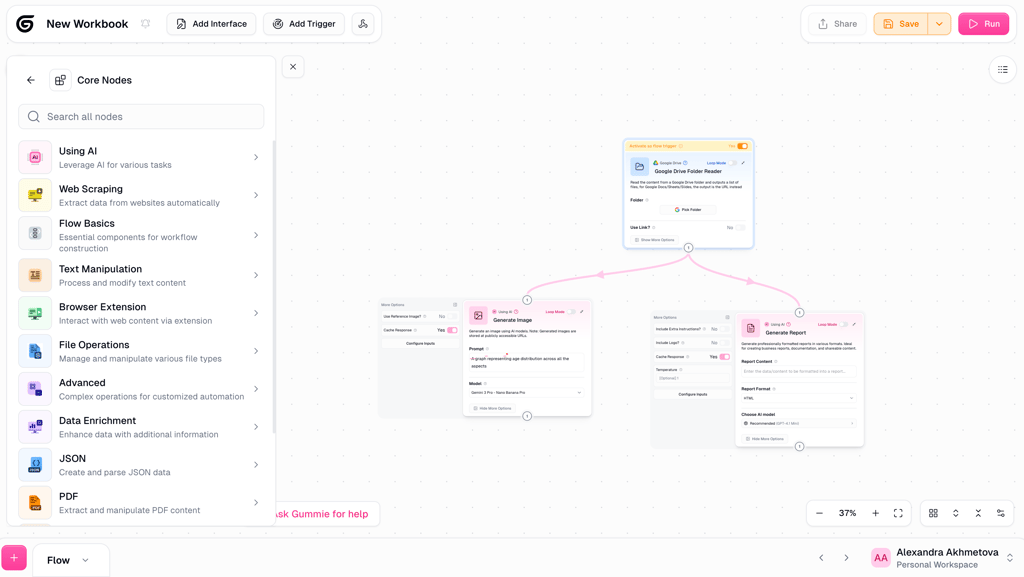
I built a simple workflow with a trigger connected to my Google Drive by dragging it from the left-hand menu onto the canvas. In the same way, I dragged and dropped two nodes, Generate Image and Generate report, and pulled arrows to connect them to the trigger. My workflow means that once a new file is added, Gumloop generates an image and a report based on the new data. Once I authenticated my Google account, the whole process was extremely easy and fast, as all the main switches and explanations are located inside the nodes.
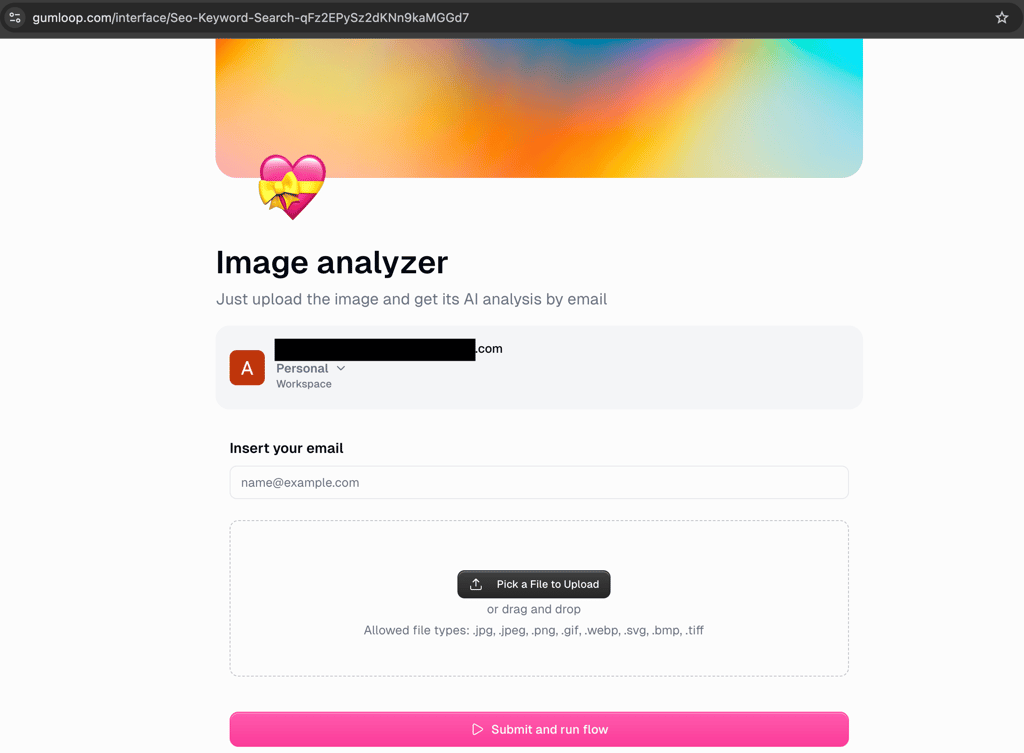
Workflows can be shared through the Interfaces feature, allowing end users to access the functionality without seeing the underlying workflow. I clicked Add Interface in the top-left corner of the screen to turn an AI image analysis workflow into a web page where users can simply upload an image and receive results by email.
AI steps and output consistency
You can choose an AI model for each AI-based node and trigger, and give it prompts for the result it must deliver. Gumloop has access to all major AI models, including those of OpenAI, Grok, Gemini, Claude, and Perplexity.
Overall, I’ve learned that AI nodes in Gumloop can be used across the following tasks:
- Extraction – AI can scrape specific data from provided documents based on specific requirements, e.g., to find pricing, detect trends, or extract all phone numbers.
- Classification – you can ask AI to sort the data out and categorize it, e.g., distribute all incoming emails across spam, billing, and important folders.
- Web research – AI can collect data from Google or other search engines and organize it into a convenient format, e.g., search for the latest cybersecurity competitors' articles and arrange their outlines in Google Docs.
- Generation – you can prompt AI to generate any kind of text, e.g., write blog posts or answers for support emails.
- Speech-to-text and text-to-speech conversion – AI can convert audio files into text and vice versa, e.g., turn a provided text into an MP3 file with an AI voice-over and send it in the Slack channel.
AI nodes can follow one another or run simultaneously. In my testing, the outputs were most consistent when provided with a static dataset and with low-creativity tasks. Web searches and creative tasks rarely produce repeated or even similar results twice. Creative writing is prone to hallucinations, but you adjust the AI temperature in individual nodes to reduce this.
From AI features, I like Gummie the most. It’s a built-in AI agent that can answer questions and automatically build or debug your workflows according to your requests. Every time Gummie takes an action, it explains its reasoning in real time, helping you understand the steps it takes and why.
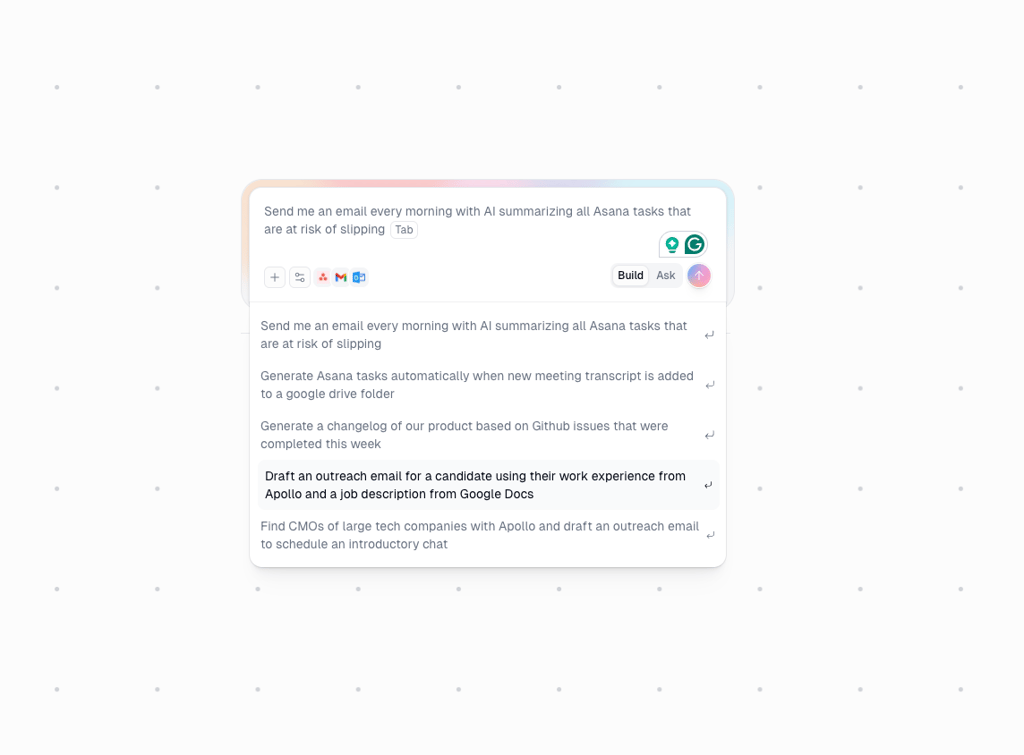
But remember that Gummie isn’t omnipotent and won’t deal with, for example, authentication for you or follow illogical workflows. First, make sure you are logged into all the integrations, and give the AI agent a clear, realistic plan as a prompt.
Integrations and data connections
In my test, integration and data connection went very smoothly. To add an integration, you can either just log in to your account or add the API key provided by the third-party app. By giving Gumloop the necessary permissions, you’re granting the platform access to the app’s data and consent to perform actions on your behalf. These permissions can be withdrawn at any time.
Gumloop has over 125 built-in integrations, covering all the most popular business tools like Slack, Airtable, Salesforce, and Notion. It can also be connected to Zapier, which unlocks over 8500 integrations.
Monitoring and debugging
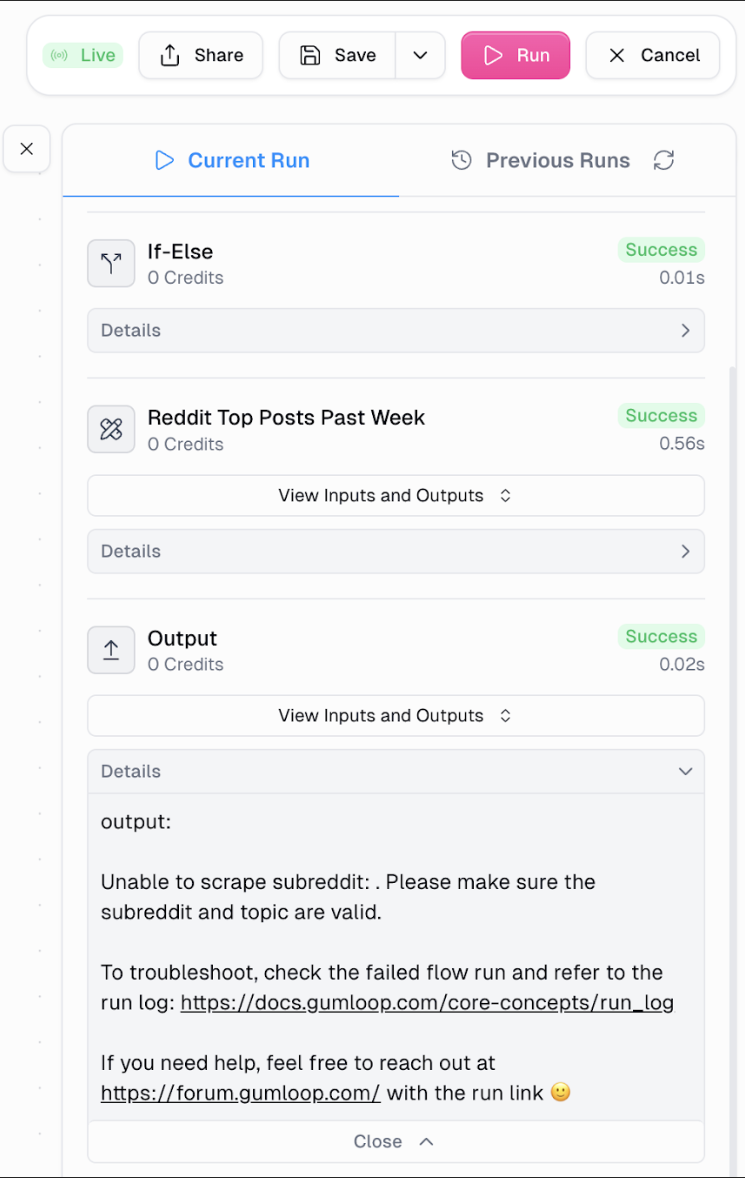
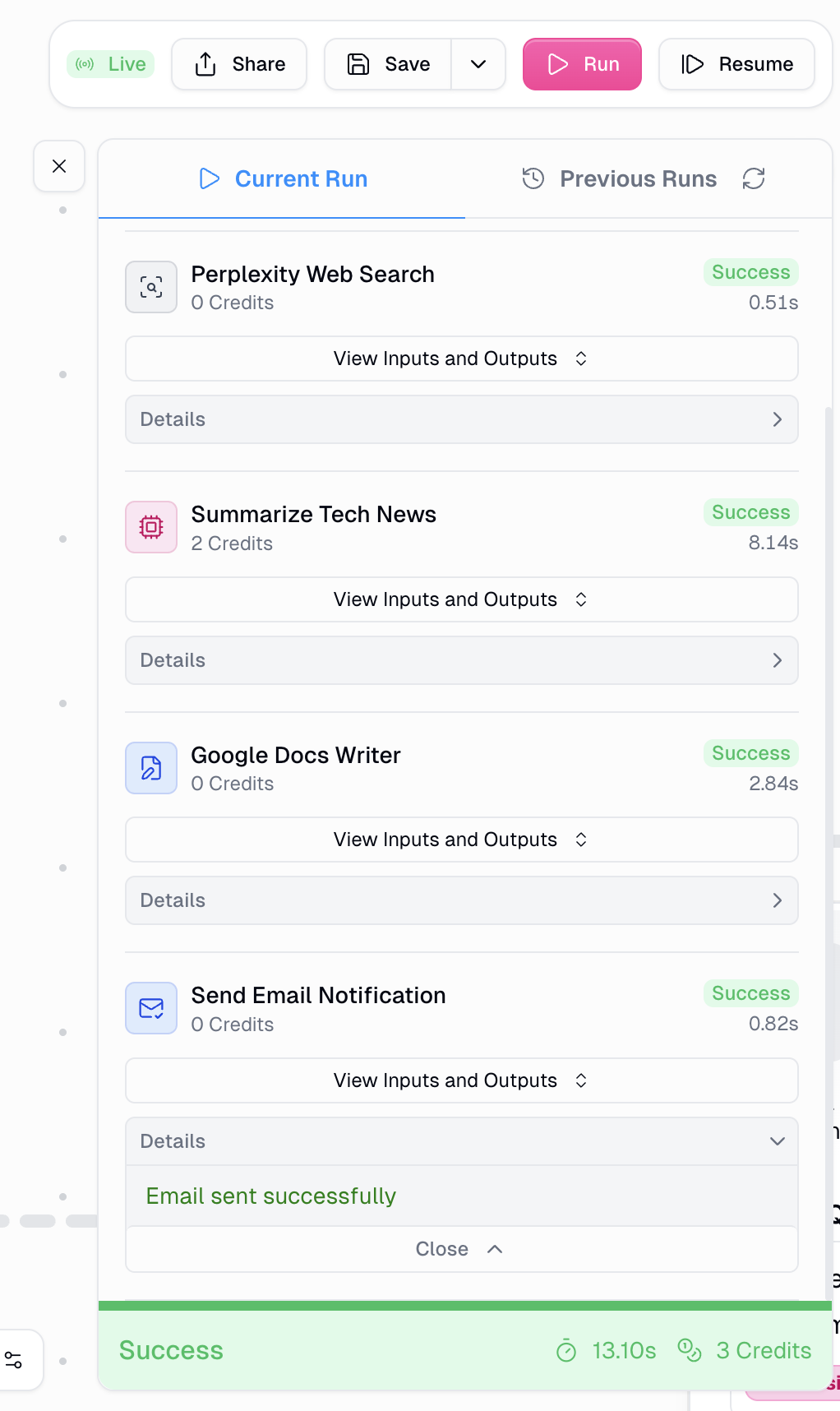
Once your workflow goes live, Gumloop displays a run log on the right side of your canvas. It gives you a complete overview of the workflow, including performance metrics (total execution time and time per node), credit tracking (credit cost per node and total credit consumption per flow), and data inspection (access to input and output information for each node).
I like that Gumloop has version control. When working on a workflow, users can create checkpoints and snapshots by clicking Save, which saves the flow's current state. These checkpoints can be rolled back on demand.
Moreover, once a problem occurs, you’ll see error messages with relevant explanations. To see where the workflow gets stuck, click the Resume button to highlight the exact spots where the platform couldn’t proceed. Also, you can always ask Gummie for advice and make it tweak the workflow. All of these visual and interactive elements make monitoring and debugging easy and intuitive.
Team workflow (collaboration and permissions)
The Team and Enterprise plans allow for shared organization templates, credentials, and custom nodes. Overall, you can create three types of workspaces – Organization, Personal, and Shared.
The Organization workspace serves as a unified dashboard for all members, from which admins can manage billing and team members. The Personal workspace is for the private use of one worker, but you can still share your workflows via the Interfaces feature. The Shared workspace is for collaborative work of a few users. However, only one user can edit the workflow at a time to avoid confusion.
Also, you can assign organization roles: Admin, Manager, and Member. Admins have complete control over the organization account and can create user groups with granular access controls. For example, an Admin can give access only to certain integrations or restrict certain platform features for selected users. Once a user is added to such a group, the platform automatically assigns them the appropriate permissions. Managers don’t have access to billing and role management, while Members are regular users who can work within personal and shared workspaces.
Getting started with Gumloop AI
Here’s a practical checklist before you build your first workflow:
- Create your account using Google or Microsoft SSO.
- After you sign up, the platform automatically creates a Personal workspace where you’ll do most of your work.
- If you use a business account as an Admin, you have to assign Manager and Member roles, create user groups with appropriate permissions, and authenticate all the needed third-party apps.
- If you have a personal account, you can log in to third-party integrations when you start adding nodes. You have to click Authenticate credentials at the top of the node and log in to your account or enter an API key, depending on the app. This grants Gumloop permission to access the app’s data and perform actions on your behalf.
- Start building your first workflow.
Now, let me walk you through the workflow creation process. I built an AI-based workflow that automatically gathers and summarizes the latest tech news headlines:
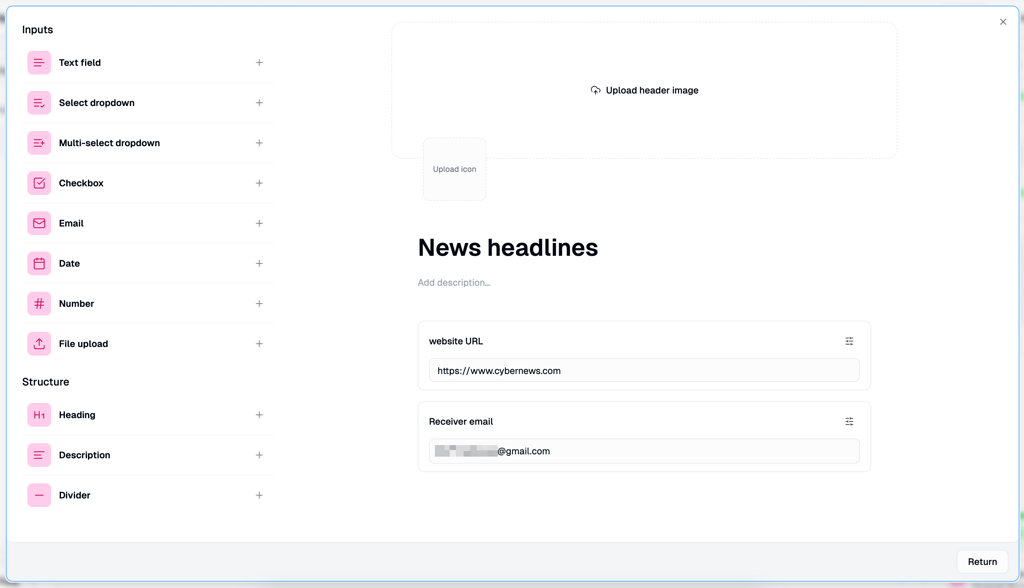
1. Open the Gumloop workflow creation page and click Add Interface to ensure this workflow can also be accessed by my colleagues. In the Interface editor, I added the headline, the email field, and the website containing the news articles.
2. Add the nodes that will assist you in your workflow. I chose the Perplexity node, which will perform the internet search and return the data.
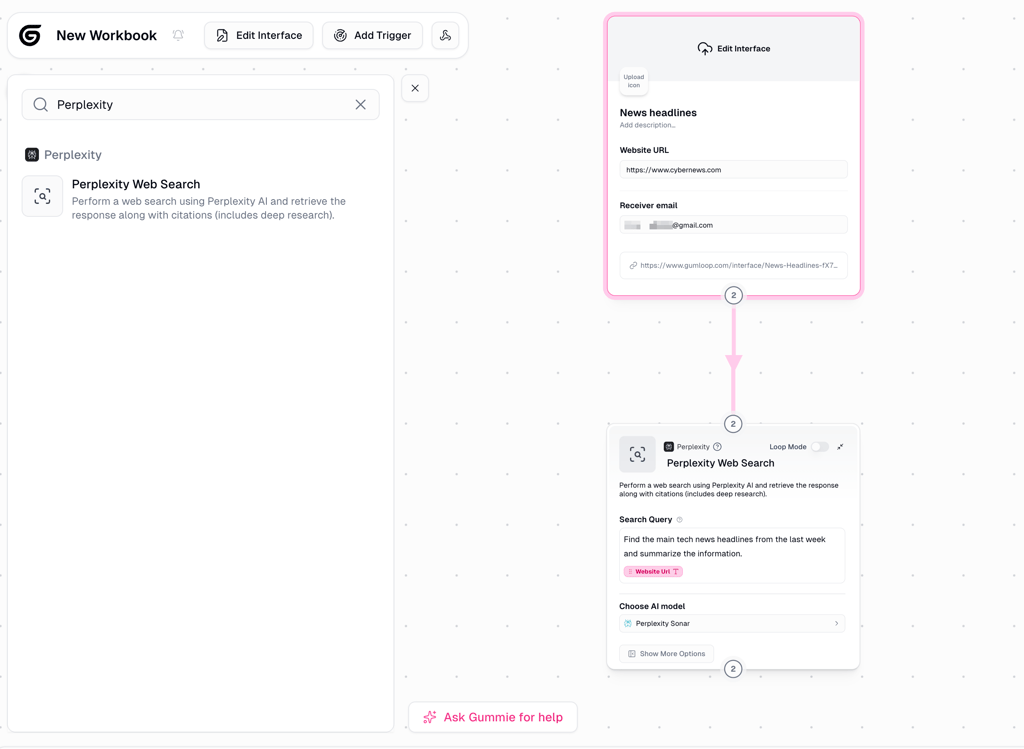
3. Ask Gummie to edit your workflow and specify what result you’d like to achieve. I asked it to build a workflow that generates a report based on the Perplexity finding, adds it to a Google Doc, and sends it to me via email.
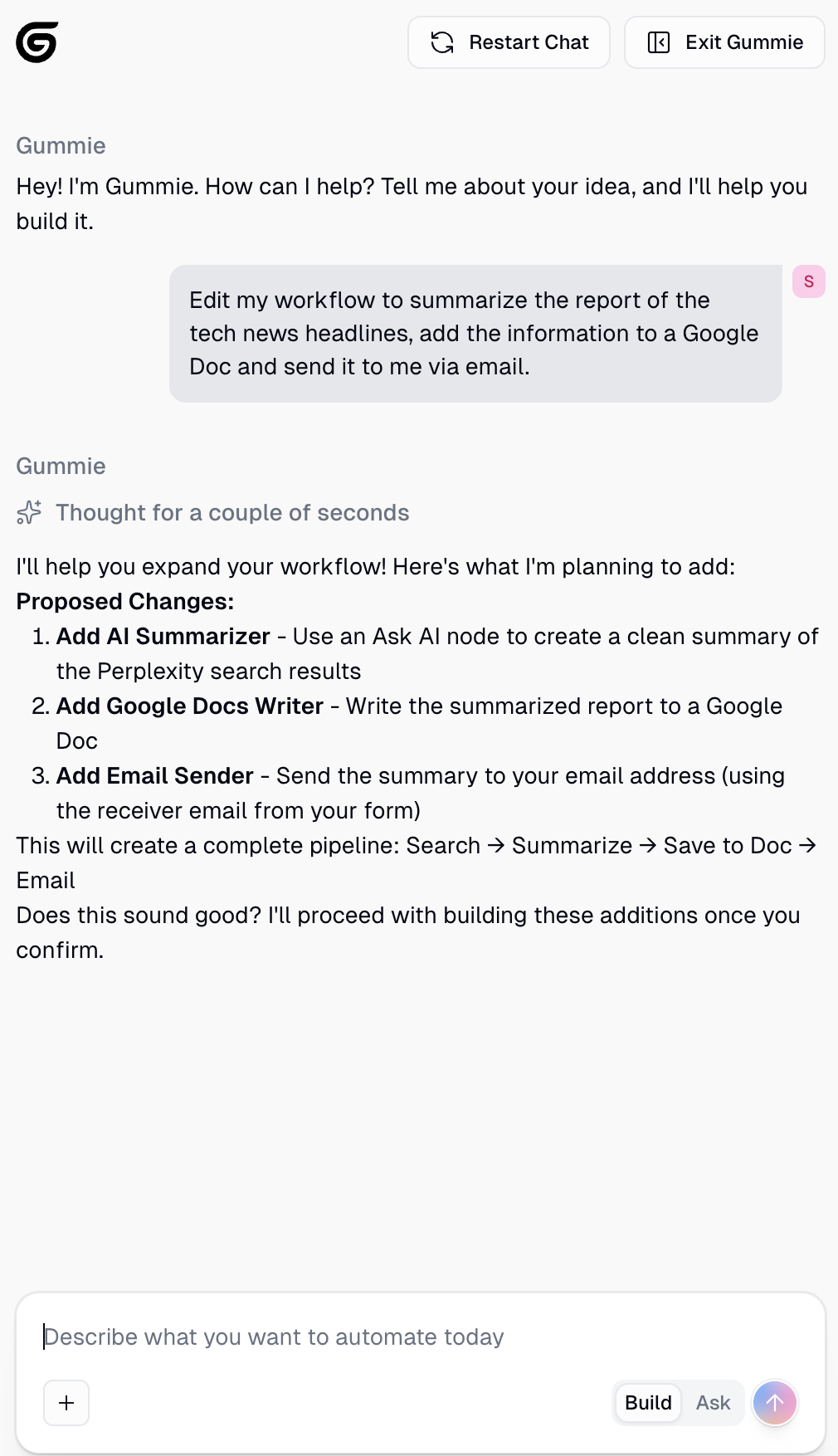
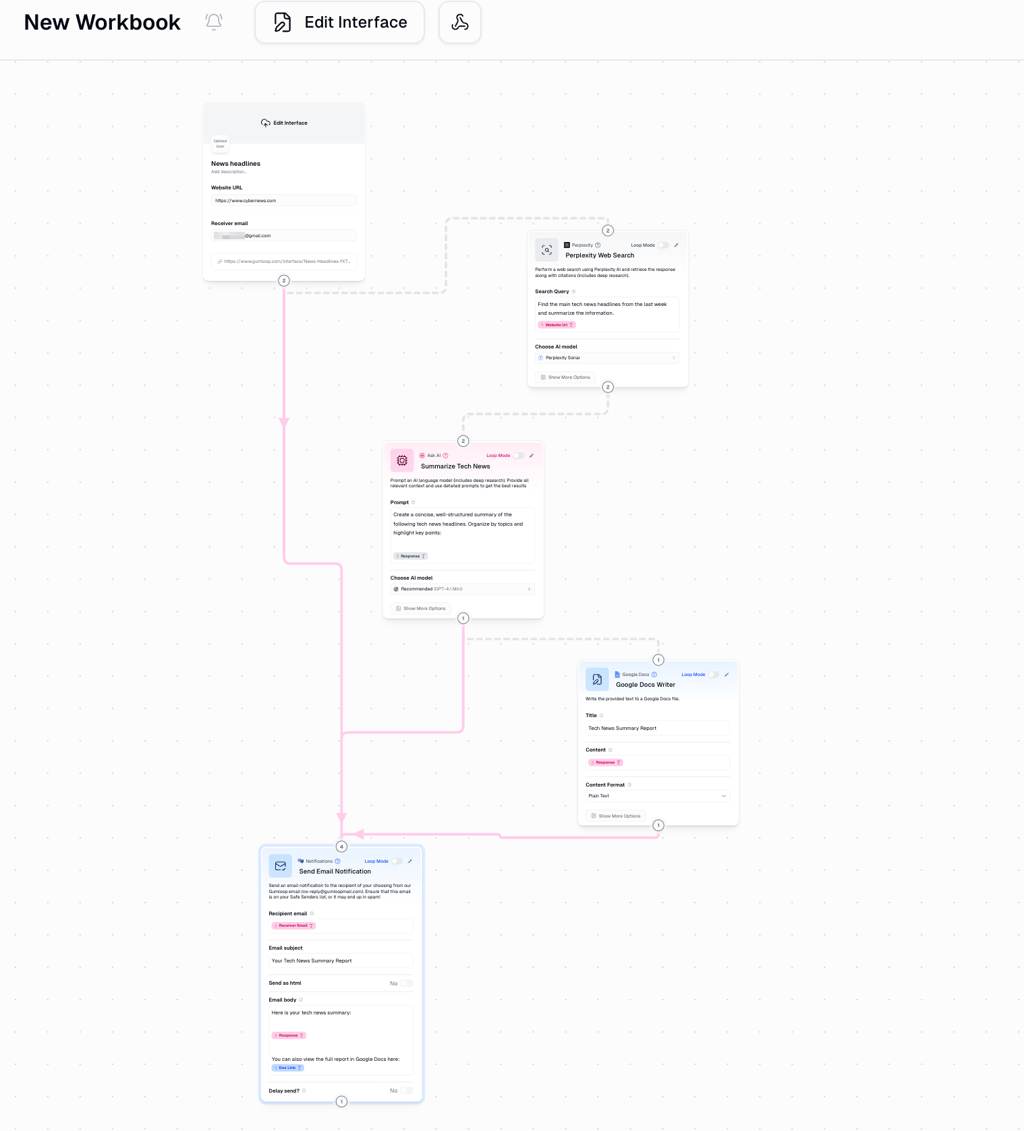
4. Gummie added the necessary nodes and completed the workflow. Now, I only have to click Run to start the workflow.
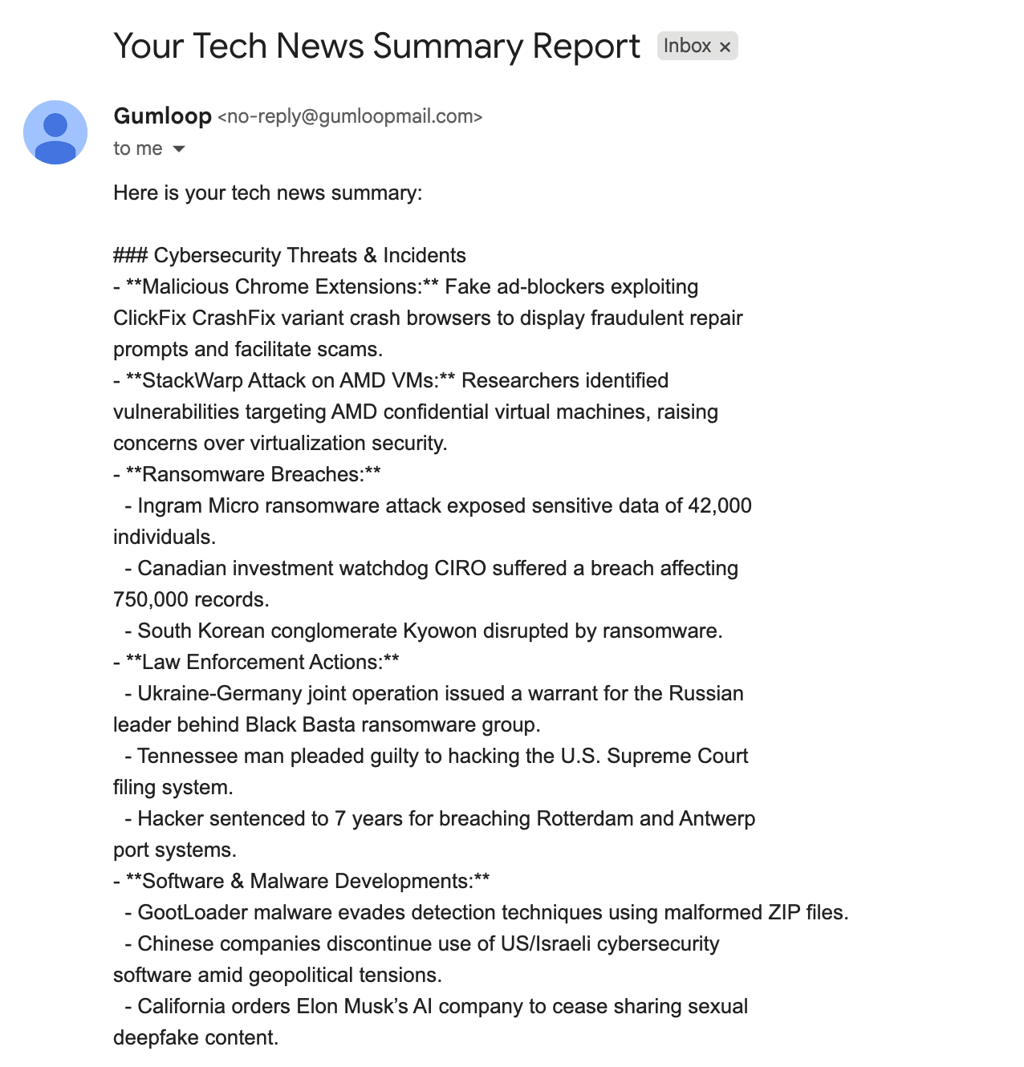
5. Check the run logs to see if the workflow was successful or if any errors occurred. Finally, I received the tech news summary report I asked for.
Beginners’ mistakes
I’ve noticed a few common pitfalls when setting up my first workflow:
- Type mismatch – occurs when you try to connect nodes with incompatible data types. In Gumloop, there are two main data formats: texts and lists. So, the error occurs if a node expects a list of emails, but you send only one. The data format can be tweaked in the node itself.
- List size mismatch – occurs when a node processes inputs from multiple lists with mismatching item numbers. For example, when one list has three URLs but the list it should be matched with has five names.
- Unmapped fields – occur when a node requires a specific input to function, but receives a null or empty value because it wasn't connected correctly in the canvas.
- Authentication expiry – occurs when OAuth tokens for integrations like Gmail, Slack, and Google Sheets expire or are revoked.
Customer support and community
The free tier has only community support. Even though it’s not professional help, the community is full of active users ready to help and collaborate. It happens rarely when a question is left unanswered.

24/7 email support starts at the Solo tier, while the Teams plan offers a dedicated Gumloop engineer available in Slack. The Enterprise plan includes a solution engineer who embeds with your team to help build proper workflows faster.
All tiers have access to Gumloop University, with free classes and live training on the efficient use of the platform. Moreover, the extensive and detailed documentation helps to figure out almost any problem on your own. I like that the documentation is written in simple, user-friendly language and supplemented with GIFs and videos so you know exactly what to do. Also, there’s a chatbot on every learning and documentation page to answer any questions.
One of the best things about Gumloop is that the community shares workflow and AI agent templates that you can reuse and customize. Remember that the Gummie bot can also build and refine the workflows based on your prompts. So, basically, you can come in with zero knowledge of workflow engineering and learn as you go.
Scalability, privacy, and security
Gumloop is SOC 2 Type 2, GDPR, and HIPAA-compliant – these certifications require robust security standards, and Gumloop meets them. All the data is encrypted at rest and in transit, even though Gumloop doesn’t specify the exact encryption algorithms it uses. Moreover, Gumloop never trains its own or third-party AI models on your data.
The Enterprise plan enables strict security compliance without manual effort. For example, you can set up single sign-on (SSO) authentication via the SAML protocol, which means that employees can log in using their existing corporate credentials. Also, automated user provisioning via the SCIM protocol creates a Gumloop account and locks it
automatically when a user joins or leaves the company. The Enterprise plan also includes audit logs and analytics that give you complete visibility and granular control over Gumloop’s usage at the individual and organizational levels.
Plans, pricing, and what you get
Gumloop’s pricing is credit-based. It charges 1 credit per flow execution, plus the cost of nodes. There are plenty of free native nodes for text manipulation, data transformation, and most integrations, like Google Sheets, Airable, and Salesforce. AI, data, and web nodes cost from 1 to 60 credits each.
For example, the Ask AI node run by Expert AI (ChatGPT 5) costs 30 credits, but if it’s run by Standard AI (ChatGPT 4.1 mini), the node costs only 2 credits. Gumloop’s paid plans also include BYOK, which lets you connect to AI services directly instead of consuming Gumloop’s credits. It reduces the cost from 20 credits to just 1 per node call.
Overall, the costs are highly predictable, and you can track how much each node consumed in the log run panel. Here’s a quick overview of Gumloop’s pricing plans:
| Starting price per month | Best for | Number of users | Key limitations | Notable features | |
| Free | Free for a maximum of 2000 credits/month | Simple, low-volume automations, e.g., a personal news summarizer | 1 | Two concurrent flows with one trigger | Unlimited nodes and flows, and access to the Gummie agent |
| Solo | $30.00 for a minimum of 10,000 credits/month | Solopreneurs and single employees who want to automate their personal routines, e.g., automating candidate research | 1 | Only four concurrent flows and email support | Unlimited triggers and access to webhooks and overage credits |
| Team | $195.00/month for a minimum of 60,000 credits | Businesses with a few teams that have to run their own workflows | 10 | Five concurrent flows, no audit logs, and no SCIM/SAML support | Role-based access control, unlimited workspaces, and dedicated Slack support |
| Enterprise | Custom | Companies requiring strict data compliance and processing massive datasets | Unlimited | Pricing isn’t transparent | Custom user roles, usage analytics, audit logs, and an unlimited number of seats |
Go for the Free or Solo plan if you’re a solopreneur with low-scale automation. Small businesses can also use the Solo plan if only one person works with workflow automation.
Businesses with two or more teams (like sales and support) will benefit from the Team plan's role-based access controls and unlimited workspaces. Scaling businesses with multiple teams and a high volume of automation should opt for the Enterprise plan with its advanced security features and custom flow limits.
You can change plans any time, temporarily upgrade your plan during the spike periods, and buy additional credits if you run out of them. Each plan has a 14-day trial period, even if you’re switching from one to another.
User feedback: the patterns that show up
I noticed that non-technical users mostly appreciate Gumloop’s visual, no-code workflow builder and the drag-and-drop interface. People on G2 and Capterra rate Gumloop highly and note that it actually reduces manual work via automating AI-based data extraction and email management that would take much longer to build by hand.
Some Reddit users also post about building time-saving workflows that run reliably once properly configured. They praise the platform for its much more pleasant, intuitive design compared to older tools like n8n.
Problems arise when users start building more advanced workflows. Users say it quickly becomes overwhelming to learn all the nodes and workflow conditioning. Overall, it may take a few weeks to get comfortable with working on more complex automations.
Gumloop vs competitors
Gumloop lets you build fully AI-powered workflows and agents with granular logic controls. However, other tools on the market specialize in slightly different aspects of AI automation. Here’s a quick comparison of Gumloop’s main competitors:
| Best for | Ease of use | Flexibility | Pricing | Biggest drawback | |
| Gumloop | Drag-and-drop AI workflows and combining multiple AI models with web scraping and logic without code | Moderate – visual builder is intuitive, but requires understanding of clear workflow logic and programming concepts | High – allows for custom scripts, simple and highly complex workflows | Credit-based – every node has a set cost; starts at $30.00/month; free plan is available | Has fewer native integrations compared to Zapier |
| Zapier | Linear workflows connecting with 8000+ apps and services | High – workflows are built on the if-then rule | Moderate – good for simple workflows, but struggles with complex, multi-step reasoning | Task-based – charges for each action in a workflow; starts at $19.99/month; free plan is available | Expensive for high-volume automation, and logic is often too simple for non-linear workflows |
| Flowise AI | Building custom LLM-based apps and agents with deep and complex functionalities | Moderate – requires understanding of technical concepts | Very high – open-source and allows deep workflow customization | Free if self-hosted; a web app starts at $35.00/month | You are responsible for hosting, security, and updates, if self-hosted |
| Dust AI | Creating custom AI agents trained on your company's internal data | High – simple user interface designed specifically for non-technical teams | Low – it specializes in building RAG systems only | Per employee subscription; starts at $29.00/month per employee; free for a trial period | Relies solely on the data you provide it with and requires clean, standardized datasets |
| Lindy | Building autonomous AI employees to handle a specific job | High – setup can be done via natural language prompts | Moderate – it specializes in building AI agents only | Credit-based – charges per task; starts at $49.99/month; free plan is available | High starting price and struggles with integration into existing systems |
| Power Automate | Heavy enterprise automation within the Microsoft ecosystem | Low – the learning curve is steep, and the UI is complex | Very high – can automate anything, including recording mouse clicks on a desktop | Per user subscription; starts at $15.00/month; free plan for a trial period | UX is clunky and slow compared to modern AI-based platforms |
I recommend using Gumloop for building fully automated AI workflows, Zapier for simple, linear automations, and Flowise as a free, open-source automation solution. According to our Cybernews review of Dust AI, it's best for creating AI agents trained on your internal knowledge. Finally, Lindy specializes in building autonomous AI employees, while Power Automate is a highly versatile automation tool for the Microsoft ecosystem.
Best alternative: nexos.ai
Different automation platforms are built with different priorities in mind. Some users prefer flexible workflow builders, while others may want a more centralized workspace that keeps agents, integrations, and model access together in one place. That’s why it can be useful to consider alternative platforms based on the workflows your team needs most.
What stood out to me about nexos.ai is that it feels more focused on how teams use AI in day-to-day work rather than building visual automation flows. Compared to Gumloop, for example, it is more oriented toward how teams coordinate tasks across different tools.
nexos.ai combines workflow automation, AI agents, and multiple model options into a single platform. It lets teams build no-code agents, connect external tools, and run automated processes such as data handling, content creation, and internal operations. Everything runs in a single environment, so teams don’t need to switch between different tools.
Final verdict: should you use Gumloop AI?
Yes, you should use Gumloop AI if you want a fully automated AI-based workflow with conditional logic and complex branching. It’s easy to use, and the built-in AI gents can build workflows for you. Advanced functionalities, though, require some learning.
Gumloop is the right choice for:
- Non-technical teams and solopreneurs who don’t want to invest in code-based, technical automation
- Sales, marketing, and support teams that need to automate a large volume of repetitive tasks
- Businesses that require centralized role-based management and advanced security without building custom, on-premises software
The platform may be a bad choice for:
- Businesses that require simple workflows with linear logic. In this case, consider Zapier’s straightforward workflow builder.
- Large corporations that process highly sensitive data. Gumloop is still an online, cloud-based tool, so on-premises software is better for enterprise-level security.
Check out Gumloop yourself – it offers a free version and interactive training materials so you can get a feel for the platform firsthand. There are many templates to play with, so you’ll definitely know if it suits you without spending anything.
FAQ
Is Gumloop AI safe for sensitive data?
Yes, Gumloop is safe because it’s SOC 2 Type 2, GDPR, and HIPAA-compliant, and it doesn’t train AI models on your data. However, Gumloop's privacy policy states that it may share your data with affiliates, and it doesn’t guarantee 100% data safety. Even though it adopts best practices to protect your data, no method of internet transmission is absolutely secure.
What are the main limits on the free plan?
The main limitations of Gumloop’s free plan are only one trigger, two concurrent workflows, and no customer support beyond the community forum.
Does it support the integrations I need?
Gumloop supports 125 apps and services, including Zapier, Salesforce, Airtable, all Google products, and major AI models. The integrations cover most business use cases, unless you use highly specialized, niche products.
How hard is it to maintain workflows over time?
Maintaining workflows in Gumloop is manageable, especially with a visual drag-and-drop canvas, reusable nodes, version history, and checkpoints. However, it’s not a set-it-and-forget-it platform – changes to third-party integrations or AI behavior require someone to regularly check and update workflows to keep them running smoothly.
Which alternative is best if Gumloop isn’t a fit?
Zapier is best for linear, straightforward automation with a minimal learning curve. Our Lindy review shows that it works best for ready-made and customizable AI agents. Dust AI is focused on building AI agents trained on your internal business data.