Best ad blockers for Mac in 2026
Our trusted in-house research experts conduct independent, unbiased testing of ad blockers, combining internal and external evaluation data and tools for comprehensive reviews.
We maintain full transparency by sharing our methodologies and technical insights, empowering readers to make informed, independent decisions.
Learn more

One of the most frustrating things when I browse online is dealing with popups, especially the ones that take up half the screen or trick you with misleading click-outs. Fortunately, ad blockers can ensure your online experience is not constantly disrupted by advertisements. If you run macOS and want to stop all pop-ups, video advertisements, banners, and other kinds of ads, you should consider installing a reliable ad blocker.
Besides blocking intrusive ads, quality Mac ad blockers also protect against other online dangers. Flashing pop-ups announcing that you won the newest iPhone are not so harmless, as they usually lead to malware and other nasty things, and advertisers on websites like to use trackers to record and sell your data. A reliable ad blocker will protect you from all these dangers and keep your information safe and private online.
Unfortunately, finding a reliable and trustworthy ad blocker compatible with Mac devices isn’t so easy. For that reason, together with the Cybernews research team, I put together a comprehensive list of the best ad blockers for Mac in 2026.
Our top 5 picks for Mac ad blockers in 2026
After testing a range of tools, we found that the best ad blockers for Mac tend to be part of broader cybersecurity suites. These solutions block ads and give you added privacy and protection against trackers, malware, and malicious websites.
I compiled a list of the top 5 ad blockers for Mac in 2026, each with its own strengths. You’ll find the detailed list below for more in-depth looks at each provider and our comparison table for a side-by-side comparison.
- Surfshark CleanWeb – best ad blocker for Mac overall in 2026
- Total Adblock – best ad blocker with great device compatibility
- NordVPN next-gen antivirus – best ad blocker for security and protection
- Proton VPN NetShield – best Mac ad blocker for customized blocking
- IPVanish Threat Protection – best ad blocker for online privacy




The Cybernews in-house research team and expert writers work together to regularly and thoroughly test ad blockers. We use a variety of testing methods to ensure our recommendations are fact-checked and relevant. Find out how we test and evaluate ad blockers.
What to look for in the best ad blocker for macOS?
Transparent data-handling practices. It’s easy to forget that some ad blockers themselves collect user data, especially free ones. That’s why it’s important to choose a provider that’s clear about what it collects, how it stores it, and whether it shares it with third parties. Look for ad blockers with a strict no-logs policy or ones that publish transparency reports.
Choosing a reliable ad blocker is essential, as many of them don’t work, store your data, or even inject malware. It can be confusing to choose among the options, as some come as part of larger cybersecurity suites, and some can be purchased as standalone products. Regardless of which one you choose, there are several things to take into account when looking for a macOS ad blocker:
- Excellent ad and tracker blocking capabilities. Not all ad blockers are able to block ads effectively. Some only block banner ads but not pop-ups, and others block everything except for YouTube ads and Facebook trackers. Ideally, you want a tool that blocks everything there is to block. Personally, I didn't encounter any blocking issues with any of our top 5 providers. However, I highly recommend reading on for some more user reviews on Reddit or other forums for personal experiences.
- Whitelisting. This feature allows you to choose which websites you want to see ads on and which ones you don’t. YouTube video ads might be annoying, but ads on your favorite blogger’s page might help them with business, so you’d like to keep the ads visible to support them.
- Platform and browser compatibility. Some ad blockers work only on some browsers, and some have varying degrees of blocking ability on different platforms. You want to get an ad blocker that works perfectly on Mac and whichever browser you prefer, be it Safari, Chrome, or another popular browser.
- Extra privacy features. Ad blockers are just one part of staying safe online. That’s why I highly recommend choosing an ad blocker that’s part of a broader security suite. Many top-tier options come bundled with VPNs or antivirus tools, giving you a more complete layer of protection.
Best Mac ad blockers in 2026 – detailed list
We tested many ad blockers to find the ones that do the best job. I tested each ad blocker for a day to see how they perform in real-life scenarios, like scrolling on social media, streaming shows, and navigating news sites. The Cybernews research team ran tests on the most popular ad blocker testing sites to see how they perform when put to the test.
It was important to assess each tool's customization options and review its privacy policies to see how it handles user data. Finally, I also considered the price. Here are brief overviews of the best ad blockers for Mac.
1. Surfshark CleanWeb – top Mac ad blocker browser extension

| Free version: | Yes (free trial) |
| Blocks YouTube ads: | Yes (on Chrome and Firefox) |
| Supported platforms: | Windows, macOS, Linux, Android, iOS, FireTV, Android TV |
| Current deal: | 85% OFF Surfshark CleanWeb + 3 months FREE |
After our tests, I can confidently say that the best ad blocker for Mac in 2026 is Surfshark CleanWeb. It showed great blocking results in testing, is easy to use, and comes with a great VPN for complete browsing privacy and online security.
Features. The CleanWeb feature is available on the dedicated Surfshark app for Mac. The upgraded CleanWeb 2.0 is for the upgraded browser extensions. Both versions successfully block various ads and trackers. However, only CleanWeb 2.0 includes a summary of blocked ads, as well as a whitelisting feature, cookie pop-up blocker, and website breach alert.
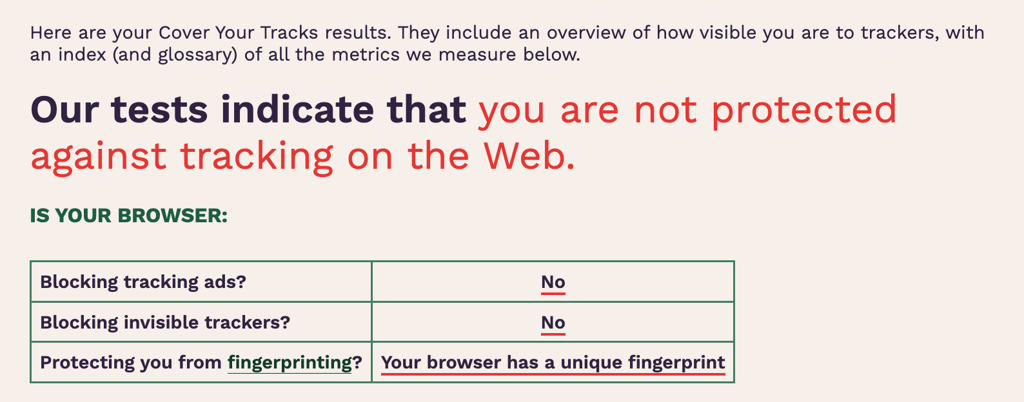
Test results. Just like in our CleanWeb review, I found that the tool showed excellent ad blocking results. CleanWeb blocked most ads without issues, including annoying pop-ups. The one issue I have with CleanWeb is that our Cover Your Tracks test shows that it’s not great at blocking trackers.
AdBlock Tester shows that Surfshark CleanWeb blocks most ads. The only issue is that it does render Google AdSense blocks, which may look awkward on web pages.

Unfortunately, Cover Your Tracks results weren’t as good as the other tests. The test shows that CleanWeb doesn’t quite stop all tracking, so if privacy is your main concern, I’d go with a different ad blocker.
CleanWeb performed well on Can You Block It?, blocking all ads on the test site.
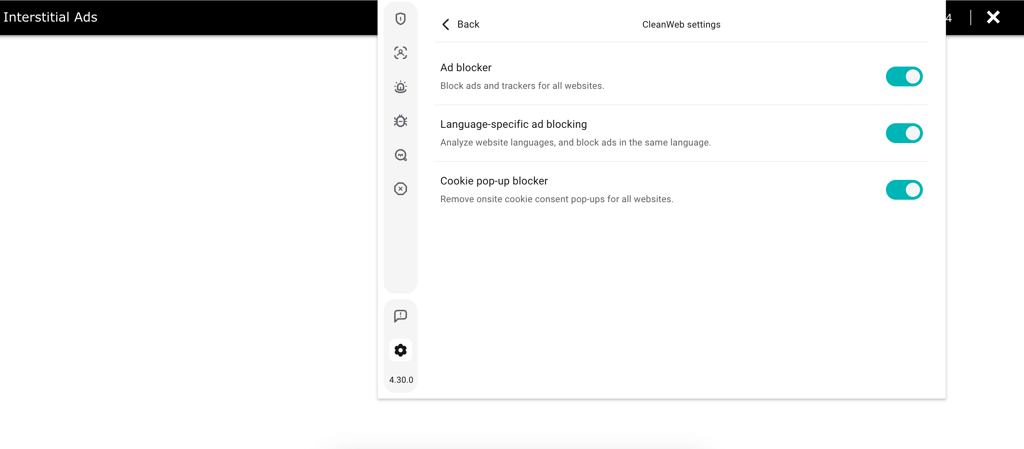
Compatibility. CleanWeb is available on all Surfshark apps and works with all browsers, but lacks certain features. CleanWeb 2.0 is available for Chrome, Firefox, and Edge.
Pricing. CleanWeb is a part of all Surfshark VPN plans, and the prices start at $2.49/month. There is also a 7-day free trial and a 30-day money-back guarantee.
2. Total Adblock – great ad blocker with wide device support

| Free version: | Yes (free trial) |
| Blocks YouTube ads: | Yes |
| Supported platforms: | Android, iOS |
| Current deal: | Get 80% OFF Total Adblock |
Total Adblock comes from the team behind TotalAV, a well-known name in the antivirus space. You can purchase it on its own or bundle it with the TotalAV Total Security suite. It offers strong ad-blocking performance, a solid set of features, and works smoothly across most major browsers.
Features. Total Adblock uses script blocking to filter and block ads before the websites load. There is a whitelisting feature called Acceptable Ads, which allows you to choose what kind of ads on which websites you want to block. The tool's control panel also shows a summary of how many ads and trackers have been blocked, as well as statistics about page loading times and data saving.
Test results. Just like in our in-depth Total Adblock review, the tool showed excellent results – it blocked all types of ads and trackers. That said, it was a bit overzealous, blocking the entire Can You Block It? website. Luckily, I haven’t found any other examples of this impacting the browsing experience.
I checked Total Adblock’s performance on AdBlock Tester, and it really did well, coming out with a 100/100 score by blocking every single tested ad.
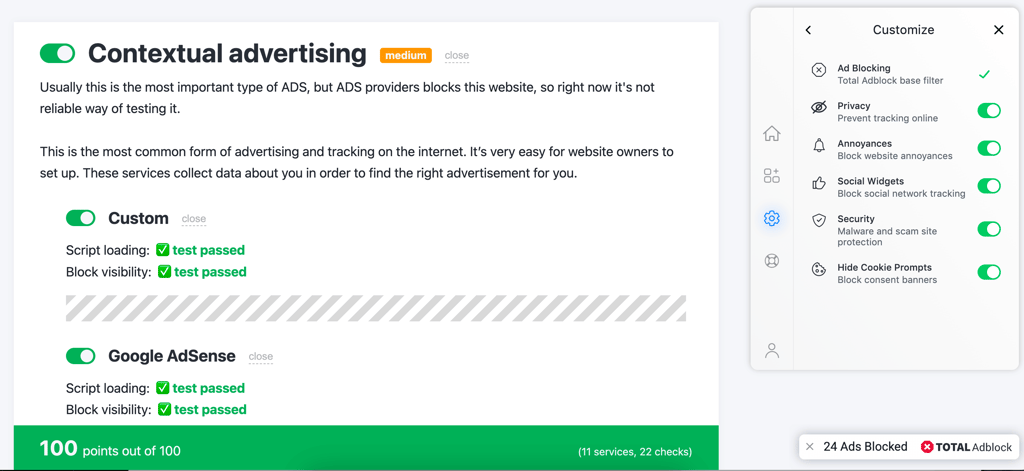
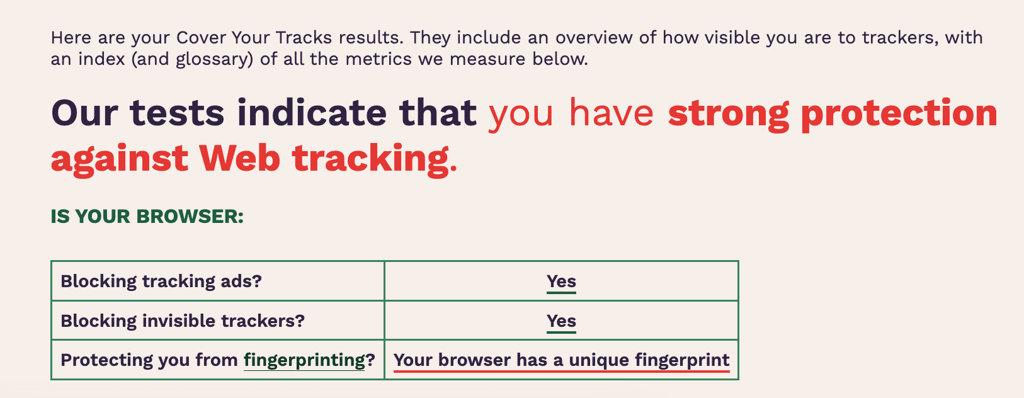
Similarly to the AdBlock Tester results, Cover Your Tracks gave high marks to Total Adblock, indicating that it protects users from web tracking, with the only issue being the browser’s unique fingerprint.
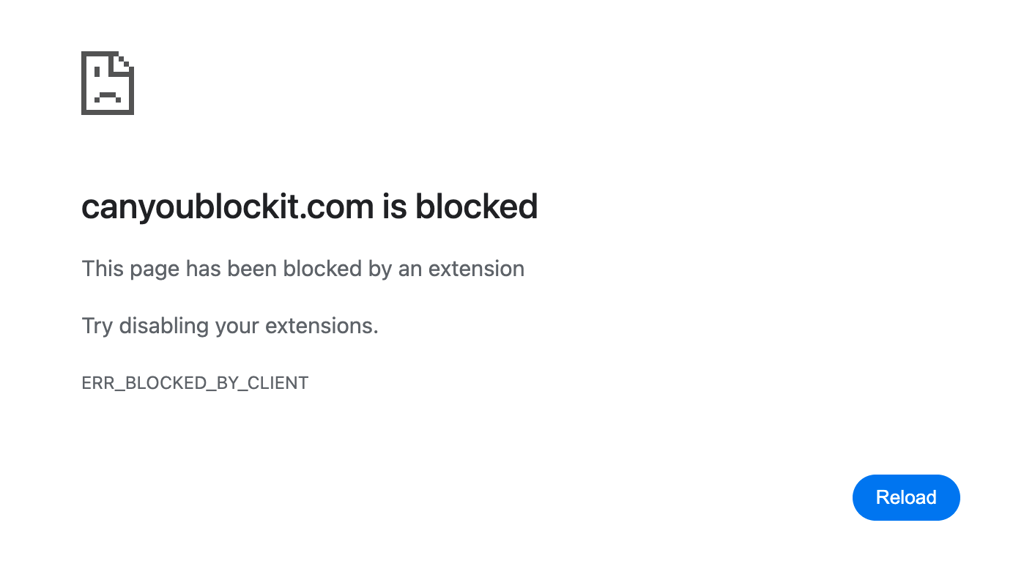
In this case, Total Adblock blocked the whole testing website, showing that its rules are very aggressive. That said, this only happened once, so I wouldn’t be concerned when it came to it blocking real websites.
Compatibility. Total Adblock has an extension for Chrome, Edge, and Opera browsers. Unfortunately, the ad blocker is not available for Safari.
Pricing. You can try Total Adblock for free for a week. After that, the price is $1.59/month for the ad blocker alone. However, if you’d also like to get a whole antivirus suite, the price starts from $19.00/year with a 30-day money-back guarantee.
3. NordVPN next-gen antivirus – best Mac ad blocker for effectiveness

| Free version: | Yes (free trial) |
| Blocks YouTube ads: | On most browsers |
| Supported platforms: | Windows, macOS, Linux, Android, iOS |
| Current deal: | Up to 75% OFF + 3 months extra with built-in next-gen antivirus |
NordVPN next-gen antivirus (formerly Threat Protection) is one of the best ad blockers for Mac and is part of NordVPN. In our tests, it delivered strong ad-blocking performance and includes a range of extra features to improve your privacy and online security.
Features. First and foremost, the features of NordVPN next-gen antivirus include advanced malware and malicious website blocking, as well as a scanner for harmful downloads. There is also a URL trimmer, which removes tracking parameters from website links and increases privacy. NordVPN also maintains a sixth independent no-logs assurance and includes Dark Web Monitor Pro, which helps detect potential data leaks linked to your personal information. You can check a 7-day summary to see all the threats that have been blocked. You can also customize what features to turn on/off.
Test results. NordVPN next-gen antivirus scored a bit lower than CleanWeb and Total Adblock, probably due to a different method of filtering ad URLs.
NordVPN scored a mediocre 57/100 on AdBlock Tester. I suspect that this is likely due to the URL filtering method used by NordVPN next-gen antivirus, which may miss some more advanced ads.

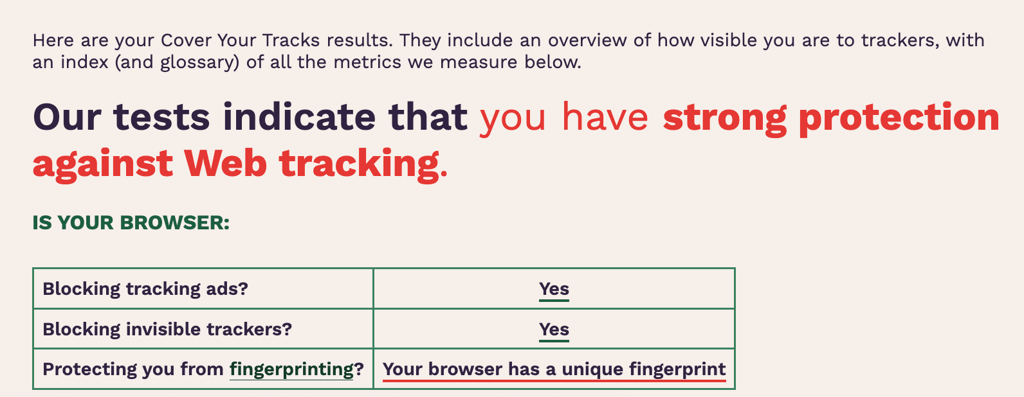
NordVPN didn’t have any trouble blocking trackers, with the only caveat being that it doesn’t manage to hide your browser footprint – which is true for all the ad blockers on the list.
NordVPN Threat Protection blocked every ad in my Can You Block It? test without any issue.

Compatibility. Next-gen antivirus is available on all NordVPN apps, which include apps for Mac. You can also find it on browser extensions for Chrome and Firefox. Unfortunately, NordVPN doesn’t have a Safari extension, but the macOS app does the job for Safari perfectly well.
Pricing. Next-gen antivirus is included in all NordVPN plans – the monthly and the yearly, for all tiers. The price starts at $3.09/month
4. Proton VPN NetShield – best ad blocker for Mac users who want customization options

| Free version: | No (only VPN has a free version) |
| Blocks YouTube ads: | Yes (on Chrome) |
| Supported platforms: | Android, iOS, Linux, macOS, and Windows |
| Current deal: | Get up to 70% OFF Proton VPN NetShield |
NetShield, Proton VPN’s safe browsing feature, is a solid ad blocker for Mac. It works at the DNS level to block ads, trackers, and malware and offers a few customization options to tailor your protection.
Features. NetShield lets you choose how much to block, whether that's nothing, only malicious websites, or everything, including ads, trackers, and malware. However, it doesn’t offer a whitelist and doesn't show any stats on what’s been blocked.
Test results. The NetShield blocker struggled in our tests, scoring the lowest on AdBlock Tester and failing to stop many of the ads on Can You Block It? However, it managed to block trackers, which can’t be said for all the ad blockers on the list. These poor results are likely because NetShield focuses on DNS ad blocking through its VPN, rather than providing a separate extension.
Proton VPN NetShield’s AdBlock Tester results are mediocre at best, scoring the worst result on our list with a score of 49/100.

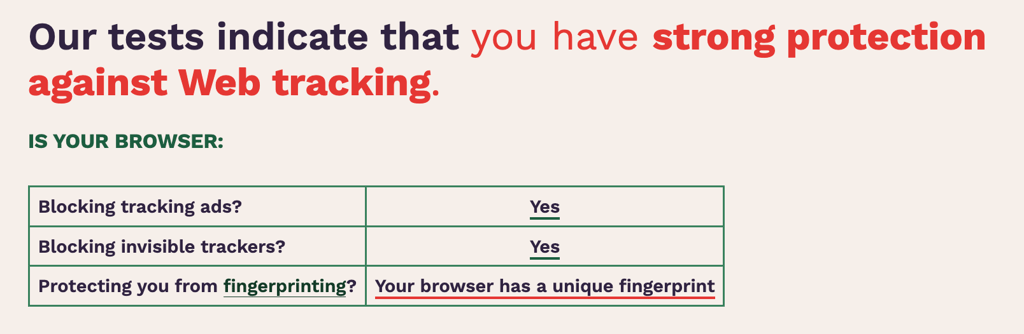
NetShield managed to get a strong protection rating against web trackers from Cover Your Tracks. Like the other ad blockers on this list, it didn’t manage to protect me from fingerprinting, though.
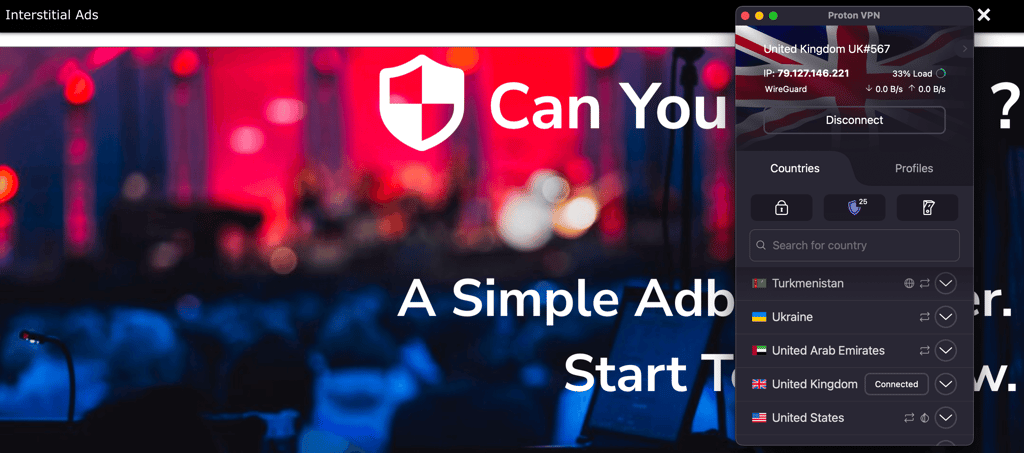
Unfortunately, NetShield allowed a lot of ads to slip through during the Can You Block It? test. This included the interstitial ad shown at the start of the test.
Compatibility. NetShield is available as a paid Proton VPN feature. The app can be downloaded on most devices, including Mac computers.
Pricing. The prices for NetShield as part of Proton VPN start at $2.99/month. You also get a 30-day money-back guarantee. Unfortunately, the free Proton VPN version doesn’t include the ad blocker.
5. IPVanish Threat Protection – best ad blocker for safeguarding online privacy

| Free version: | Yes (free trial) |
| Blocks YouTube ads: | Yes, limited |
| Supported platforms: | Windows and macOS, Android mobile, iOS, Android TV, and Amazon Fire TV |
| Current deal: | Now up to 83% OFF IPVanish |
IPVanish Threat Protection helps improve your privacy by blocking ads, trackers, and harmful websites across all major platforms. It’s built into every IPVanish VPN plan, so you get extra security without paying more.
Features. IPVanish Threat Protection blocks intrusive ads and trackers, filters malicious websites, and integrates with IPVanish’s app on devices like macOS, Windows, iOS, and Android. It maintains fast browsing speeds while ensuring robust online security.
Test results. During IPVanish Threat Protection testing, it scored the worst results out of all providers on this list, failing two tests and scoring low on AdBlock Tester. This is probably due to IPVanish relying on DNS blocking for its ad blocking, rather than a full extension.
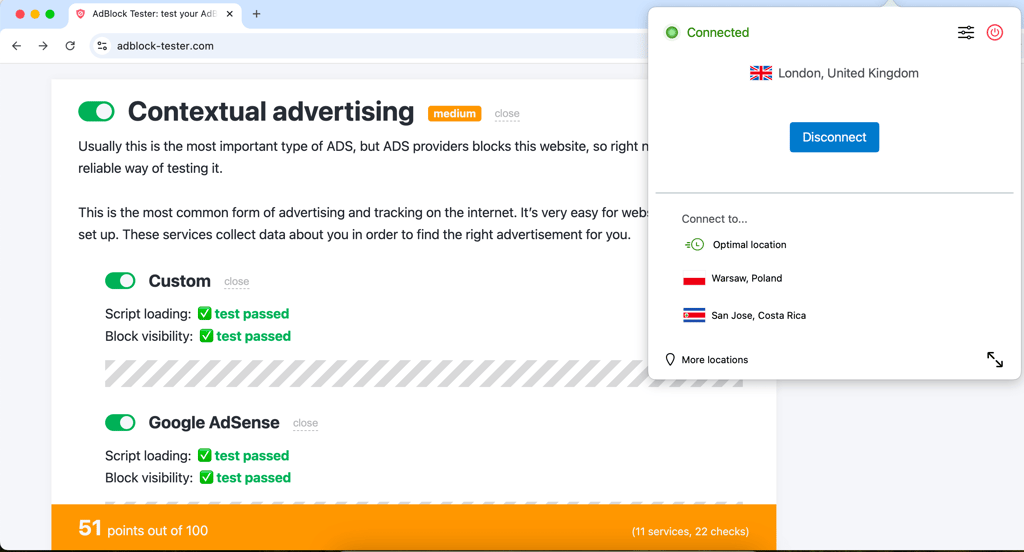
AdBlock Tester showed that IPVanish offers basic ad blocking capabilities, scoring a mediocre 51/100.
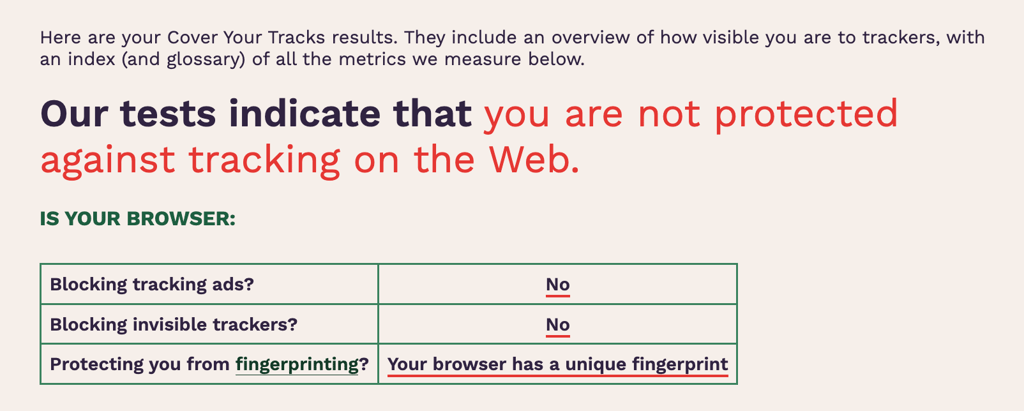
Unfortunately, IPVanish didn’t manage to protect my browsing from tracking during my Cover Your Tracks test. This is likely because of the aforementioned reliance on DNS protection.
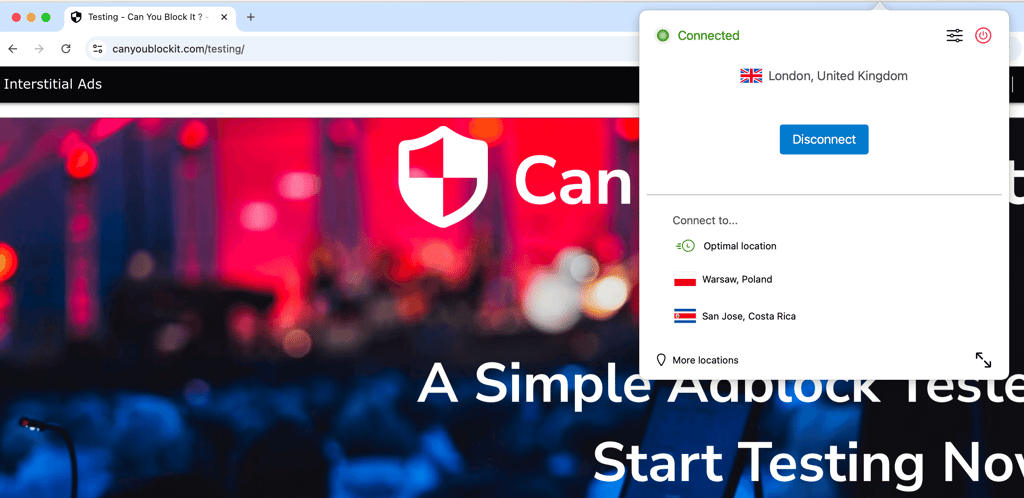
Like Proton VPN NetShield, IPVanish failed my Can You Block It? test, showing the interstitial ad it was supposed to block, as well as several banner ads on the testing site itself.
Compatibility. IPVanish Threat Protection works on macOS, Windows, iOS, Android, Fire TV, and Android TV, seamlessly integrating into the IPVanish app for easy use.
Pricing. Starting at $2.49/month, IPVanish includes Threat Protection in all plans with a 30-day money-back guarantee. iOS and Android users can enjoy a 7-day free trial.
Best ad blockers for Mac compared
| Surfshark CleanWeb | Total Adblock | NordVPN next-gen antivirus | IPVanish Threat Protection | Proton VPN NetShield | |
| Price | $2.49/month | $1.59/month | $3.09/month | $2.49/month | $2.99/month |
| Works with | Windows, macOS, Linux, Android, iOS, FireTV, Android TV, Chrome, Firefox, Edge | Android, iOS, Chrome, Safari, Opera, and Edge | Windows, macOS, Linux, Android, iOS, Chrome, Firefox, Edge | Windows and macOS, Android mobile, iOS, Android TV, and Amazon Fire TV | Android, iOS, Linux, macOS, and Windows, Chrome, Firefox, Edge, Brave, Opera, Vivaldi |
| Top features | Protection against malware and phishing, bypass list, cookie pop-up blocker, website breach alerts, comes with a VPN, 7-day free trial | Script blocking, whitelist and acceptable pop-ups list, pop-up blocker, Facebook ad blocker, improved page load speeds, filters | Comes with a VPN, protection against malware and malicious websites, URL trimming, 7-day free trial, 30-day money-back guarantee | Ad blocking, tracker protection, malicious site filtering, cross-platform compatibility, 30-day money-back guarantee | Double VPN feature, comes with a VPN, three protection levels, 30-day money-back guarantee |
| Free version | Yes (free 7-day trial) | Yes (free 7-day trial) | Yes (free 7-day trial) | Yes (free 7-day trial) | No (Only the VPN has a free version) |
| Reviews | Surfshark CleanWeb review | Total Adblock review | NordVPN Threat Protection review | IPVanish Threat Protection review | Proton VPN review |

How we selected and tested these ad blockers for macOS
To choose the best ad blockers for Mac, together with the Cybernews research team, we looked at how well they work on macOS, how easy they are to use, and what extra features they offer. Our testing process followed the Cybernews ad blocker methodology, which covers real-world performance, browser support, and overall reliability. Here are the key factors that determined the ratings:
- Ad and tracker blocking tests (30%). We ran hands-on tests using platforms like Can You Block It?, AdBlock Tester, and Cover Your Tracks. These tests helped us see how each tool handled different ad types. We also tested ad blocking across several popular websites and apps.
- Compatibility with Mac devices (20%). Some of the ad blockers on our list are browser extensions, while others are built into VPNs or antivirus software. We installed each one on macOS and tested how well it worked at both the browser and system level. For system-wide tools, we checked whether ads were blocked in other apps beyond the browser, such as email clients or gaming platforms.
- Supported browsers (15%). We tested each ad blocker primarily on Chrome but also looked at how well it worked with Safari, Firefox, and other common browsers used on macOS. Our tests included installing the extension, checking whether it was easy to set up, and seeing if the level of ad blocking stayed consistent across different browsers.
- Additional features (15%). We looked for things like whitelisting, malicious website blocking, data breach alerts, and tracker prevention. We tested whether these tools worked as advertised and how easy they were to use. For example, we checked if whitelisting could be applied per site and whether breach alerts provided useful details.
- Pricing options (10%). We compared what each provider offers for the price, including whether there’s a free plan, a free trial, or a money-back guarantee. We also looked at what features you get at each price level to determine overall value for money.
- Transparency (10%). We considered the provider’s reputation and openness. We reviewed privacy policies to make sure no personal data is logged or sold, checked for any past security incidents, and evaluated how clearly each company explained what its software does.
Why do you need to block ads on your Mac device?
Ads are something that’s been with us forever, so it may not occur to some people that there is a possibility of not seeing them anymore. As for the reasons why you should consider getting rid of ads, here are some:
- Get rid of intrusive ads. There are ads that peacefully idle at the corner of your screen and don’t do much more. But there are also ads that pop up at the most unexpected times, block the whole screen, and have the exit button hidden in the most invisible place. An ad blocker will keep these and any other kinds of ads at bay.
- Speed up webpage loading. Ads eat up a surprising amount of bandwidth, which increases the site loading time. Not having ads at all will help improve loading speeds and have a smoother browsing experience.
- Prevent tracking and cookies. A surprising number of websites use trackers to monitor visitor behavior for targeted advertising and other purposes. Advanced ad blockers will prevent the trackers from following you around everywhere.
- Avoid scams. Some ads, such as the “Congratulations You Won” pop-up, are just scams, and it’s usually pretty easy to recognize them. However, others are trickier to spot, and you can find yourself downloading harmful software without even realizing it. Having an ad blocker will remove all risks of scammy ads and pop-ups.

Best macOS ad blockers based on your browser
Safari is the default browser for all macOS devices; however, a lot of people rely on other browsers to access the internet. So here are our ad blocker recommendations and the web browsers they support.
| Ad blocker | Supported browsers |
| Surfshark CleanWeb | Chrome, Firefox, and Edge |
| Total Adblock | Chrome, Opera, and Edge |
| NordVPN next-gen antivirus | Chrome, Firefox, Safari, Brave, Opera, and Edge |
For more options, you can also take a look at our recommendations for the best ad blockers for Safari.
How do I get an ad blocker on my Mac?
If you want a reliable and powerful ad blocker for Mac, we recommend using Surfshark CleanWeb. Here’s how to set it up:
- Download Surfshark for your Mac device
- Navigate to Settings within the app
- Find and select VPN settings
- Toggle the CleanWeb switch to the ON position
Is there a free ad blocker for Mac?
Yes, free ad blockers for Mac devices are available. However, we don't recommend using free ad blockers as they might collect and sell private data.
In the worst-case scenario, cybercriminals could even disguise malware as attractive free ad blockers to confuse less careful Mac users and trick them into downloading dangerous apps and extensions.
Due to these potential risks, we strongly recommend choosing reputable providers that offer paid ad blockers. Opt for the best Mac ad blockers with free trials and money-back guarantees to test them out risk-free.
Conclusion
Having a reliable ad blocker on your Mac makes browsing less annoying. You won’t have any more pop-ups, flashy ads that cover content, or sneaky trackers following you around the web. It also gives you extra protection against malware and sketchy websites.
Based on my testing, Surfshark’s CleanWeb is the best ad blocker for macOS. It blocks ads, trackers, and harmful sites well and shows you a clear breakdown of what was blocked. It also scans all your downloaded files for malware and other threats.
FAQ
Do Macs need ad blockers?
Yes, having an ad blocker on Mac is essential. Ads don’t discriminate between devices, so they can appear on any browser and any computer or phone. Besides being intrusive, some ads can also be harmful. We recommend Surfshark CleanWeb as the best ad blocker for Mac.
Do ad blockers work on Mac?
Yes, all ad blockers on our list work on Mac devices really well. Some are better at blocking certain types of ads, and some are better at detecting and getting rid of invisible trackers. Nevertheless, all are perfectly functional and come with useful additional features.
What is the best ad blocker for Mac Chrome?
The best ad blocker for Mac is Surfshark CleanWeb. Not only does it block all kinds of ads and trackers on Chrome, but also scans your downloads for malware and other threats. Besides, it is part of a really powerful antivirus suite that can provide you with even more protection and privacy online, whatever you do.
How do I know if ad blockers are running on my Mac?
To check if you have an ad blocker on your Mac device, first check your Safari browser: open the Safari menu, go to Preferences, then Websites, and finally, Content blockers. If you have ad blockers installed, you can disable them directly from the menu.
How to turn off ad blocker on Mac?
There are several ways to turn off an ad blocker on Mac. If you are using an ad blocker extension, navigate to the extension settings on your browser and disable the ad blocker. If you’re using an ad blocker that comes with a VPN (extension or app), navigate to the additional features of your VPN app or browser extension and turn off the ad blocker.