How to change location on Google Chrome in 2026
Our in-house cybersecurity experts and journalists, renowned for major reports like The Mother of All Breaches, conduct transparent, unbiased VPN testing and in-depth analysis.
With 750+ articles crafted based on real-world research, we empower readers to make informed purchasing decisions through first-hand expertise.
Learn more
.jpg)
Your online location affects more than you might think – from the search results you get to the ads you see and the websites you can access. It can also reveal unnecessary data about your browsing habits. Whether you’re trying to view region-specific content, test geo-based features, or reduce tracking, learning how to change location on Google Chrome is beneficial.
In this guide, I cover the most reliable ways to change your browser location in 2026. I also recommend the best VPNs for it, based on testing I’ve done with our research team.
How Google knows your location
Google can figure out where you are using more than just one signal. The most obvious one is your IP address, which shows your general region. If you’re on a phone or tablet, Google can also use GPS data (if you allow it). On laptops, it relies on nearby Wi-Fi networks, Bluetooth, and your device’s general location settings.
Chrome can also share location through browser permissions, cookies, and your Google account activity, like Maps and YouTube. This is why changing your location in just one place, such as in Chrome settings, might not fully change what Google sees.
A VPN changes your IP address at the source, which is why it’s usually the most reliable option. It also encrypts your traffic, which helps reduce tracking and makes it harder for third parties to monitor what you do online. However, it had its limitations.
| Signal | What it's based on | Can a VPN help? |
| IP geolocation database lookup | The country or city linked to your IP address | ✅ Yes |
| Website/server-side region detection | Your IP address, which websites use to decide what content or version to show | ✅ Yes |
| ISP-based location inference | The internet provider associated with your IP address | ✅ Yes |
| DNS-based location signals | Where your DNS requests appear to come from | ✅ Yes, but only if the VPN routes DNS through its own servers (DNS leak protection enabled) |
| Search results and ad localization | Your IP address, which search engines use to personalize results and ads | ✅ Yes |
| Regional pricing shown on websites | Your IP address, which sites use to display local prices, products, or availability | ✅ Yes (but it won't bypass payment method or billing address checks at checkout) |
| WebRTC-based IP detection | Your real IP address if your browser leaks it through WebRTC | ⚠️ Yes, but only if the VPN includes WebRTC leak protection |
| Google account activity | Your signed-in Google account, including your search history, Maps activity, and YouTube data | ❌ No |
Why would you change your Google Chrome location?
Google uses your geolocation to personalize search results, ads, and website access. While this can improve relevance, it can also limit what you can see and expose more data than necessary. Here are the main reasons to change your location on Google Chrome using a reliable VPN or other methods:
- Mask your geolocation. Advertisers use location data for targeted ads, while malicious actors can use it to tailor scams. Spoofing your location helps reduce profiling and risky personalization.
- Test localized websites and interfaces. Developers, marketers, translators, and QA teams often change their location to verify how websites, search results, languages, currencies, or region-specific content appear in different countries.
- Fix location-related technical issues. Some websites or web apps display incorrect content, language, currency, or regional settings because they detect the wrong location.
- Access geo-restricted content. Some websites, services, and platforms block access by region, and changing your location can help you bypass these blocks. For example, a TikTok VPN can help you unblock TikTok in regions where it’s restricted.
Using a VPN to access TikTok in countries where VPN or TikTok use itself is restricted may carry legal risk.
- Unlock better prices. Prices for subscriptions, flights, and products often vary by country, so switching locations can help you find cheaper deals. Keep in mind that some services may require a payment method in a matching location.
- Encrypt your internet traffic. If you change your location with a VPN, you can hide your IP address and encrypt your connection. This makes tracking far more difficult, especially if you use obfuscated servers.
- Protect yourself during travel. A travel VPN will increase your security on public Wi-Fi and protect your data from online surveillance and cybercriminals.
How to change the default Chrome location
If you don't want websites to access your real location, it might be enough to manually change Chrome's default location settings. Since this method uses Chrome DevTools, it only works in the desktop version of Chrome, not the mobile app. Changing the location this way prevents the website you choose from tracking your real location. Here’s how to do that.
Step 1. Open Google Chrome on your device and go to the website you want to browse.
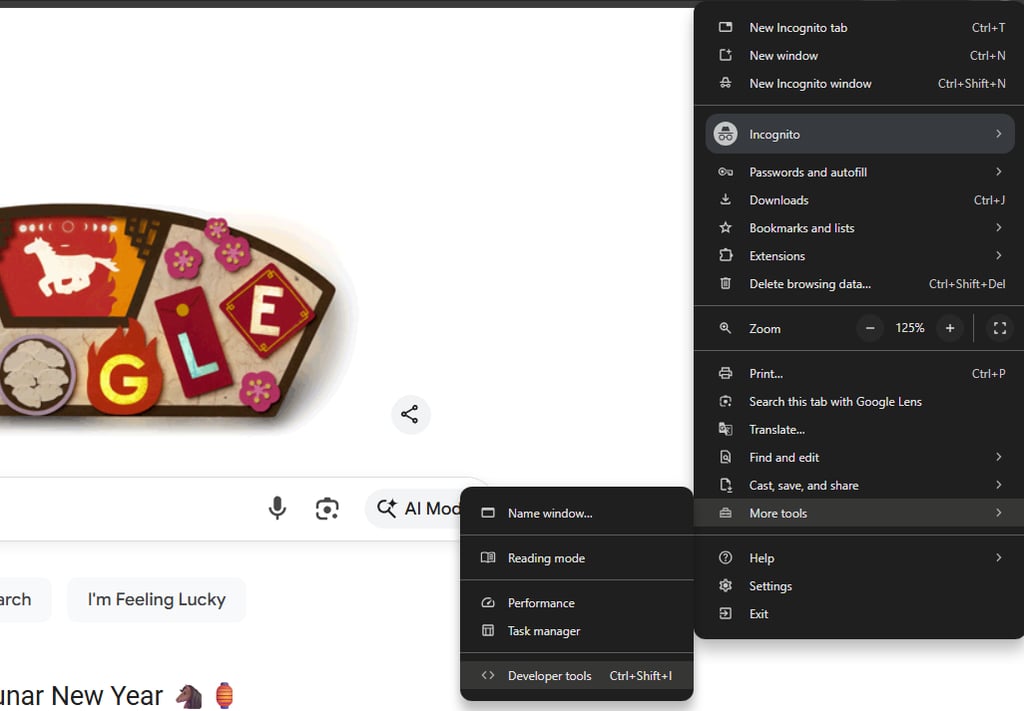
Step 2. In the top-right corner, click the three-dot icon and select More tools and then Developer tools.
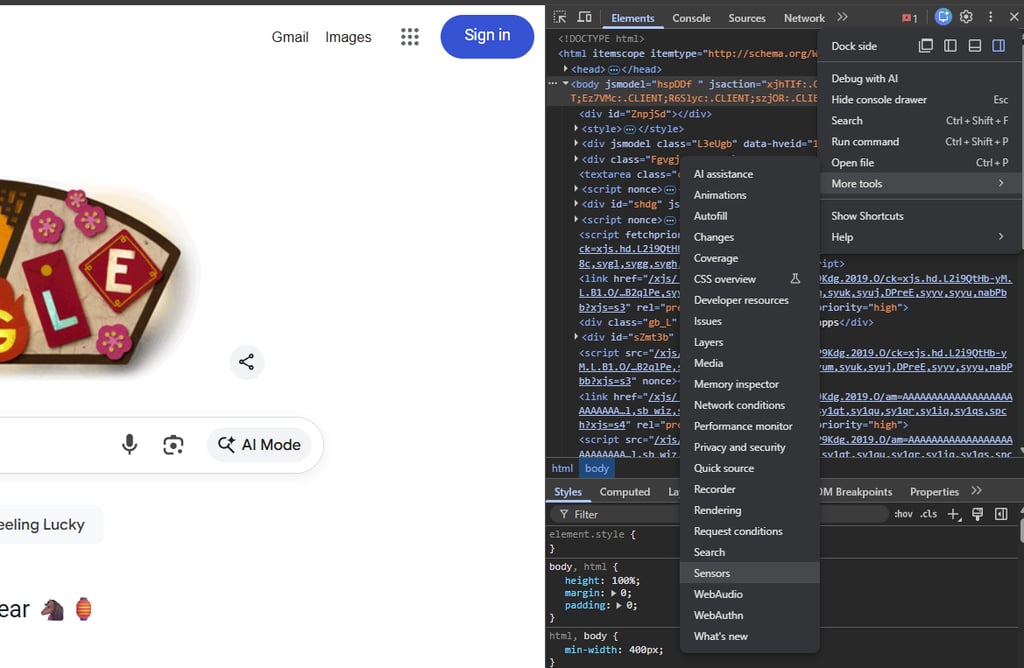
Step 3. Click the three dots in the top-right corner, find More tools, and click on Sensors.
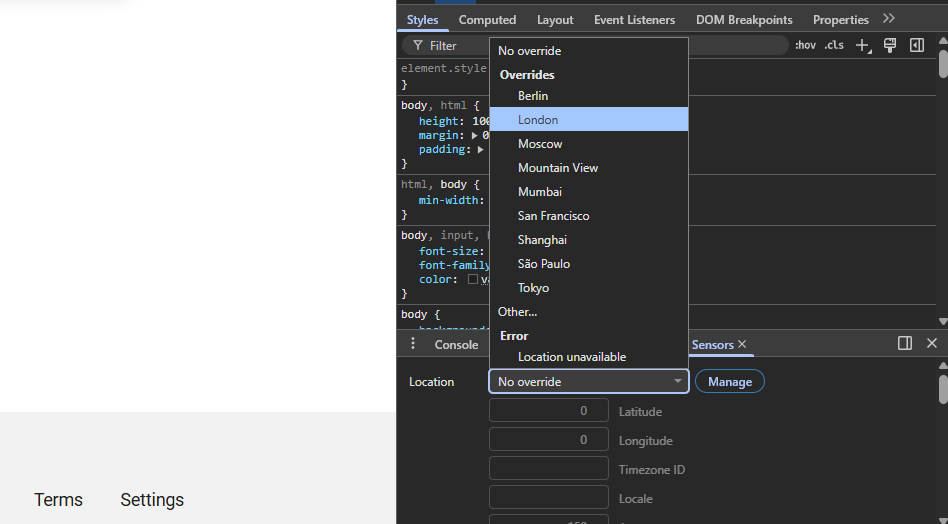
Step 4. In the bottom-left corner, find the Location dropdown menu. Either choose a city from the list or click on Other and enter your latitude and longitude.
Step 5. Refresh the page – the site should now detect your new location.
- Note: Tested in July 2026 on Chrome Version 149.0.7827.197
Recommended VPNs to change location on Chrome
When it comes to choosing a VPN, the market is flooded with providers promising to meet all your requirements. But the truth is that not all VPNs are equal. Security, connection speeds, and available features are often what separate a reliable VPN from one that delivers a poor experience.
I've reviewed 41 VPNs and have pulled together a selection of recommended Chrome VPNs that can change your region on your browser:
- NordVPN – best VPN to change location on Chrome in 2026
- Surfshark – budget-friendly Chrome VPN
- Proton VPN – Chrome VPN with great privacy options
If you need more insights, be sure to check out our guide to the best VPN extensions for Chrome.
How to change Chrome location on your device
Google Chrome is one of the most popular browsers and is available on all top devices. Having said that, if you want to change your location on Chrome, the steps will be slightly different depending on what device and operating system you use.
Change Chrome location on PC
Chrome is a very popular browser on both Windows and macOS. And the good news is, regardless of which operating system you use, it’s not difficult to change your location on your browser. Just follow these simple steps to get it done:
- Download and install a VPN on your computer
- Open the VPN app and log in using your account credentials
- Connect to a server in the location you want to access
- Open Chrome, click the three-dot icon in the top-right corner, and find Settings
- Click Privacy and security, and then go to Site settings
- Hit Location and select Don’t allow sites to see your location
- Tested on macOS Tahoe, Chrome Version 149.0.7827.197 in July 2026. During testing, we used NordVPN’s UK server. Chrome geolocation updated instantly.
Change Chrome location on your Android phone
It’s remarkably easy to change your location on Chrome using your Android smartphone. Here’s what you need to do:
- Choose a VPN to change your Chrome location on Android
- Download and install a VPN from the Google Play Store
- Open the VPN app, sign in, and connect to a server
- Open your Chrome app and go to Settings, then Site settings, and tap on Location
- Select Don’t allow sites to see your location
Change Chrome location on your iPhone
The process for changing your Chrome location on an Apple phone is slightly different but just as straightforward. Just follow these steps:
- Select a VPN to change Chrome location on an iPhone
- Download and install a VPN app from the Apple App Store
- Create a new Google account and select your new location
- Go to your iPhone Settings, scroll down to Apps, and tap Chrome
- Hit Location and select Never
- Tested on iOS 26.5, Chrome Version 150.0.7871.51 in July 2026. During testing, we used NordVPN’s UK server. Chrome geolocation updated instantly.
Can’t change location on Chrome with a VPN?
However hard you try, there might be occasions when you can’t change your Chrome location. During in-house testing, our team also ran into issues with Chrome still detecting the old location. If you find yourself in this position, check that your VPN is definitely working, and make sure that you’ve connected to a server in the right location.
If you’re sure it’s neither of these things, take a look at our guide on how to use a VPN, or check for these common issues:
- Your true IP address may be leaking
- Your VPN can’t unblock the geo-restrictions on the site or service you’re trying to access
- Your cookies may be giving away your real location
To fix these problems, I suggest:
- Checking that you have IP leak protection enabled on your VPN app or browser extension
- Clearing your cache and cookies
- Connecting to a different server
- Reaching out to your VPN’s customer service for advice
If all this fails, it could be time to opt for an anonymous VPN that won't disappoint.

Change Chrome location with a free VPN
If you want to use a free VPN to change your Chrome location, I suggest using a freemium, which is a free version of a reputable VPN that has paid-for options. Although most free VPNs are pretty basic, I suggest trying Proton VPN – it doesn’t impose data caps and comes with adequate security.
On the other hand, if you want to try a VPN to change your location while you’re on holiday, you could sign up for a free trial of a paid VPN. My favorite VPNs for Chrome offer 30-day money-back guarantees, so you could try them out before committing to a longer payment plan. To find out more, take a look at our tips on how to claim a NordVPN free trial or a Surfshark free trial.
How to use VPN with Chrome: useful tips
For the best Chrome VPN experience, I recommend following the tips below:
- Enable the auto-connect feature. Ensure you’re connected to a VPN before opening your Chrome browser. Providers, like NordVPN, have auto-connect features, helping you not to forget to enable VPN traffic.
- Use split tunneling functionality. Enabling split tunneling while using a Chrome VPN will let you adjust on which websites your traffic will be routed through an encrypted tunnel.
- Install a VPN browser extension. Even if you’re using a VPN client version, installing a Chrome VPN extension can protect you from IP address leaks by blocking WebRTC communication protocols.
- Enable DNS leak protection. By using DNS (IP) leak protection, you may achieve a greater level of online privacy.
- Use an advanced tunneling protocol. For the best protection and connection speeds, I recommend you use the WireGuard tunneling protocol or proprietary versions of it, like NordLynx with NordVPN.
Conclusion
Changing your location on Google Chrome can help you evade targeted ads, access geo-restricted content, and even save money. Moreover, you can significantly increase your anonymity, privacy, and security.
While it is possible to change and also add custom locations to Google Chrome manually, this method doesn’t come with the benefits you can take advantage of if you use a VPN. With a VPN, you can easily connect to servers in different countries and spoof your current location. Moreover, you can change locations very fast, which becomes cumbersome when doing it manually.
NordVPN is my top recommended VPN provider to change your Chrome location because it offers thousands of servers across 224 locations. Also, the interface is very clean and easy to use, which makes changing your location quick and easy. To top it off, NordVPN is one of the fastest and safest VPNs on the market, ensuring an enjoyable and safe online experience.
FAQ
How do I manually change the location on Google Chrome?
To change the location on Google Chrome, open your Chrome browser and press Ctrl+Shift+I if you’re on Windows or Cmd+Option+I if you’re using macOS. Then, click the three dots in the top-right corner, select More tools, then click Sensors, and in the Location dropdown menu, select Other. You’ll then be able to enter any latitude and longitude you want.
Why is my location wrong on Chrome?
If Chrome is showing the wrong location, it’s likely that your IP address doesn’t match your actual location or that Google isn’t able to determine what region you’re in. To make sure Google is registering the location you want, use a VPN to connect to a server in the right country.
How does Google determine my location?
Chrome uses a range of geolocation tools to find and track your exact location, such as your IP address. Additionally, Chrome can use your device’s Bluetooth and apps that track your location to discover your whereabouts. Chrome can also collect data from Wi-Fi access points to locate users.
Does a VPN affect my Google location?
Yes, connecting to a server in another country will make Google recognize your traffic as coming from that region. It will then serve search results and tagging options from that location. This can be really useful if you want to access content from other parts of the world or if you want to keep your true location hidden. However, you should always use a reliable VPN for this. I recommend NordVPN or Surfshark.
Can I use a free VPN to change my browser location?
Yes, it is technically possible to use a free VPN to change your browser location, although it’s less likely to work than when using a paid-for provider. That’s because free VPNs have fewer servers, which makes it easier for Chrome to detect VPN traffic. However, if you want to try one, I recommend using Proton VPN. For more information, check our tips on using a free VPN on Chrome.
Should I use a VPN browser extension or a VPN app to change my location?
If you use a smartphone, install a dedicated VPN app. If you want to change your location on Google Chrome using a desktop computer or laptop, consider using a browser extension. Notably, not all VPNs have browser extensions, so you have to choose the right tool for you.
Is it legal to change your location on Chrome?
Yes, it’s legal to change your location on Chrome. However, using it to bypass geographic restrictions may violate a website or service’s Terms of Service, which can lead to account restrictions or bans. In some countries, VPN use itself is restricted or illegal, so local laws may also apply.