Enpass review 2026
Being behind major reports like The Mother of All Breaches and WhatsApp Data Leak, our in-house cybersecurity experts conduct independent, unbiased testing and thorough analysis of password managers, helping users confidently manage their credentials and sensitive information.
We prioritize transparency by openly sharing detailed descriptions of our in-house testing procedures and methodologies.
Learn more
Enpass is a secure, local-first password manager designed with privacy-conscious users in mind. Instead of keeping your vault data on its own servers, Enpass stores it locally on your device and lets you sync it through a cloud service of your choice. It also covers the basics well, with autofill, password audits, passkeys, one-time codes for 2FA, password sharing, backups, and password import/export.
That said, Enpass may not be the best fit if you want lots of extra features. It lacks email masking, emergency access, and traditional 2FA for unlocking your vault. Some tools also feel less polished compared to top competitors like NordPass. With all of that in mind, in this Enpass review, I tested its security, features, ease of use, pricing, and overall value to see whether it’s worth using in 2026.

Enpass review – at a glance
Enpass is a budget-friendly password manager that delivers strong security and all the essential features most people need. It uses robust encryption, has undergone independent security audits and assessments, and even patched the Autofill issue well before it was publicly disclosed. However, due to the lack of some advanced extra features and more limited vault-login 2FA, it is not listed among our best password managers.
| ⭐ Rating: | |
| 🥇 Overall rank: | #11 out of #20 |
| 💵 Price: | From $1.19/month |
| ✂️ Free version: | Yes |
| 🌐 Browser extensions: | Chrome, Firefox, Vivaldi, Safari, Edge, Opera, Brave |
| 🔥 Coupons: | Enpass coupon 40% OFF! |
Enpass pros and cons
Enpass is a secure password manager that covers the basics well. It offers all the core features, has undergone independent audits, and is easy to use. However, it might not be the right fit for every user. Below, I share a quick overview of Enpass’s main pros and cons.
If you’re looking for a high-quality password manager, I suggest checking out our NordPass vs 1Password comparison, where we dissect both premium providers head-to-head and suggest who should choose which.
Recent Updates
Enpass review – key takeaways
Enpass is a budget-friendly password manager that offers a free tier, comprehensive essential features, and user-friendly interfaces. With a variety of plans available, it’s well-suited for individuals, families, and businesses. While it may not top our list of the best password managers, it's a highly secure solution, and I can see why many people find it an attractive option.
- Security. Enpass uses industry-standard 256-bit AES encryption with 320,000 rounds of PBKDF2-HMAC-SHA512 to encrypt your data. It has also undergone third-party security audits and assessments. However, its lack of traditional vault-login 2FA is a notable drawback. It’s also worth noting that Enpass was hit by the Autospill vulnerability, though it did patch the issue a year before it was publicly reported.
- Ease of use. Enpass’ installation and setup processes are a breeze. Its interfaces, whether apps or browser extensions, are simple and easy to navigate. That said, there are a few areas that could use improvement. For instance, some features, like the password generator, are somewhat tucked away and not immediately visible. Additionally, adding items via the desktop apps feels a bit more cumbersome than it should.
- Features. While Enpass doesn’t go the extra mile by offering numerous advanced features like 1Password, it covers all the essentials. These include a password audit, password generator, one-time codes for 2FA, password sharing, password import/export, and both manual and automatic backups.
- Price. Enpass offers a free version, called Enpass Lite, three personal plans, and two business plans. The Lite edition is available on desktop and mobile devices, but serves more as an introduction to the password manager’s services, with limited features and up to 25 items on mobile. The entry-level Individual Plan costs $1.19/month and removes these limitations. For $2.99/month, the Family Plan allows you to add up to 6 users. If you’d rather skip yearly subscriptions, there’s also the 3-Year Plan, which costs $47.99 for the whole duration. Business plans start at $1.99/month.
Who should use Enpass?
Here’s a short overview of who Enpass is best suited for, based on its different plans and features. Have a look:
- Individuals. Enpass Lite is a solid choice if you just need a safe place to store your passwords and are happy with basic features like a password generator and autofill. I’d say it works for students, freelancers, and anyone on a tight budget. However, if, like me, you want more flexibility and functionality, Enpass’ paid personal plans are all reasonably priced options. They remove those restrictions as well as offer apps for all the major OS and a wider range of features.
- Small families and friend groups. For small families or close friends, Enpass’ Family Plan is a very affordable option. It lets you secure up to 6 accounts for $2.99/month.
- Small to mid-sized businesses. Enpass is a good choice for small and growing businesses looking for a reliable password manager without blowing the budget. Its Business Plan, at $1.99, allows paying per user.
- Bigger businesses on a budget. Enpass’ Large Enterprises plan is designed for larger businesses seeking affordability alongside advanced integration and policy control features. While it offers solid value, the lack of more advanced functionalities may limit scalability and additional security options. For pricing details, you’ll need to contact sales for a custom quote.
Enpass pricing and plans
Enpass offers a wide range of plans, including a free version. I’m glad to see there are plenty of options for both personal and family use as well as for businesses.
| Plan | Lite Plan | Individual Plan | Family Plan | 3-Year Plan | Business Plan | Large Enterprises |
| Price | Free | $1.19/month | $2.99/month | $47.99 | $1.99/month per user | Contact sales for custom quote |
| Number of items | Unlimited on desktop, 25 on mobile | Unlimited | Unlimited | Unlimited | Unlimited | Unlimited |
| Users allowed | 1 | 1 | 6 | 1 | As many as purchased | Unlimited |
Free version (Enpass Lite)
Enpass provides a free version, called Enpass Lite, for both desktop and mobile users. On desktops – including Windows, macOS, and Linux – the free version offers unlimited items and vaults, cloud synchronization, autofill, and a password generator at no cost. Registering unlocks additional features such as a dark theme, Windows Hello support, custom templates, and categories.
On mobile devices, however, the free version has stricter limitations. Android and iOS users can store up to 25 items in a single vault, which may feel restrictive to password managers with fewer free-plan limitations.
To lift these restrictions and access advanced features like breach monitoring, users must purchase an Enpass license. Enpass offers flexible pricing options, including individual and family subscriptions, along with a one-time 3-Year Plan. Note that while Enpass provides robust security measures like a keyfile and biometric authentication, it does not currently support two-factor authentication for vault access.
Individual Plan
Enpass’ Individual Plan costs $1.99/month, billed yearly at $23.99. The plan includes essential features such as apps for all the major OS (Windows, macOS, Linux, iOS, and Android), passkey support, security alerts for website breaches, identification of accounts with 2FA authentication, and email and forum support. You also get unlimited passwords, items, vaults, and devices.
For me, it’s a great plan that offers excellent value – especially if you’re flying solo and don’t need to share your account with others.
Family Plan
Enpass’ Family Plan costs $2.99/month for the first year. It offers all the same features as the Individual Plan. The only difference – and it’s a big one – is that it lets you add up to 6 members.
For families, the Family Plan delivers a remarkable price-to-value ratio. For just a bit more per month compared to the Individual Plan, you can extend Enpass’ services to cover 6 family members. It’s a cost-effective solution for keeping household passwords safe and organized.
3-Year Plan
If you’re sure of your choice and in it for the long haul, the 3-Year Plan is well worth considering. For just a one-time fee of $47.99, you get a license for three years with the same features as the Individual Plan.
Business Plan
The Business Plan costs $1.99/month per user, is billed yearly, and can be integrated with Microsoft 365 and Google Workspace. If you run a small to medium-sized business and are looking for a plan that strikes the perfect balance between features and cost, the Business Plan might be what you need. Its centralized control and collaboration tools make it easier for you to manage passwords, users, and shared vaults from a single place. Plus, it’s scalable and can grow with your team as your needs change.
Large Enterprises plan
Enpass’ enterprise plan is not listed with a fixed price and requires you to contact the provider for a custom quote. It includes everything in the Business Plan, along with additional features designed to enhance efficiency, data security, and the overall user experience.
The Large Enterprises plan includes:
- Central hub options – choose between a self-hosted or Enpass-hosted hub for data management
- Advanced corporate policy enforcement
- Automatic user provisioning via SCIM from Entra ID, Okta, and others
- UEM/MDM (Unified Endpoint Management/Mobile Device Management) configurations to quickly deploy and configure Enpass across all devices in your organization
- Family Plan included for free for every user
- Branding customization
For large organizations, the Large Enterprises plan could be well worth it. Even more so if you need advanced integration, policy control, and greater customization options.
Is Enpass safe?
Yes, Enpass is a safe password manager to use. It has undergone independent security audits and assessments by Cure53 and VerSprite, and employs 256-bit AES encryption. Additionally, it follows a local-first storage model, meaning your encrypted vault data is stored on your device or in the cloud service you choose rather than on Enpass’ own servers. While it doesn’t go above and beyond to offer advanced security features, it effectively covers all the essential requirements.
In December 2023, researchers publicly reported a vulnerability called Autospill that affected several mobile password managers on Android, including Enpass, 1Password, and LastPass. The flaw involved Android’s WebView component, where credentials shared during autofill could be exposed to untrusted apps.
However, Enpass clarified that it had identified and patched the issue with its security updates back in September 2022, long before it even made it into the news. While vulnerabilities are always possible, I’m glad to see that Enpass is proactive in addressing such issues.
As of now, there have been no further reports of Enpass security breach or similar incidents. But, let’s take a closer look at its security measures to see if Enpass is the best password manager for your needs.
Encryption
Enpass uses the gold standard 256-bit AES encryption with 320,000 rounds of PBKDF2-HMAC-SHA512, powered by the open-source encryption engine SQLCipher to encrypt your data.
I can tell from this alone that Enpass takes encryption seriously and provides advanced protection against even the most serious cyber assaults such as brute force and side-channel attacks. That said, newer methods like Argon, used by the NordPass password manager, offer better resistance to certain types of attacks.
Third-party audits
Like any password manager worthy of consideration, Enpass has been independently assessed. It has undergone a third-party audit by Cure53 and a security assessment by VerSprite, while Enpass also states that its security and compliance practices have undergone a SOC 2 Type II audit.
The latest public technical audit I found was carried out in 2023 by Cure53, focusing on Enpass Vault Password Recovery, Vault Sharing, and Enpass Hub features for organizational password management.
User data
Unlike NordPass, 1Password, Bitwarden, and other top password managers that focus more on cloud-based solutions, Enpass is a local-first password manager. This is a pro in my book since your user data stays local on your device, which is generally more secure because it never leaves your control.
Your user data is also only accessible through your master password, which only you know. Enpass doesn’t keep a record of your master password or its derivative. But, I do want to highlight that this also means if you forget your master password, you’re out of luck – there’s no way to recover your data.
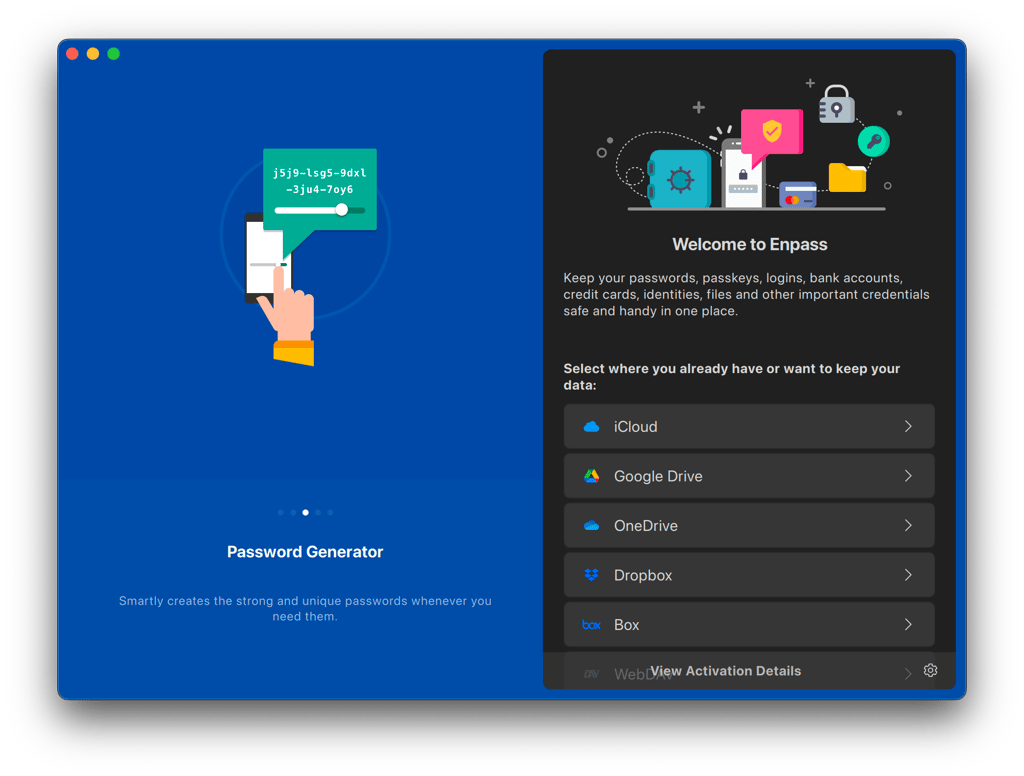
To prevent this, I’d recommend creating an encrypted backup file. It serves as a safety net and can only be opened with your master password. You can also sync your encrypted vault or backup in a cloud service of your choice. Most major providers such as iCloud, Dropbox, and Google Drive are supported.
Two-factor authentication
Enpass simplifies identifying websites that support two-factor authentication (2FA), but lack a saved one-time code in the app. This feature helps users recognize 2FA-compatible accounts and take proactive steps to enhance security by adding a second layer of protection. Additionally, Enpass can function as an authenticator app for these accounts, generating one-time codes to streamline 2FA implementation. This capability is conveniently located in the Audit section of the Enpass app.
One aspect I find reassuring is that Enpass allows you to create a Keyfile – a file stored on your device containing an encryption key that works alongside your master password as an additional authentication factor. Furthermore, Enpass supports activation codes when setting up the app on a new device and biometric authentication for added convenience.
I also appreciate its time-based one-time Codes (TOTP) feature. This functionality lets you use Enpass to generate TOTP codes for accounts with 2FA support, making it a versatile tool for managing your online security.
How does Enpass work?
Once you’ve installed Enpass, set it up, and created your master password, you’re ready to start using the password manager. Below is a quick look at how Enpass works. For this example, I’ve used Enpass’ desktop app and browser extension with Netflix, which I’ve visited before.
- Go to the website you want to log into
-
Type in your username and password
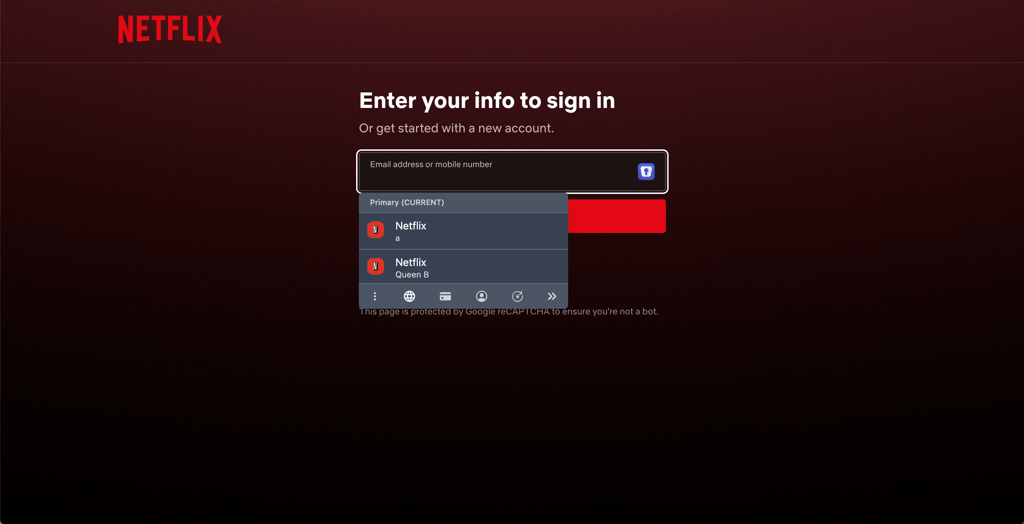
- You will see the Add to Enpass pop-up
-
Verify the details of the item like the title and website are correct – they should already be filled in
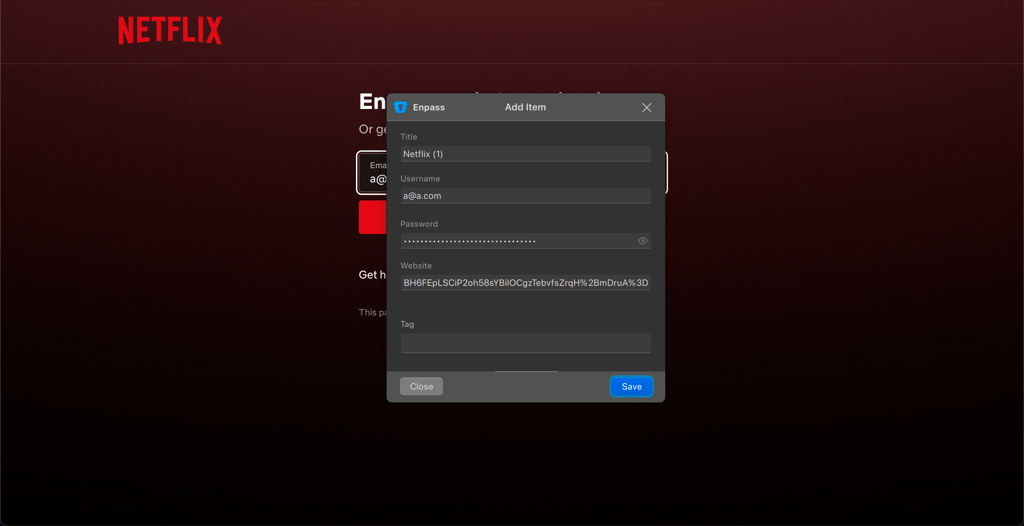
- If you have multiple vaults, select the vault you prefer from the drop-down menu
- You can also add a tag to organize your items – I found that it helps keep things clean and orderly
- If you want to include extra info, click Show More to expand the options
- Click Save
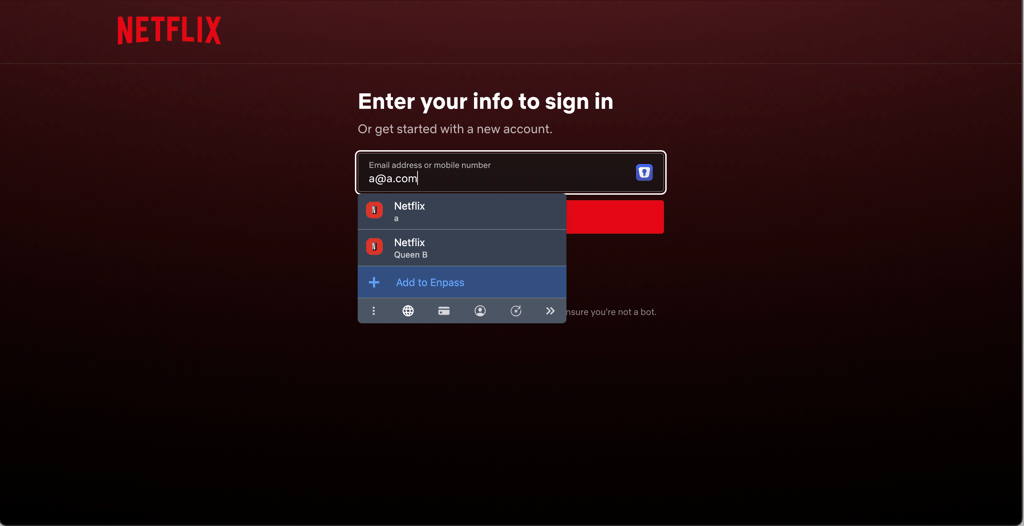
The next time you visit the site, just click on one of the login fields and Enpass will provide you with the option to autofill your login details.
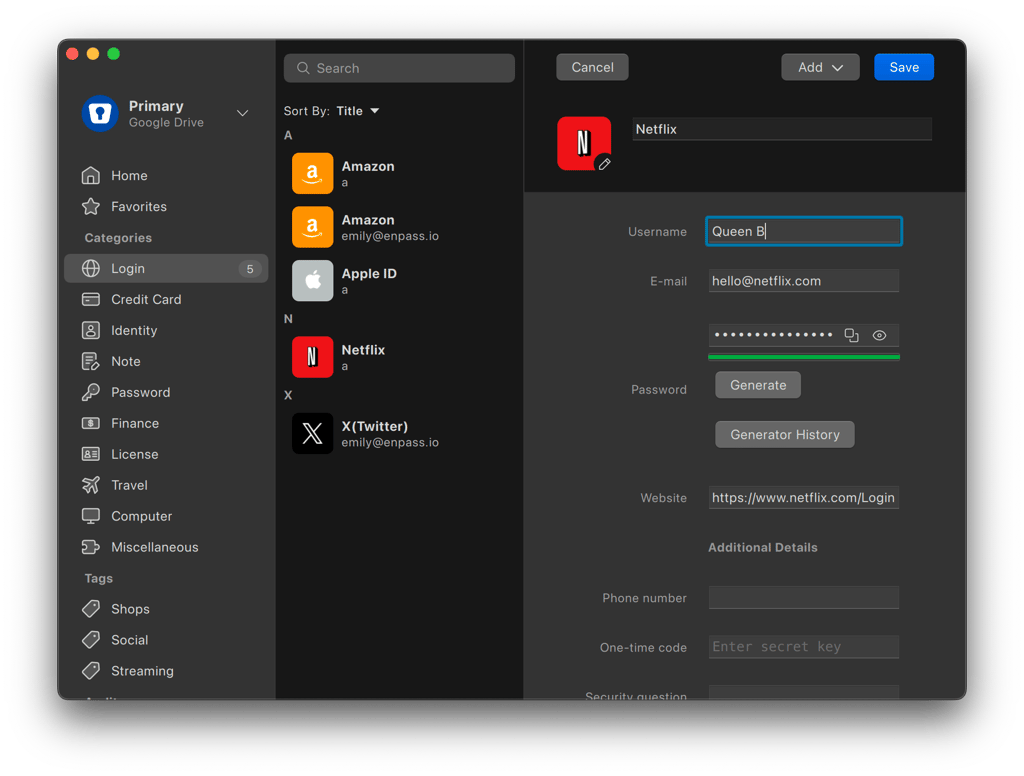
I found it equally straightforward to manually add items to Enpass. However, I must say that the process can feel slightly tedious if you have multiple items to add. When I tried it on my desktop, here’s what it looked like on a macOS computer:
- Open the Enpass app
-
Click the + New Item button at the top of the interface
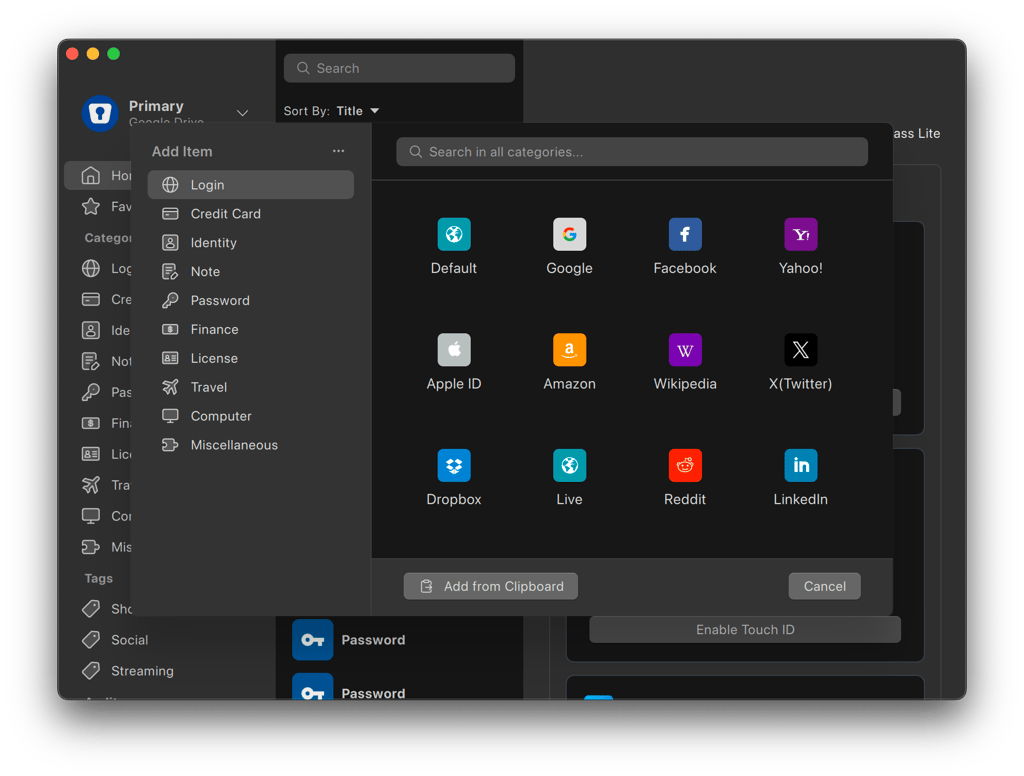
- Choose a category and then select a template that matches the item you’re adding
- If you have multiple vaults, pick the vault you want to save the item to
-
Fill in your details and click Save
Enpass features
Enpass covers all the basic features you’d expect from a password manager. However, I find it’s a bit light on extras compared to other paid options that throw in additional features like email masking, emergency access, or more advanced dark web monitoring. Here’s a quick glance at what it offers:
| Feature | What it does |
| Storage | Stores different items securely and lets you tag them for easy categorization |
| Audit | Scans your passwords to identify weak, compromised, duplicated, or expired ones |
| Archive | Lets you archive unused items, hiding them from lists and searches to stay organized |
| Password Generator | Creates secure passwords with customizable options for length, character types, and more |
| Vaults | Provides you with the option to create different vaults to organize your data, with the Primary vault set as default |
| One-time codes for 2FA | Generates and autofills TOTP for 2FA, removing the need for a separate dedicated app |
| Password sharing | Enables secure sharing of either entire vaults with full access or individual items, depending on your needs |
| Password import/export | Simplifies importing and exporting data to or from other password managers, as long as the format is supported |
| Backups | Offers both automatic daily backups, which retain the last 60 versions, and manual backups |
I explored and tested all of Enpass’ features to get a feel for how this password manager ticks. Here’s a closer look at each of them, along with some takeaways from my hands-on experience.
Storage
Enpass doesn’t just limit you to storing passwords. Instead, let me put it this way: it’s like having a digital vault for all your essential data.
So, that includes your:
- Logins
- Payment information like debit and credit card numbers
- Financial information, such as bank accounts, policies, and stock investments
- Licenses
- Travel info
- Computer-related data like FTP accounts, internet providers, and web hosting
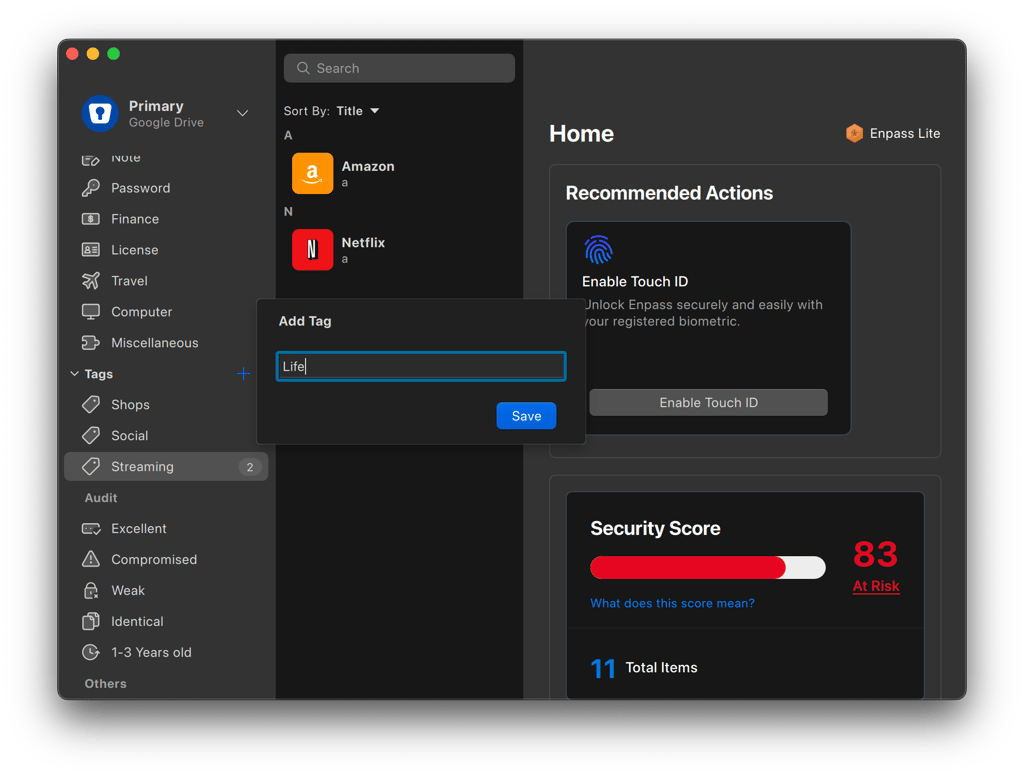
What I also really appreciate is the option to attach files to each of your items. And, for someone like me who’s a bit obsessed with keeping things tidy, the ability to add tags and group items that way really ties everything together.
Password audit
Password audit is one of the features I’ve found most useful in Enpass. The built-in tool keeps a close eye on your passwords and flags any that aren’t up to par. It’s great for taking the guesswork out of figuring out whether your passwords are strong enough.
Here’s how it works: the tool scans your passwords and sorts the problematic ones into these categories:
- Weak. These are passwords that are easy to guess or crack. For example, common passwords, personal information, like your birth date or pet’s name, and simple patterns.
- Compromised. Sometimes also referred to as “pwned passwords” by Enpass, these are passwords that have been exposed in data breaches and are highly vulnerable to unauthorized access if reused or still active.
- Identical. If you’re using the same password across multiple accounts, Enpass will flag those accounts under this section.
- Expired. You can set a custom expiration period for your passwords. When they’re nearing or past that time frame, Enpass will flag them under Expired or Expiring Soon.
The audit results are visible right in your Enpass app, which I found to be really helpful as a nudge to keep my passwords unique and strong.
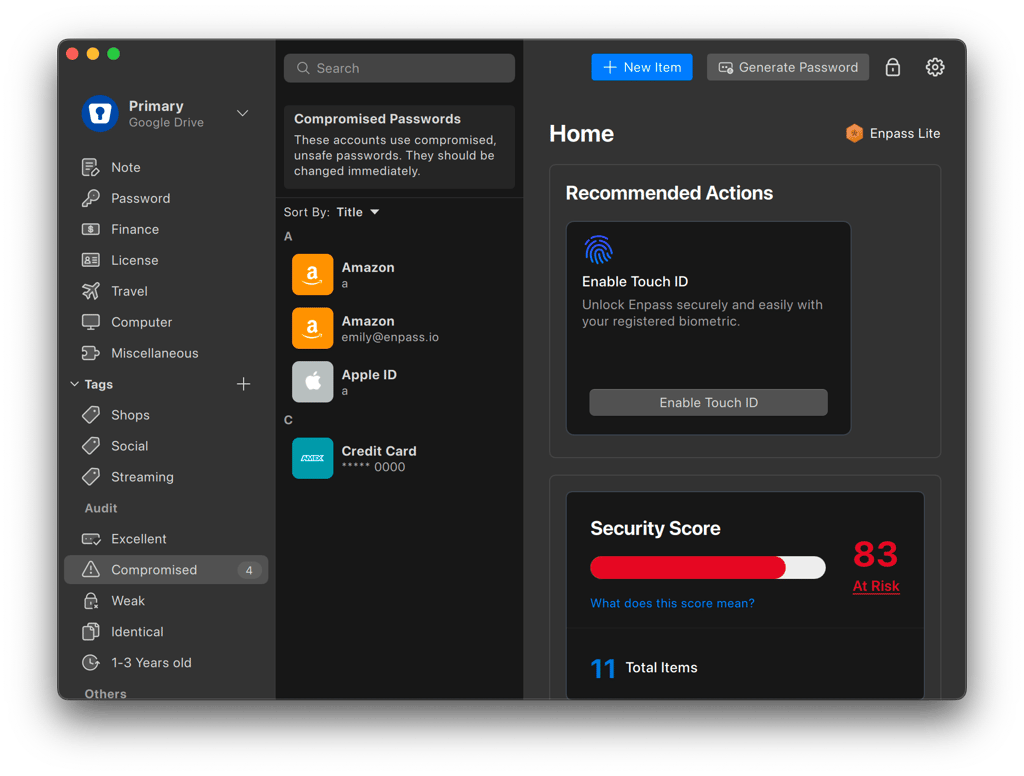
In my case, I had 2 compromised and 2 identical passwords. Enpass also sent me an alert about the compromised passwords, urging me to update them immediately. When I clicked on the alert, it provided the current password details and a direct link to update my login info.
Archive
Enpass lets you archive items you don’t need or use anymore. Once archived, the item is hidden from lists and searches, keeping things tidy. It’s a simple feature, but I found it really helped me stay organized.
Password generator
The built-in password generator lets you create secure passwords on your computer, phone, or tablet using Enpass apps.
You can generate passwords with 4 to 100 random characters or opt for 2 to 15 random words, which can either be pronounceable or not. It also allows you to tailor your passwords by including or excluding uppercase letters, digits, or symbols. For stronger security, I’d recommend including all options.
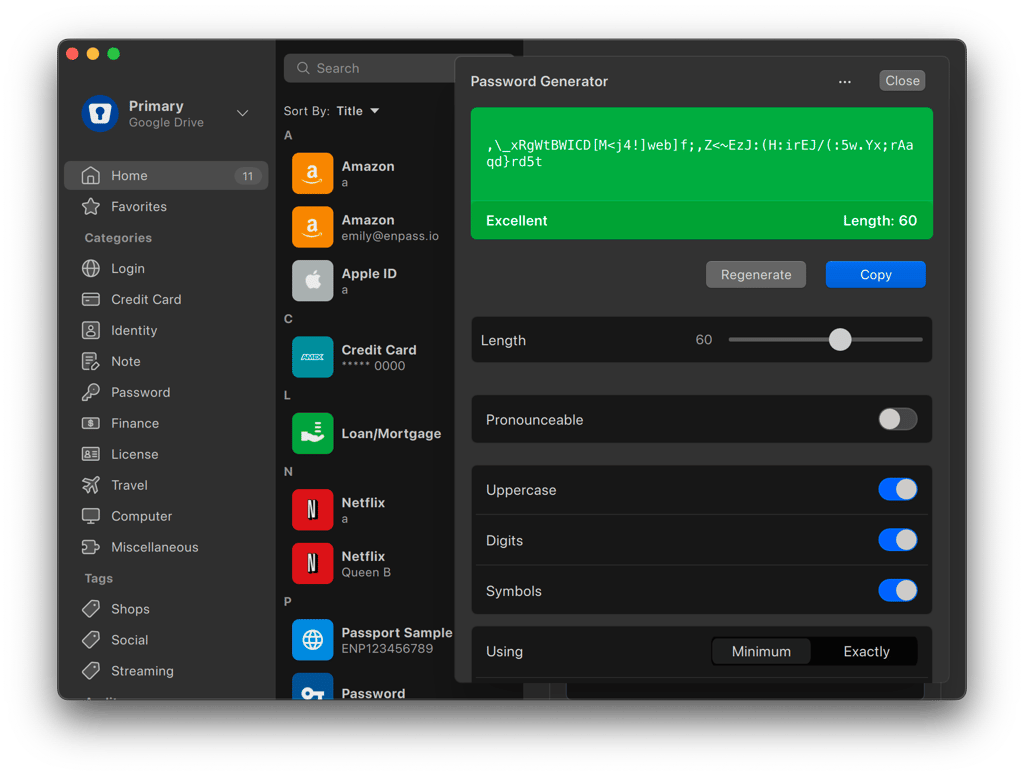
My only gripe is that the feature might feel a bit hidden at first, unless you’re creating or editing an Enpass item. For instance, on iOS and Android devices, it’s categorized under Audit, which might not be immediately obvious if you’re new to the password manager.
In any case, the password generator pairs nicely with the autofill feature, so you don’t have to manually copy and paste passwords between Enpass and your browsers or apps. Instead, it conveniently autosaves and autofills your login details whenever needed.
Vaults
Vaults in Enpass are secure, encrypted databases where you store your data. By default, the app creates a Primary vault. This vault comes with a fixed name and icon. The password you create for the Primary vault also serves as your Enpass Master Password. So, I recommend choosing a strong, unique password for your Primary vault.
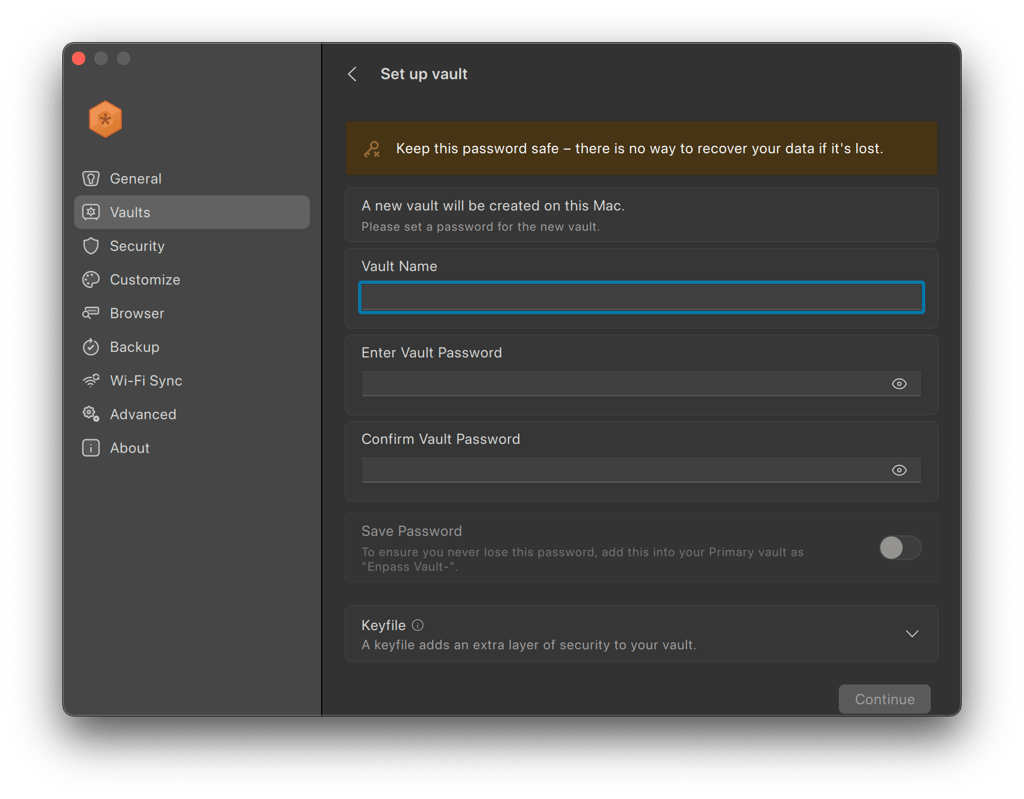
You can also set up additional vaults, called Secondary vaults, to organize your data. What I’m really drawn to is the flexibility Enpass offers with these vaults. You can change everything from name and password to icon and password storage location to suit your needs.
You are also free to add existing vaults from cloud storage, disconnect them without deleting them, and create backups either manually or automatically. While your Primary vault is permanent, your Secondary vaults can be deleted and later restored from your cloud storage or backup. On top of that, the vaults can be shared for collaboration. So, you can grant access to only those who need it.
One-time authentication codes
An Enpass feature that I found super handy is its ability to generate and autofill authenticator codes, which are also known as time-based one-time codes (TOTP). These codes are used as a second layer of security when you log into websites or apps. They’re temporary and generated from secret keys provided by the site or app you’re using.
What I appreciate about this feature is that it removes the need for a separate dedicated authenticator app – like Google Authenticator or Authy – to generate these codes for 2FA.
Password sharing
Enpass offers two secure ways to share passwords: vault sharing and individual item sharing. Each method is designed to suit different needs. Vault sharing provides full access and control, while individual item sharing offers limited, one-time access to specific data.
When you share a vault, everyone with access has full control over its contents. They can read, add, edit, delete, and even back up items – just like you.
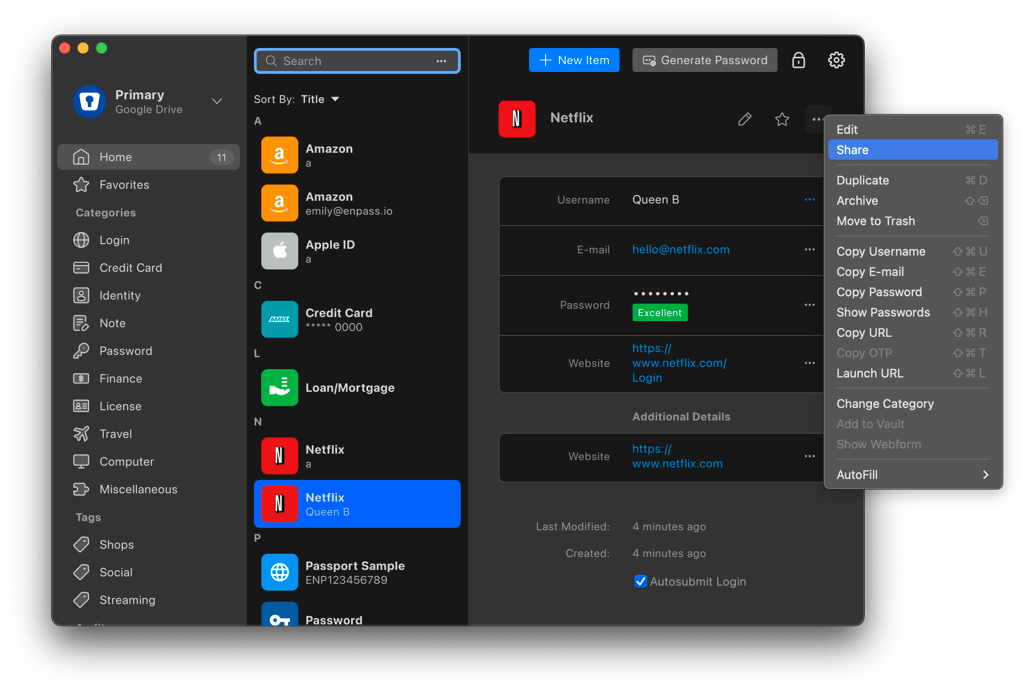
In this case, you’d need to share the vault password and provide access to the cloud account used for syncing. Enpass recommends creating a separate cloud account for shared vaults if you don’t want to share your personal cloud credentials.
If you’re like me and prefer to keep things more controlled, individual item sharing might be a better fit. Here, your recipient gets a copy of the item on their device, but it doesn’t stay synced to the original version. So, if you update your copy later, theirs won’t change.
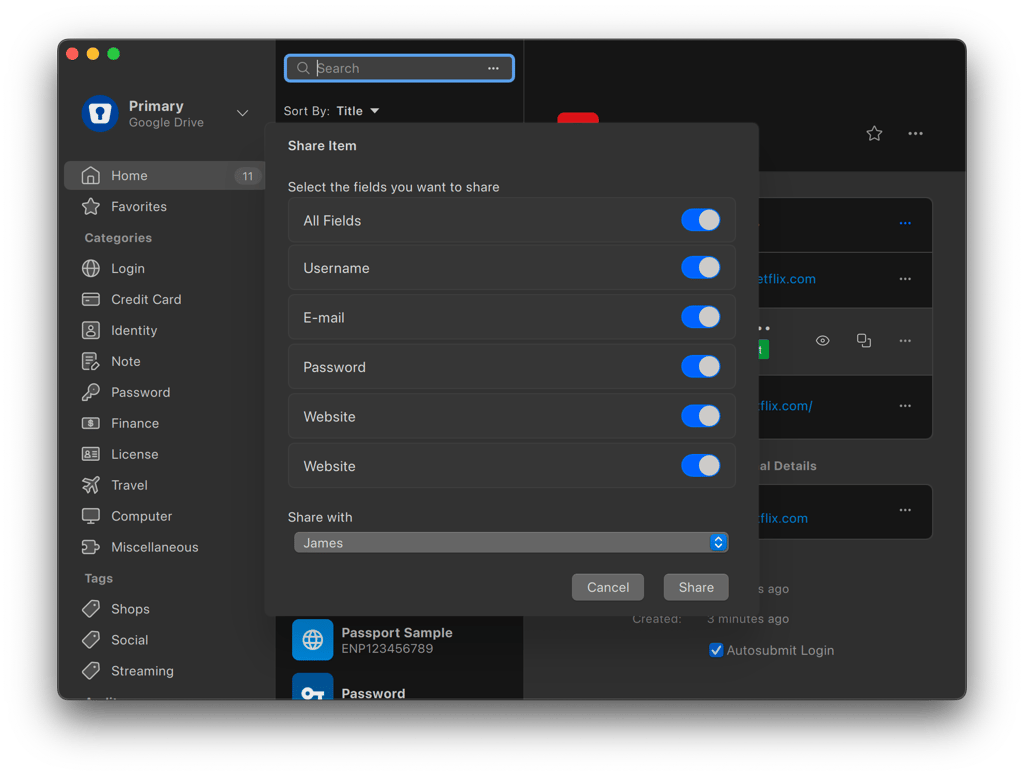
I’m glad to see that these individual items are encrypted using a pre-shared key (PSK) – a password securely shared between you and your recipient to unlock the item. Otherwise, I’d be really concerned about personal data, including passwords and credentials, being sent in plaintext.
Password imports/exports
If you’re making the switch to Enpass, it makes password and data transfer easy by importing them from other popular password managers. The list includes 1Password, Dashlane, KeePass, KeePassX, LastPass, Bitwarden, mSecure, RoboForm, SafeInCloud, Splash ID, Sticky Password, Keeper, and True Key.
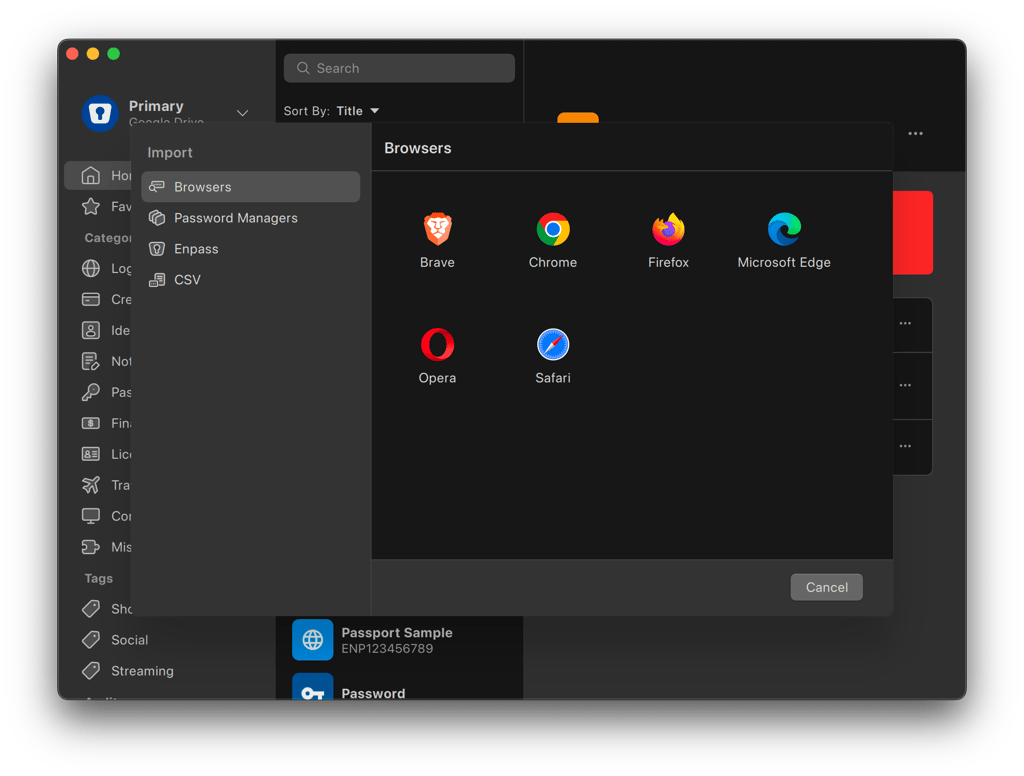
And, like any reliable password manager, it also allows you to import data from pre-formatted CSV files or spreadsheet data saved in a supported format on your computer.
I tried the import process myself and, honestly, it’s a breeze. Just a couple of clicks and all my saved passwords, notes, and more were neatly organized in my Enpass vault.
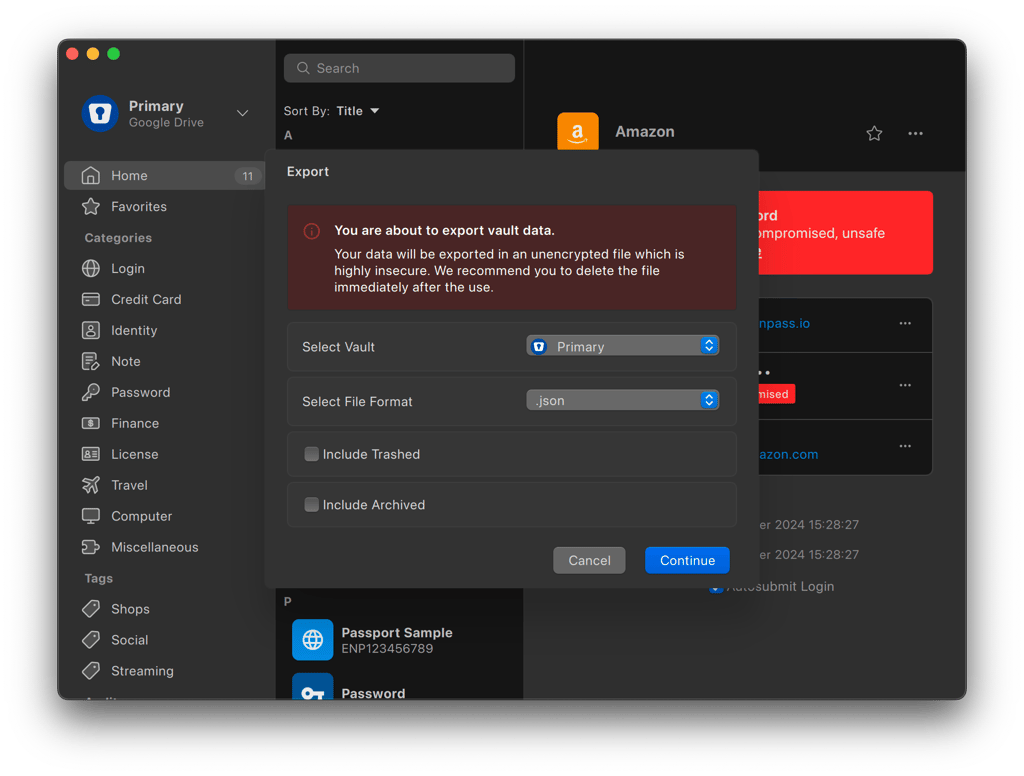
Exporting from Enpass was just as straightforward. Supported formats include .json, .csv, and .txt. The entire process was seamless. However, keep in mind that passkeys may not be importable/exportable between password managers.
Backups
Enpass offers both automatic and manual backup options to help keep your data safe. It automatically creates daily backups of your vault and its content, storing them in a designated location on your device. What stands out to me is that it retains the last 60 backups, so if you ever need to roll back to a previous version, it’s all there.
I also appreciate the level of control you get. You have the option to view, restore, or delete previous backups. I even experimented with changing the backup location. For example, if you’d rather store your backups on an external drive, it’s as simple as updating your settings with just a few clicks.
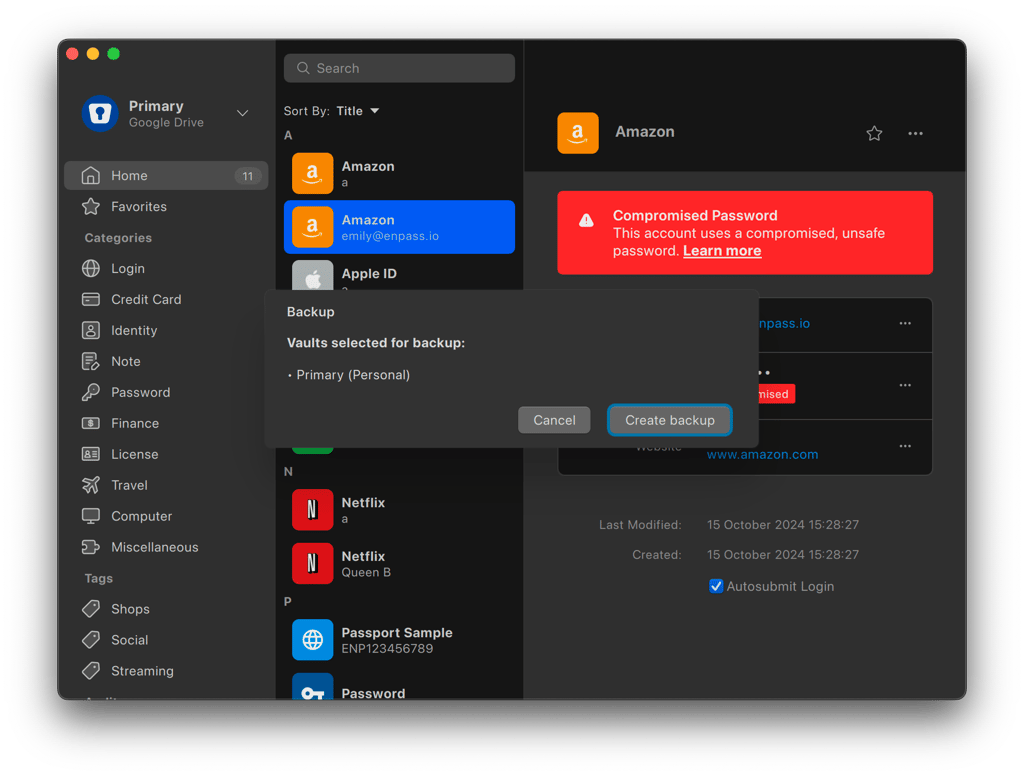
Manual backups are just as simple. You simply choose a location and save the backup file whenever you want.
If you’re using cloud syncing, your cloud provider typically maintains a version history of the data as an extra safety net. So, even if something goes wrong, you have multiple layers of backup to fall back on. Overall, I like that the system is designed to give you full control – and peace of mind – over your data.
Enpass compatibility and ease of use
From my experience testing Enpass, the password manager proved to be intuitive and straightforward. I sailed through its setup process because everything was so effortless – I simply clicked when prompted. One thing that I found particularly helpful was that, on a desktop, Enpass’ browser extension connects with the desktop app, so autofill works without much extra setup.
Most features are easy to access through the interface. However, there are a few, including its password generator, that seemed somewhat hidden or oddly placed to me. Because of that, Enpass might not be the easiest password manager for seniors, but it can be accessible with some assistance.
I tested Enpass on several devices, including a Lenovo ThinkPad T14s Gen 2 with Windows 11 installed, a MacBook Air with an Apple M3 chip running macOS Sonoma, and an iPhone running iOS 18. But, I’m glad to see that it’s also compatible with all the major OS, including Windows, macOS, Linux, Android, and iOS, as well as popular browsers like Chrome, Microsoft Edge, Safari, and Firefox.
Enpass on desktop
I noticed that using Enpass, from setup to management, on desktops seems to be an easy affair. That said, there are a few areas that could use some improvement.
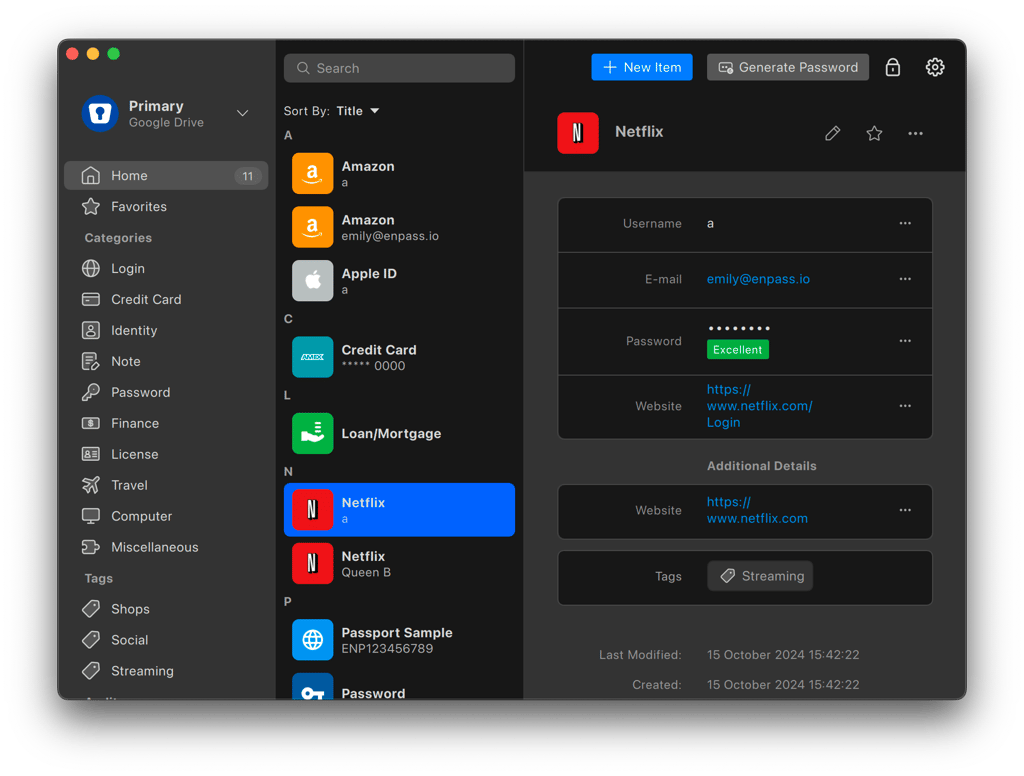
Setting up your Personal account and the password manager itself is pretty straightforward. You just download the app, plug in your email, grab the code, set up your master password, and you’re all set to use Enpass on your device.
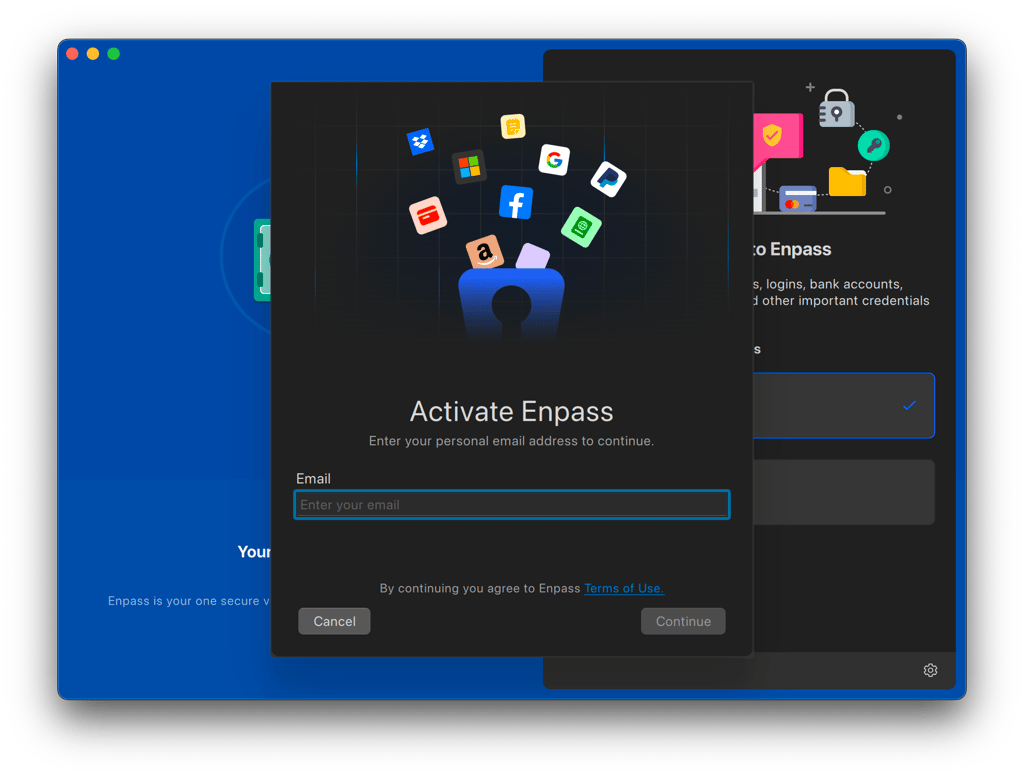
The interface is clean, lightweight, and easy to navigate. I noted right away that there’s virtually no learning curve, mostly because Enpass doesn’t bog you down with advanced features or complicated designs. In fact, its simplicity and lack of additional features remind me a bit of Bitwarden's similarly minimalistic interface.
However, there are some areas where I think things could be improved. For example, adding passwords or other data using the desktop app could be smoother. For now, you need to choose a specific type of item each time you add something. This extra step feels unnecessary to me, especially if you just want to add data quickly.
I’m happy to report that I didn’t run into any issues when I tried syncing my vault with Google Drive. The whole process was simple – I just had to provide my Google Drive details and grant permissions. However, I do see how things could get a bit inconvenient if you’re not using a cloud provider. If you opt for local storage, the setup process involves additional steps since you’ll need to do so via Wi-Fi or folder sync.
Enpass on mobile
Enpass has a limit of 1 vault and 25 items on mobile devices, unless you upgrade to a paid Enpass plan. While this may sound generous in theory, it’s easy to max out the limit in no time. The 1 vault limit also made my vault feel a little cluttered and cramped.
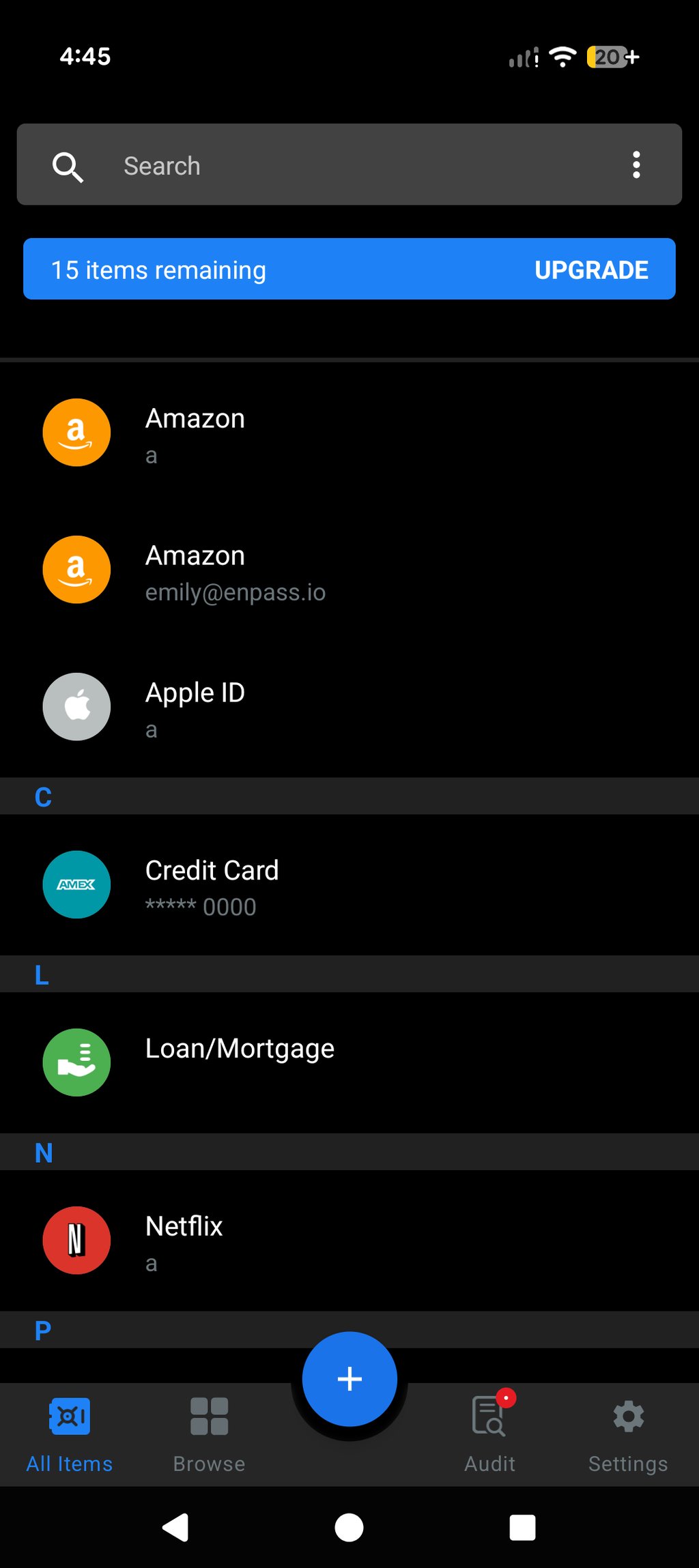
In terms of ease of use, the password manager works well on Android and iOS mobile devices, with easy setup and smooth navigation. However, there are a few obvious kinks. For instance, I found the Quick Guide button unresponsive in the Android app.
Having said that, the overall features and interfaces of Enpass’ mobile apps are pretty similar to the desktop versions, which isn’t too surprising considering the simplicity of the desktop apps. Provided you’ve synced, you can access your vaults, conduct password audits, and generate new passwords just as you would on the desktop app.
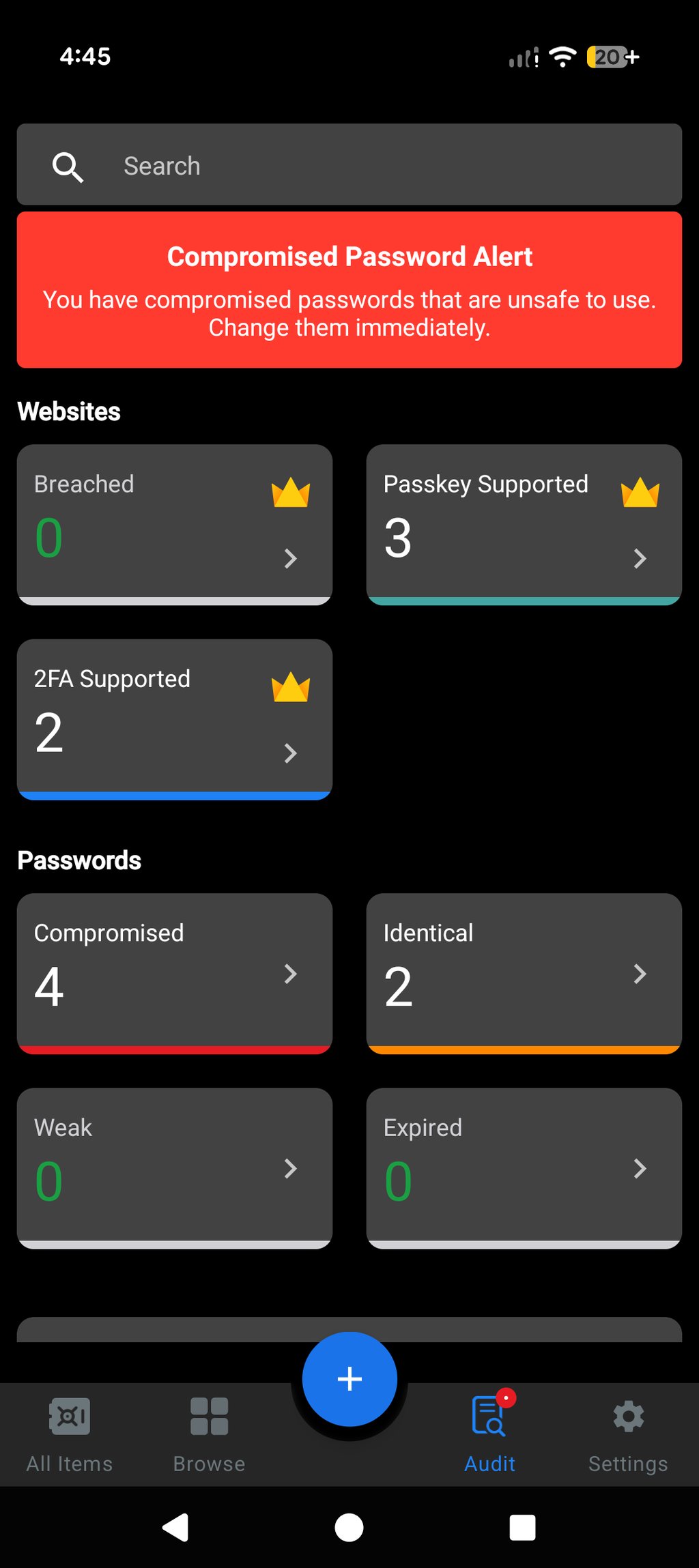
Enpass Chrome extension
I also tried Enpass’ Chrome extension and found it to be a good complement to its desktop apps.
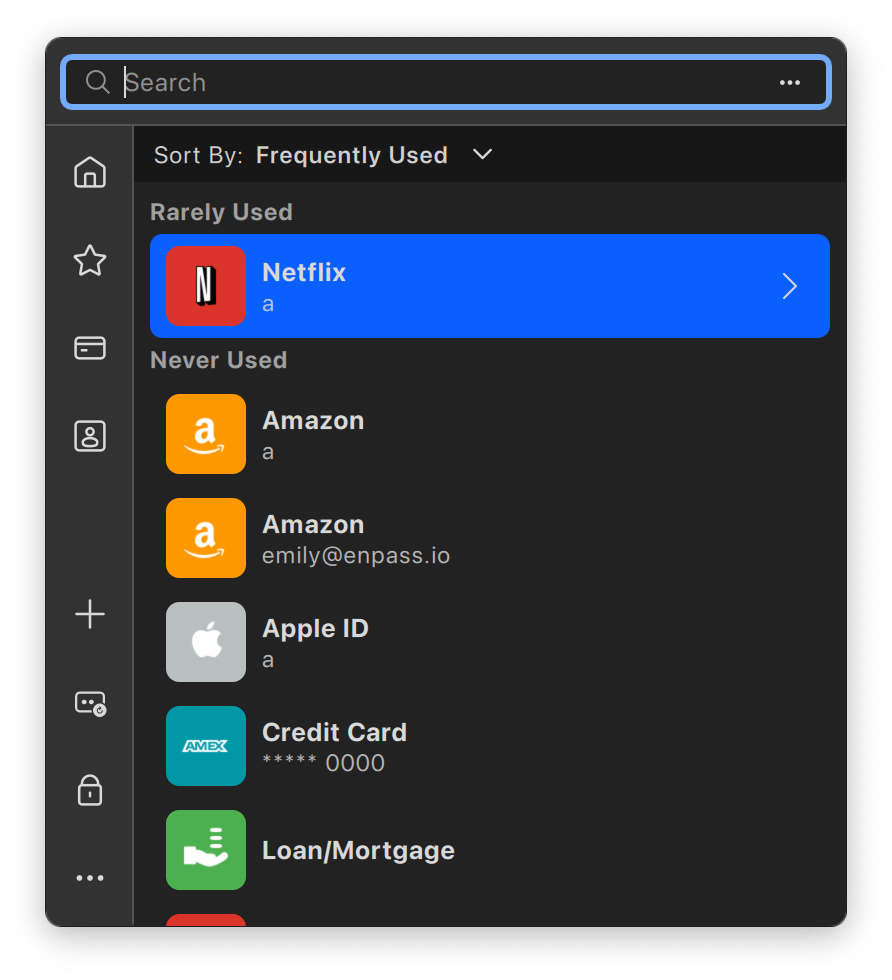
One thing that stood out to me is that the extension syncs automatically with the desktop app. This means you don’t need to go through the hassle of taking extra setup steps or even re-enter your master password if it’s already stored in the desktop app. That’s definitely a plus in my book.
I also want to highlight that the extension is a really helpful addition when you need to add items. If you add an item via the browser extension, the process is much more straightforward than on the desktop app. Instead of having to choose a specific item each time, the extension automatically recognizes the type of item you’re adding.
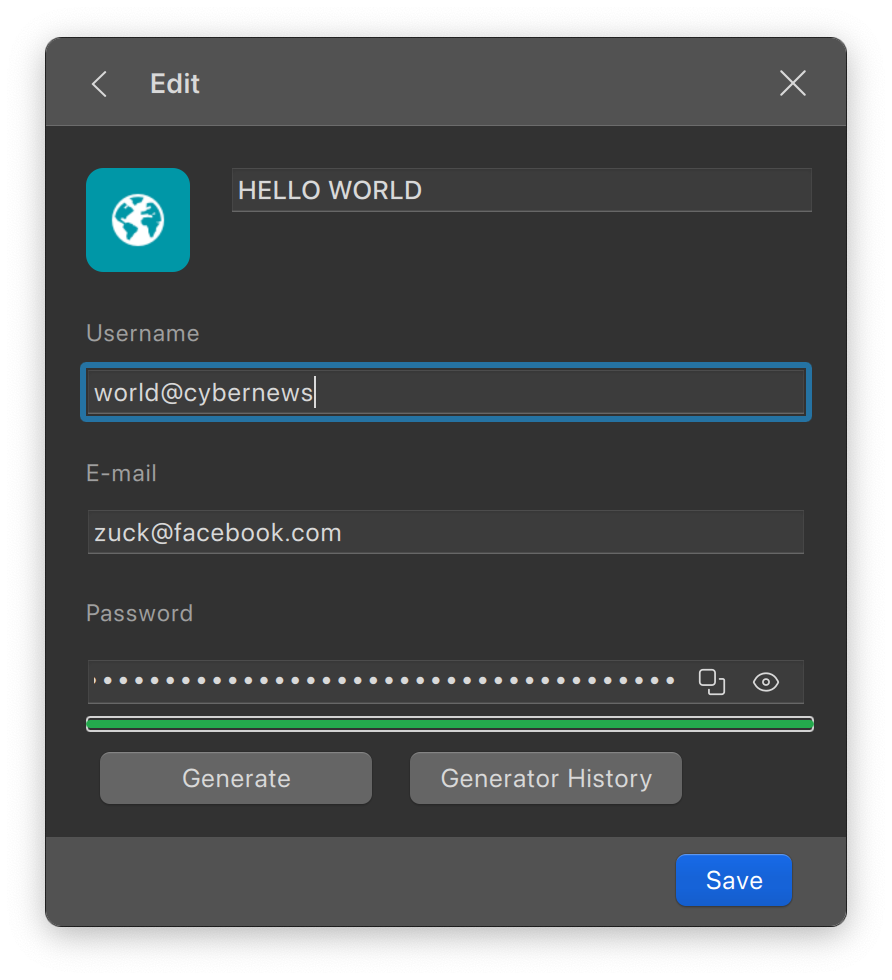
However, like most password managers, Enpass’ browser extension has more limited features compared to the desktop app. For instance, you won’t find the Password Audit feature on the extension. My take on this is that it’s not an ideal standalone solution, but it’s a great complement if you already have the desktop app.
While I tested Enpass on Chrome, it’s worth noting that the extension is also compatible with other browsers like Microsoft Edge, Firefox, Safari, Brave, and Vivaldi.
Enpass customer support
Enpass offers only two customer support options: either email or a chat ticket. Unfortunately, there’s no live support – whether via live chat or phone – and replies typically take 1–2 business days. Your only other options are its knowledge base and discussion forum. I found the knowledge base useful for basics, but less helpful for more specific questions.
| Option | Availability |
| 24/7 live chat: | ❌ No |
| Email support: | ✅ Yes |
| Knowledge base: | ✅ Yes |
| Discussion forum: | ✅ Yes |
| Phone support: | ❌ No |
Enpass states that replies to support tickets will be sent via email and typically take 1–2 business days, regardless of the priority level. To test this, I submitted a few tickets with different levels of urgency. Frustratingly, the expected response time was accurate, and it took about 22 hours for a reply each time.
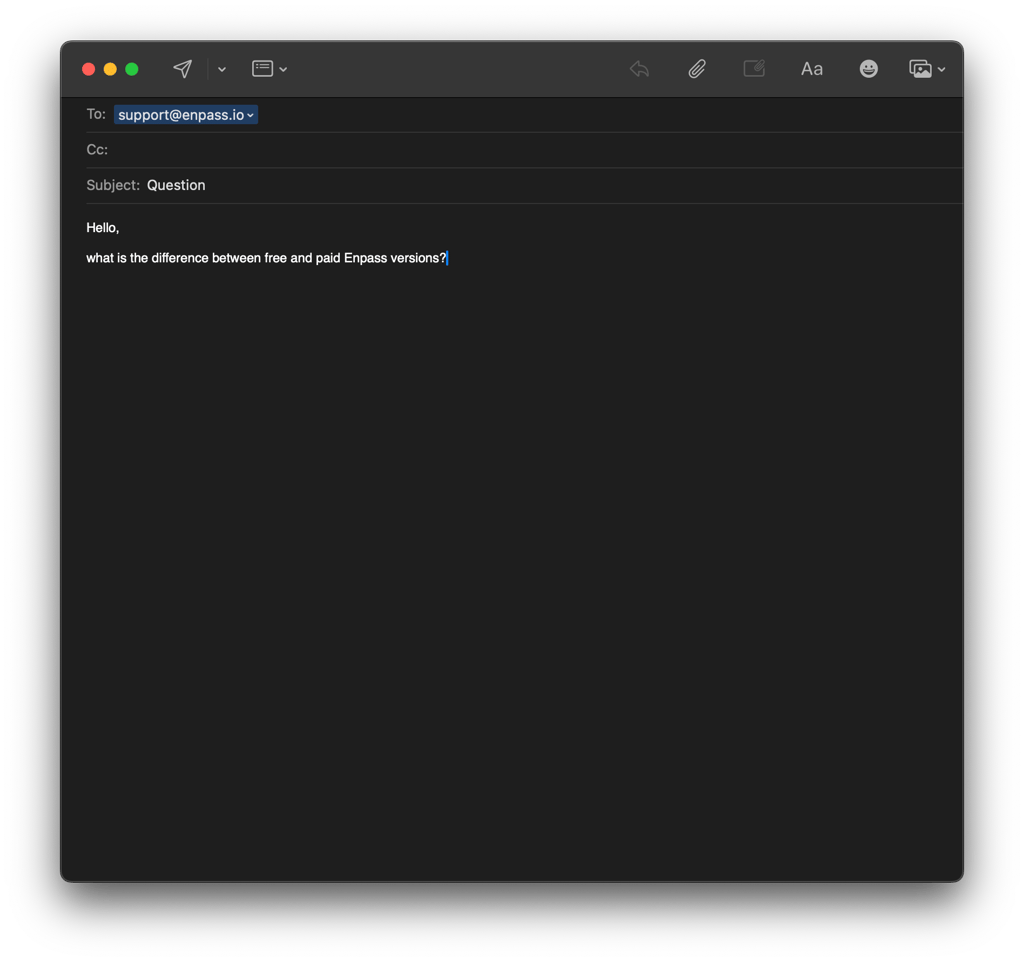
While you can choose the level of priority, it seems to me that it didn’t really make a difference. Considering that it’s dealing with sensitive data, the 22-hour wait is a bit worrying. For comparison, 1Password responded in just about 15 minutes, and NordPass took only a few hours. Plus, you can’t even reach a support agent via phone or chatbot, so you’re pretty much stuck waiting.
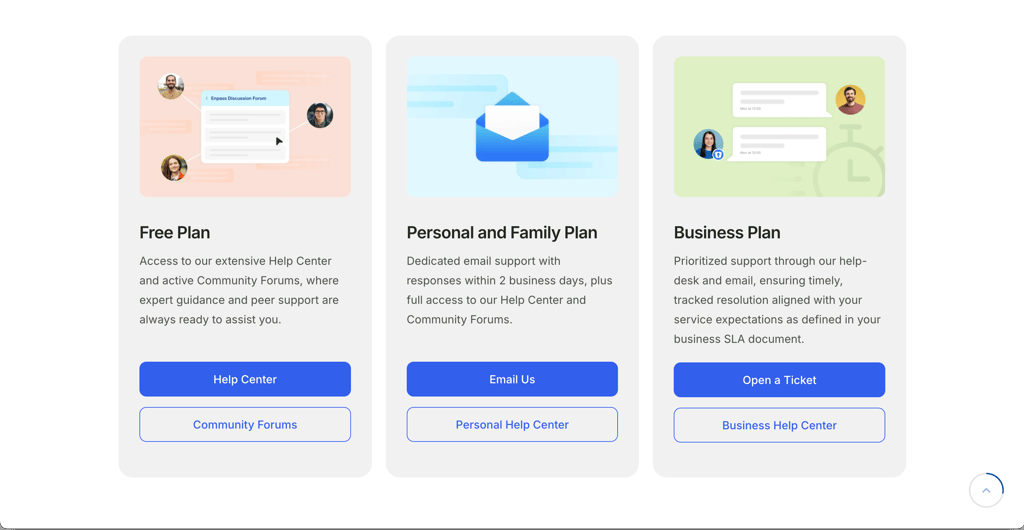
Your other alternative is Enpass’ knowledge base. It’s a good start for getting the basics down. However, when it comes to more specific and niche questions, it just doesn’t cut it. For example, I spent way too long trying to figure out if Enpass has a free plan or just a free trial. I also had difficulty finding out the features that come with the free plan.
Another option is the Enpass Discussion Forum. For what it’s worth, I actually found the forum to be the most useful support option. There were several active members who were eager to share their knowledge and help out with questions. If you run into trouble with Enpass, I’d definitely suggest checking out the forum.
Enpass alternatives
If you’re still not 100% convinced about Enpass, let me help you compare it to other top password managers on the market. Here’s a quick overview of their ratings, price, and features.
| Rating | Price | Free version | Biometric login | Multi-factor authentication | Business plan | Open source | |
| NordPass | From $1.29/month | ✅ Yes | ✅ Yes | ✅ Yes | ✅ Yes | ❌ No | |
| 1Password | From $2.99/month | ❌ No, 14-day free trial | ✅ Yes | ✅ Yes | ✅ Yes | ❌ No | |
| RoboForm | From $0.99/month | ✅ Yes | ✅ Yes | ✅ Yes | ✅ Yes | ❌ No | |
| Keeper | From $1.79/month | ✅ Yes, and a 30-day free trial | ✅ Yes | ✅ Yes | ✅ Yes | ❌ No |
While Enpass definitely has some winning features, I still find NordPass to have the leading edge. It hits all the marks with its cheaper pricing, advanced encryption, and a wide variety of both basic and advanced features. Plus, its customer support is far more responsive and accessible, which makes a big difference in my view.
Is Enpass worth it in 2026?
Enpass is still worth considering in 2026 if it aligns with your needs and priorities. It's a local-first, affordable password manager that offers local control and cloud syncing. Also, it uses robust encryption and has undergone independent security assessments, making it a secure option for users who want to control where their vault data is stored.
However, if you’re looking for a password manager with advanced extras, Enpass can feel limited. Unlike NordPass, it doesn’t include features such as email masking, emergency access, or traditional 2FA to unlock your vault. In contrast, other budget options, such as NordPass and 1Password, include more advanced security features.
FAQ
How does Enpass work?
Enpass works just like any other password manager. It securely stores and encrypts your passwords, as well as other items, allowing you to manage and autofill them across websites and apps. Access requires a single master password, which is the key to all your data.
Can Enpass be hacked?
Yes, Enpass can be hacked – just like any app, system, or software. That said, its AES-256-bit encryption is considered highly secure, making unauthorized access extremely difficult. Without your master password, decrypting your vault data is highly unlikely.
Is Enpass still free?
Yes, Enpass has a free version called Enpass Lite. It offers both free and paid options, but the free version comes with limitations, especially on mobile, where users can store up to 25 items in one vault. Upgrading to a paid subscription removes these restrictions and adds advanced functionalities like unlimited items and breach monitoring.
Is Enpass password manager open source?
No, the Enpass password manager isn’t open source. According to the company, this is in line with its business interests. However, Enpass uses SQLCipher, a peer-reviewed open-source cryptography engine, to ensure transparency in encryption.