The best password managers for seniors in 2026


As more everyday tasks move online, keeping track of dozens of accounts and passwords can become challenging. Reusing passwords or writing them down in insecure places can also increase the risk of account compromise.
That's why password managers can be particularly useful for seniors. They can securely create, store, and autofill credentials, reducing the number of passwords users need to remember or type manually.
However, finding the best password managers for seniors in 2026 is not as simple as it might seem. For this reason, we tested multiple password managers, focusing on ease of use to ensure we provide the most senior-friendly options.
| Top pick for seniors | |||
| NordPass | Keeper | 1Password | |
| ⭐ Rating: | |||
| 🥇 Overall rank: | #1 out of #20 | #4 out of #20 | #2 out of #20 |
| 🔥 Coupons: | NordPass coupon 61% OFF | Limited-Time offer! Keeper coupon 50% OFF | 1Password coupon 25% OFF |
| 💵 Price: | From $1.29/month | From $1.79/month | From $2.99/month |
| ✂️ Free version: | Yes | Yes | 14-day trial |
| 🔒 Encryption: | XChaCha20 | AES-256 | AES-256 |
| 🖥️ Platforms: | Windows, macOS, Linux, Android, iOS | Windows, macOS, Linux, Android, iOS | Windows, macOS, Linux, Android, iOS |
| 🌐 Browser extensions: | Chrome, Edge, Firefox, Opera, Safari, Brave, Vivaldi | Chrome, Firefox, Safari, Opera, Edge, Brave | Chrome, Firefox, Edge, Brave, Safari |
| Get NordPass |
How to choose a password manager for the elderly
When choosing a password manager for seniors, ease of use and security should be your top priority. I recommend taking advantage of a free trial (which most password managers provide) and giving it to them to try out. Other important factors include security, pricing, cross-device syncing, and customer support.
Here’s a list of things you should consider before purchasing a password manager for a senior:
- Ease-of-use. Look for a clean and simple interface that’s easy to navigate for seniors. Accessing the vault, autofill, and password sharing should be straightforward and require only a few clicks at most.
- Top-tier security. Just because you’re looking for a simple tool, doesn’t mean it should lag behind in security. Make sure your pick is built on zero-knowledge architecture, uses advanced encryption, and has been independently audited.
- Pricing. Since most seniors are looking for a basic password management tool, the price should be relatively low. Most password managers cost somewhere between $1 to $3 per month.
- Cross-device syncing. This ensures that your passwords are available on all of your devices. Super important for seniors who are using multiple devices, such as a smartphone, tablet, or laptop.
- Customer support. Seniors are more likely to run into issues, especially if they’re not tech-savvy. Having customer support agents available 24/7 can ease the onboarding process for seniors and give them peace of mind that there’s someone to help. Bonus points if there’s phone support.
Best password managers for seniors in 2026
I worked alongside our research team to review over a dozen password managers and narrow them down to the five best options for seniors. From there, I spent extra time testing each one hands-on, focusing on how easy they are to use and how well they fit the everyday needs of older users.
- NordPass – best password manager for seniors overall
- Keeper – secure password manager for seniors with a built-in messenger
- 1Password – easy password manager for seniors with Travel Mode
- RoboForm – budget-friendly password manager for seniors
- Proton Pass – intuitive password manager for seniors with a free tier
1. NordPass – easiest password manager for seniors in 2026

| Ease-of-use level: | Easy |
| Password generator: | ✅ Yes |
| Biometric authentication: | ✅ Yes (face, fingerprint) |
| Free version: | ✅ Yes (one active session at a time) |
| Emergency access: | ✅ Yes, paid version |
| Current deal: | Get NordPass, now with 61% OFF |
NordPass is the password manager I recommend the most for seniors. It’s secure, has a simple and easy-to-use interface without overwhelming you with buttons, and is quite affordable for the quality it offers.
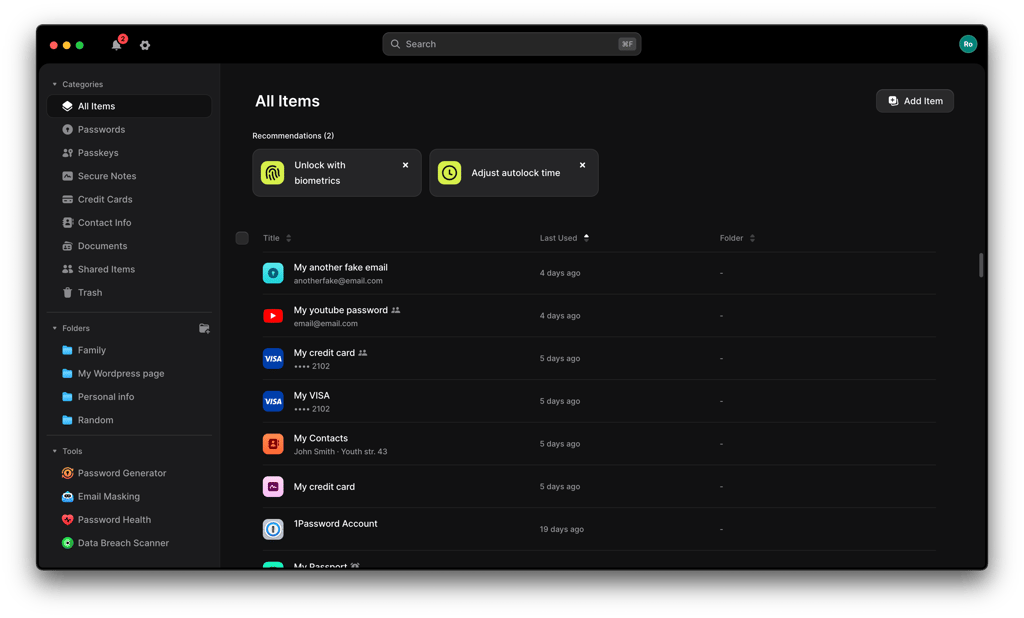
NordPass’ design is clean and consistent across both desktop and mobile apps. They’re not cluttered and are easy to navigate, with your password vault and all the features only a click away. The mobile apps felt especially smooth. I didn’t encounter any scrolling or responsiveness issues during my trials. Plus, it offers biometric authentication, making logging in easier by allowing you to use your fingerprint or face to unlock the password vault.
When it comes to security, NordPass uses a strong security architecture to protect stored credentials. NordPass combines XChaCha20 encryption with a zero-knowledge architecture designed to keep your vault data private.”
The premium plan starts at $1.29/month and includes useful extras that seniors would appreciate. A Password Health feature that highlights weak, reused, and outdated passwords in your vault; a Data Breach Scanner that scans for leaked credentials across leaked databases; and an Email Masking tool to generate alias email addresses linked to your primary inbox, letting you register for websites without ever handing over your actual email address.
2. Keeper – senior-friendly password manager with advanced security

| Ease-of-use level: | Easy |
| Password generator: | ✅ Yes |
| Biometric authentication: | ✅ Yes (face, fingerprint) |
| Free version: | ✅ Yes |
| Emergency access: | ✅ Yes |
| Current deal: | Limited-Time offer! Get 50% OFF Keeper Personal and Family plans |
Keeper is a solid password manager for seniors who want stronger protection with tools such as Security Audit, biometric login, Emergency Access, and optional BreachWatch monitoring. All these additional tools aim to provide high-level security in an accessible way.
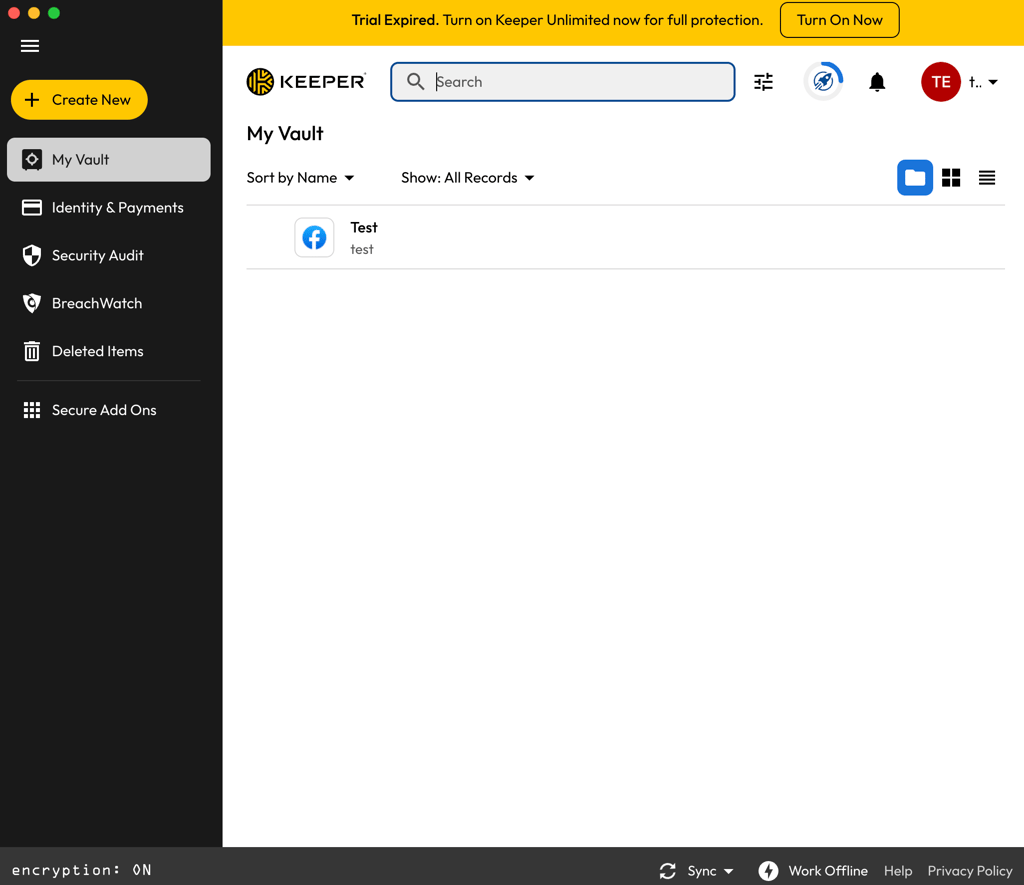
Keeper supports all major desktop and mobile platforms, with apps for Windows, macOS, Linux, Android, and iOS. However, compared to NordPass, the navigation and app consistency could use improvement. For example, some features and interface elements differ between Keeper's desktop and mobile apps. Despite that, the interface is intuitive and customizable, meaning you can tailor Keeper to your preferences, from the length and character types of passwords it generates to your experience with the browser extension.
Keeper also stands out for its strong security architecture. Keeper's zero-knowledge architecture means Keeper can't access or decrypt the information stored in your vault.
Keeper’s plans start at $1.79/month, which is quite an average price. For the entry price, Keeper covers the core password-management features, while extras such as BreachWatch are available separately.
3. 1Password – user-friendly password manager for seniors with Travel Mode

| Ease-of-use level: | Moderate |
| Password generator: | ✅ Yes |
| Biometric authentication: | ✅ Yes (face, fingerprint, iris) |
| Free version: | ❌ No |
| Emergency access: | ✅ Yes |
| Current deal: | Get 1Password, now up to 25% OFF |
1Password is another great option for seniors because it keeps things simple where it matters most. The layout is clear, text is easy to read, and important options are easy to find. It also has useful extra features, such as Travel mode, for additional security while abroad.
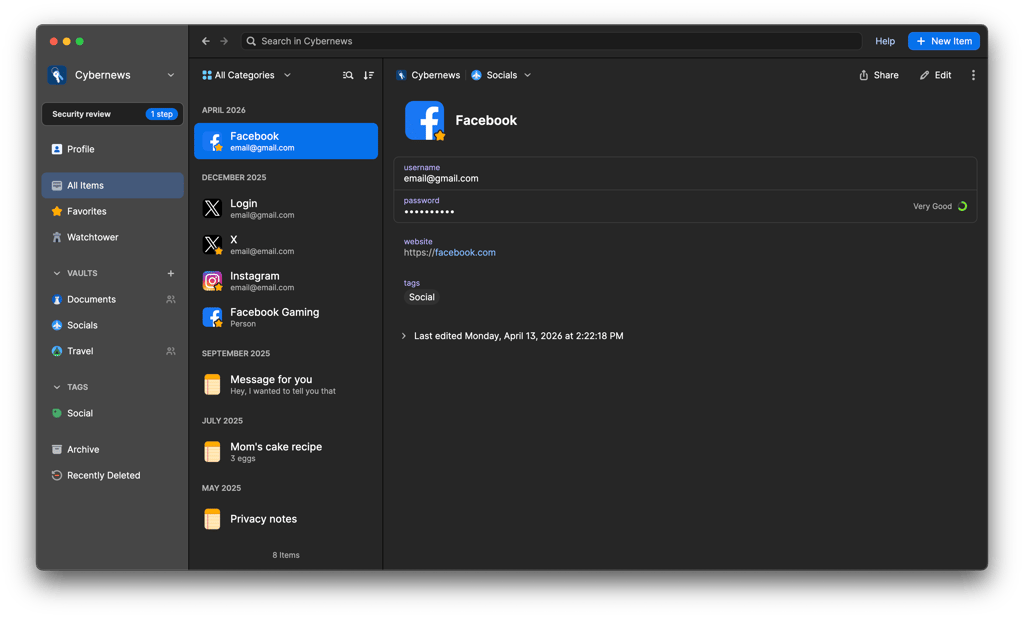
The overall experience of using 1Password is similar to NordPass. It’s intuitive and easy to navigate across different devices. Your passwords and other sensitive information are securely stored in encrypted vaults. Also, instead of remembering a different password for every account, you mainly need to remember your 1Password account password, while the app stores and autofills the rest.
In terms of security, 1Password adheres to a high standard. It uses a strict zero-knowledge architecture, AES-256 encryption, and has a solid track record confirmed by independent audits. Additionally, it offers a variety of advanced security features.
However, for some users, the biggest downside could be 1Password’s price. At $2.99/month, it’s one of the pricier password managers I’ve tested. Also, it doesn’t have a free plan. Yet, it offers a wide range of convenient features, including Travel Mode for extra protection while traveling, and WatchTower, which alerts you to compromised, weak, and reused passwords and other security issues, all of which are worth the higher price.
4. RoboForm – budget-friendly password manager for seniors

| Ease-of-use level: | Easy |
| Password generator: | ✅ Yes |
| Biometric authentication: | ✅ Yes (face, fingerprint, iris) |
| Free version: | ✅ Yes |
| Emergency access: | ✅ Yes, paid version |
| Current deal: | Get RoboForm, save up to 60% |
RoboForm is one of the most affordable password managers available on this list. That alone makes it a practical option for seniors or family members who want protection without a big financial commitment.
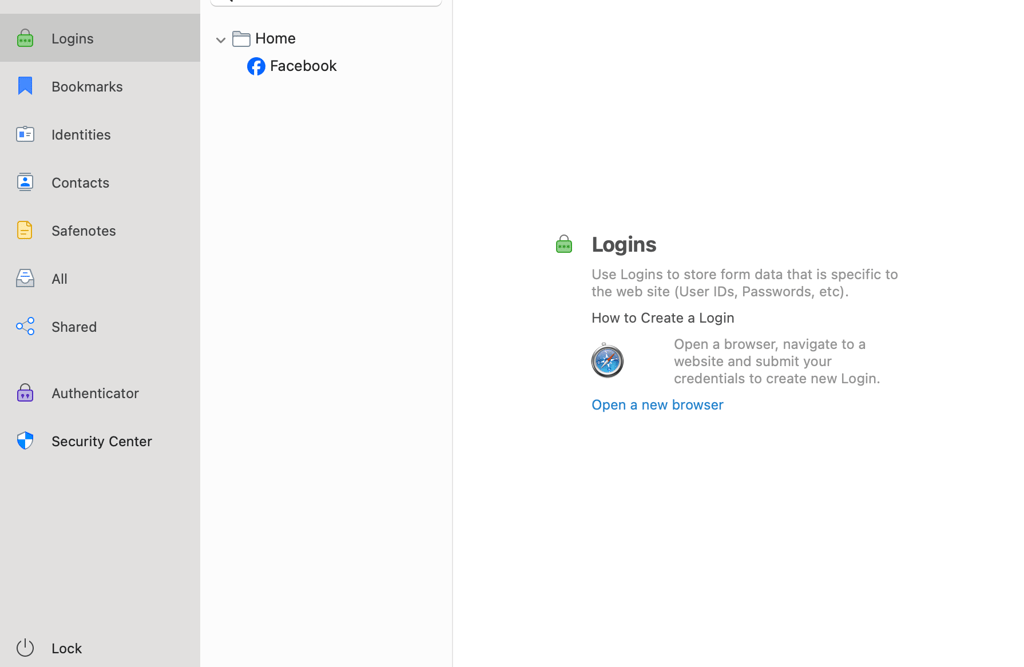
RoboForm’s interface is more traditional than NordPass or 1Password, but it’s still simple once you get used to it. RoboForm works across all major devices and covers the essentials seniors actually need, like generating strong passwords, checking password strength, and safely sharing logins with trusted family members. What’s special about RoboForm is how incredibly easy it is to set up. Once installed, all passwords and notes are immediately accessible.
Its simplicity-based approach is also applied to security. RoboForm uses industry-standard security measures, such as a zero-knowledge architecture and AES-256 encryption, which you can read more about in our RoboForm review.
RoboForm’s paid plans start at only $0.99/month and include all core password manager functionality. For this price, RoboForm offers secure sharing, local only mode, Emergency Access, and priority customer support. It’s a simple password manager, making it an optimal choice for seniors who only need basic functionality.
5. Proton Pass – password manager for seniors with a great free version

| Ease-of-use level: | Easy |
| Password generator: | ✅ Yes |
| Biometric authentication: | ✅ Yes (face, fingerprint) |
| Free version: | ✅ Yes |
| Emergency access: | ✅ Yes |
| Current deal: | Get ProtonPass, now up to 50% OFF! |
Proton Pass is a good choice for seniors who want a free and easy way to keep their passwords organized. It’s also equipped with useful security features for seniors, such as Emergency Access, allowing users to receive help when needed safely.
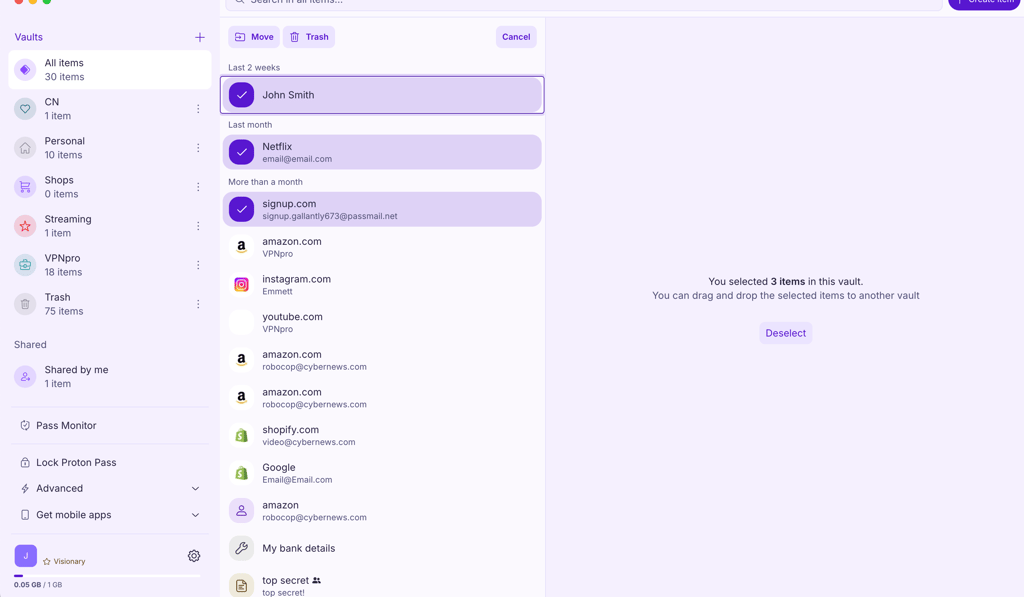
Proton Pass’ interface is intuitive, and features like autofill, password health checks, and email aliases help reduce everyday friction when signing in. It also supports passkeys on both browsers and mobile devices, which makes logging in simpler and lets you sign in without typing a password on supported services.
Security runs quietly in the background, protecting everything without a complicated setup. Proton Pass uses an industry-standard AES-256 encryption, employs end-to-end encryption, is fully open-source, and has been independently audited. Its open-source approach and independent security audits add transparency to its security claims.
Proton Pass has a solid free plan, which includes unlimited storage for passwords, notes, and personal details, and email alias to mask your email, so there’s no pressure to upgrade. However, paid plans are pricey (from $2.49/month) and ideal for more tech-savvy seniors who want the highest level of privacy.
Final thoughts
Most modern password managers focus on everyday ease of use, which makes choosing one for seniors much less complicated than it used to be. After testing several options, NordPass stands out as my top choice. Its clean layout keeps things simple, while features like autofill, a password generator, and secure sharing help seniors protect their accounts without extra effort.
That said, other options are worth considering depending on individual needs. 1Password offers a very polished experience, RoboForm is a budget-friendly alternative, and Keeper suits those who want added security tools. If cost is the main concern, Proton Pass is a practical option, as its free plan includes unlimited password storage and works well for long-term use.
FAQ
What is the easiest and safest password manager?
In my opinion, NordPass is the easiest password manager to use. It offers a simple setup process and an intuitive interface that makes navigation a breeze.
What is the safest password manager?
NordPass is one of the safest password managers. It uses advanced encryption and a zero-knowledge framework to secure your passwords.
What is the best way to store passwords for seniors?
The best way for seniors to organize their passwords and other important but sensitive information is to use a password manager. A password manager app such as NordPass will keep all your passwords secure and safe from scammers, malicious hackers, and offer seamless and easy access to all your accounts with an autofill function.
Which password manager has never been hacked?
NordPass is one of the few major password managers that has never been hacked. It uses zero-knowledge architecture and advanced XChaCha20 encryption to keep user data protected even if servers are compromised.
What is the downside of using a password manager?
One downside of using a password manager is that access to all your saved credentials depends heavily on protecting your main account credentials. However, reputable password managers provide recovery safeguards. For example, NordPass gives you a 24-character Recovery Code that can be used to reset a forgotten Master Password. If you lose both your Master Password and Recovery Code and can't recover access through biometrics, resetting the account may be necessary – and a full reset deletes the items stored in your vault.