Keeper password manager review 2026
Being behind major reports like The Mother of All Breaches and WhatsApp Data Leak, our in-house cybersecurity experts conduct independent, unbiased testing and thorough analysis of password managers, helping users confidently manage their credentials and sensitive information.
We prioritize transparency by openly sharing detailed descriptions of our in-house testing procedures and methodologies.
Learn more
Passwords are the keys to our digital lives, yet so many handle them carelessly – creating weak passwords or reusing the same password altogether, both of which put your online accounts at risk.
This is where password managers come in, and Keeper is a solid pick. It focuses on security, giving users the power to modify their security settings for that extra layer of protection. However, it’s not perfect. Keeper’s plans don’t include data breach scanning or secure storage, which takes away from its security-focused package since you have to buy them as an add-on.
Our Cybernews team has spent over five years testing password managers, and Keeper regularly earns a spot on our top picks list. In this Keeper review, I’ll go over what Keeper does well, where it falls short, and help you decide if it’s the right fit for you.
Keeper Security review – at a glance
| Encryption: | AES-256 |
| Zero-knowledge architecture: | Yes |
| Third-party audits: | Independently audited |
| MFA: | Yes |
| Account-recovery option: | Yes |
| Secure password sharing: | Yes |
| Autofill: | Yes |
| Data leak scanning: | Yes |
| Password limits: | None |
| Compatible with: | Windows, macOS, Linux, Android, iOS |
| Supported browser extensions: | Chrome, Firefox, Safari, Opera, Edge, Brave, Internet Explorer |
| Free version: | Yes |
| Coupon codes: | Keeper coupons |




Our in-house research team thoroughly analyzes password managers, and our team of experts uses the gathered insights and hands-on experience to evaluate each provider accordingly. Find out how we assess password managers.
My honest take on Keeper password manager
I think that Keeper is a solid password manager that’s great for those who want more control over the security of their vault. It includes features such as Self-Destruct, Offline Access, and developer tools that you won’t find anywhere else, particularly for businesses.
While it’s strong in regards to security, I was disappointed that some of those security features were behind a paywall, especially considering that other password managers include them in all of their plans.
All in all, it’s a highly-secure, customizable solution, but if you need a simple tool for managing your passwords, there are better (and cheaper) options, like NordPass or RoboForm.
Hands-on experience with Keeper Security
To give you an honest opinion on Keeper, I had to do the testing myself. I started by downloading and installing Keeper on my desktop and phone as well as browser. This let me see how well the apps sync with each other in real time. I also took the opportunity to evaluate the setup process across different devices.
With that out of the way, I imported my batch of testing passwords to see how easy it is to make the switch to Keeper from another password manager. Then, I tested its core features, like autofill, password health, and secure sharing. My goal was to use Keeper as if it was my primary password manager and give you an overview of what it’s like to use it on a day-to-day basis.
Keeper setup on desktop
Starting with the setup, Keeper guided me through the entire process, which I appreciated. Find my experience below.
Step 1: sign up with Keeper
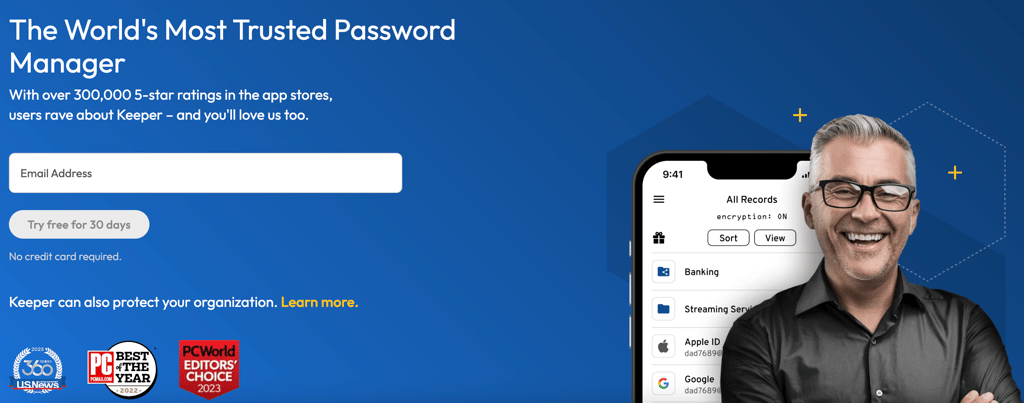
I took advantage of the 30 day free trial to try out Keeper. All I had to do to get it was enter my email address – no credit card needed.
Step 2: download and install the desktop app
I was prompted to install the desktop app. I use a MacBook, so I downloaded the macOS version.

Step 3: follow the instructions
I liked that Keeper guides you through a short Get Started session, which includes importing passwords, installing the browser extension, and setting up account recovery.
I skipped the password importing for the moment, and started with securing my account first by generating a recovery phrase. This is the only way you can recover your account if you forget your master password, so don’t skip it. I also installed the browser extension on Firefox for convenience.

Importing password to Keeper
Once my account was set up and ready, it was time to import my passwords. The process was pretty straightforward.
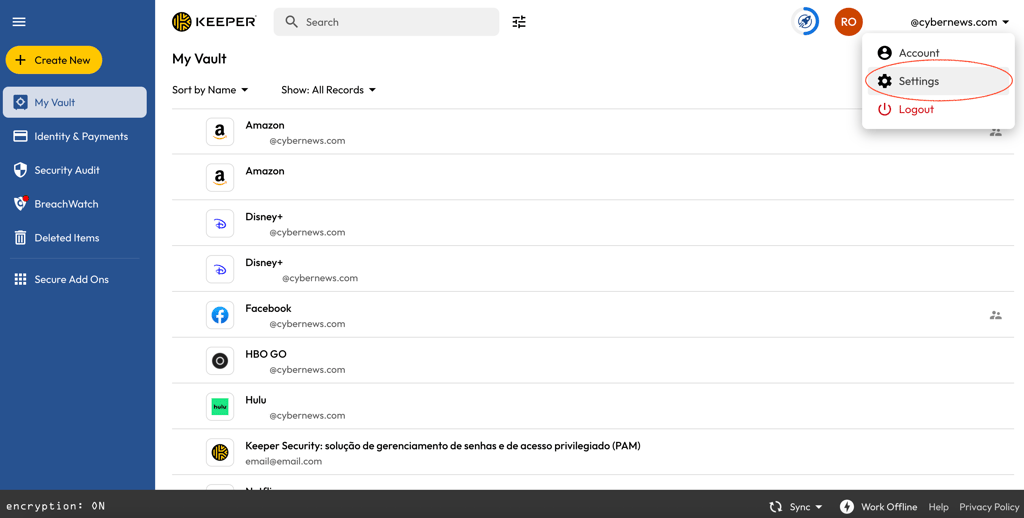
Step 1: go to the Settings
In the top right handcorner, click on your email address you used to sign up and select Settings.
Step 2: click Import
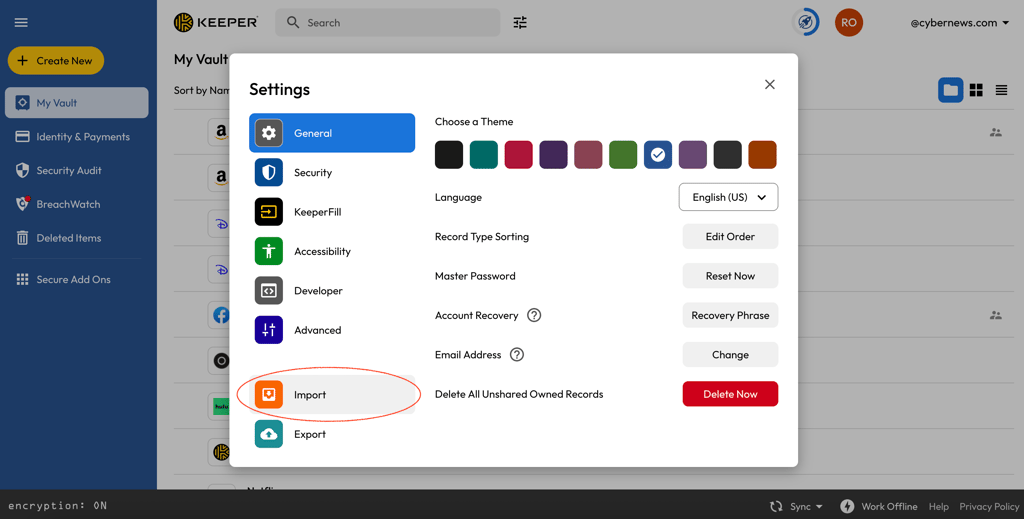
You’ll be taken to the general settings page. From there, find the Import tab and click on it.
Step 3: select password manager or browser you’ll be importing from
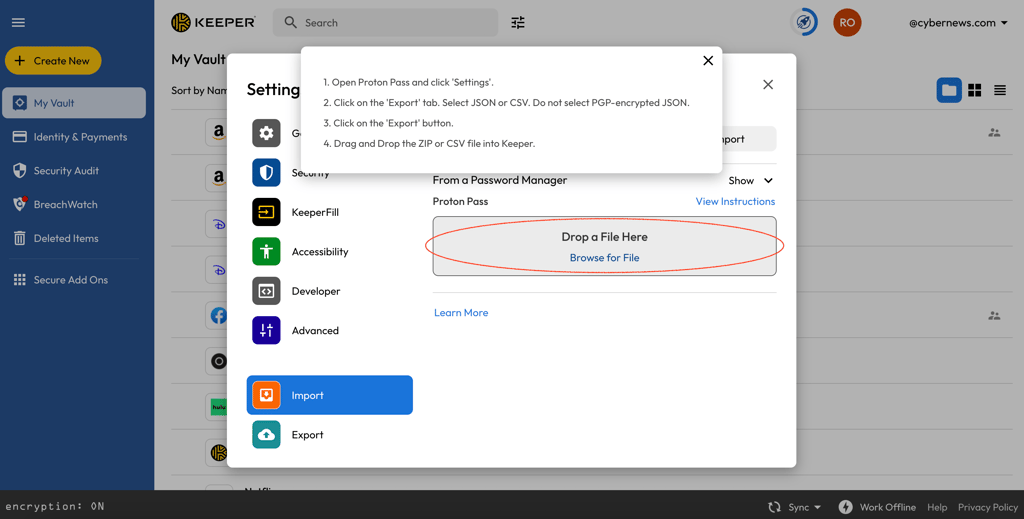
Keeper supports most of the popular password managers and browsers. Simply select the one you’re currently using. I selected Proton Pass for my testing.

Step 4: follow the instructions
There are short instructions for each password manager to make the importing process even smoother. It usually consists of exporting your passwords into a CSV file and dropping the file into Keeper.
Keeper apps and ease of use
In my opinion, Keeper offers great apps across all platforms which are easy to use and have an intuitive interface design. Keeper is available for the platforms listed below:
| Mobile apps | Keeper Password Manager is available on App Store and Google Play and can be installed on iOS and Android devices |
| Desktop apps | Keeper is compatible with macOS, Windows, Linux, and Chrome OS |
| Browser extensions | Keeper browser extensions can be installed on Chrome, Safari, Firefox, Edge, Opera, and Brave |
This covers virtually every device that you might have at home.
Moreover, Keeper can be configured with almost any web browser that you could think of. Naturally, this includes Chrome and Firefox, but you can also get a browser extension for Safari, Opera, and even Microsoft Edge.
You cannot self-host Keeper, but they do provide handy developer tools. They even have their own GitHub repository SDK for administrators and developers. This can help you to automate, schedule, and perform bulk imports via a command line interface.
Together with our research team, I tested Keeper on MacBook Air, Apple M2 chip, RAM – 8GB, macOS – Sonoma 14.5. I tried out the KeeperFill extension on Firefox and evaluated the mobile app on Nokia 6.2, Android 11. Let’s have a look at what we found.
Keeper desktop app
On the desktop, Keeper provides the full experience. I found it easy to access all of my passwords via my private vault. There, I could also create new entries, filter them out, search, and edit details.

On the left sidebar users can find My Vault, Identity & Payments, Security & Audit, Secured Add-ons, BreachWatch, and Deleted items sections. There's also a separate options section where you'll be able to watch your account information and change settings. I found it a bit confusing to find the password generator on the desktop app – I had to search for it through the Create New options and I think that such an important feature should be in the sidebar where it’s easier to access.
There is a separate auto-launch button, which instantly loads the page that's associated with a saved password. That way, you can instantly copy your password and safely log in. Overall, I liked Keeper's approach, and their app feels well-made. While the desktop app is not the most beautiful I’ve seen, it’s simple and straightforward, which are the most important aspects of a good app. It should be pretty easy to navigate for newcomers as well as veterans.
Keeper mobile app
Visually, iOS and Android apps look a bit different, but the functionality is quite the same. The Keeper mobile app shares the simplicity of the desktop app and is easy to navigate.

The main dashboard is separated into My Vault, Identity & Payments, Security Audit, Settings, Account, and Deleted Items. So, you'll be able to do most of the things you could with desktop apps minus exporting/importing.
Overall, I liked using the app on my phone: the interface is simple and easy to navigate. What I didn’t like is that the mobile apps have less functionality than the desktop app. For example, you can’t import passwords or generate passphrases on the mobile app.
Keeper browser extension
KeeperFill is a browser extension designed to save you time by autofilling. Instead of typing out your login credentials by hand, KeeperFill will do it for you at the click of a button. It’s compatible with Chrome, Safari, Firefox, Edge, Opera, Brave, and other Chromium-based browsers. I tested it on Firefox and had no problems autofilling login details or personal information.
How safe is Keeper password manager?
Yes, Keeper is a secure password manager that’s safe to use for individuals, families, and businesses. It’s built on a zero-knowledge architecture, meaning Keeper itself does not have access to your passwords. What’s more, it employs AES-256 encryption, which is one of the most secure encryption methods and is widely used across different industries.
To learn more about its security practices, I dived into Keeper Docs Portal, which has official documentation on Keeper’s infrastructure as well as encryption, authentication methods, and more. I found that Keeper supports two-factor authentication and has a self-destruct feature in case your device gets into the wrong hands. Most importantly, it’s SOC 2 and ISO27001 certified, ensuring the security of user password vaults.
With that out of the way, I looked into its privacy policy to understand what kind of user data it collects and how long it stores it for. I also searched the web to see if it has been breached or involved in any other incidents.
As for features, I tested all of them myself. I made sure to use every single one and keep notes of things that stood out in a positive or a negative way.
Keeper employs layered encryption for extra security
The encryption model chosen by Keeper is worth the praise because it's layered. I dug deeper to find out more and was glad for Keeper’s extensive documentation as I could find information on almost every aspect of its security model. Basically, Keeper end-to-end encrypts your data with multiple layers, which is also based on client-generated keys.
Encryption is done locally on the device using AES-256 combined with PBKDF2 encryption, so only encrypted passwords are sent to Keeper's servers. This is an advanced encryption practice used by high-level governments and stands out between top players in the market.
The way it's applied in practice is that each separate entry is assigned a unique key. This means that instead of your whole vault being locked under a single key, also known as the master password, every single password or file you upload is given a unique key.
Such unique keys are also classified under separate categories, i.e., Folder keys. You can imagine that every password will have its own unique key, with a unique category key, making the reverse engineering of all these layers almost impossible. It would take eons for a hacker to get a single password from your vault.
Keeper has been audited many times
Independent audit reports are something that adds more substance to zero-knowledge promises. In this regard, Keeper stands out from the rest of the competition. It's compliant with ISO 27001 standard that outlines practices for information security management systems. These areas range from information security policies to cryptography methods.
To top it off, Keeper also passed the Service Organization Control 2 (or SOC 2) audit. It assesses management methods and describes system operations in great detail. To qualify for it, it's required that the evaluation should be carried out over a minimum of six months.
The service is also compliant with the Privacy Shield framework designed by the US Department of Commerce and the European Commission. The framework ensures compliance with data protection requirements for EU and USA consumers.
Keeper even has a vulnerability disclosure program, where you can submit any bugs that you find. This reception works to their advantage and gives them better transparency.
Two-factor authentication for extra security
Keeper supports 2FA, allowing you to add an additional layer of protection to your vault. It works with several authentication methods:
- SMS
- TOTP apps
- Hardware tokens
- Smart wearables
- U2F-based physical keys
Whichever method you choose, Keeper requires you to have a backup method. This can prove to be handy if you lose your phone or token and don't want to be locked out of your vault forever. It's also worth mentioning that you should skip SMS confirmation as an option altogether. It's considered to be the least safe variant of 2FA.
Keeper has a great set of features
Keeper has a truly impressive set of features, most of which you are definitely going to use at some point. These include:
| Feature | What does it do |
| Password Generator | Generates unique strong passwords |
| AI-powered autofill | Automatically enters your login details, personal data, or payment information |
| Security audit | Provides an overview of your current password strength |
| Self-destruct | Deletes all local data after a certain number of unsuccessful login attempts – excellent feature if your device is lost or stole |
| Log out timer | Logs you out after a specified time |
| One-Time Share | Allows you to share a password once |
| Record Types | A template for different types of data such as login, payment card, contact information, address, and more |
| Vault Offline access | Provides access to vaults without requiring internet connection |
| Emergency access | Grants access to 5 trusted contacts in case of emergency |
| KeeperChat | A messaging app with end-to-end encryption |
| 24/7 customer support | Contact customer support at any time via live chat or email |
| BreachWatch | Continuously scans the dark web for your data |
| Secure File Storage | An encrypted vault for your files |
| Keeper Concierge | One-on-one customer support |
Keeper generates strong passwords
A password generator is essential for a password manager, and Keeper doesn’t disappoint. I used it to create strong passwords and was quite impressed. Keeper allows you to select the length of the password and whether to include capital letters, numbers, and symbols. The maximum character length is 100, so you can truly get strong passwords to protect your sensitive information.
Additionally, this tool shows how secure the password is – from weak to very strong. I used it to check the security of some of my old passwords and, after finding some vulnerabilities, improved them.
AI-powered autofill
Keeper has an autofill function to help you save time. You can install it separately as a browser extension (compatible with Chrome, Safari, Firefox, Edge, Opera, and Brave) or use it along with the app.

When you log in, you can directly search the list and launch websites directly from their system-tray add-on. Clicking fill info will auto-fill the credentials for you, so you'll only have to hit enter to confirm entry to the websites or programs.
If you prefer using your keyboard, you can even set up keyboard shortcuts to open Keeper and use KeeperFill. For example, I set up hotkeys to fill in my usernames and passwords. This can save precious seconds when you're in a rush.
Keeper helps you monitor your password health
Security Audit is basically a password health monitor. It gives you a nice overview of your overall security score, showing the number of reused and weak passwords.
When you export all your passwords from your browser or other password managers into Keeper, you get an opportunity to get them all evaluated. A security audit runs through your passwords and quickly tells you which ones were reused and which aren't complex enough. I find it useful if you have a lot of passwords and can’t keep up with them all.

The best part is that the whole process works offline. It just checks the used symbols in your passwords and their frequency and draws its conclusions from there.
Self-Destruct
Self-Destruct is a feature that automatically erases all locally stored passwords after five failed login attempts. I appreciate that there is an extra layer of security, especially for people who worry about having their device stolen or lost. This feature is not on by default and must be enabled in settings.
One-time share
To boost your credentials' safety, Keeper has implemented a time-limited protected sharing of an item with both Keeper users and those who don't have a Keeper account. With it, you can share sensitive items with your co-workers, classmates, or family. I found it especially useful to share my Wi-Fi password when friends are visiting.
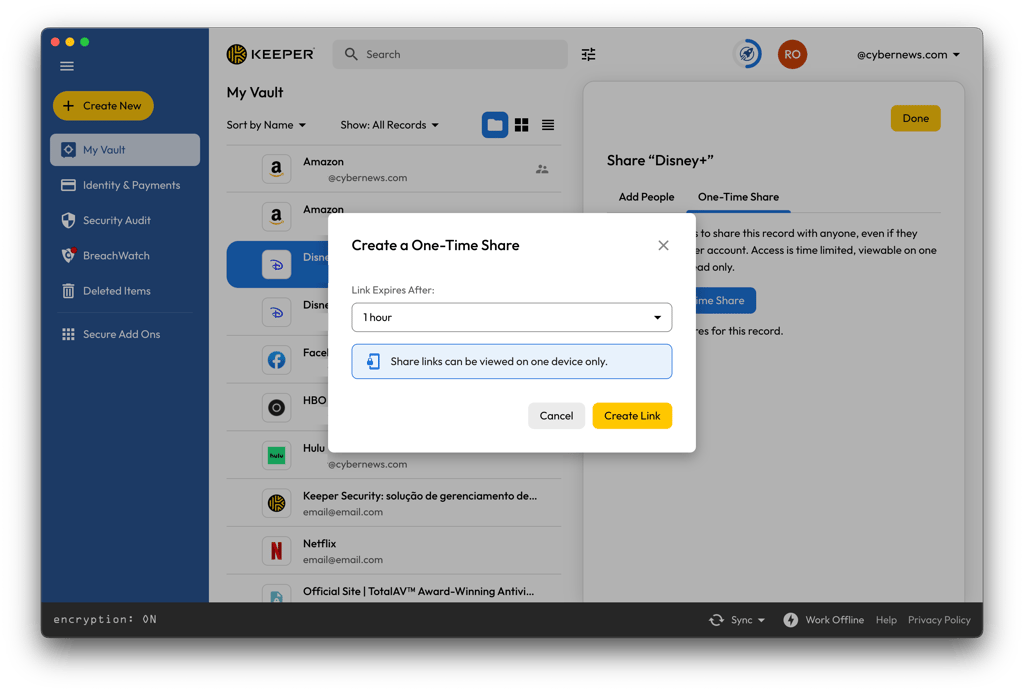
For your comfort, you can choose an expiration date of a shared item and set a custom date and time. Ways to deliver your one-time shared sensitive information include email, SMS, AirDrop, QR code, and other messaging platforms.
Record Types
Record Types lets you use the password manager's safekeeping, autofill, and sharing features for more than just passwords. With this new feature, you can digitize just about any document that you possess, use it on online forms, and share it within your family or organization. Moreover, using OCR and custom keystrokes, with Keeper, you can autofill the credentials of any preferred desktop application.
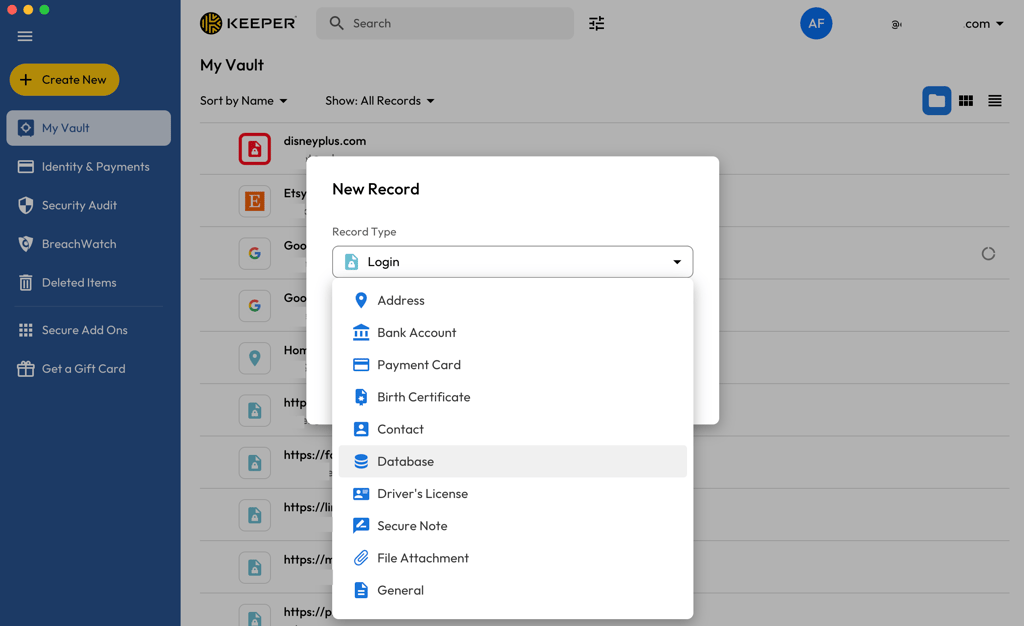
This means no more .jpegs of vital documents sent around WhatsApp or SMS. If the templates do not fit the fields that you need, you can make custom Record Types as well. And, finally, by auto-filling your selected desktop apps, you will be saving some extra effort.
Emergency and offline access
Users can designate contacts who will be able to access your vault in case of an emergency. When setting up your account, you can choose five contacts and indicate how much time should pass before your vault becomes accessible to them.
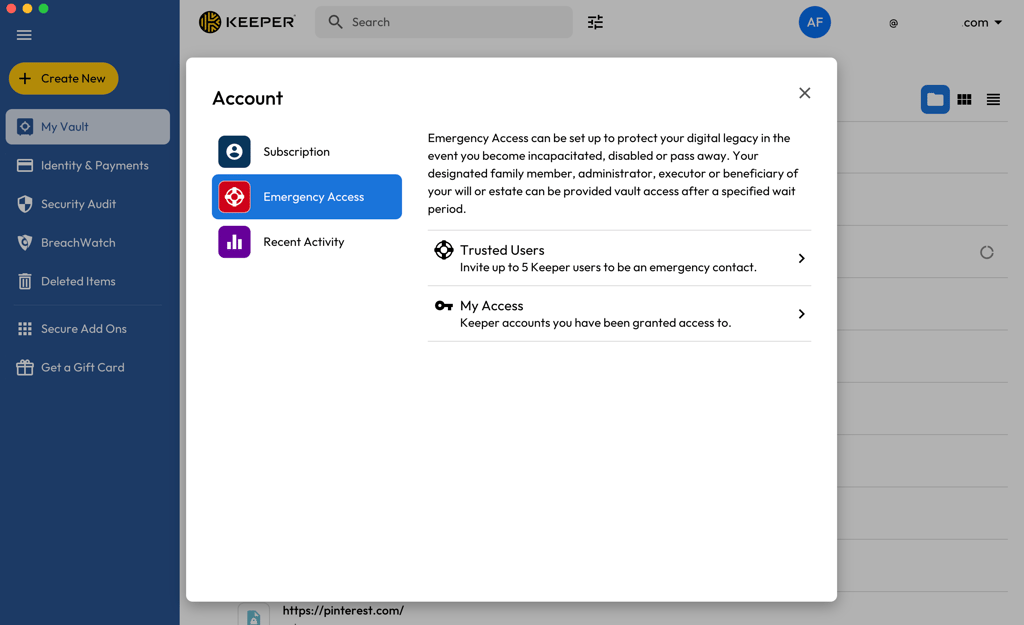
Offline mode, on the other hand, allows users to view their items offline but also edit them or add new ones. Keeper makes a local copy of your vault on your currently used device. The copy remains encrypted using layered encryption and can only be accessed with a master password or biometric authentication. I found this feature to be incredibly useful when I was in locations with poor connection.
Keeper's paid add-on will alert you in case of a password leak
Some features aren't included in the standard package that you buy. If you're willing to pay extra, you can enhance your Keeper experience with BreachWatch.
As you could probably guess from its name, BreachWatch alerts you when your passwords pop up on the dark web. If you’re in the habit of reusing the same passwords, this can compromise your other accounts.

Swift response is the only way that you could minimize the potential damage. BreachWatch will notify you as soon as it finds your data, giving you extra time to change the compromised login credentials
Most password managers, such as NordPass, include this feature in the paid plans, therefore, I’m not impressed that users have to pay extra for it with Keeper.
Keeper offers 24/7 support
| Option | Availability |
| Live chat | ✅ Yes |
| ✅ Yes | |
| Phone | ❌ No |
| Knowledge base | ✅ Yes |
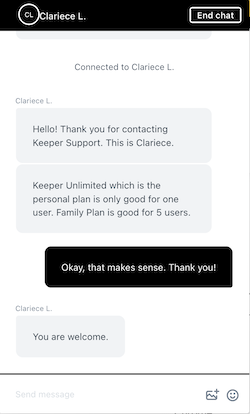
Keeper has the standard customer support options. First off, every user gets access to 24/7 customer support since it's a paid-only service. I contacted customer service via the live chat option and got a swift response.
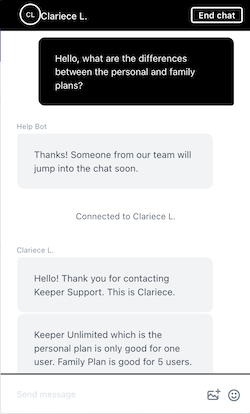
It was easy to contact customer support – all I had to do was enter the email my account was created with. The live support agent was friendly and helpful – their responses were quick and easy to understand.
As is standard for password managers, Keeper also has an in-depth knowledge base. There you can find very detailed guides, which are sure to help out many newcomers. It's one of the most impressive knowledge bases that I've ever seen. The guides are separated for Personal or Enterprise users and some segments even have video content.
What’s more, Keeper also offers a premium customer support service called Keeper Concierge. It’s quite expensive, costing users $99.99/year, but promises one-on-one personalized support, starting from setting up your account, importing your passwords, or just answering any questions or concerns you may have.
If none of the above options work for you, Keeper offers help on free Q&A and technical support webinars.
Keeper plans and pricing
Keeper pricing plans include individual, family, and business use, all at a relatively affordable price. Individual and family plans don’t differ much, except the number of users that can use the subscription. Business users get advanced features and more developer tools, which are crucial for large organizations and enterprises.
All in all, Keeper offers a decent price-to-value ratio for personal use. I’m giving it a lower rating because data breach scanner is hidden behind a paywall, which is a big downside for me considering that NordPass and 1Password include it in all of their paid plans.. Its business plans are pretty great though, and your employees get access to Keeper’s Family plan.
| Version | Features | Price |
| Personal | Unlimited devices and sync, accessible on mobile app, web app, web vault and browser extension, unlimited passwords + passkeys, autofill passwords, fingerprint and face ID login, emergency access, unlimited secure password sharing, 24x7 customer support | From $1.79/month |
| Family | 5 private vaults, unlimited devices and sync, accessible on mobile app, web app, web vault and browser extension, unlimited passwords + passkeys, autofill passwords, fingerprint and face ID login, emergency access, unlimited secure password sharing, 10GB Secure File Storage, share folders, records and manage permissions, 24x7 customer support | From $3.83/month |
| Business | Encrypted vault for every user, unlimited devices, shared team folders, user activity reporting, free Family plan for every team member | From $7.00/month |
Here’s a breakdown of each plan:
Personal – designed for individuals who want to store and easily access all of their passwords in one place.
Family – perfect for families or groups of friends of up to 5 people. Keeper Family provides 5 private vaults so each user can have their own dedicated space for passwords and other sensitive information without sharing it with other accounts.
Business Starter – great for small businesses with teams of up to 10 people. It has a limited set of features including 10 encrypted vaults, personal and shared folders, unlimited devices, team management, however, it should be enough for a small business.
Business – best for small to medium-sized businesses. Keeper Business includes all Business Starter features plus encrypted vaults for all users, delegated administration, advanced organizational structure, and a shared admin. From the centralized administrator page, you'll be able to set up how the credentials will be managed. It's a much safer option than just keeping them in plain text. The price is $2.62/month for each user so you can calculate how many users your organization has, and you'll get the total yearly cost for this product.
Enterprise – for medium to large businesses, Keeper Enterprise includes all the business plan features and adds SAML 2.0 authentication, advanced 2FA methods, command-line controls, and more. You'll have to contact them directly to get a quote, so it's a very flexible solution.
Unfortunately, Keeper does not offer refunds and doesn’t have a money-back guarantee. This is rather disappointing as users have been charged before the auto-renewal time is up and the no refund policy leaves them stranded. Therefore, I recommend disabling the auto-renewal feature.
What is Privileged Access Management?
Privileged Access Management (PAM) is a security tool that helps keep critical systems and sensitive data safe by controlling and monitoring access for high-level users like IT admins. It prevents unauthorized access, reduces insider threats, and lowers the risk of cyberattacks by enforcing strict security rules. Here are key features of PAM:
| PAM feature | What it does |
| Credential vaulting | Stores and secures privileged passwords |
| Session monitoring | Tracks and records admin activity |
| Least privilege enforcement | Ensures users only get the access they need |
| Multi-factor authentication (MFA) | Adds extra security layers |
| Automated access controls | Grants and removes access as needed |
For any business dealing with sensitive information, Keeper PAM is a must. It helps with security compliance, reduces cyber risks, and keeps systems locked down from potential threats.
Keeper video review 2026
You can also watch our Keeper review on YouTube with all of its ups and downs discussed in detail together with features, value, and more.
Bottom line – is Keeper right for you?
Keeper is a solid password manager best for those who want that extra layer of security without spending too much. Features like Self-Destruct, Offline Mode, and Log Out Timer improve online security and privacy. Plus, its apps are super smooth to use and secure sharing is great based on my tests.
Despite its focus on security, Keeper left its data breach scanner and secure storage behind a paywall. I find this quite disappointing, especially considering that other password managers like NordPass and 1Password as well as the cheaper RoboForm include it in their premium plans.
More Keeper guides
How we tested the Keeper password manager
To ensure a thorough and unbiased review, our research team and I reviewed 20 password managers. We used multiple devices, including Windows PCs, macOS laptops, Android smartphones, and iOS devices, to evaluate each tool's performance, security, and usability. These are the most important aspects I evaluate when it comes to password managers:
- Security features (30%). Security is our top priority when testing password managers. I started by examining Keeper’s encryption methods, two-factor authentication (2FA), biometric login options, and protection against breaches. I also tested its ability to securely generate, store, and autofill passwords. Additionally, I evaluated import/export options to determine how well it manages password migration.
- Cross-device and platform compatibility (20%). A great password manager should work seamlessly across various platforms. I tested Keeper on multiple devices, ensuring smooth syncing and accessibility regardless of the operating system.I also tested Keeper’s browser extensions on Chrome, Firefox, Edge, and Safari to check for autofill accuracy, ease of login, and overall stability.
- Interface and user experience (20%). A well-designed password manager should be intuitive and user-friendly. I evaluated Keeper’s interface by assessing ease of navigation, setup simplicity, clarity of labels, and overall design aesthetics. A clear, well-organized layout significantly improves user experience, especially for those new to password managers.
- Additional features (10%). Beyond core password management, I tested Keeper’s extra features, such as secure password sharing, dark web monitoring, emergency access, and password auditing. These tools enhance security and add value for users seeking more than just storage.
- Value for money (10%). I compared Keeper’s pricing plans against competitors, assessing its features against cost. My goal was to determine whether it provides a strong price-to-value ratio for individuals, families, and businesses.
FAQ
Is the Keeper app trustworthy?
Yes, you can trust the Keeper app to keep your passwords safe. It’s built on a zero-knowledge architecture and uses end-to-end encryption to ensure that no one, not even Keeper itself, can access your vault.
How many times has Keeper been hacked?
Keeper has never been hacked. Even if it had been hacked, user passwords are end-to-end encrypted, so the cybercriminals would only get unreadable code.
How does the Keeper password manager work?
Keeper password manager securely stores your login details and retrieves them whenever needed. For example, it autofills passwords when you try to sign in into your accounts while browsing, so you don’t have to do it manually.
Is there a free version of Keeper password manager?
Yes, Keeper has a free version, however, it’s very limited and is missing key features. It also offers a 30-day free trial, giving you plenty of time to try the service and all of its features yourself.