1Password vs Keeper comparison in 2026


1Password and Keeper are both reliable password managers with strong security features and user-friendly apps. Still, they have a few important differences that can make one a better fit depending on your needs, budget, and preferred features.
For this 1Password vs Keeper comparison, I tested both password managers over a few weeks. During this time, I looked at their security, performance, usability, features, and overall value for money.
Below, you’ll find a closer look at each provider’s strengths and drawbacks so you can choose the better option.
A brief look at Keeper vs 1Password
1Password and Keeper are both among the best password managers on the market, each having its own benefits and drawbacks. 1Password is known for being super easy to use, with a clean, intuitive interface and strong security, thanks to features like its unique Secret Key that adds an extra layer of encryption. Keeper also adheres to top-level security standards just like 1Password. However, I found it slightly more difficult to use, as the interface can seem cluttered at times.
| 1Password | Keeper | |
| ⭐ Rating: | ||
| 🥇 Overall rank: | #2 out of #20 | #4 out of #20 |
| 🔥 Coupons: | 1Password coupon 25% OFF | Limited-Time offer! Keeper coupon 50% OFF |
| 💵 Price: | From $2.99/month | From $1.79/month |
| ✂️ Free version: | 14-day trial | Yes |
| 🔒 Encryption: | AES-256 | AES-256 |
| 🖥️ Platforms: | Windows, macOS, Linux, Android, iOS | Windows, macOS, Linux, Android, iOS |
| 🌐 Browser extensions: | Chrome, Firefox, Edge, Brave, Safari | Chrome, Firefox, Safari, Opera, Edge, Brave |

Recent Updates
Key differences between Keeper and 1Password
Keeper and 1Password are both worth each other's competition as they deliver strong security and a range of useful features. Yet, there are some differences between the two, making them a good fit for different types of users.
Choose Keeper if:
- You need high-level encryption. Keeper stands out for its layered security, combining AES-256 encryption with PBKDF2. This is an advanced security practice that is used by high-level governments.
- You’re looking for an affordable solution. Keeper is a more affordable option than 1Password. For $1.79/month, it offers strong security and key password manager functionalities.
- You worry about your device being stolen or lost. Keeper’s Self-Destruct feature, if such events occur, erases all locally stored passwords after five failed login attempts.
- You appreciate well-rounded customer support. Keeper offers more customer support options than 1Password, including a 24/7 live chat.
Choose 1Password if:
- You want a feature-rich password manager. 1Password offers advanced and unique features, such as Travel Mode, Privacy Cards, Secret Key, and Watchtower, that protect you when you’re abroad, when you're online shopping, or when you're carrying out other daily tasks.
- You want a user-friendly tool. 1Password is exceptionally easy to use: it can be set up in a few moments, and its modern apps work smoothly across the most popular operating systems.
- You want control over your credentials when offline. 1Password lets you add, edit, and delete items while offline. Any changes you make are synced when you reconnect.
- You’re looking for a highly compatible tool. 1Password offers consistently easy password management across desktop, mobile, and browser extensions.
How we tested Keeper vs 1Password
Keeper vs 1Password: plans and pricing
| Plan | Keeper | 1Password |
| Free version | 30-day free trial, mobile free version | 14-day free trial |
| Personal/Individual (1 user) | $1.79/month | $2.99/month |
| Family/Families (5 users) | $3.83/month | $4.49/month |
| Business Starter/Business | From $7.00/month per user | From $8.99/month per user |
| Try Keeper | Try 1Password |

Keeper and 1Password have numerous subscription plans to cover varying user needs. It is a tradition among password managers to provide options for individual use, sharing between family members, and for businesses. As such, 1Password and Keeper offer similar subscription tiers with almost identical names yet different prices.
1Password has five primary plans – Individual ($2.99/month), Families ($4.49/month), Teams Starter Pack ($24.95/month), Business ($8.99/month/user), and Enterprise, which doesn’t have an exact price. Similarly, Keeper offers six subscription options – Personal ($1.79/month), Family ($3.83/month), Business Starter ($7.00/month, minimum 5 users), Business ($3.75/month/user), as well as Enterprise and Privileged Access Manager plans, also without exact prices. However, a key difference is that Keeper offers special discounts for students, medical staff, and military personnel.
The Keeper Personal plan for $1.79/month allows only one user but can be used on unlimited devices. It comes with all the essentials like 256-bit AES encryption, 2FA, unlimited password storage, autofill, password generator, and secure sharing. Meanwhile, 1Password’s Individual plan for one user for $2.99/month includes unlimited password storage, 1GB of document storage, travel mode, 2FA, and autofill. Both password managers offer the same amount of features in the same subscription tiers but for slightly different prices.
Keeper and 1Password also have subscriptions for families. The Keeper Family plan is $3.83/month for five users, and in addition to everything you get in Keeper Personal, it also comes with 5 private vaults and 10GB of secure file storage. By comparison, 1Password Families is $4.49/month for five users and includes everything you get with one user plan, plus shared vaults, access/permission management, and account recovery. This way, 1Password’s family plan is more extensive than Keeper’s, making sharing passwords easier.
When it comes to business plans, Keeper and 1Password also have extensive offers. Keeper has several options for you to choose from, each with unique features and fair pricing: Business Starter for $7.00/month and up to 10 users, Keeper Business for $3.75/month/user, while the prices of Keeper’s Enterprise and Privileged Access Manager plans depend on your needs. All Keeper Business plans include personal encrypted vaults, shared team folders, unlimited device access, policy engine and enforcement, security audit, activity reports, and team management. By comparison, 1Password offers Teams Starter Pack for $24.95/month up to 10 users, and Business plan for $8.99/month/user. Both Teams and Business plans include everything in Families, plus admin permission control. The Business plan also offers 5GB storage per user and activity logs. In short, Keeper offers more business pricing options than 1Password, making it a more flexible choice for different team needs.
Keeper vs 1Password: which offers stronger security?
Both Keeper and 1Password are reliable and secure password managers, but 1Password makes it extra secure with a 128-bit Secret Key on top of AES-256 encryption, which makes your vault even more impenetrable. By comparison, Keeper uses AES-256 encryption with PBKDF2 key derivation. But that doesn’t mean that Keeper is insecure. In fact, you might prefer it due to its wider variety of 2FA methods.
Encryption
Keeper and 1Password utilize industry-standard AES-256 encryption to ensure customer password vaults remain protected from unauthorized access. However, a few differences need to be addressed.
Keeper opts for 256-bit AES encryption, a powerful cipher that uses a key length of 256 bits to mask your vault. It’s considered practically unbreakable, and it’s also the current industry standard for password managers. Keeper also adds PBKDF2 to protect your credentials and other sensitive data from brute-force attacks.
1Password has a similar encryption model. It also uses 256-bit AES encryption and further enhances security with measures like PBKDF2 and a 128-bit Secret Key.
Plus, both Keeper and 1Password have a zero-knowledge policy in place. So, vault encryption/decryption is done locally, and your sensitive data is also concealed from the company’s employees.
Overall, both password managers ace encryption flawlessly, but 1Password’s 128-bit secret key gives it an edge.
Multifactor security
Keeper has many multi-factor authentication (MFA) options, while 1Password also supports several secure 2FA methods.
With Keeper, you can enable these 2FA methods:
- TOTP generator apps like Google Authenticator and Microsoft Authenticator
- Hardware tokens
- U2F-based physical keys such as YubiKey
- Smart wearables like the Apple Watch
Plus, SMS verification is also allowed when using Keeper. But I’d advise against this as it’s vulnerable to hijacking and is the least secure method of 2FA.
As for 1Password, you can set up 2FA with authenticator apps like Authy or Microsoft Authenticator, or use a security key like YubiKey or Titan. For team accounts, Duo Security can also be used to confirm sign-in requests.
Windows Hello and Apple’s Face ID are supported for unlocking 1Password apps, too.
Data storage
Comparing 1Password vs Keeper in terms of storage, Keeper gains the upper hand by offering unlimited password vault storage. This is a considerable advantage, especially if you follow security experts’ advice to have unique passwords for all your accounts.
However, if you want to store data besides passwords, you must purchase its Family plan. The plan provides 10GB of storage that you can use to store files, photos, videos, and more.
If you need an even bigger storage vault, Keeper also offers Secure File Storage. You can choose among its 10GB, 50GB, and 100GB plans. For businesses, the limit goes up to 10TB. Prices start from $13.99/year.
1Password, on the other hand, includes 1GB of storage in its 1Password and 1Password Families plans. That’s enough for passwords, documents, and the like, but probably far too limiting for things like videos.
Meanwhile, its 1Password Business users get 5GB. However, each file cannot exceed 2GB in size.
Privacy policy
Both Keeper and 1Password have a zero-knowledge policy, which is standard for password managers but still very much appreciated. This means that your data is end-to-end encrypted, and even their employees cannot access or view it. However, they do collect some user information.
In Keeper’s case, it collects limited personal information, including username or email address and phone number, for account verification and 2FA authentication.
Beyond that, it also collects and logs aggregate user statistics and website traffic for service improvement, performance tracking, and website administration. This includes website traffic statistics, date and time of visits, browser types, and frequency.
Meanwhile, our 1Password review shows that this provider is more aggressive with its data collection. It collects various personally identifiable information like:
- Types of accounts
- Payment methods
- Login activity
- Number of items in your vault
- Storage space utilized
- IP address
- Email address
Thankfully, 1Password emphasizes that your passwords, vault contents, and other Secure Data are never included in telemetry or usage data.
Third-party security audits
Both password managers have undergone several third-party security audits, which is excellent since these audit reports lend credence to their claims.
Keeper is Service Organization Control (SOC 2) compliant. This audit assesses five trust service principles: security, availability, processing integrity, confidentiality, and privacy. It also has ISO 27001, 27017, and 27018 certification, with regular quarterly penetration testing performed by third-party experts like NCC Group and CyberTest.
Plus, Keeper complies with the EU-U.S. Data Privacy Framework, the UK Extension to the EU-U.S. DPF, and the Swiss-U.S. Data Privacy Framework.
Similarly, 1Password is SOC 2 certified and holds ISO 27001:2022, ISO 27017:2015, ISO 27018:2019, and ISO 27701:2019 certifications. Its annual penetration test reports are now available through the 1Password Trust Center, including the 2025 Annual Pentest.
Feature breakdown: Keeper and 1Password
| 1Password | Keeper | |
| Encrypted file storage | ✅ Up to 5GB | ✅ Up to 10GB |
| Password importing | ✅ Yes | ✅ Yes |
| Password recovery | ✅ Yes | ✅ Yes |
| Password generator | ✅ Yes | ✅ Yes |
| Password sharing | ✅ Yes | ✅ Yes |
| Autofill | ✅ Yes | ✅ Yes |
| Weak password monitoring | ✅ Yes | ✅ Yes |
| Travel mode | ✅ Yes | ❌ No |
| Data breach checker | ✅ Yes | ✅ Yes |
| Safe messaging app | ❌ No | ✅ Yes |
| Emergency/account recovery | ✅ Yes | ✅ Yes |
The Keeper vs 1Password feature comparison sees the two password managers at a draw. Both have the essentials required for a password manager to work well, covering password importing, sharing, generating, account recovery, and autofill.
Password importing
Keeper and 1Password make password importing convenient, but Keeper provides more extensive options.
With Keeper, there are plenty of ways to import data into your vault. First up is via Keeper Importer, which automatically imports unprotected passwords from Chrome, Firefox, Edge, Safari, Internet Explorer, and Opera web browsers.
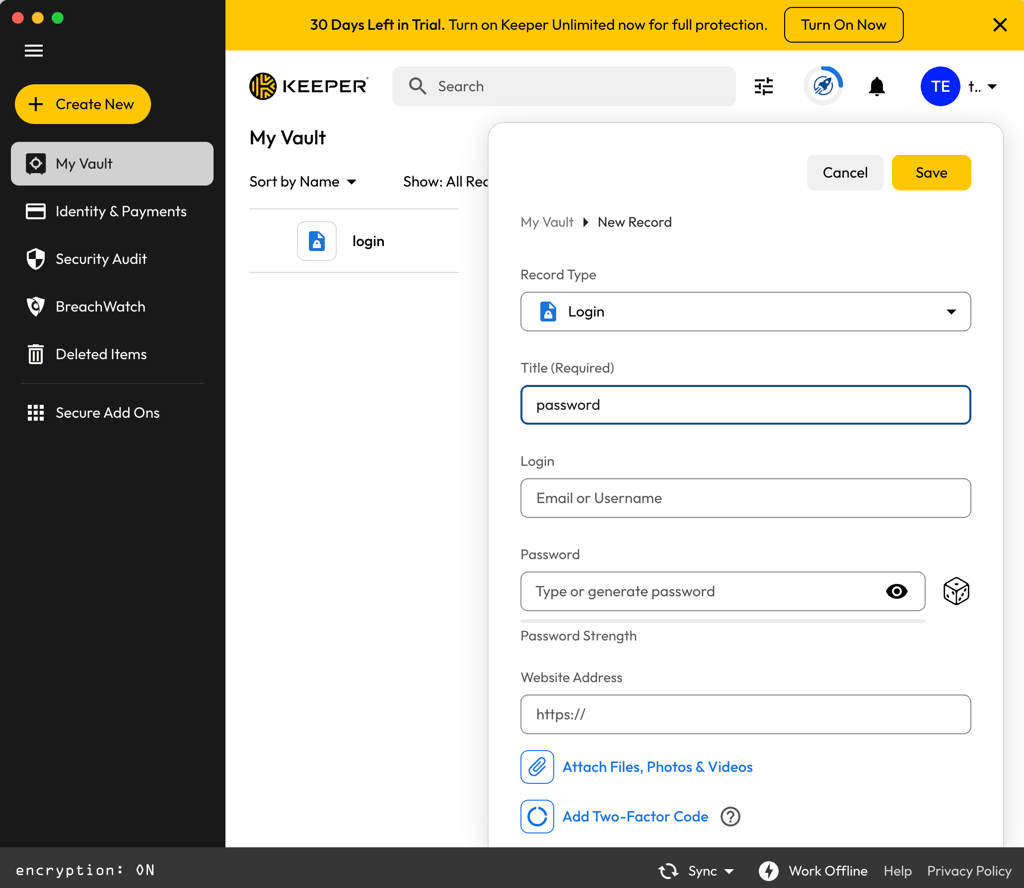
Keeper also supports importing from a long list of other password managers. Among them are 1Password, Enpass, LastPass, KeePass, RoboForm, and ZOHO. Plus, it allows importing from CSV files, Excel sheets, JSON files, and command line interfaces.
In contrast, 1Password also offers a straightforward way to import passwords from browsers like Chrome, Firefox, Edge, Brave, and Safari, as well as from other password managers and apps.

For everyone else, it supports password importing from CSV, 1PUX, and 1PIF files.
Account and password recovery
Keeper and 1Password have several account recovery methods, but Keeper races ahead with its significantly more accessible and fail-proof options.
With Keeper, you can select five contacts who can access your vault in an emergency. That said, the same feature is equally helpful if you forget or lose your master password.
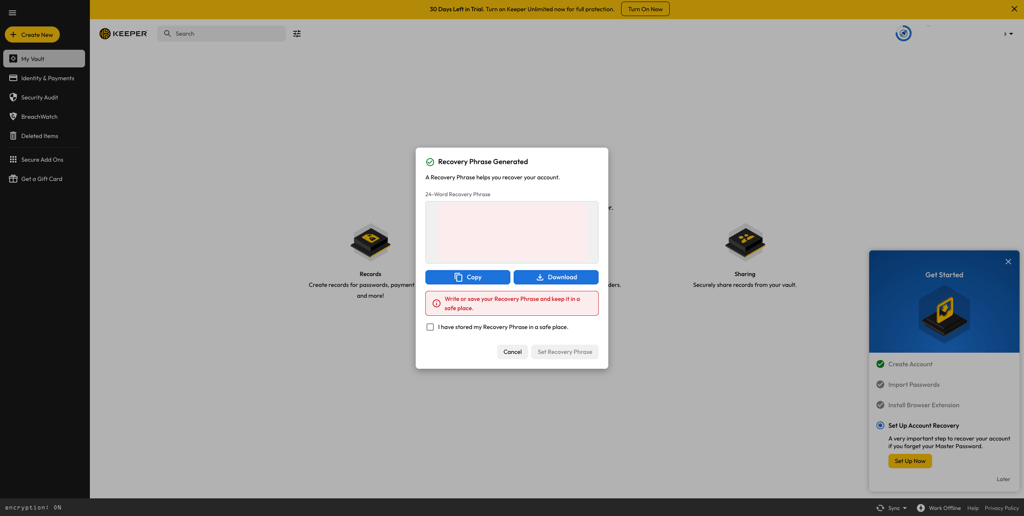
Additionally, Keeper uses a 24-word recovery phrase for account recovery. To reset your master password, you’ll need this recovery phrase, email verification, and 2FA.
Meanwhile, 1Password advises that you should first turn to your Emergency Kit or use a recovery code if you’ve generated one. The Emergency Kit is a PDF document where your account details and your password can be stored. This helps you access your account when you fail to sign in. 1Password also emphasizes that you should store both digital and printed copies.

Otherwise, you may still be able to unlock 1Password on a trusted device using biometrics, such as Touch ID or Android biometric unlock.
Alternatively, if you’re on 1Password’s Family, Teams Starter Pack, Business, or Enterprise plans, the family organizer or team administrator can also restore access for other family or team members.
Password generator
As expected from any worthwhile password management service, 1Password and Keeper provide password generators so you wouldn’t have to create them yourself. Let’s highlight a few differences between the two.
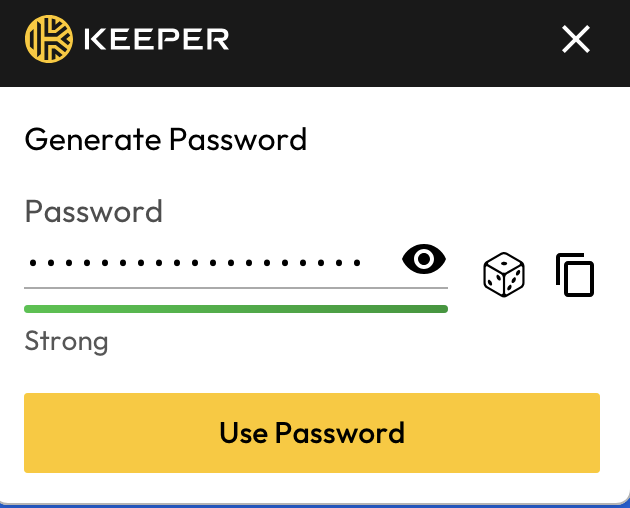
In Keeper’s case, you can set the length of the password and the types of characters to include. The maximum character length is 100, more than enough to create a strong unique password to protect your accounts.
Likewise, 1Password has a password generator to create secure passwords, too. Its Smart Password Generator selects four syllables – one entirely in uppercase – and combines them with separators chosen from numerals and basic symbols.
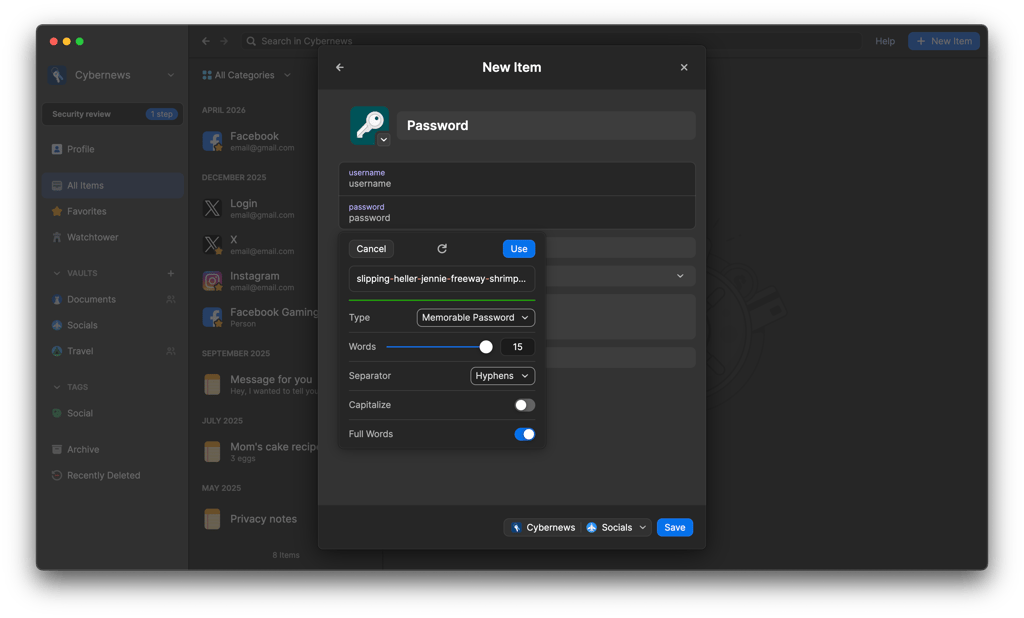
Overall, I’d say it’s fair to call a tie here. Both Keeper and 1Password’s password generators live up to expectations.
Password sharing
1Password and Keeper offer excellent secure password-sharing methods so you don’t have to put your accounts or other crucial information in harm’s way. Most importantly, both providers allow sharing data with users who don’t have your service’s accounts.
Keeper’s primary password-sharing tool is One-Time Share. This feature provides time-limited secure sharing of records with anyone – whether Keeper users or otherwise. You can share login credentials, encrypted files, and more.
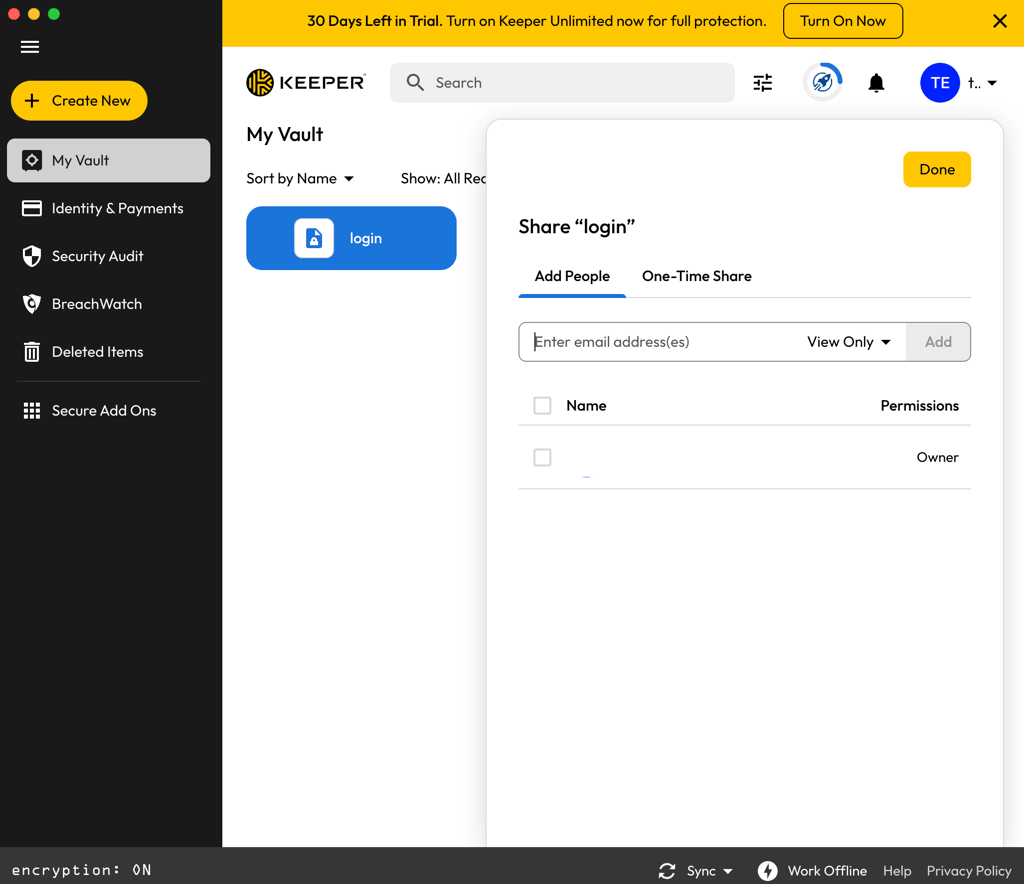
The feature allows you to send links to the recipients via assorted channels, including direct QR code scan, AirDrop, email, and SMS.
For added protection, One-Time Share is also device-locked so that the records are decrypted locally on the original recipient’s device. Plus, all requests to the server are signed with elliptic-curve cryptography (ECDSA), a digital signature algorithm
1Password lets you share copies of passwords and saved items with a link as well. You can set who to share with and when the link expires.
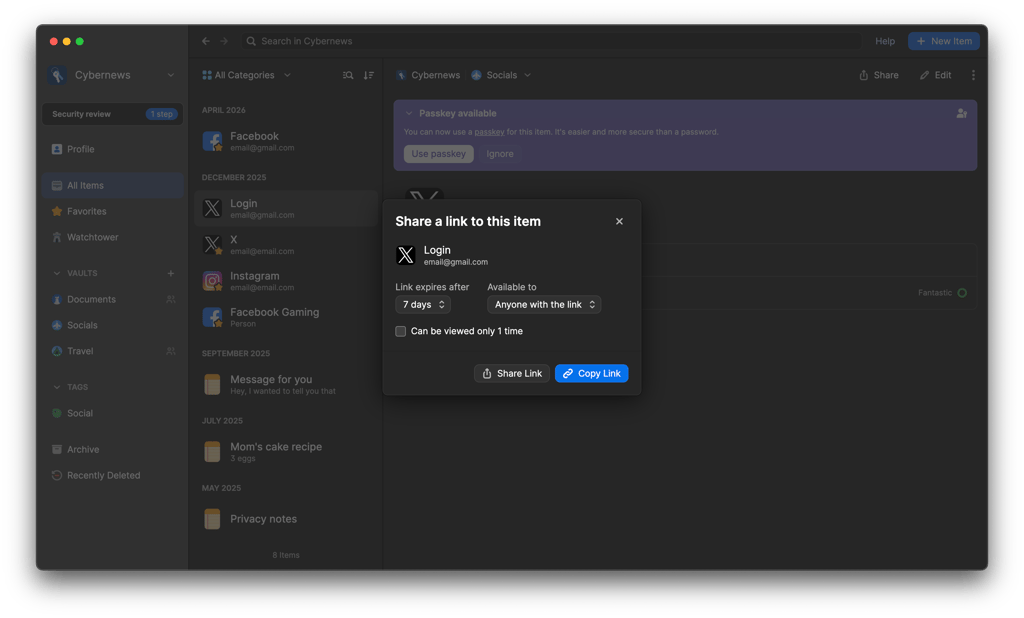
Sharing a vault is also an option for those on 1Password’s Families, Teams Starter Pack, and Business plans. Everyone with access to the vault can view, create, edit, and more. Of course, you can always manage the permission, too.
Autofill
Both Keeper and 1Password provide autofill for quick and easy access to your accounts. Once enabled, username, password, and other information like payment details are all automatically entered.
Keeper mainly relies on KeeperFill to automatically fill login credentials for saved sites. It can be used alongside the app but is also available for installation separately. In the latter case, it will either be a browser extension or a system tray item.
Otherwise, you can also set up hotkeys by choosing a button to immediately launch KeeperFill, which will then autofill the login credentials for even faster access.
To sign in with 1Password, you must first click on the 1Password icon in the username or password field, click on the login item, and click on Search 1Password if it suggests more than one item.
Platforms, interface, and ease of use
| Keeper | 1Password | |
| Supported OS | Windows, macOS, Linux, Android, and iOS | Windows, macOS, Linux, Android, and iOS |
| Browser extension | Chrome, Safari, Firefox, Opera, Edge, and Brave | Chrome, Safari, Firefox, Edge, and Brave |
| Number of users | Up to 5 | Up to 5 |
Both Keeper and 1Password are compatible with all the standard desktop and mobile operating systems (Windows, macOS, Linux, Android, iOS). Unlike 1Password, Keeper also has a browser extension for Opera. Besides that, both password managers work with Chrome, Safari, Firefox, Brave, and Edge.
Desktop apps
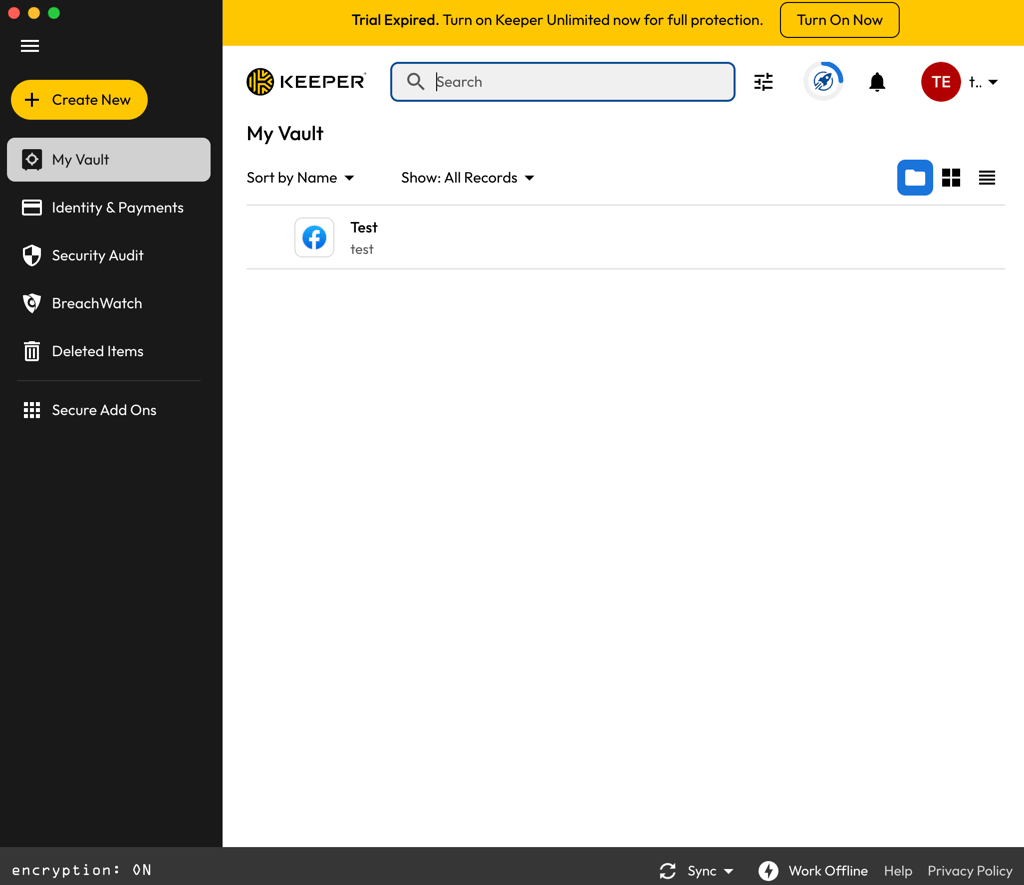
With Keeper, I found both desktop and mobile apps easy to install and navigate. The feature organization made sense, and it was really easy to create or remove passwords, access the secret chat, and recover deleted items, among other things.
At the same time, 1Password takes the application design to the next level. Installation and setup took only a few minutes, and I really enjoyed that it’s possible to customize my vault in a way that’s most convenient for me. For example, I could create as many vaults and tags as I wanted.
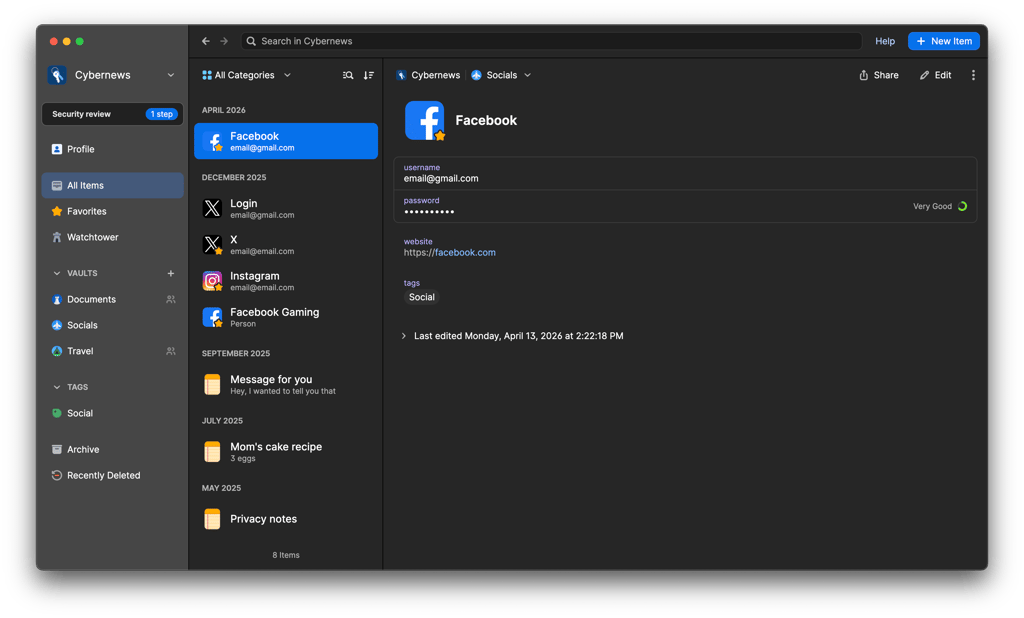
As expected, 1Password’s setup process is just as easy as Keeper's, which can accommodate any user, making it a great password manager for seniors and families.
Browser extensions
Regarding browser extension compatibility, Keeper and 1Password are almost identical, except Keeper also works with Opera. Otherwise, you can install extensions from both providers on Chrome, Firefox, Safari, Edge, and Brave. Such excellent compatibility makes both providers suitable for practically everyone.
I found Keeper’s browser extension to be a little too basic. In addition to autofill, Keeper’s extension offers access to a few basic features like a password generator and account switching. However, more advanced features are still easier to access via the web app.
In contrast, 1Password’s extension includes an impressive array of features, making it almost as powerful as the standalone apps. I could do practically everything available on the desktop app and even gain a few extras. For example, 1Password’s extension includes useful options like saving and filling items, password generation, and lock controls.
Mobile apps
1Password and Keeper are excellent on the mobile device compatibility front. Both are compatible with Android and iOS devices and provide all the essential tools for on-the-go password access.
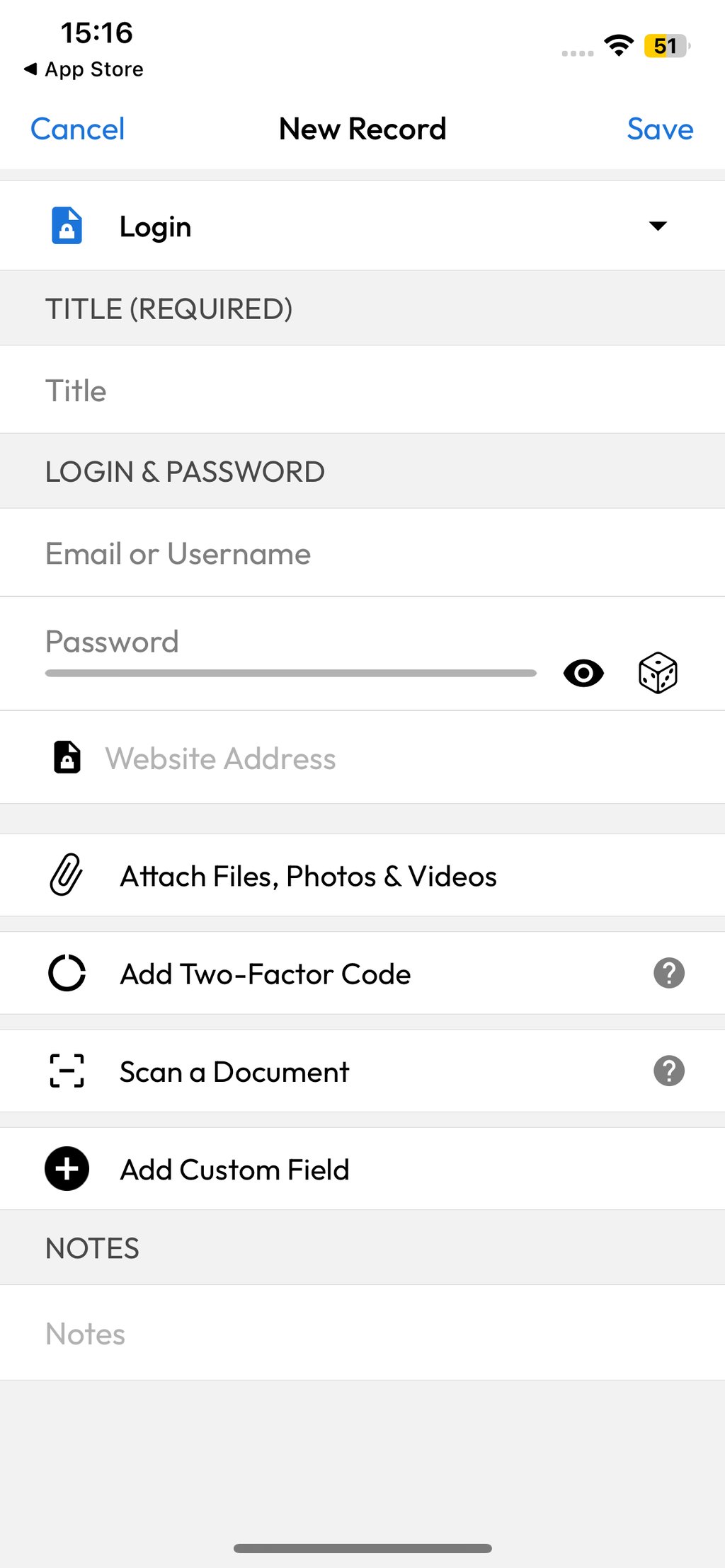
Keeper’s mobile apps are available on the Apple App Store and Google Play Store. The fact that Android and iOS apps are a bit different was strange, but not too inconvenient. You’ll find all the same features as on its browser and desktop apps here. The only exception is that import and export options are still more limited on mobile than on desktop or the web app.
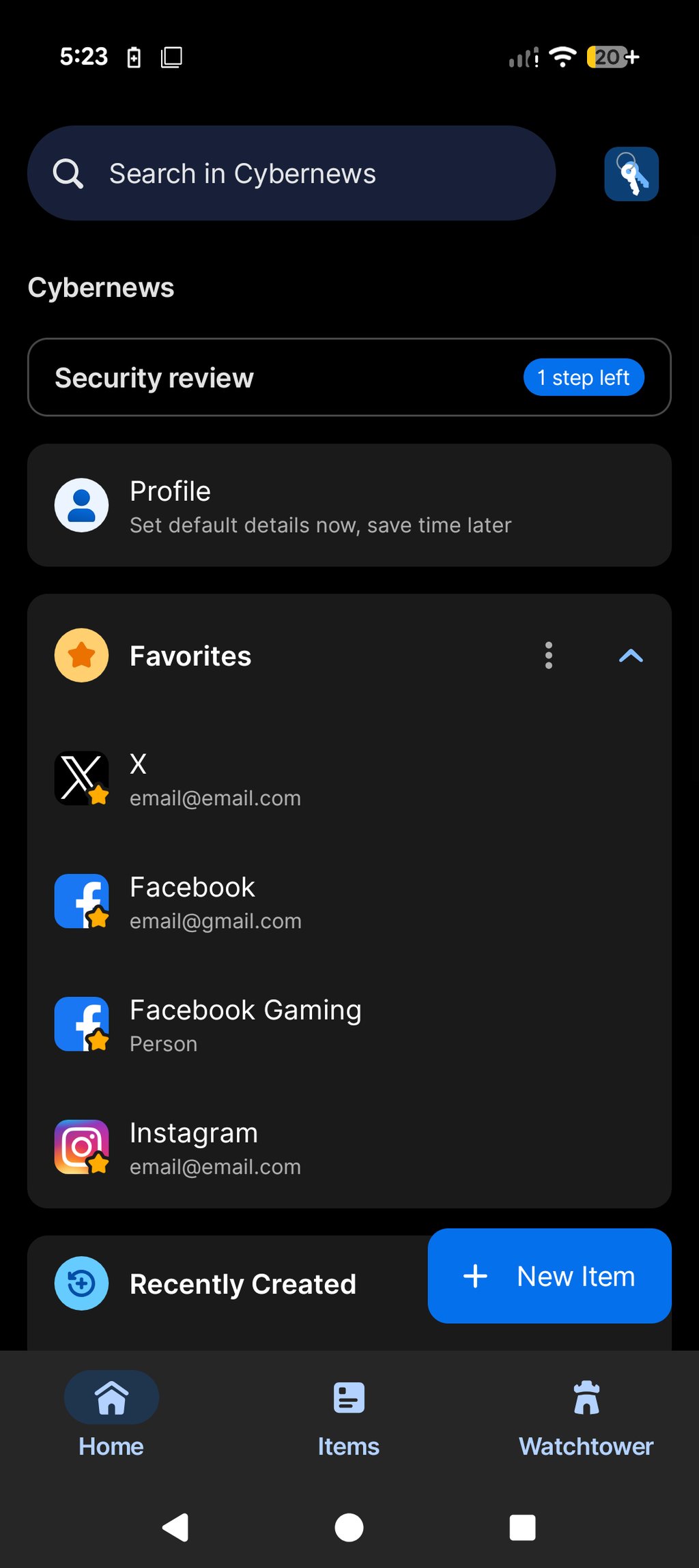
With 1Password’s mobile apps, in comparison to Keeper, the Android and iOS versions are almost the same, so I can switch conveniently. The overall organization of the features is also really accessible.
Customer support
| 1Password | Keeper | |
| Email support | ✅ Yes | ✅ Yes |
| 24/7 live chat | ❌ No | ✅ Yes |
| Chatbot | ✅ Yes | ✅ Yes |
| Phone support | ❌ No | ✅ Yes, paid plans |
| Knowledge base | ✅ Yes | ✅ Yes |
| Community forums | ✅ Yes | ❌ No |
| Social media support | ✅ Yes | ❌ No |
To start with Keeper, its knowledge base should be your go-to in times of trouble. It’s extensively stocked with many detailed guides, how-to’s, and even videos to help beginners and experienced users. The help page also displays Keeper’s server status. There is also a chatbot for quick navigation.
For agent assistance, Keeper has a 24/7 live chat, phone support for paid plans, and a ticketing system. For the live chat, keep in mind that it’s a paid-only service, meaning it’s not available with the free version. With the ticketing system, you won’t get immediate replies, but the response times are typically very reasonable. And the agents are always efficient and more than helpful.
1Password, too, prefers that you ransack its massive knowledge base or ask its chatbot before everything else. Otherwise, you could also get help via email or community forums. The latter option tends to yield a faster response than email.
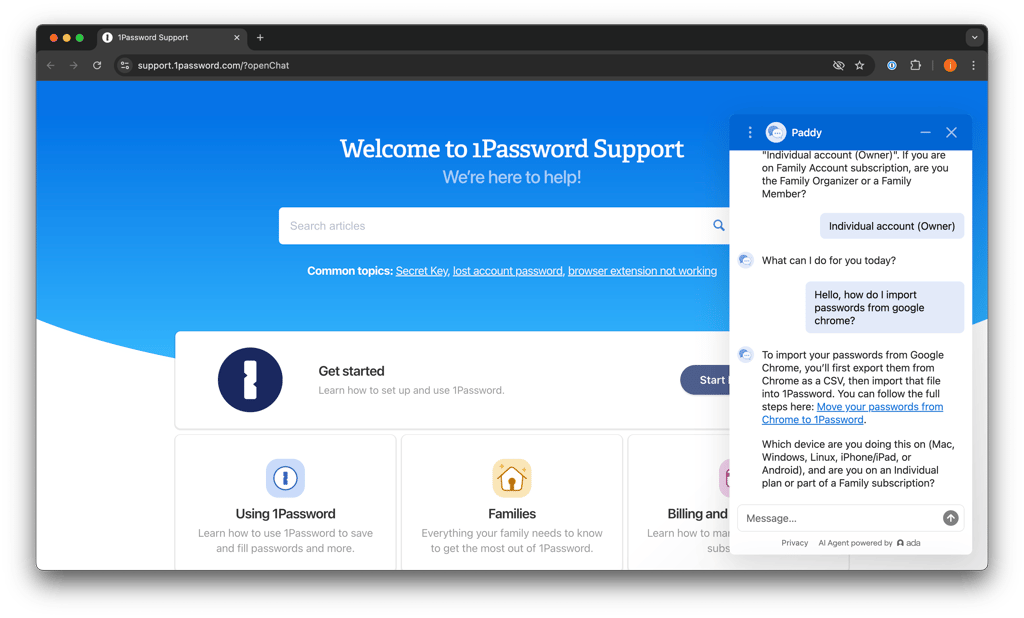
Overall, it’s a tough call as both password managers’ assistance could undoubtedly be more available to their users. This one ends in a draw.
1Password vs Keeper video review
Check our detailed comparison of Keeper vs 1Password in a video format.
Keeper vs 1Password – final verdict
1Password and Keeper both stand out as strong contenders for password management, providing excellent security along with a range of useful features.
Keeper stood out with its budget-friendly pricing and multiple plan options. I also liked extras such as secure chat, broad browser support, and handy tools like weak password detection. Its zero-knowledge encryption approach is undoubtedly a major plus for privacy.
However, 1Password is the winner of this comparison because of its sleeker app design and more sophisticated browser extensions. What truly distinguished 1Password for me were the unique features like Travel Mode, Watchtower alerts, and domain breach notifications, all of which offered greater reassurance.
While Keeper is an excellent choice for cost-conscious users, I found that 1Password delivers a more refined experience paired with an extra layer of account protection. For those seeking robust protection alongside a smooth user interface, 1Password is the superior option overall.
More password manager comparisons from Cybernews:
Keeper vs Dashlane: which one should you pick?
NordPass vs 1Password: which one takes the win?
NordPass vs Keeper: find out which one’s better
1Password vs Dashlane: find the best option for you
FAQ
Is 1Password better than Keeper?
Yes, 1Password is better than Keeper. It has an extra layer of account protection with its Secret Key, along with more advanced feature deployment and implementation. Plus, it’s also easier to use and has a more intuitive interface across all platforms than Keeper.
Which is better for mobile: Keeper or 1Password?
1Password is better for mobile. Its Android and iOS mobile apps feel more consistent and polished than Keeper’s, making it easier to switch between devices. Keeper’s mobile apps still provide the essential tools for password access, autofill, and passkey use, but its mobile experience is less refined overall.
Can 1Password import from Keeper?
Yes, 1Password can import from Keeper. However, you’ll have to upload a .csv file downloaded from Keeper.