Proton Pass vs 1Password comparison in 2026

Choosing a good password manager among the different tools available on the market isn’t easy. Even when you narrow down the choice to two or three products, you might have a hard time deciding which one is better. That’s because, in most cases, where one tool is strong, another is weak, and vice versa. With this thorough Proton Pass vs 1Password review, I hope to shed light on the strengths and weaknesses of both.
I personally tested Proton Pass and 1Password to see how they compare in terms of pricing, security implementations, features, usability, and customer support. For me, Proton Pass stands out as a privacy-first tool that has a free version and a modern interface. On the other hand, 1Password is my top choice between the two because of its price-to-value offer – the app is more convenient to use, the security tools are more advanced, and it simply offers more features for the money.
Proton Pass vs 1Password – an overview
1Password ranks higher compared to Proton Pass for its more advanced security features and a more polished, mature user experience. Proton Pass stands out due to a free version and a money-back guarantee, making it a solid choice for budget-conscious users. Both 1Password and Proton Pass offer strong AES-256 encryption and broad platform and browser support.
Here’s a quick overview before we jump into a more detailed comparison:
| 1Password | Proton Pass | |
| ⭐ Rating: | ||
| 🥇 Overall rank: | #2 out of #20 | #13 out of #20 |
| 🔥 Coupons: | 1Password coupon 25% OFF | ProtonPass coupon 50% OFF |
| 💵 Price: | From $2.99/month | From $2.49/month |
| ✂️ Free version: | 14-day trial | Yes, plus a 30-day money-back guarantee |
| 🔒 Encryption: | AES-256 | AES-256 |
| 🖥️ Platforms: | Windows, macOS, Linux, Android, iOS | Windows, macOS, Linux, Android, iOS |
| 🌐 Browser extensions: | Chrome, Firefox, Edge, Brave, Safari | Chrome, Firefox, Brave, Edge, Safari, Web App |

Recent Updates
Key differences between Proton Pass and 1Password
While both Proton Pass and 1Password are excellent password managers, their focuses are slightly different. Proton Pass is all about privacy, a simple interface, and a generous free plan. In comparison, 1Password focuses on a premium experience with advanced tools, extensive compatibility, and business features. Ultimately, choosing between the two depends on whether you prioritize advanced functionality, privacy, or affordability.
Choose Proton Pass if:
- You want a privacy-focused password manager. Developed by the creators of Proton Mail, Proton Pass follows a strong privacy-first philosophy. It uses end-to-end encryption and operates under Switzerland’s privacy laws, making it appealing for users who value anonymity and data protection.
- You prefer a free or budget-friendly option. Proton Pass offers one of the better free plans among modern password managers, including unlimited logins and support for multiple devices. Its paid plans are also generally more affordable than 1Password’s subscriptions.
- You want built-in email alias integration. One of Proton Pass’s standout features is integrated hide-my-email aliases, which help reduce spam and improve online privacy without relying on third-party services.
- You already use Proton services. If you’re part of the Proton ecosystem and already use services like Proton Mail, Proton VPN, or Proton Drive, Proton Pass integrates naturally into that privacy-focused environment.
Read the full Proton Pass review for a complete breakdown of its features, pricing, and security tools.
Choose 1Password if:
- You want a premium user experience. 1Password has nearly two decades of development behind it, and it shows. Its apps feel refined, intuitive, and consistent across desktop, mobile, and browser extensions.
- You need advanced features and customization. 1Password includes powerful extras, such as Travel Mode, detailed vault organization, extensive sharing controls, and excellent business-focused tools that go beyond basic password management.
- You want stronger third-party compatibility. 1Password works seamlessly across a wide range of platforms, browsers, and enterprise environments, so it’s a more flexible option for advanced users and teams.
- You value long-term reputation and reliability. As one of the most established password managers on the market, 1Password has built a strong reputation for security, stability, and ongoing feature development over many years.
Check out the full 1Password review to explore its advanced features, security architecture, and overall usability in more detail.
1Password vs Proton Pass: plans and pricing
1Password and Proton Pass are both premium password managers. However, Proton Pass is cheaper for both individual users and businesses. When you evaluate per-user costs, Proton Pass is cheaper than 1Password with every plan. Plus, Proton Pass has a free version. Here’s a quick comparison.
| Version | Proton Pass | 1Password |
| Free version | ✅ Yes | ❌ No |
| Pass Plus/Individual | From $2.49/month (1 user) | From $2.99/month (1 user) |
| Pass Family/Families | From $4.19/month (6 users) | From $4.49/month (5 users) |
| Pass Essentials/Business | From $1.99/month (per user) | From $8.99/month (per user) |
| Try Proton Pass | Try 1Password |
Both providers' paid personal plans are comparable when signing up for one year. However, Proton Pass Family is cheaper ($4.19/month annually) than 1Password Families ($4.49/month annually). Also, Proton Pass offers significantly cheaper business plans when choosing the option for multiple users. Proton Pass Essentials is $1.99/month per seat, whereas 1Password Business is $8.99/month per seat.
That’s just the general overview, of course. Details will vary when diving deeper into the specifics. So, let’s do that in the following sections.
1Password individual and family plans
1Password keeps things simple and has one plan each for individual and family needs. The only selection criterion with either plan is whether you want to pay monthly or annually. Unsurprisingly, the annual option is more affordable. Check the details in the table below.
| Plan | Annual price | Monthly price |
| Individual | $2.99/month | $3.99/month |
| Families | $4.49/month | $5.99/month |
As the name suggests, the Individual plan supports 1 user and includes all the necessary features for secure and convenient password management. The monthly plan costs $2.99/month, while you can save even more if you use a 1Password discount code.
The second option is the Families plan, which has a few additional features over the Individual option. Namely, it supports 5 different users and enables administrative controls for managing shared vaults. The monthly cost for this plan is $5.99/month, but it goes down to $4.49/month if you pay annually.
The pricing situation is similar to Proton Pass’, although it has more plan options than 1Password. The most notable difference is the inclusion of a free plan, which makes Proton Pass more appealing than 1Password to budget-conscious users. While there is no free version and not even a standard money-back guarantee, 1Password offers a 14-day free trial for testing the service beforehand. The other difference is Proton’s Unlimited plan, which includes all of its products. Meanwhile, premium subscription prices are practically the same across the board.
Proton Pass individual and family plans
| Plan | Annual price | Monthly price |
| Free | – | – |
| Pass Plus | $2.49/month | $4.99/month |
| Pass Family | $4.19/month | $6.99/month |
| Proton Unlimited | $9.99/month | $12.99/month |
Proton Pass’ free plan includes just the essentials for storing your online credentials securely. It supports unlimited items, 10 email aliases, passkeys, and alerts you about weak or reused passwords. It also includes easy password import if you’d like to test the provider before committing to a paid subscription.
Upgrading to Pass Plus unlocks extra features for greater protection. For example, you gain Dark Web Monitoring, an integrated 2FA authenticator, secure link sharing, and advanced account protection. This plan costs from $2.49/month (paid annually), but with Proton Pass coupon, you can get a discount.
As expected, the Pass Family plan includes everything from Plus, with the added benefit of supporting 6 accounts in total. There’s also an admin panel to manage shared vaults and other details. The monthly price for this subscription is $4.19/month (paid annually).
Lastly, there’s the Proton Unlimited option, which includes everything the provider has to offer. More precisely, it includes premium versions of Proton Pass, Mail, Calendar, VPN, and Drive. Paying monthly will set you back $12.99/month, while the annual subscription costs $9.99/month.
Regarding refunds, Proton Pass clearly indicates a 30-day money-back guarantee on its webpage. Meanwhile, 1Password only offers a 14-day free trial, and the terms of service claim that refunds are considered on a case-by-case basis.
1Password business plans
1Password offers 3 business-oriented plans to accommodate companies of different sizes. The subscriptions differ in terms of price and included features.
| Plan | Annual price | Monthly price |
| Teams Starter Pack | $24.95/month (10 users) | $29.95/month (10 users) |
| Business | $8.99/month (per user) | $10.99/month (per user) |
| Enterprise | Customized | Customized |
The base tier is the Teams Starter Pack – an excellent choice for smaller teams (up to 10 members) that need just the basics and none of 1Password’s business-specific features.
The second option is Business, which supports unlimited members. This tier is significantly pricier than the first option, costing $10.99/month per user when paying monthly or $8.99/month per user when paying annually. Naturally, the price increase adds extra features that are unavailable in any other plan. For example, users gain SSO (single sign-on) integrations, a customer support phone line, custom usage reports, and much more.
Lastly, there’s the Enterprise option, which doesn’t indicate prices since the details will depend on your company’s specifics. It accommodates anywhere from 75 to unlimited users and includes the greatest feature selection of all 1Password plans. Notable highlights include a dedicated account manager, tailored onboarding, and priority access to new business features.
Proton Pass business plans
Conversely, Proton Pass offers four business plan variants at different prices and with different feature packages. Like 1Password, it provides a flexible Enterprise plan for large companies needing a custom solution.
| Plan | Annual price | Monthly price |
| Pass Essentials | $1.99/month (per user) | $4.99/month (per user) |
| Pass Professional | $4.49/month (per user) | $6.99/month (per user) |
| Proton Business Suite | $12.99/month (per user) | $14.99/month (per user) |
| Enterprise | Customized | Customized |
The first and cheapest tier is Pass Essentials, which is advertised for entrepreneurs. It costs $4.99/month per user when paid monthly, while the annual plan reduces the price to $1.99/month per user (minimum 3 users). This plan is pretty basic and includes unlimited logins, email aliases, and the integrated 2FA authenticator.
The middle option is Pass Professional, which should suit mid-sized teams. It costs $6.99/month per user when paying every month, while the annual approach costs $4.49/month per user (minimum 3 users). It expands on the previous plan’s benefits by adding enforced 2FA, advanced account protection, and a VPN for one device per user. I think it’s a well-balanced plan with the right amount of benefits for secure daily use.
Then there’s Proton Business Suite, which is the priciest and most comprehensive plan available. I believe it’s the business alternative to the Proton Unlimited personal plan, which includes all products developed by this provider. It costs $14.99/month per user when paying monthly, while the annual option isn’t too different, costing $12.99/month.
Lastly, we have the Enterprise plan. Like with 1Password, it doesn’t mention pricing details since it's a customized plan that depends on your company’s specific needs. It’s similar to the Proton Business Suite, yet also adds a dedicated account manager.
Proton Pass vs 1Password: security overview
Proton Pass and 1Password are undeniably some of the most secure password managers on the market in 2026. They both follow the standard security practices to ensure your vault is safe and have a few extra features for an added layer of security. This is what sets 1Password and Proton Pass apart; otherwise, both password managers are pretty much the same security-wise.
| Security measures | Proton Pass | 1Password |
| Encryption protocol | AES-256 | AES-256 |
| Zero-knowledge architecture | ✅ Yes | ✅ Yes |
| Multi-factor authentication | ✅ Yes (2FA) | ✅ Yes (2FA) |
| 2FA authenticator | ✅ Yes | ✅ Yes |
| Biometrics | ✅ Yes (facial and fingerprint recognition) | ✅ Yes (facial, iris, and fingerprint recognition) |
| File storage | ✅ Yes (up to 2TB via Proton Drive) | ✅Yes, up to 1GB for individuals and 5GB for businesses |
| Secret Key | ❌ No | ✅ Yes |
| Open-source | ✅ Yes | ❌ No |
| Third-party audits | ✅ Yes | ✅ Yes |
| Travel Mode | ❌ No | ✅ Yes |
Encryption
Proton Pass and 1Password utilize AES-256 encryption to secure your vault, which is the gold standard for overall effectiveness. It offers an ideal balance between protection and performance, meaning it keeps your vault impenetrable without negatively impacting the service’s load times. Besides that, both providers utilize zero-knowledge architecture to fundamentally ensure that your data is accessible only by you. If you’re still unsure whether storing passwords in a vault is secure, read our full analysis on whether password managers are safe.
Proton Pass emphasizes that it uses the same end-to-end encryption standards as other Proton services. Additionally, E2E encryption means the provider can’t decipher your password data since all cryptographic operations are performed locally on your device. This ensures that Proton Pass can’t access your vault data and thus can’t share it with third parties.
Similarly, 1Password also uses end-to-end encryption to guarantee your vault’s confidentiality. On top of that, it further encrypts your data with a 128-bit secret key, which is created on your device. It ensures your personal data remains encrypted if someone breaches 1Password’s servers.
Multi-factor security
1Password and Proton Pass offer a few multi-factor authentication methods as extra security layers for your account. Additionally, both have the exceptional ability to provide 2FA authentication using TOTP (time-based one-time password) codes for your online accounts. This is an excellent perk because you no longer need a third-party authentication app. However, note that you must use a different 2FA authentication app for your password manager account.
As expected, you can secure your Proton account and, by extension, your Proton Pass vault, using two-factor authentication. The most obvious choice is a third-party authentication app that will handle TOTP codes. Alternatively, you can use physical U2F and FIDO2 security keys.
1Password also supports multi-factor authentication. It works with authentication apps and supports hardware security keys, including YubiKey and Titan. One thing 1Password has that Proton Pass doesn’t is a Secret Key – a 34-letter code that you can use to authenticate your account access.
Data storage
1Password and Proton Pass provide adequate encrypted cloud storage to safeguard your most precious files. The exact amount will depend on your chosen subscription plan. However, since Proton Pass has a free tier that comes with 5GB of cloud storage, I think it’s clear that it’s the better choice in this regard. Meanwhile, 1Password’s cheapest plan includes only 1GB.
To be precise, all Proton users get 5GB of secure cloud storage thanks to Proton Drive’s free tier. Technically, it’s not part of the Proton Pass app, but I think that’s an irrelevant distinction. You can use the same Proton account to access your Proton Drive anywhere, which is convenient enough in my book. If you need more storage, simply choose the Proton Unlimited subscription plan or another one of Proton Drive’s paid tiers. You can get up to 2TB with the Proton Duo plan ($14.99/month).
Things are simpler with 1Password since its cloud storage is integrated with the app, but its overall size is underwhelming. Individual accounts get only 1GB of storage, while Families and Teams subscribers get 1GB per person. On the other hand, Business plan subscribers get 5GB per person, the same as Proton users get for free. Moreover, there’s no way to expand the storage capacity if you have more significant needs.
Another noteworthy limitation is that files can only be up to 2GB with 1Password. On the other hand, Proton Pass is even more limited – you’re restricted to 100MB per file.
Privacy policy
The privacy policies of Proton Pass and 1Password are pretty standard, although I prefer Proton Pass in this regard. For starters, Proton is based in privacy-friendly Switzerland, while 1Password is located in Canada, which is part of the Five Eyes alliance. Another point for Proton is that it isn’t a fully for-profit company. Companies that offer free services are often scrutinized for earning money in much shadier ways, like selling user data. Thankfully, since both providers utilize zero-knowledge architecture, they cannot share excessive data about your vaults with third parties.
Proton has a comprehensive privacy policy detailing the entire organization’s practices, plus separate documents covering specific details for each product. As such, the Proton Pass privacy policy is relatively short, meaning anyone can read it in a few minutes. Basically, it reiterates that all your information is end-to-end encrypted (including metadata), meaning the service can’t share any useful information with outside parties. However, the main privacy policy mentions that some data is stored temporarily to provide the service. The document isn’t too complicated, so anyone interested in this topic should skim through it.
On the other hand, 1Password has one extensive privacy policy with all the necessary details. It’s longer than Proton’s document, making it a bit more difficult to fully comprehend. As expected, 1Password collects some service data to provide you with its services, which is pretty standard. The data includes account information, payment information, and support data. My main concern is that the service automatically collects some data to market other 1Password products and services to you.
Third-party security audits
Proton Pass and 1Password are regularly audited by independent third parties to ensure robust security practices.
First, Proton Pass’ apps are open source, meaning anyone with time and necessary expertise can evaluate the service’s technical implementation. However, while that’s an excellent sign of trustworthiness, it doesn’t mean independent audits aren’t needed. In 2023, Proton Pass was audited by Cure53, a reliable cybersecurity company that has evaluated many other reliable services like NordPass. It also audited 1Password on numerous occasions. During the recent January–April 2026 audit, Proton Pass passed the checks of Recurity Labs.
Besides Cure53, 1Password has been audited multiple times by companies like Secfault Security, Recurity Labs, and Quaxio/Zxs. The company’s security assessments page also details the provider’s ISO and SOC certifications, numerous penetration tests, and a bug bounty program. Overall, because 1Password has been on the market longer, it’s no surprise that it has been audited more times than Proton Pass.
Proton Pass vs 1Password: feature comparison
1Password is arguably one of the most feature-rich password managers on the market in 2026, so it’s no wonder that it takes the win over Proton Pass in this category. While Proton Pass has a few nifty features, they’re not much compared to 1Password. Here’s a quick breakdown of these password manager’s core features and practical add-ons.
| Features | Proton Pass | 1Password |
| Browser extensions | ✅ Yes (Chrome, Safari, Firefox, Edge, Brave, Chromium, Opera, Vivaldi) | ✅ Yes (Chrome, Safari, Firefox, Edge, Brave) |
| Self hosted | ❌ No | ❌ No |
| Password generator | ✅ Yes | ✅ Yes |
| Password autofill | ✅ Yes | ✅ Yes |
| Weak password monitoring | ✅ Yes | ✅ Yes |
| Password sharing | ✅ Yes | ✅ Yes |
| Payment detail autofill | ✅ Yes | ✅ Yes |
| Privacy Cards | ❌ No | ✅ Yes |
| Encrypted file storage | ✅ Yes (5GB–2TB using Proton Drive) | ✅ Yes (1GB for individuals and 5GB for businesses) |
| Travel mode | ❌ No | ✅ Yes |
| Email aliases | ✅ Yes | ✅ Yes |
| Dark web monitoring | ✅ Yes | ✅ Yes |
Password generator
Both Proton Pass and 1Password have strong password generators that ensure the accounts you create use strong and unique passwords. It should also be customizable so you can adjust the output to suit the online service’s password requirements.
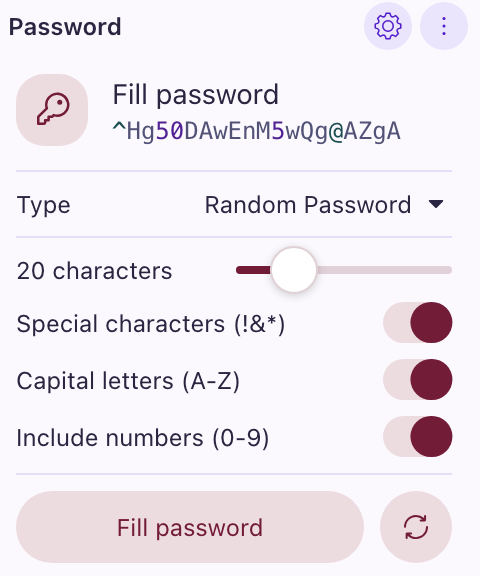
Proton Pass’ password generator has two modes with different adjustable settings. First, you choose whether you want a memorable (composed of words and other symbols) or a completely random password. The first option allows adjusting the word number, capitalization, what symbol separates the words, and whether to include numbers.
On the other hand, the random approach allows customizing the character number and the inclusion of special characters, capital letters, and numbers. I think it’s an excellent system, and it worked smoothly during my tests.
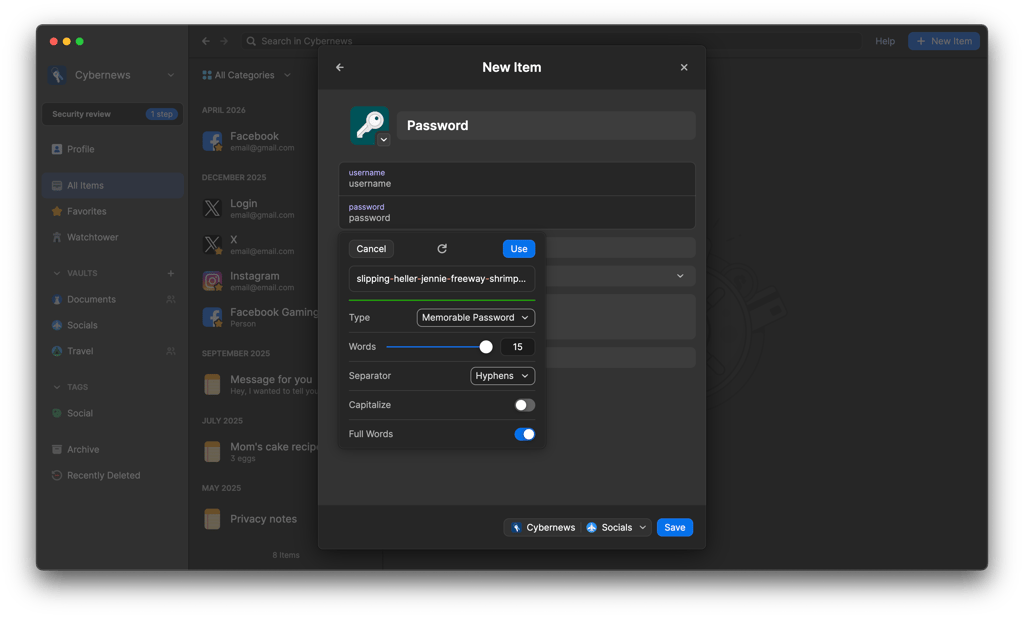
1Password’s password generator offers the same functionality and customization options, plus a few settings that are unavailable with Proton Pass. For example, there’s a third password type called PIN that generates number sequences. Moreover, the memorable password option allows you to choose whether you want complete words or not. Besides these extra perks, 1Password’s password generator works just as well as Proton Pass’.
One more thing to note about Proton Pass and 1Password generators is that both are available online. So, you can test these password generators before you even download the apps.
Autofill
Proton Pass and 1Password offer autofill to quicken the process of filling in your credentials in online login forms. You can also use both to fill in credit card details using autofill. Although Proton Pass only introduced this functionality in early 2026.
My hands-on tests showed that Proton Pass’ autofill feature has some room for improvement. For example, the app didn’t always suggest saving the credentials we used when creating new accounts. Thankfully, the feature worked smoothly across all platforms with pre-saved credentials. Plus, autofill is user-initiated, meaning the service doesn’t automatically enter your credentials unless you explicitly ask it to.

The situation was basically the same with 1Password. Occasionally, it didn’t automatically save new account credentials into the vault, thus requiring manual entry. Otherwise, autofill was seamless and accurately suggested stored credentials.
Password importing and exporting
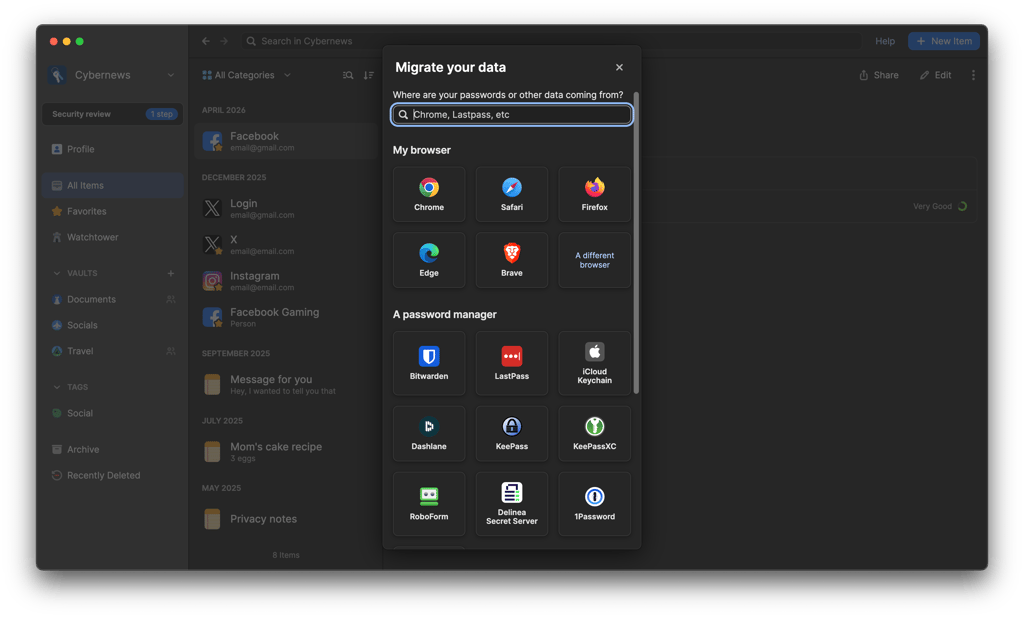
1Password and Proton Pass offer effective and convenient password import and export options to accommodate transfers between other password managers. It’s an essential feature because customers shouldn’t be constrained to a single provider.
Proton Pass allows importing and exporting via its desktop app, web app, and browser extension. You can access these tools in the settings menu, which is in the bottom right corner of the desktop menu. You can import passwords from many popular providers and web browsers using JSON, CSV, or ZIP file formats. As for exporting, Proton Pass recommends PGP-encrypted JSON, but you can also use regular JSON and CSV formats.
With 1Password, you can only import and export password data using the desktop app. For me, this isn’t a huge problem since I prefer managing my passwords on desktop devices. Like with Proton Pass, you can import passwords from many popular apps and browsers, such as Chrome, Firefox, Bitwarden, Dashlane, etc. Supported file formats include CSV, JSON, XML, 1PUX, and 1PIF. As for exporting, 1Password supports 1PUX and CSV file formats.
Account and password recovery
As expected, 1Password and Proton Pass include several account recovery methods in case you forget your master password.
With Proton Pass, you can access account recovery settings on the web app. I suggest adding an email address and phone number as they can come in handy during account recovery. Besides that, the primary recovery methods are a recovery phrase, device-based recovery, and a recovery file. Personally, I would choose the recovery phrase option and use it as a password backup in case I forget my initial one.
On the other hand, 1Password offers the Emergency Kit – a PDF file containing all the information you need to recover your account. More precisely, it includes your sign-in address, email address, Secret Key, setup code, and a blank text box to fill in your master password. The service recommends keeping physical and digital copies of your Emergency Kit just in case.
Password sharing
Proton Pass and 1Password include multiple password-sharing methods in case you need to share your credentials with others without compromising security.
Proton Pass includes two primary methods of sharing passwords. The first is generating a link with an option of adding expiration dates or limiting the number of views. Alternatively, you can share a single password or an entire vault using the recipient’s email address, although they’ll need a Proton account to access the vault. Note that any changes to the vault will apply to both users, and you can revoke access at any time.
With 1Password, you can share any item you want using the link-sharing method. Additionally, the recipient doesn’t require a 1Password account to access the item. You can set the expiration date and input an email address to ensure the item is accessible to specific people.
Weak password monitoring
As expected, 1Password and Proton Pass automatically monitor your vaults for weak, old, and reused passwords.
Proton Pass’ Password Health feature is available via the Pass Monitor menu. Here, you’ll see which accounts have weak or reused passwords and which don’t have active 2FA authentication. You can quickly fix these issues from here because clicking on these menus will redirect you to the faulty accounts.

Meanwhile, 1Password uses Watchtower to check for vulnerabilities, including weak passwords. When I tested the feature, it took a while to generate the report, probably because it also checks for data breaches. Once the report is ready, it gives a score on your overall results, which is an interesting approach since it essentially gamifies your cybersecurity. I think there’s nothing wrong with this if it encourages you to change your passwords regularly to keep a high score.

Platforms, interface, and ease of use
1Password and Proton Pass are both easy to use across multiple devices. You can install them on almost any operating system on your desktop, phone, or tablet (check out our guide to the best password managers for Mac). They also have browser extensions for the most popular browsers. The main difference is that 1Password supports 5 accounts while Proton Pass lets you use up to 6 on the family plan.
| Proton Pass | 1Password | |
| Supported OS | Windows, macOS, Linux, Android, iOS | Windows, macOS, Linux, Android, iOS |
| Browser extensions | Chrome, Safari, Firefox, Edge, Brave, Chromium, Opera, Vivaldi | Chrome, Safari, Firefox, Edge, Brave |
| Number of users (family plan) | Up to 6 | Up to 5 |
Desktop apps
1Password and Proton Pass desktop apps work on Windows, Mac, and Linux devices. The installation process was straightforward with both, and I had no issues setting up my vaults.
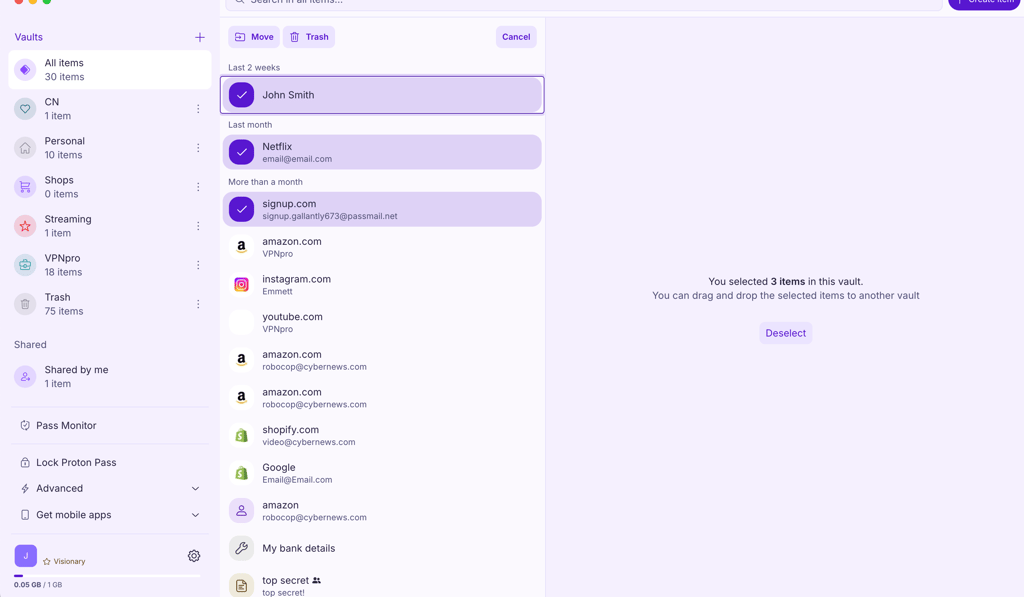
The Proton Pass desktop app looks identical on Windows and Mac, which improves cohesion. The app’s left side includes menus for navigating between vaults and enabling various settings. Meanwhile, the middle shows the saved items, while each item’s specific details are further on the right. It looks good overall, although it took me a while to get used to it. For example, I couldn’t find the password generator anywhere and only later realized that it becomes available when creating a new entry.
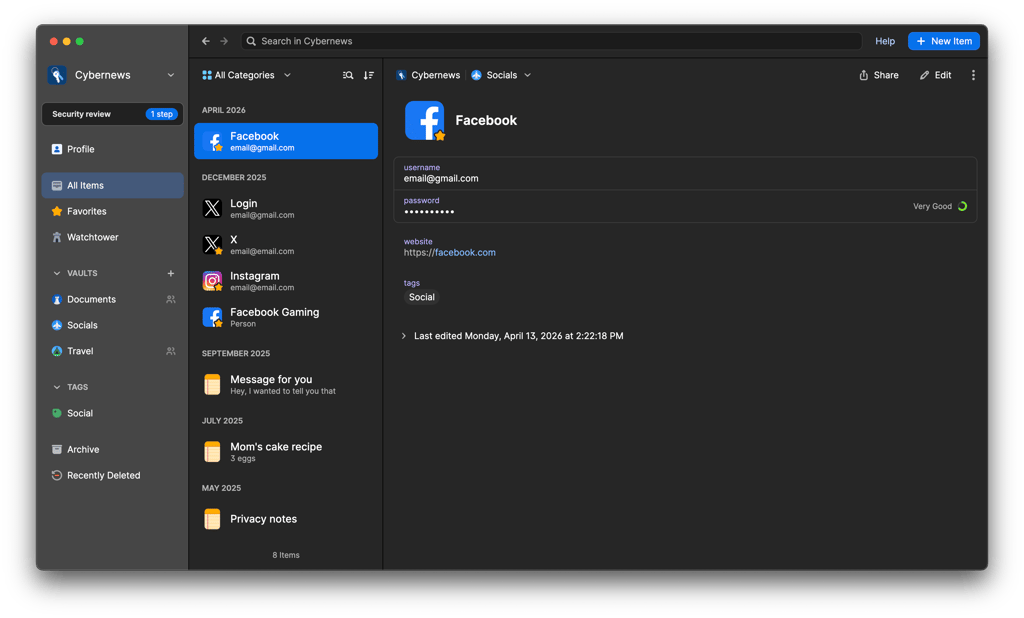
The 1Password desktop app layout is very similar to Proton Pass’ since you have various menus on the left, saved items in the middle, and their details on the right. However, I find its implementation a bit better, which leads to a more pleasant user experience. Something about the design and color scheme makes it more appealing. As for downsides, the desktop app doesn’t include Travel Mode, which means you cannot benefit from this feature when traveling with your laptop.
Browser extensions
Password managers require installing browser extensions to provide autofill functionality on desktop devices. Proton Pass and 1Password are no exception in this regard.
Proton Pass’ browser extension is visually similar to its desktop counterpart, albeit smaller. You can easily scroll through your vault and copy your desired credentials to the clipboard with a single click. Meanwhile, most other settings are available by clicking the button in the top right corner. You’ll even find a button to open the web app if you feel the extension is too small.
Once again, the situation is similar with 1Password. The browser extension has the same appearance and functionality as the desktop version in a smaller form. I had no trouble utilizing the extension to speed up my account creation processes.
Mobile apps
As expected, I had no issues installing Proton Pass and 1Password on mobile devices. The services are available on the Google and Apple app stores, which makes the installation process straightforward.
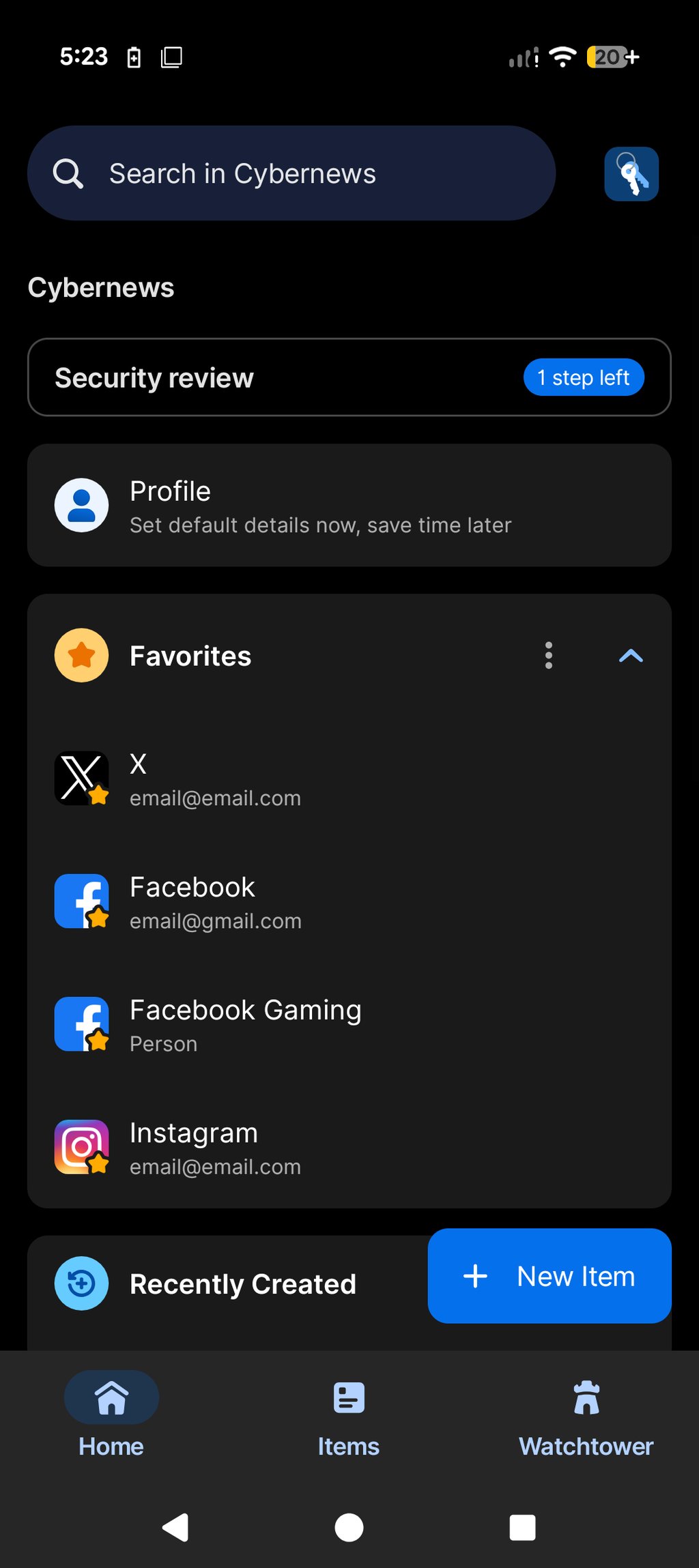
Proton Pass’ mobile app is visually uniform across Android and iOS. The interface appears more minimalistic than on desktop, leading to a better user experience in my opinion. It’s much easier to navigate and less overwhelming overall. However, note that this version doesn’t include password exporting.
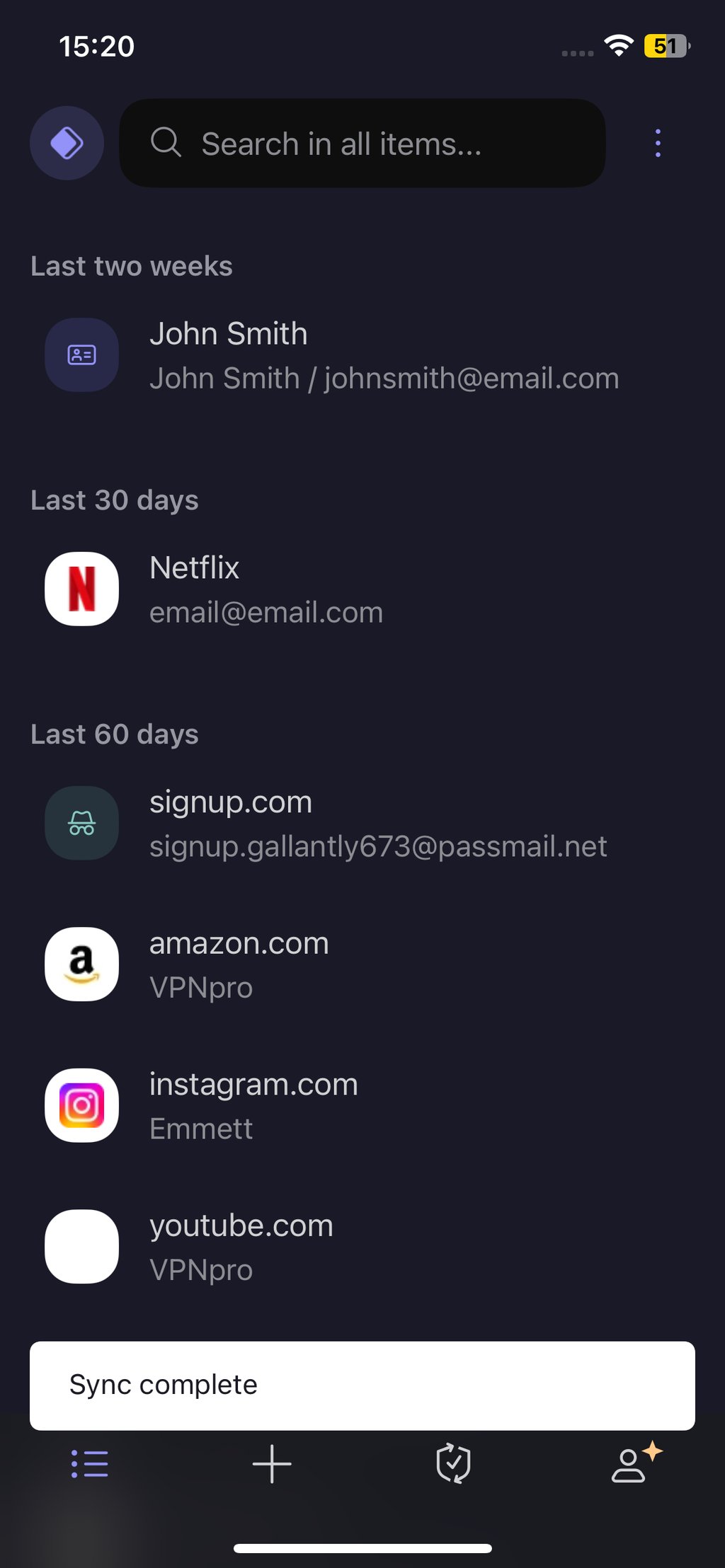
With 1Password, the mobile interface is initially similar to the desktop version. However, what impressed me was that you could customize the menus to suit your needs. For example, you can limit the app to only show relevant vaults when using your phone. This app version also allows you to enable Travel Mode to ensure some items remain invisible no matter what. The only problem during testing was that the app disallows taking screenshots of the interface, forcing the research team and me to take pictures of the phone to show 1Password’s interface.
Customer support
Proton Pass and 1Password are pretty adequate in the customer support department, although they aren’t as well-equipped as top-tier providers like NordPass. For example, neither offers 24/7 live chat support to quickly solve problems. However, 1Password has an official community forum, while Proton Pass doesn’t, giving 1Password a slight edge in this category. Besides that, both services include email support and extensive knowledge bases that will answer most of your questions.
| Proton Pass | 1Password | |
| 24/7 live chat | ✅ Yes (chatbot) | ✅ Yes (chatbot) |
| Email support | ✅ Yes | ✅ Yes |
| Phone support | ❌ No | ❌ No |
| Community forum | ❌ No | ✅ Yes |
| Knowledge base | ✅ Yes | ✅ Yes |
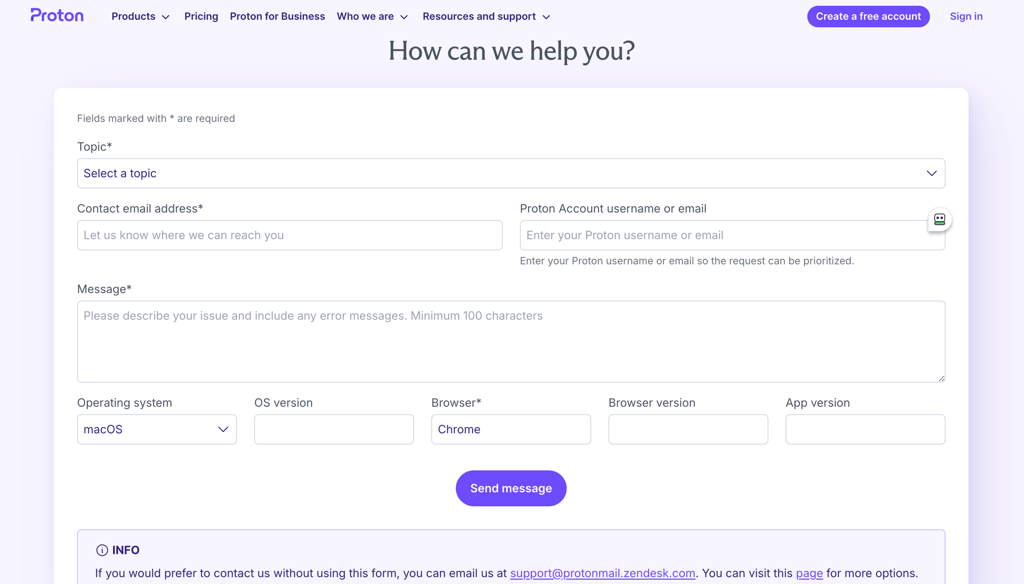
I tested Proton Pass’ email customer support and received a swift response. The explanation was quite detailed and more than enough to solve my problem. The provider’s knowledge base is also very extensive and split by Proton products for added convenience. I was able to find many detailed guides covering the most essential topics. And while the absence of a community forum is a bit disappointing, I think the official subreddit is an acceptable alternative.
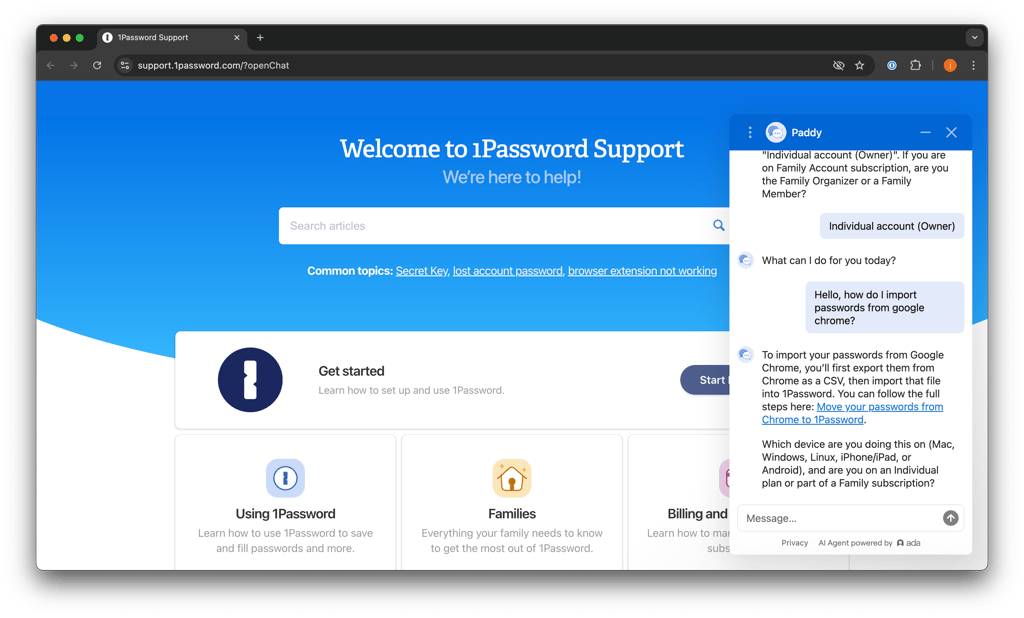
The customer support test with 1Password was a bit different because it offers a chatbot called 1Password Concierge. I gave it all the necessary information about my query, which it relayed to customer support specialists. It didn’t take long for me to receive an email response with all the details I needed to solve my issue.
1Password’s community forum is relatively active, and I think it is a great addition to the provider’s overall support network. It’s split into various categories, making finding relevant information easy. You’ll find threads relevant to regular users, administrators, and even developers.
1Password vs Proton Pass: final verdict
Both Proton Pass and 1Password are excellent password managers, but they target slightly different audiences. Proton Pass stands out for its privacy-first approach, generous free plan, built-in email aliases, and lower pricing, making it a great choice for budget-conscious, privacy-focused users. Meanwhile, 1Password delivers a more polished overall experience with stronger advanced features, better business tools, broader ecosystem maturity, and extras like Travel Mode and Watchtower.
Proton Pass comes out ahead for affordability, free features, and privacy-focused functionality, especially if you already use other Proton services. On the other hand, 1Password performs better in overall usability, advanced security tooling, customization, and long-term reliability.
Overall, 1Password is the winner of this comparison thanks to its refined apps, a stronger feature set, and a more mature user experience, even if it comes at a higher price.
Video review
Check out the YouTube overview we created comparing Proton Pass vs 1Password.
FAQ
How do I transfer from 1Password to Proton Pass?
You can transfer from 1Password to Proton Pass by exporting your passwords from one provider to another. With 1Password, you can export your data using the desktop app, while Proton Pass supports importing on desktop, web app, and browser extension.
What is better than 1Password?
Based on our hands-on testing, NordPass is the only password manager better than 1Password. It’s significantly cheaper and offers a variety of features to improve your online experience. While it’s not as polished as 1Password, NordPass is still easy to use and even has a free tier you can use indefinitely.
Is Proton Pass reliable?
Yes, Proton Pass is pretty reliable since it’s open-source, audited by Recurity Labs and Cure53, and based in Switzerland. However, a Proton Pass security flaw was exposed on its Firefox browser extension, which can be considered a major red flag. The flaw was later fixed with a patch.
What are the downsides of 1Password?
1Password’s main downside is its lack of a free tier and the higher $2.99/month starting price. Additionally, the provider doesn’t offer a money-back guarantee on its subscriptions. At best, you can utilize its 14-day free trial to test the service without commitment.