Proton Pass vs Bitwarden comparison in 2026
Being behind major reports like The Mother of All Breaches and WhatsApp Data Leak, our in-house cybersecurity experts conduct independent, unbiased testing and thorough analysis of password managers, helping users confidently manage their credentials and sensitive information.
We prioritize transparency by openly sharing detailed descriptions of our in-house testing procedures and methodologies.
Learn more
Proton Pass and Bitwarden are well-known names in the password manager industry, especially among privacy-conscious users. Proton Pass is part of Proton’s suite of end-to-end encrypted security tools, while Bitwarden is a long-standing favorite with over 10 years in business and a strong focus on user needs.
However, picking the best out of the two might be a challenge. For this reason, I set out to test and compare Proton Pass vs Bitwarden, based on their security, performance, ease of use, and overall value.
This guide will offer insights into whether Proton Pass or Bitwarden is the best choice in 2026. Keep reading to learn more about their strengths and weaknesses, to help you pick the best one.

Proton Pass vs Bitwarden overview
Proton Pass and Bitwarden both rank among our best password managers, offering zero-knowledge architecture, end-to-end encryption, and open-source transparency. Proton Pass is better suited for privacy-focused users who want a polished experience and tight integration with the Proton ecosystem, including extras like email aliases for added anonymity. On the other hand, Bitwarden focuses on flexibility, affordability, and advanced customization, making it especially appealing for developers, teams, and users who prefer greater control over their setup.
| Top Choice | |||
| NordPass | Proton Pass | Bitwarden | |
| ⭐ Rating: | |||
| 🥇 Overall rank: | #1 out of #20 | #13 out of #20 | #6 out of #20 |
| 🔥 Coupons: | NordPass coupon 53% OFF | ProtonPass coupon 50% OFF | Cybernews Password Manager Coupons |
| 💵 Price: | From $1.38/month | From $2.49/month | From $1.65/month |
| ✂️ Free version: | Yes, plus it includes a 30-day money-back guarantee | Yes, plus a 30-day money-back guarantee | Yes |
| 🔒 Encryption: | XChaCha20 | AES-256 | AES 256-bit |
| 🖥️ Platforms: | Windows, macOS, Linux, Android, iOS | Windows, macOS, Linux, Android, iOS | Windows, macOS, Linux, Android, iOS |
| 🌐 Browser extensions: | Chrome, Edge, Firefox, Opera, Safari, Brave, Vivaldi | Chrome, Firefox, Brave, Edge, Safari, Web App | Chrome, Firefox, Edge, Opera, Safari, Vivaldi, Brave, Tor, DuckDuckGo |
| Get NordPass |
Recent Updates
Key differences between Proton Pass and Bitwarden
Proton Pass and Bitwarden are popular password manager choices among users. While they both offer strong security, there are some key differences.
Choose Proton Pass if:
- You want a privacy-first password manager. Created by the team behind Proton Mail, Proton Pass uses end-to-end encryption and benefits from Switzerland’s strong privacy laws.
- You need a free or affordable solution. Proton Pass includes a generous free plan with unlimited passwords and multi-device support, while paid plans remain competitively priced.
- You want built-in email aliases. Proton Pass includes hide-my-email aliases to reduce spam and add an extra layer of privacy online.
- You already use Proton products. Proton Pass works smoothly with services like Proton Mail, Proton VPN, and Proton Drive within the Proton ecosystem.
Check out our full Proton Pass review to learn more about its features and security tools.
Choose Bitwarden if:
- You want an easy-to-use password manager. Bitwarden provides a clean interface with simple apps and browser extensions that are beginner-friendly.
- You need secure sharing options. Bitwarden includes password sharing and family plans for up to six users, making it suitable for households and small teams.
- You prefer built-in convenience tools. Autofill, emergency access, account recovery, and advanced 2FA features are available without extra plugins.
- You want low-cost premium features. Bitwarden’s affordable paid plans include extras like stronger authentication options and encrypted file storage.
Proton Pass vs Bitwarden: pricing and plans for 2026
Proton Pass is almost triple the price of Bitwarden, but offers significantly more features and a more polished interface with smooth autofill and sharing. Bitwarden, on the other hand, is less than $1.65/month and provides a tool for basic password management without any extras. Here’s a quick breakdown of their plans.
| Plans and features | Proton Pass | Bitwarden |
| Free plan | ✅ Yes | ✅ Yes |
| Individual plan | $2.49/month (Pass Plus) | $1.65/month (Premium) |
| Family plan | $4.99/month (Pass Family) | $3.99/month (Family) |
| Number of users | 1 (Plus), 6 (Family) | 1 (Premium), 6 (Family) |
| Storage included | 1GB (Free), 10GB (Plus), 50GB (Family) | 1GB (Premium), 2GB (Family) |
| Unlimited passwords | ✅ Yes | ✅ Yes |
| Unlimited credit cards | ✅ Yes | ✅ Yes |
| Vault organization | Up to 50 vaults | Unlimited |
| Vault sharing | Up to 10 users per vault | Up to 2 user per vault (Premium), up to 6 users per vault (Family) |
| Password sharing | ✅ Yes, unlimited | ✅ Yes, unlimited + Bitwarden Send |
| Encrypted file attachments | ✅ Yes | ✅ Yes (paid plans only) |
| Passkeys support | ✅ Yes | ✅ Yes |
| Built-in authenticator (TOTP) | ✅ Yes, all plans | ✅ Yes, paid plans |
| Dark web monitoring | ✅ Yes | ⚠️ Limited (Data Breach Report, which relies on Have I been Pwned, which is free) |
| Password health alerts | ✅ Yes | ✅ Yes |
| Emergency access | ✅ Yes | ✅ Yes |
| Email aliasing | ✅ Yes (built-in) | ✅ Yes, third-party integrations |
| Self-hosting option | ❌ No | ✅ Yes |
| Best suited for | Privacy-focused users who want a more premium feel | Budget users and those who need admin control, self-hosting capabilities |
Proton Pass and Bitwarden offer individual and family plans, and both are among the best free password managers because of their free tiers. However, as I’ve already mentioned, Proton Pass is significantly more expensive.
Proton Pass’ Pass Plus ($2.49/month) and Bitwarden’s Premium ($1.65/month) represent individual plans. They can be used by one person and have more or less the same core features. Proton Pass justifies its higher price tag by including advanced features like Dark Web Monitoring, email aliases, and Proton Sentinel.
Their family plans cover up to 6 users and offer the same features as the individual plans. On top of it, Proton Pass includes admin controls, easy family sharing, and up to 50GB of cloud storage, whereas Bitwarden only includes 2GB of cloud storage and more limited sharing options.
Security features comparison
Security is the most important factor to consider when choosing a password manager. After all, you’ll be leaving your most sensitive details in their hands. Password managers understand this as well and follow industry best practices to ensure your data is secure.
Here’s a quick comparison of Proton Pass and Bitwarden security measures.
| Security measures | Proton Pass | Bitwarden |
| Encryption protocol | AES-256 | AES-256 |
| Password hashing | bcrypt | PBKDF2 SHA-256/Argon2id |
| Zero-knowledge architecture | ✅ Yes | ✅ Yes |
| Two-factor authentication (MFA) | ✅ Yes (authenticator app or security key (U2F or FIDO2)) | ✅ Yes (email, authenticator app, security key (FIDO2), Duo Security, or YubiKey OTP |
| Biometric authentication | ✅ Yes (facial and fingerprint recognition) | ✅ Yes (facial and fingerprint recognition) |
| Built-in authenticator (TOTP) | ✅ Yes | ❌ No (external app required) |
| Dark web monitoring | ✅ Yes (always-on, automatic) | ⚠️ Limited (on-demand via external breach databases) |
| Real-time breach alerts | ✅ Yes | ❌ No |
| Passkey support | ✅ Yes | ✅ Yes |
| AI-based security features | ✅ Proton Sentinel | ❌ No |
| Cloud storage | ✅ Yes (up to 50GB) | ✅ Yes ( up to 2GB) |
| Self-hosting option | ❌ No | ✅ Yes |
| Security audits | ✅ Audited by SEC Consult and Cure53 | ✅ Audited by Cure53, Fracture Labs, Insight Risk Consulting |
| Open-source codebase | ✅ Yes | ✅ Yes |
| Privacy jurisdiction | Switzerland | United States |
| Account recovery protection | Recovery key required | Emergency access available (optional) |

Both deliver on core security fundamentals
Proton Pass and Bitwarden are nearly identical when it comes to core security principles. Both are built on a zero-knowledge architecture, which means that not even staff at these companies can access your vault. They both use end-to-end encryption, AES-256 to be exact, to encrypt your passwords and other items in your vault. The main difference is password hashing techniques: Proton Pass uses bcrypt (only for account keys) while Bitwarden lets you choose between PBKDF2, SHA-256, and Argon2id. Both of these are solid, and you won’t notice much of a difference when using either of them.
These password managers have been independently audited numerous times since they were launched. This shows that the companies are committed to user security and transparency. However, both of their last audits were in 2023 or 2024, which was quite a while ago. Still, anyone can review their codebase since both password managers are open-source.
Both strongly recommend that you enable 2FA to protect your account from unauthorized access. Proton Pass has two 2FA options, an authenticator app and a security key, while Bitwarden’s options are more extensive, including an email, an authenticator app, a security key, Duo Security, or a YubiKey OTP. 2FA is available for free users as well, which I appreciate, as some services leave core features behind a paywall. You can use biometric authentication (facial and fingerprint) to log in as well.
Dark web monitoring and breach alerts
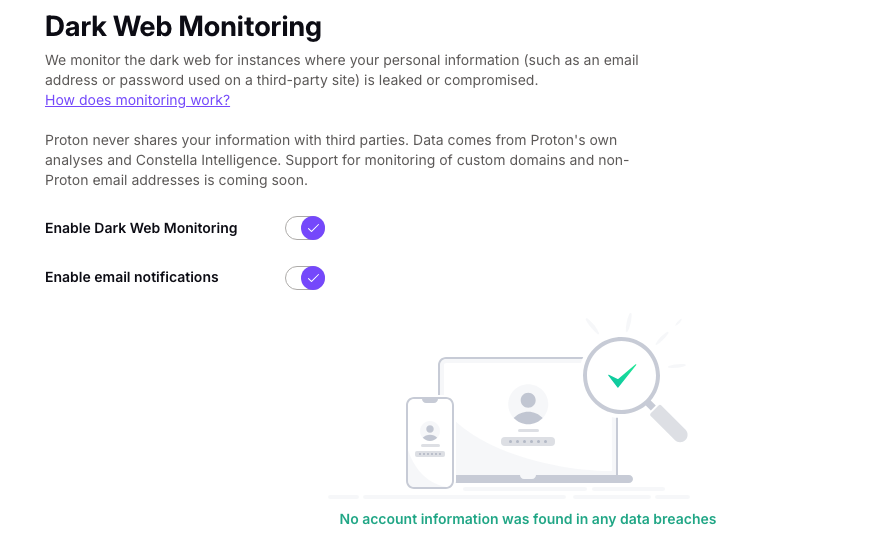
Dark web monitoring is becoming a core feature of many password managers. To put it simply, it scans the dark web and leaked databases for your email, password, or other personal information. If they appear on the dark web or a data leak, you’ll be immediately notified via email or in-app, giving you time to take action before your accounts have been compromised.
Both Proton Pass and Bitwarden have this type of feature. In my opinion, Proton Pass’ Dark Web Monitoring is superior to Bitwarden’s Breach Alerts. This is because Dark Web Monitoring is a continuous scanner that works in the background, whereas Bitwarden’s Breach Alert is on-demand. Simply put, once you enable Dark Web Monitoring, you don’t have to worry about it – if your data is compromised, you’ll be the first to know.
Breach Alerts must be done manually, so you’ll only find out if your data has been compromised if you decide to check it that day. Moreover, Bitwarden relies on the Have I Been Pwned database, which is free to use anyway. In fact, you can set up Have I Been Pwned to send you alerts, but you can’t do that on Bitwarden, making it kind of useless.

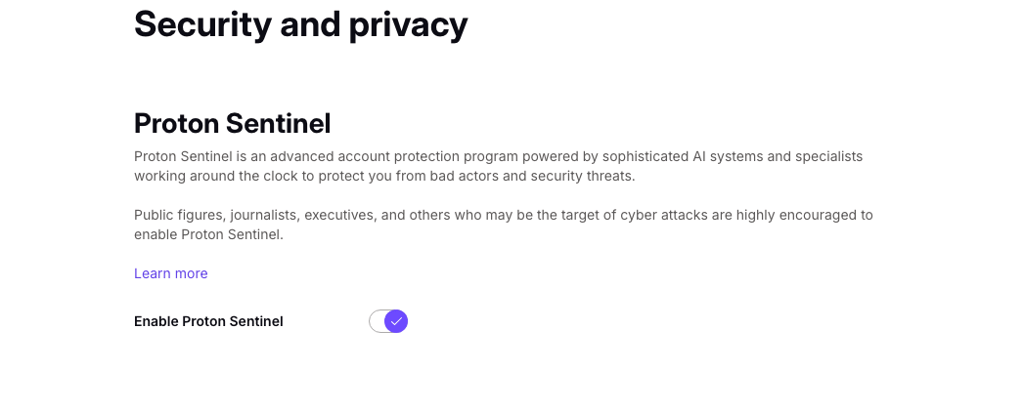
Proton Sentinel
Proton Sentinel is an innovative, AI-powered security feature. It adds an extra layer of protection by challenging suspicious logins and escalating suspicious activity to human staff to review. Proton Sentinel also provides a detailed security log, showing attempted logins and account changes.
Bitwarden does not offer anything similar, giving Proton Pass a clear advantage in proactive account protection. It’s particularly useful for high-risk users like journalists, activists, or anyone dealing with highly sensitive data.
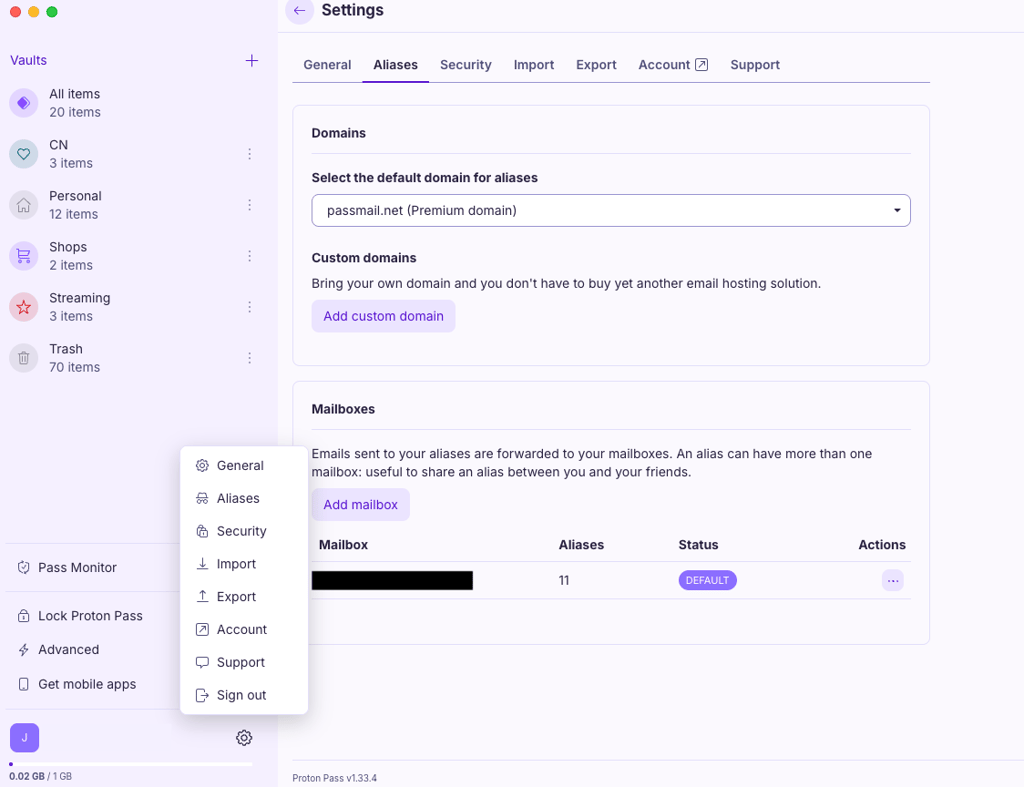
Proton Pass offers native email masking
Email masking is a practical feature that lets you create alternate email addresses so you don’t have to share your real email when signing up for websites or services. This protects you from spam, phishing attempts, and invasive tracking. If an alias is ever compromised, you can deactivate it immediately, keeping your primary inbox safe.
Proton Pass includes email masking natively in the app, making it quick and easy to generate and manage aliases. Free accounts get 10 aliases, while paid users enjoy unlimited. I found this especially useful when registering for new services, as it keeps my primary email private without any extra setup.
Bitwarden also allows email masking, but it isn’t built into the app. To use it, you need a separate email service or extension, which adds extra steps and makes the process less seamless. For users who want a straightforward, fully integrated solution, especially on a free tier, Proton Pass is the way to go.
Bitwarden allows self-hosting
Self-hosting allows you to run a password manager on your own server instead of relying on the provider’s cloud infrastructure. This gives you significantly more control over your data and security setup. It’s especially appealing if you want to manage access internally or meet strict compliance requirements – ideal for businesses and organizations.
Bitwarden supports self-hosting and provides comprehensive support for the entire process. You can deploy Bitwarden on your own server and manage updates, backups, and security policies yourself. I believe this can be incredibly valuable for organizations and privacy-focused users who want maximum control over their environment.
Proton Pass, on the other hand, relies entirely on Proton’s cloud infrastructure, which limits control and customization but simplifies setup and maintenance. If self-hosting is a priority, Bitwarden is the better choice.
Proton Pass offers more built-in storage without setup
Cloud storage in a password manager lets you save files, such as IDs, birth certificates, or backups of other important documents. Technically, you can use it to store anything, but for most users, it serves as a backup.
Proton Pass includes generous 10GB storage for individual plans and 50GB storage for family plans.
Bitwarden, on the other hand, offers 1GB for Premium users and 2GB for Families plan users, which is significantly less compared to Proton Pass. It’s only applicable to file attachments.
Of course, if you decide to self-host Bitwarden, your storage will be limited to your server size, but it requires extra setup, technical know-how, and additional resources. In the end, Proton Pass is the more convenient option if cloud storage is something you’re looking for with your password manager.
Passkey support
Lastly, passkeys are becoming more popular as an easy way to log in. Essentially, it’s a passwordless login method that relies on cryptographic keys. Instead of typing up your password, you just use biometrics or a PIN.
Both Proton Pass and Bitwarden support passkeys. I tried them myself, and setting them up was easy and straightforward, although I did find Proton Pass more seamless with its presentation.
Platforms, apps, and ease of use
Usability is another crucial factor when it comes to password managers. If it’s clunky and difficult to navigate, you won’t use it. In this case, both are relatively user-friendly, but Proton Pass feels smoother and more polished than Bitwarden.
| Platforms, apps, browsers and ease of use | Proton Pass | Bitwarden |
| Supported OS | Windows, macOS, Linux, Android, iOS | Windows, macOS, Linux, Android, iOS |
| Supported browser extensions | Chrome, Firefox, Brave, Edge, Safari, Web App | Chrome, Firefox, Edge, Opera, Safari, Vivaldi, Brave, Tor, DuckDuckGo |
| Cross-device sync | ✅ Yes | ✅ Yes |
| Offline access | ✅ Yes (disabled by default) | ✅ Yes (read-only) |
| Password importing | ✅ Yes | ✅ Yes |
| Password sharing | ✅ Yes | ✅ Yes |
| Autofill quality | Seamless and accurate | Robust, but can be clunky sometimes |
| Password generator | ✅ Yes | ✅ Yes |
| User interface | Modern and polished | Simple and functional |
| Initial setup | Easy and quick | Easy but with a few extra steps |
| Learning curve | Beginner-friendly | Slightly more complicated |
Desktop, mobile, and browser apps
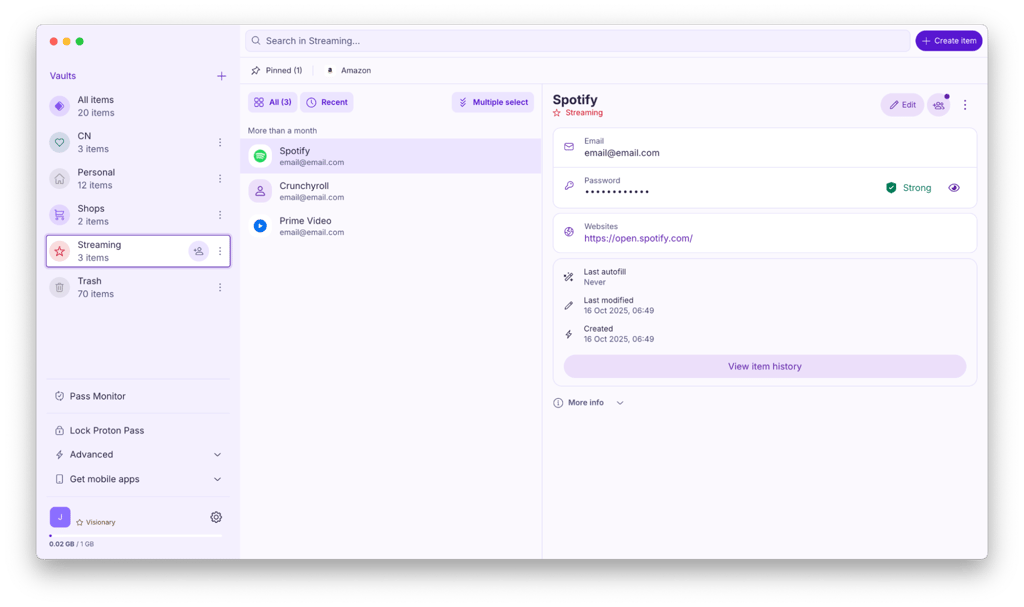
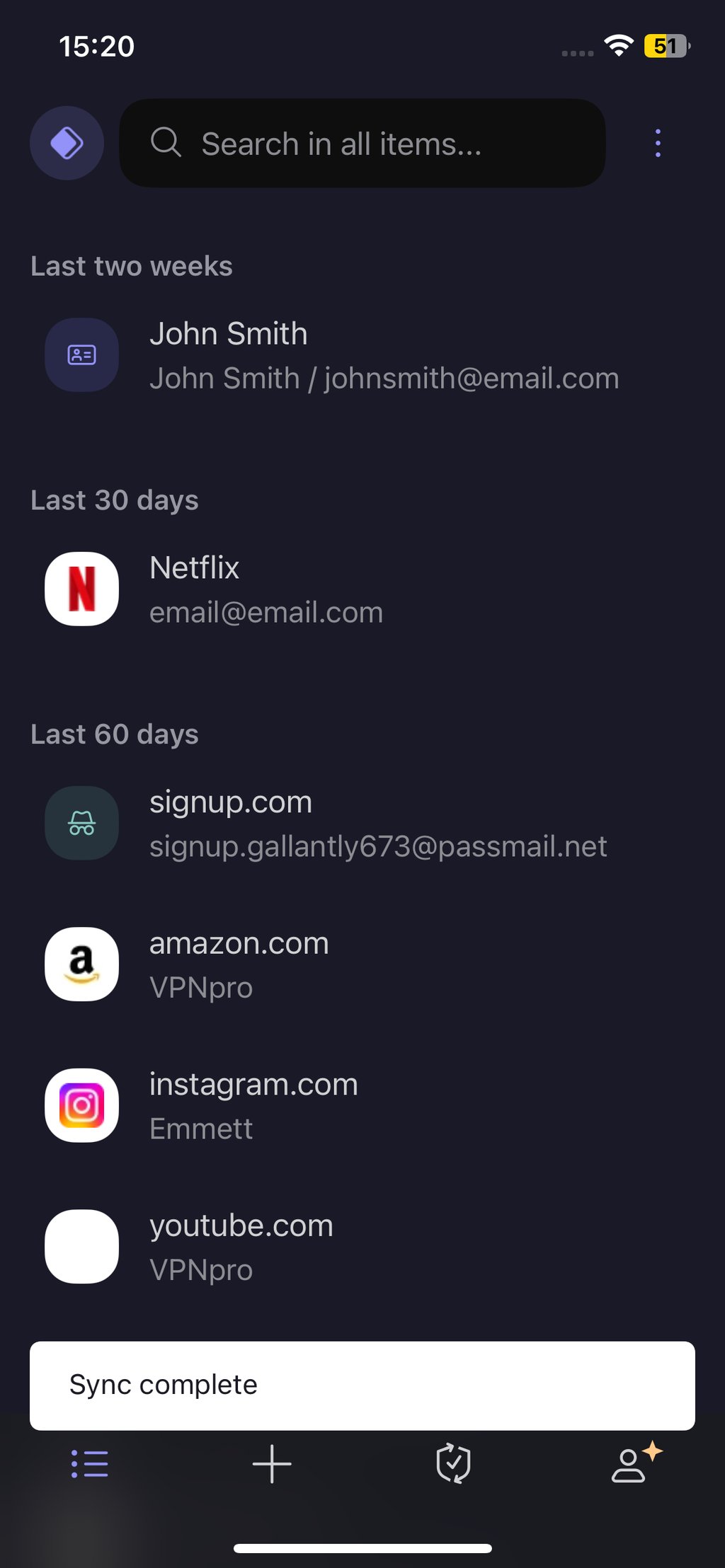
From setup to everyday tasks, Proton Pass prioritizes ease of use. Getting started is simple, even if you’ve never used a password manager before. I downloaded the app from the App Store and was able to complete the entire setup within a few minutes. Proton Pass makes importing passwords from other password managers super easy – instructions within the app guided me through the entire process.
The interface is clean and intuitive across desktop, mobile, and browser extensions. Finding what I needed was quick and easy. Overall, I find that Proton Pass balances powerful features with a user-friendly design that works well for beginners and experienced users alike.
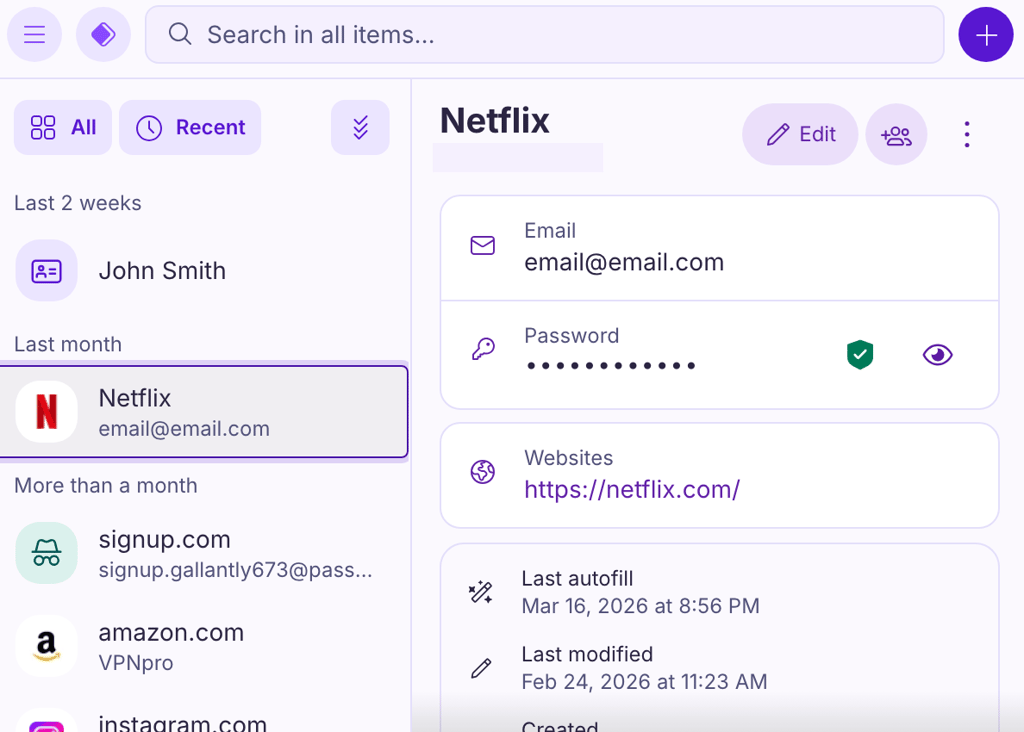
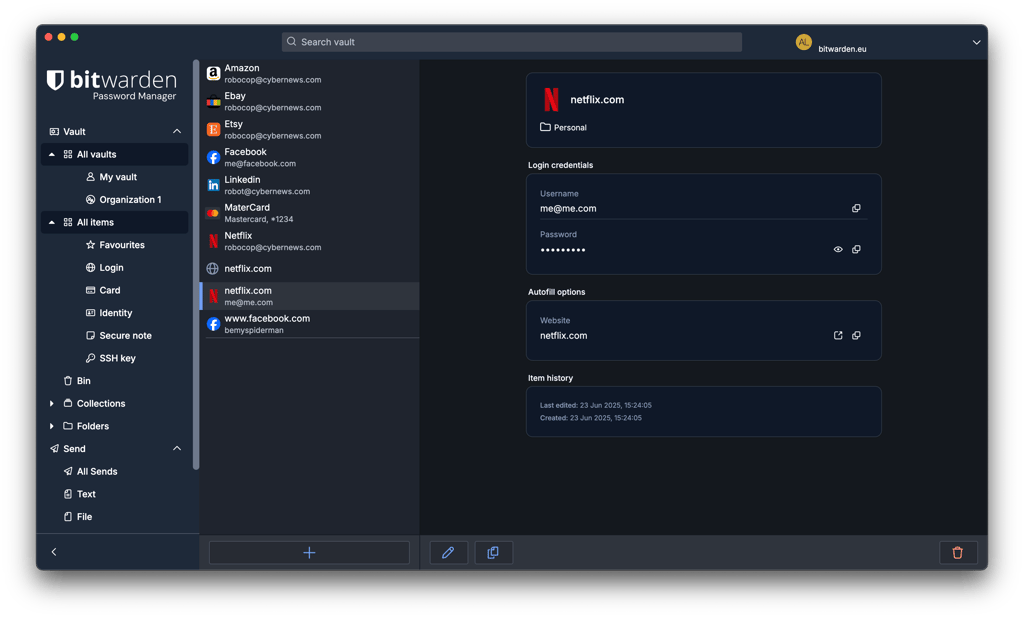
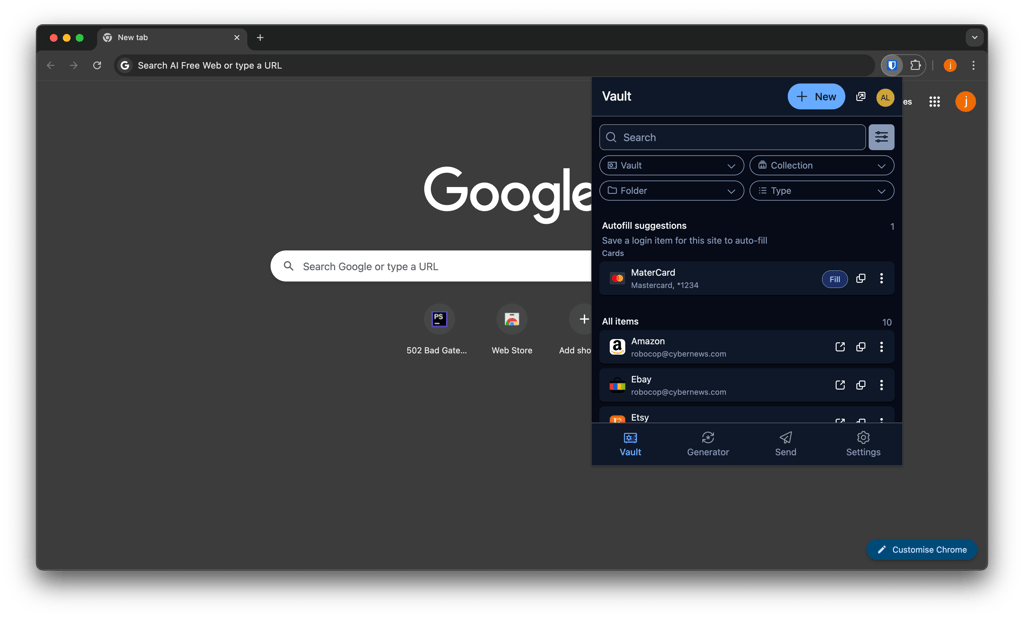
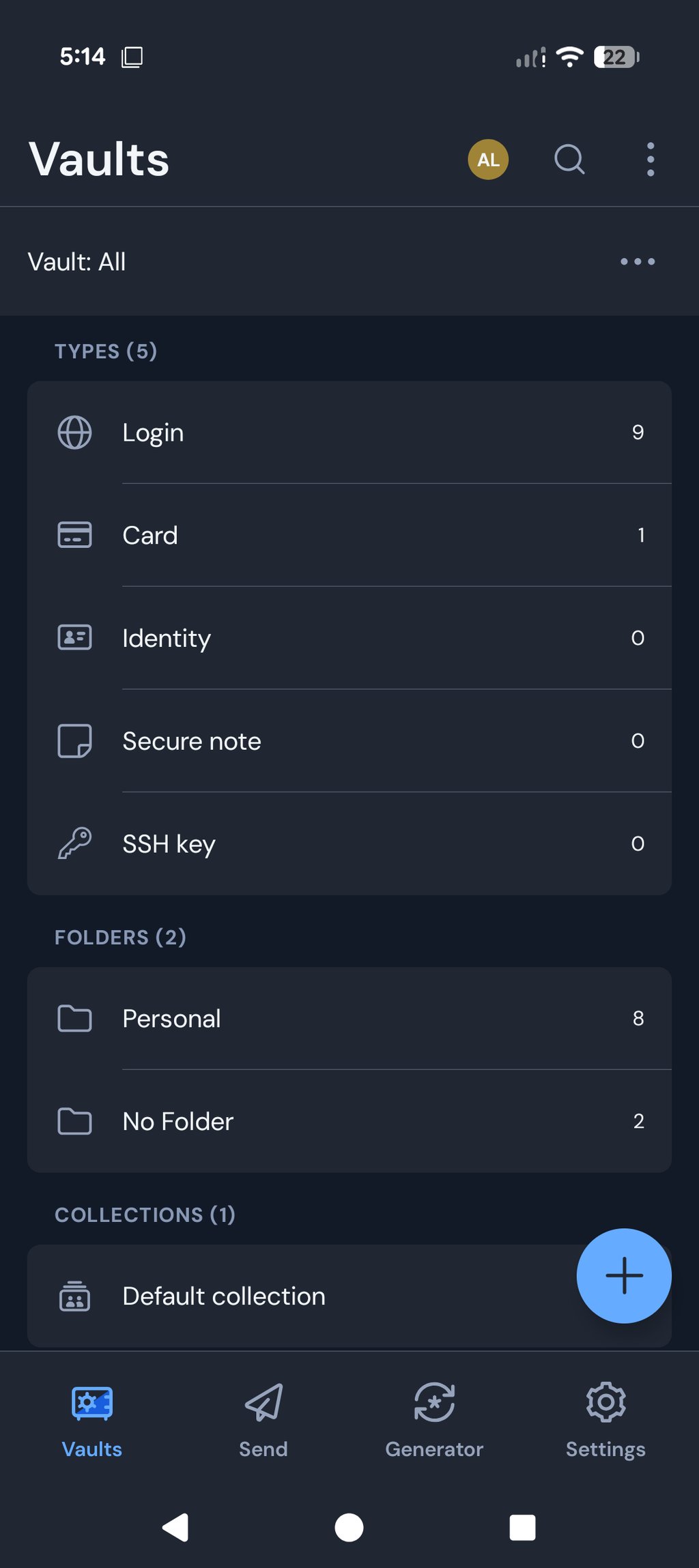
Bitwarden is also pretty easy to set up, although it requires a few extra steps. Importing passwords was straightforward with clear instructions, but it redirects you to the help center, which can make the whole process slightly longer.
The interface looks clean, but feels clunky in comparison to Proton Pass. I found myself pausing to figure out where certain options were, especially on the desktop app. Nonetheless, once you figure out where everything is, the app becomes much easier to navigate. Still, I wouldn’t recommend it for complete beginners.
Password generator and autofill
Password generators and autofill are one of the main reasons why people get password managers in the first place, so it’s crucial that they work seamlessly.
Proton Pass’ password generator is excellent. You can use it to create strong passwords (up to 64 characters) that are randomized and memorable passwords (up to 10 words) with lowercase and uppercase letters, numbers, and special characters. There’s also a password history tab in case you created an account with one but forgot to save it, which has happened to me more than once, so this feature is highly appreciated.
To get started, just open the app, click the plus button to add an item, and select the password. This will open the password generator. It also pops up automatically when you’re signing up or adding a new login on the app – super convenient.
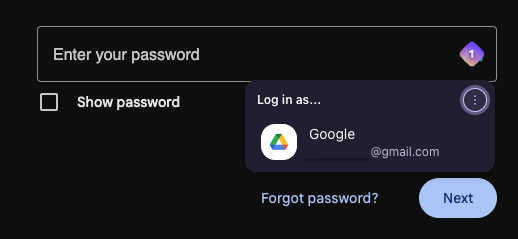
Its autofill is just as smooth. When you land on a login page, Proton Pass pops up and suggests saved login details. All you have to do is click on it to log in. The same goes for autosave when creating new accounts or logging in to a website or app for the first time. A prompt pops up asking you to save your login details. I had a few instances where Proton Pass’ autosave didn’t pop up, which was a bit annoying, but I was able to save my login credentials manually.
Bitwarden’s password generator is also solid. You can create random passwords (up to 128 characters) and passphrases (memorable passwords of up to 20 words) – longer than Proton Pass’. You can also choose between including uppercase and lowercase letters, numbers, and special characters. Similarly, there’s a password history tab in case you didn’t save it. Unlike Proton Pass, Bitwarden’s password generator doesn’t pop up when creating a new account, which means you have to open the browser extension and find the password generator manually.
As for autofill, Bitwarden lags behind Proton Pass. Firstly, it’s disabled by default due to security concerns. Once enabled, while it worked as intended, there were plenty of times when Bitwarden’s autofill just didn’t work.

Password sharing
Password sharing makes it easy to securely share login credentials or other sensitive information with trusted contacts. Proton Pass’ secure sharing feature is simple and convenient. All you have to do is click on the share button next to the item. From there, you can choose to either share via a secure link, which means that the item will be sent to the recipient via email, or through Proton Pass, meaning it will be sent directly to their vault. I like that you can set an expiration date and number of views before you send it off.
Bitwarden’s sharing feature can be difficult to get the hang of. This is because sharing is done through collections and organizations, which are, in my opinion, unnecessarily complicated. Luckily, there’s another way to share sensitive information on Bitwarden – that’s Bitwarden Send. It encrypts the contents of your message and sends it via a link to the recipient’s email. Bitwarden Send also has settings like expiration date, deletion date, view count, and even setting a password for viewing.
Customer support and troubleshooting
When choosing a password manager, many of us usually don’t look into customer support. It’s a shame because it can make or break a service, especially when something goes wrong.
Below, you’ll find a quick breakdown of Proton Pass and Bitwarden customer support options.
| Customer support channels | Proton Pass | Bitwarden |
| Live chat | ❌ No | ❌ No |
| ✅ Yes | ✅ Yes | |
| Phone support | ❌ No | ❌ No |
| Community forums | ✅ Yes, not official | ✅ Yes, official |
| Knowledge base | ✅ Yes, exhaustive, detailed, and easy to understand | ✅ Yes, extensive and detailed |
| Troubleshooting guides | ✅ Yes | ✅ Yes |
Both password managers understand the importance of customer support and provide a variety of ways for users to get help. The main way to contact Proton Pass and Bitwarden is to fill out a customer support form and wait for an email back. Overall, the responses come pretty quickly, so it’s not too bad. Still, I was disappointed to find that neither of them offer 24/7 live chat, which is the quickest and easiest way to resolve any problems. There’s no phone support either, but that’s not too surprising.
That being said, Bitwarden pulls ahead with a community forum hosted on its official website. You can get help from other users, but the Bitwarden team is also quite active.
Final verdict
Proton Pass outperforms Bitwarden in most of the categories, from security measures to feature depth to overall usability. While its broader, more polished feature set comes at a higher price, I believe the added value justifies the cost.
However, Bitwarden is an affordable password manager that can be a good pick for users that look for a simple tool, which covers the basics well.
FAQ
Should I use Proton Pass or Bitwarden?
It really depends on your needs. Proton Pass is better suited for users who want premium features, a polished interface, and ease of use. Bitwarden is ideal for budget-conscious, more tech-savvy users who prioritize affordability, flexibility, and options like self-hosting.
Is Proton Pass safe to use?
Yes, Proton Pass is safe to use. Like any other trustworthy password manager, it uses end-to-end encryption and a zero-knowledge architecture, meaning only you can access your data. It also includes additional security features, such as built-in two-factor authentication and dark web monitoring, which enhance overall account protection.
Is Bitwarden safe to use?
Yes, Bitwarden is safe to use. Like Proton Pass, it relies on strong end-to-end encryption and a zero-knowledge model, ensuring that no one but you can access your passwords. Bitwarden doesn’t have additional security features, but it’s still a reliable option for users who want straightforward security without extras.
Does Proton Pass have a free version?
Yes, Proton Pass offers a free plan with unlimited passwords and device syncing for an unlimited time. However, it’s limited to one user and lacks advanced features available on paid plans, such as expanded storage, family sharing, and premium security tools.