Bitwarden vs KeePass: which one wins?

When comparing Bitwarden vs KeePass, you’re looking at two secure password managers that take very different approaches to keeping your credentials safe. Bitwarden offers a streamlined, beginner-friendly experience with cloud syncing and a range of built-in features, while KeePass is better suited to privacy-conscious users who want their password vault stored locally and full control over how it’s managed.
To see how they stack up in practice, I compared Bitwarden and KeePass across the factors that matter most, including security, pricing, ease of use, platform compatibility, features, and customer support. I also looked at the everyday experience, from setting up a vault and managing passwords to syncing credentials across devices.
So, which one is the better pick? In this Bitwarden vs KeePass comparison, I’ll look at the strengths and limitations of both password managers and explain which option makes more sense for different types of users.

Bitwarden vs KeePass: overview
Bitwarden and KeePass are both highly secure password managers with strong encryption and reliable protection for sensitive data. KeePass stands out as a completely free, highly customizable offline solution, while Bitwarden offers a more polished and beginner-friendly experience with affordable premium plans, official apps, browser extensions, password sharing, and account recovery features. Overall, Bitwarden is better suited for users who want convenience and modern functionality, whereas KeePass appeals more to advanced users who prefer full control and customization.
| TOP Choice | |||
| NordPass | Bitwarden | KeePass | |
| ⭐ Rating: | |||
| 🥇 Overall rank: | #1 out of #20 | #6 out of #20 | #19 out of #20 |
| 🔥 Coupons: | NordPass coupon 61% OFF | Cybernews Password Manager Coupons | Cybernews Password Manager Coupons |
| 💵 Price: | From $1.29/month | From $1.65/month | Free (donations) |
| ✂️ Free version: | Yes | Yes | Yes (unlimited) |
| 🔒 Encryption: | XChaCha20 | AES 256-bit | AES-256 |
| 🖥️ Platforms: | Windows, macOS, Linux, Android, iOS | Windows, macOS, Linux, Android, iOS | Windows |
| 🌐 Browser extensions: | Chrome, Edge, Firefox, Opera, Safari, Brave, Vivaldi | Chrome, Firefox, Edge, Opera, Safari, Vivaldi, Brave, Tor, DuckDuckGo | Only with unofficial plugins |
| Get NordPass |
Recent Updates
Key differences between Bitwarden and KeePass
While both Bitwarden and KeePass offer strong encryption and reliable password protection, they take very different approaches to password management. Bitwarden focuses on convenience, accessibility, and built-in features, while KeePass prioritizes customization, offline storage, and complete free access.
Choose Bitwarden if:
- You want a more user-friendly experience. Bitwarden offers a polished interface, official mobile apps, and browser extensions that are easy to set up and use, even for beginners.
- You need password sharing and family features. Bitwarden supports secure password sharing and includes family plans for up to six users, making it a better option for households or teams.
- You prefer built-in convenience features. Features like autofill, account recovery, emergency access, and advanced 2FA options are included directly in Bitwarden without relying on third-party plugins.
- You want affordable premium features. Bitwarden’s low-cost premium plans add useful extras like advanced authentication methods and encrypted file storage for a very reasonable price.
For a closer analysis, take a look at our full Bitwarden review.
Choose KeePass if:
- You want a completely free password manager. KeePass includes all of its features for free with no subscriptions or locked premium tools.
- You prefer an offline and highly customizable setup. KeePass stores data locally and supports a large library of community-created plugins, giving advanced users more control over customization.
- You value stronger local encryption flexibility. In addition to AES-256 encryption, KeePass also supports ChaCha20 encryption and advanced security configurations.
- You are comfortable with a more manual setup. KeePass is better suited for experienced users who don’t mind configuring plugins, third-party apps, and shared databases themselves.
Curious about its real-world performance? Read our complete KeePass review.
Bitwarden vs KeePass: which offers better value for money?
KeePass is completely free and includes all features without paid tiers, though it accepts donations. Bitwarden, on the other hand, offers affordable premium plans with extra features and a more polished app experience, making its low-cost Premium plan a worthwhile upgrade.
| Plan | Bitwarden | KeePass |
| Free | $0.00 | $0.00 |
| Premium | $1.65/month | – |
| Family | $3.99/month | – |
| Check pricing | Check pricing |

You see, the Premium plan offers advanced 2FA, the Authenticator app, which allows two-step logins, and emergency access for other users. Meanwhile, the Family package lets you get a password manager for up to 6 users which you can share.
So, while both password managers have free tiers, Bitwarden has plans for multiple users with extra 2FA options.
KeePass or Bitwarden: Free vs Premium plans
Starting from the free plans, all that KeePass has or will ever have to offer is completely free of charge. It’s a very customizable free password management system, so what you get depends on what kind of plugins (created by the community) you add.
As for Bitwarden, the free tier offers the core features. This includes unlimited vault items, unlimited devices and device types, a secure password generator, basic two-step login, encrypted export, and even allows self-hosting. It’s worth mentioning that Bitwarden actually has two free plans – you can choose between a subscription for one user or a tier for two.
Moving on, if you’re looking into the Premium subscription, you can expect such features as emergency access, Bitwarden Authenticator, and advanced 2FA, such as YubiKey, U2F, Duo, or email. You can get all that for only $1.65/month, which is super cheap compared to other top password managers on the market.
With Bitwarden’s Family package, you get a password manager for up to 6 people. For $3.99/month, you get unlimited password sharing between all of those users.
Overall, both providers offer free tiers, which is always a big advantage. However, Bitwarden has more extensive paid tiers for users who need a premium password manager with additional features.
Bitwarden or KeePass: which one is more reliable?
Both Bitwarden and KeePass provide strong security with AES-256 encryption, reliable 2FA options, and secure storage for sensitive data. KeePass adds ChaCha20 encryption, while Bitwarden offers a wider range of authentication methods, but overall, both deliver excellent protection.
Encryption
Both Bitwarden and KeePass are very safe password managers. In terms of encryption, both use the famous AES-256 – one of the most secure types of encryption known to mankind.
With Bitwarden, you have a master password-derived encryption key that helps keep your data safe.
As for KeePass, on top of the AES-256 encryption, it also has ChaCha20, which is a faster and even safer encryption. For extra security, KeePass uses the SHA-256 algorithm for protecting your data. It actually makes guessing and dictionary attacks harder for malicious hackers.
Multi-factor security
There’s a reason multi-factor (MFA) security is praised by cybersecurity experts. Imagine you don’t have two-factor authentication (2FA) turned on. In this case, if your password is hacked or even guessed, the cybercriminal gets in immediately. However, if you have 2FA enabled, a password won’t be enough to get in. At least not without your permission.
In terms of KeePass, it offers only one 2FA authentication method – using a YubiKey, which is a USB stick. All you need to do is insert it into your device, click the button on the USB stick, and it will insert a password for you.
As for Bitwarden, it offers more 2FA options than KeePass. If you have the free version, you can either enable 2FA via the provider’s authenticator app or use email authentication. With the premium plans, you get such authentication options as YubiKey, U2F, and Duo.
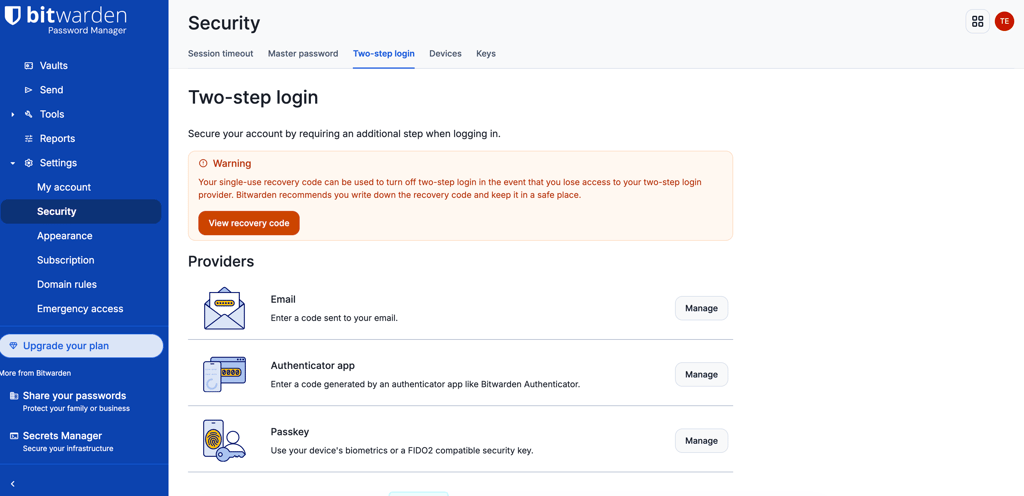
So, while both password managers offer multi-factor security, Bitwarden has more methods to choose from.
Data storage
While the primary purpose of a password manager is to securely store, organize, and recover login credentials, it can also be used to store files. This way, not only are your passwords protected, but sensitive files can be encrypted as well.
Starting from KeePass, the password manager has a feature called Attachments. It lets you store documents, text files, and even images. You can even edit them inside the encrypted vault so that no prying eyes would have a chance to take a peek.
As for Bitwarden, it includes 5GB of storage with its premium plan. The good thing is that you can purchase more storage if needed. Bitwarden’s attachment size cannot be larger than 500MB (or 100MB when uploading from a mobile device).
However, I have to mention that Bitwarden stores data in both the US and EU, giving users a choice of server locations. Its US infrastructure is subject to the jurisdiction of the Five Eyes countries, which have extensive data-sharing agreements. That said, Bitwarden has had no major privacy issues in the past and uses strong end-to-end encryption to protect your data, making it a trustworthy password manager.
Privacy policy
When choosing any cyber product, knowing what data the providers collect is important when evaluating security. Starting from Bitwarden, it collect certain information about you, including:
- Your name
- Your email address
- Your IP address and other online identifiers
- The type of device you’re using
- Your operating system
- Information you enter into Bitwarden’s forms
The provider states that they comply with such privacy laws as GDPR and CCPA regulations. So, the data they collect proves that they do meet these laws.
As for KeePass, collected information includes:
- Operating system version
- Internet browser version
- CPU type
- Internet connection type
- Operating system language
- IP address
- Cookies enabling
- Java enabling
- Screen resolution
- Information you enter into KeePass’ forms
It’s worth mentioning that KeePass collects personal data, which, in their privacy policy, is defined as “any information relating to an identified or identifiable natural person”. This includes name, location, and more. KeePass also states that they follow strict compliance with GDPR, just like Bitwarden.
Overall, both providers have similar data handling practices and can be considered trustworthy as they comply with privacy laws.
Bitwarden vs KeePass: key features
Both Bitwarden and KeePass include essential password manager features like secure password storage, password importing, and strong password generators. However, Bitwarden stands out with more practical everyday tools, including password sharing, autofill, and account recovery, while KeePass lacks several of these conveniences.
Password importing
A password manager’s purpose is to securely store and organize passwords. So, a quality service should have numerous password importing options. That’s exactly the case with Bitwarden and KeePass.
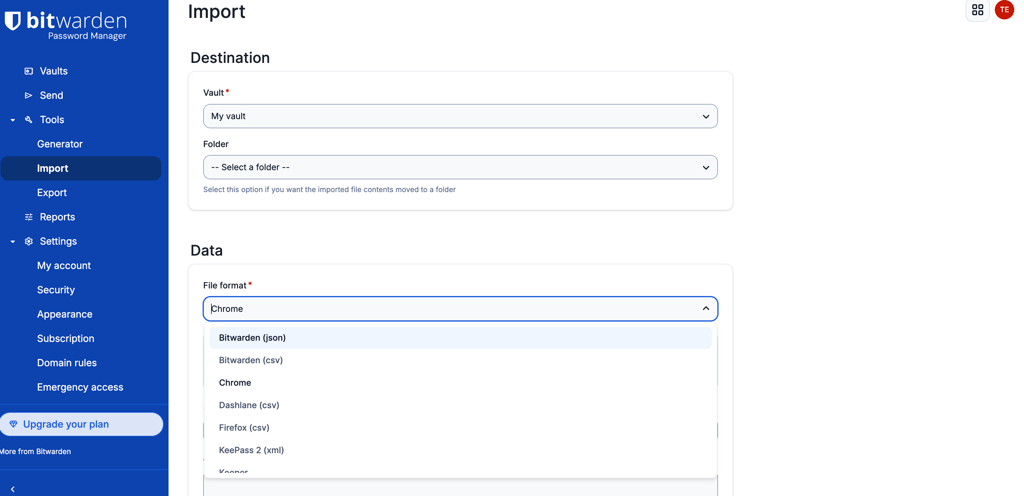
Bitwarden includes such password importing options as browsers, other password managers, .CSV files, and more. While we needed to use some of Bitwarden’s guides on how to import passwords, it didn’t take long to figure it out.
As for KeePass, you can also choose between many import options. It supports imports from other well-known password managers, .CSV files, browsers, etc. However, it’s quite hard to figure the importing part out if you don’t have any experience. Especially because the guides on KeePass’ website don’t provide any screenshots and are difficult to read.
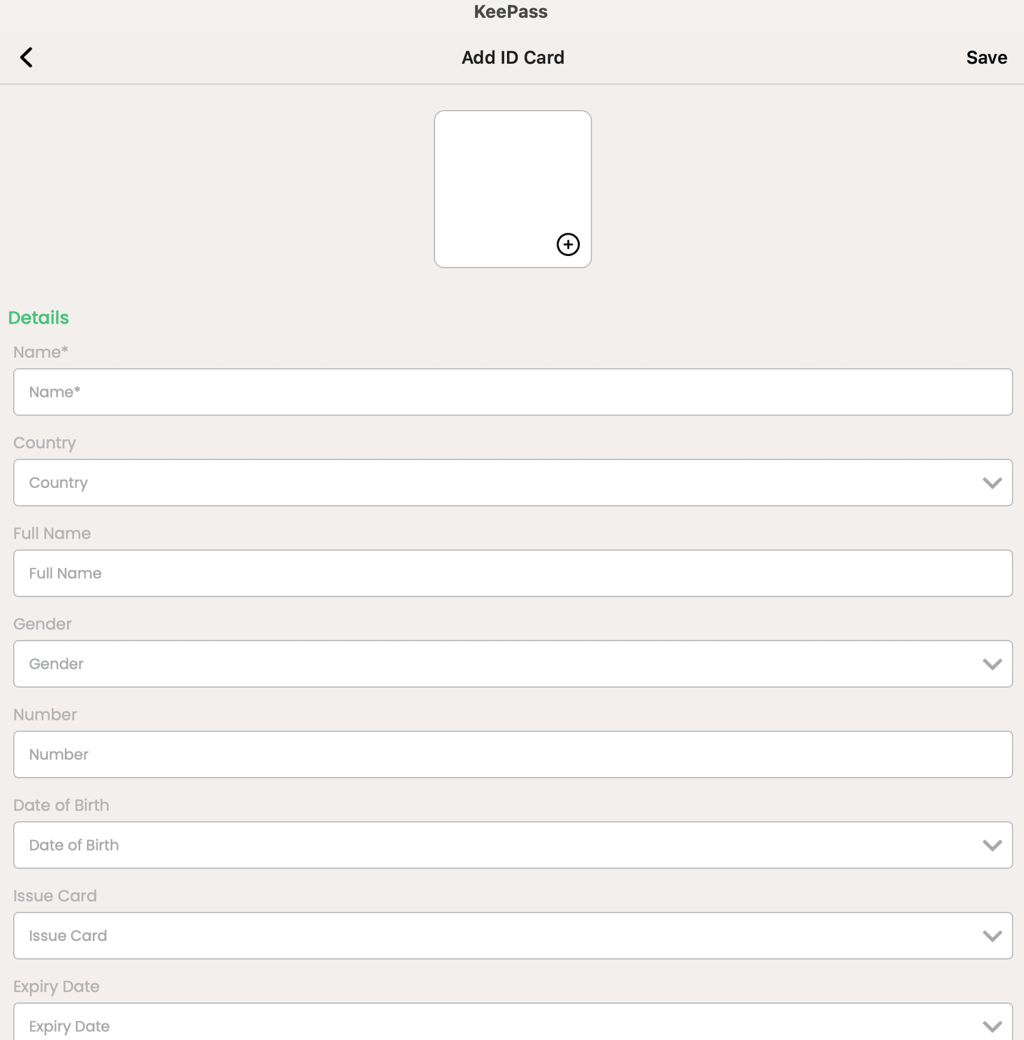
To conclude, while both password managers are extensive in terms of importing options, Bitwarden is easier to get a hang of.
Account and password recovery
It just so happens that people sometimes forget their passwords. After all, as Gediminas Brencius, Head of Product at NordPass, said, “If you can remember your password, it's not secure enough”. That’s why your password manager should include account recovery options.
Luckily, Bitwarden has a method of account recovery, which is a code you get when you first set up 2FA. You must save this code because if you don’t, there’s no way for you to ever recover your account if you forget your master password.
At the same time, KeePass offers no account recovery methods. You have a master key that can consist of a master password, a key file, or a key that is protected using a Windows account. If you lose or forget any of these components, you can say bye-bye to your KeePass account together with all the passwords.
Even if there’s only one account recovery method that Bitwarden includes, it’s still one option more than KeePass. So, Bitwarden gets points in this case, as having no account recovery methods is a huge drawback.
Password generator
A password generator is a feature that does exactly what it says – it generates strong and virtually unhackable passwords. Bitwarden offers an excellent generator with a default of 14 characters.
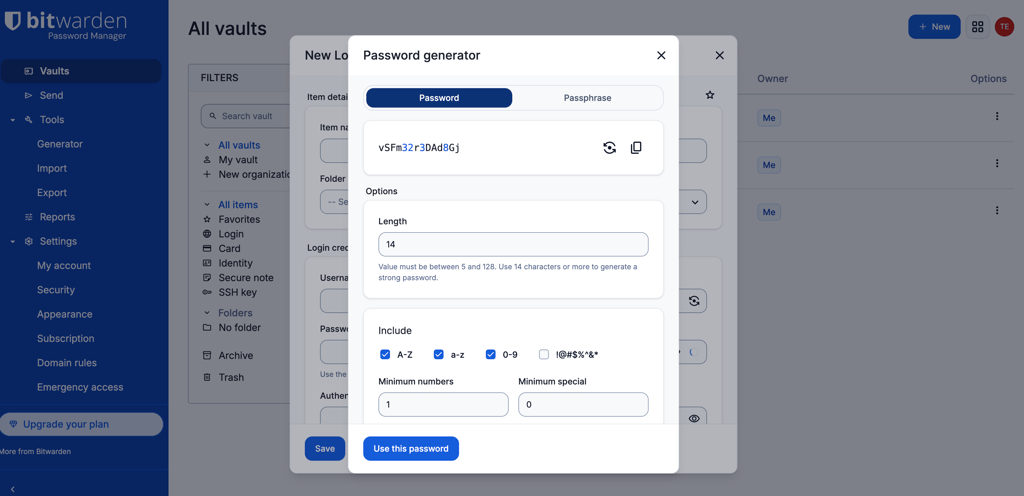
However, if you wish, you can set the password to be anywhere from 5 to 128 characters long. On top of that, you can choose what you want it to include – letters, symbols, numbers, or all of them.
The KeePass password generator is quite similar. You can indicate a specific length for your password. There are also 9 toggles that you can pick and specify what characters you want your password to include.
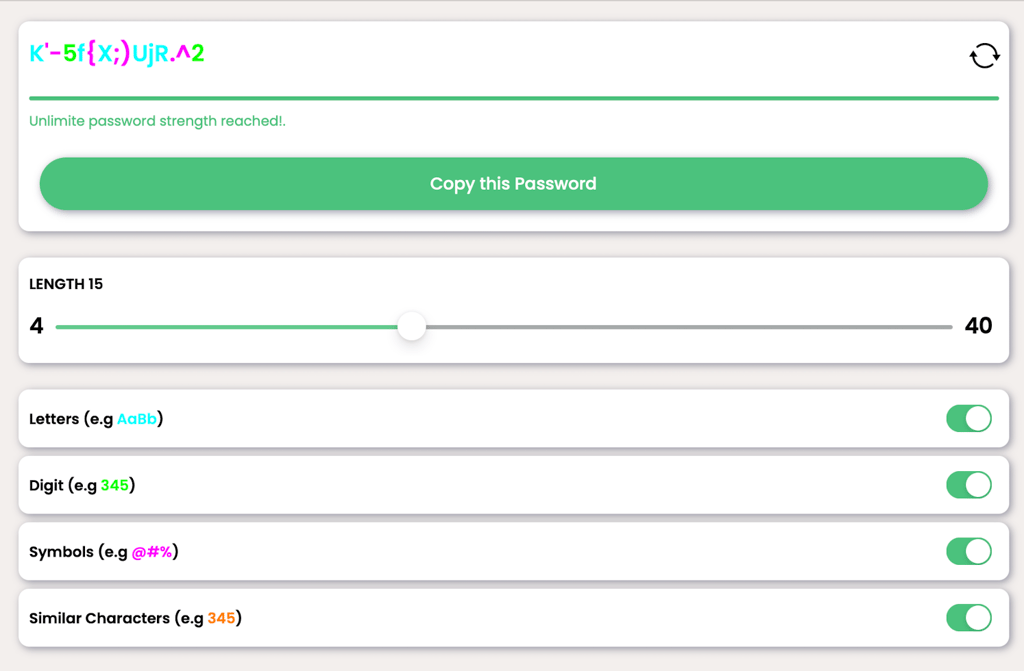
Also, you can even type down all the specific characters that you want the password to have, or choose a custom algorithm.
Password sharing
Whether you can share passwords between users or not depends on your Bitwarden subscription. While the free tier is out of the question, the Premium account lets you share passwords with one other user. And, if you opt for the Family subscription, you can share as many passwords as you want with up to six users.
KeePass, unfortunately, is not designed for password sharing. All you can do is create a separate shared database with the same master password. This way, you share the database with multiple users. What’s good is that if both users make any changes, KeePass will ask how to proceed when saving – synchronize, overwrite, or cancel.
Once again, KeePass lacks something that Bitwarden can proudly brag about. The absence of password sharing options can be inconvenient for some users, which is why Bitwarden wins again.
Platforms, interface, and ease of use
What’s great about Bitwarden and KeePass is that no matter what OS you’re using, both password managers support all of the most popular ones. Both tools offer apps for desktop, yet KeePass only has third-party developed mobile apps. KeePass also doesn’t have any official browser extensions, only third-party plugins.
| Bitwarden | KeePass | |
| Supported OS | Windows, macOS, Linux, Android, iOS | Windows |
| Browser extensions | Chrome, Firefox, Edge, Opera, Safari, Brave | Plugins only |
| Number of devices | 1, 2, or 6 users | Multiple |
Bitwarden allows 1, 2, or 6 users depending on the plan you purchase. Meanwhile, KeePass only specifies that multiple users can share the same database.
As for the setup of both password managers, it’s very simple. Take Bitwarden, for instance. You can either create a free account on their official website and use it online, or you can download the password manager for macOS, Linux, or Windows. With KeePass, the process is similar – you go to its official website and download the app. Both providers ensure a smooth and easy-to-understand installation process.
It’s clear that Bitwarden is a better password manager in terms of compatibility. That’s because it has official extensions for the most popular browsers and mobile apps.
Desktop apps
Bitwarden is supported on all three biggest operating systems, including Windows, Mac, and Linux. What’s interesting is that all apps are visually similar and don’t have major differences in terms of interface.
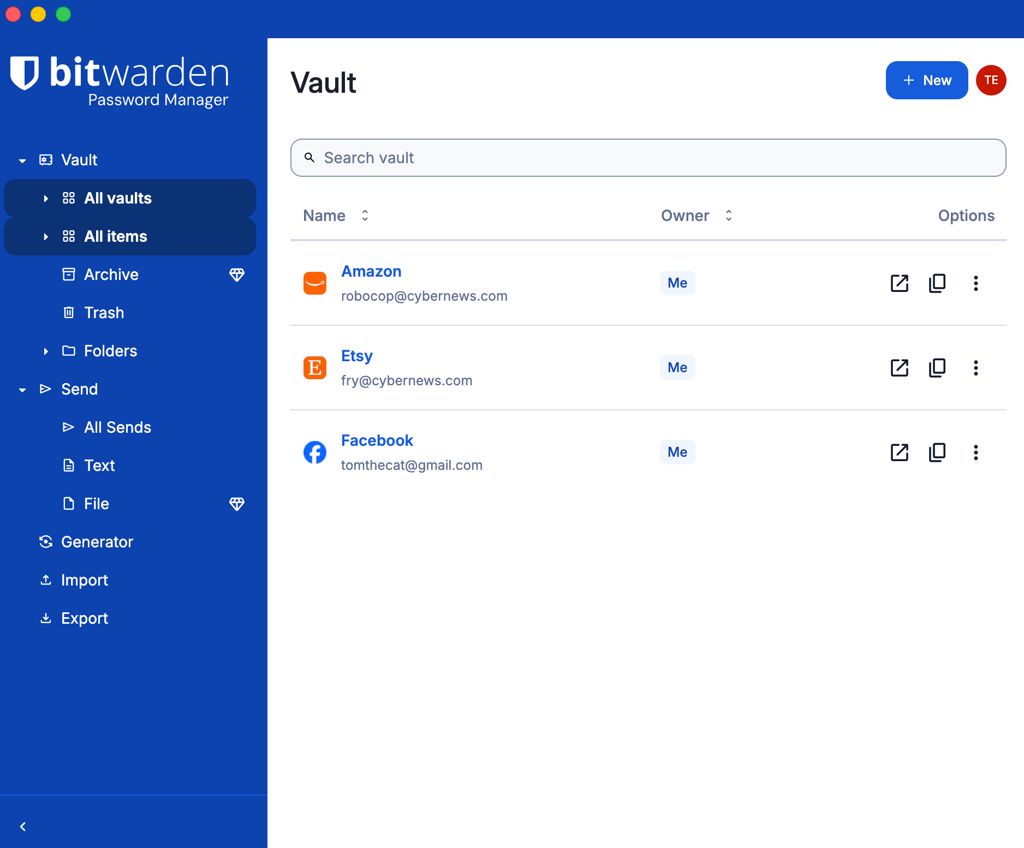
What I loved about Bitwarden most was the way everything was organized. I found the interface to be similar to folders of Windows and Mac – all of the sections are placed on the left side of the screen. This makes it very easy to navigate and doesn’t take long to figure things out.
The situation with KeePass is very similar as it has desktop apps for Windows, Mac, and Linux. And, the interface of all of them is very similar, which, again, is pretty convenient.
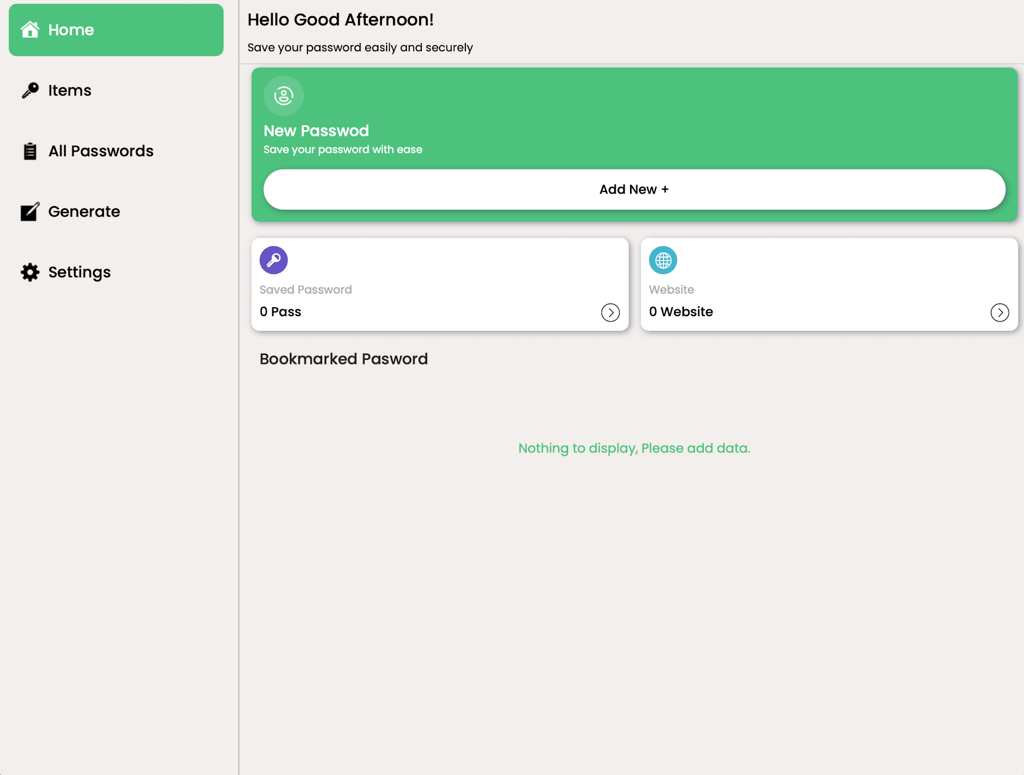
Keepass’ interface has also undergone quite a revamp. It looks modern and easy to navigate, with all options available on the left-side menu.
Browser extensions
Bitwarden offers browser extensions for Chrome, Firefox, Edge, Opera, Safari, Brave, and more. They are similar to desktop apps in terms of interface, so there are no issues understanding how the password manager works.
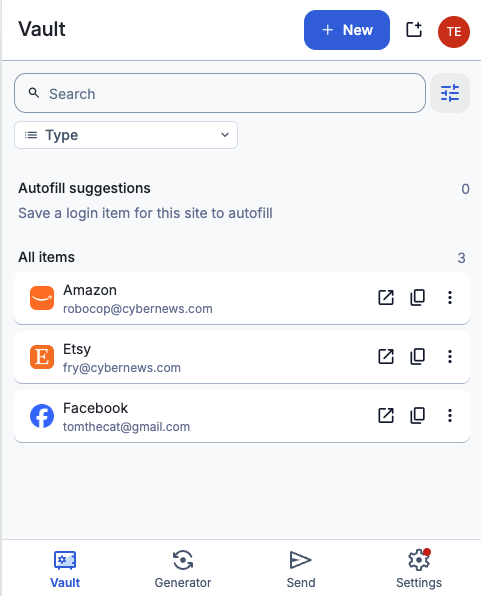
One of the main purposes of Bitwarden’s extensions is to generate secure passwords when changing previous ones or creating accounts. They also let you autofill your login credentials, which saves a lot of time, especially if your passwords are long and hard.
As for KeePass, it doesn’t have official browser extensions but there are many third-party plugins. The setup is as simple as with any other official extension. First, you have to find the plugin for your browser and download it. Then, all you have to do is move them into the password manager, and restart the application. They work similarly as if they’d be official ones so this means that you can still auto-fill your passwords, and more.
Mobile apps
Bitwarden has apps for both Android and iOS. To get your preferred app, all you have to do is find it in the app store and download it like any other mobile application. Yet again, Bitwarden stays true to its blue and white design and you surely won’t get lost if you’re familiar with the desktop app. In fact, Bitwarden’s interface is customizable, so you can make it as convenient for yourself as possible.
Moving on, just like with the browser extensions, KeePass doesn’t have official mobile apps for Android or iOS. There are, however, apps created by the community. If you browse through either Android or iOS app stores, you can see that there are multiple apps for both operating systems. They’re all different in terms of design and functionality, so I’d recommend researching them first to find the best one for you.
Customer support
Quality customer support is crucial for any service, and in the case of Bitwarden vs KeePass, both providers offer multiple support options.
For instance, the best support you can get from Bitwarden is by email. However, the company also has many how-to guides, weekly live Q&A sessions, an FAQ, an AI chatbot, and a community forum. While there’s no human live chat available, it’s good that Bitwarden offers at least some human assistance via email.
If you decide to go for KeePass, keep in mind that there are no agent support options. However, you can find extensive amounts of information in their FAQ or help center. There’s even a local Wiki dedicated to KeePass users.
So, even though both password managers have multiple support methods, I prefer Bitwarden as it includes at least some type of human assistance options.
Bottom line
KeePass is a strong choice for users who want a fully free password manager with extensive customization options and local password storage. Its plugin support and additional encryption choices make it especially attractive for tech-savvy users who prefer a more hands-on approach.
Meanwhile, Bitwarden excels in accessibility and everyday usability. With intuitive apps, official browser extensions, password sharing, recovery options, and low-cost premium plans packed with extra features, it provides a smoother and more complete experience for most users.
In the end, Bitwarden comes out ahead overall by offering the best balance of security, functionality, convenience, and value, making it the stronger all-around password manager in this comparison.
More password manager guides from Cybernews:
Keeper vs Bitwarden: which one takes the lead?
Enpass vs Bitwarden: see which one comes out on top
NordPass vs Bitwarden: go with the best option
1Password vs Bitwarden: the most secure option
FAQ
Is KeePass better than Bitwarden?
No, Bitwarden is better than KeePass. That’s because Bitwarden offers more features, such as password sharing, and includes account recovery methods. While KeePass is completely free (donations are optional), Bitwarden has a much easier to navigate and modern interface. Not to mention the fact that you can get it for free as well.
Which is better for Windows: Bitwarden or KeePass?
Bitwarden is better for Windows than KeePass. You get account recovery options, great multifactor security, and extensions for most popular browsers. Depending on the plan you get, you can share passwords with two to six users.
Can Bitwarden import passwords from KeePass?
Yes, Bitwarden supports imports from KeePassX and KeePass 2.