KeePass vs LastPass: key differences reviewed


If you’re looking for a password manager, chances are you’ve come across KeePass and LastPass. LastPass is a well-known name with strong features, solid encryption, and a user-friendly setup that works across devices. It also offers a free plan for one device type, either computers or mobile devices, which is great for getting started.
KeePass takes a different approach. It’s open-source, completely free, and gives you a lot of control, but it’s definitely more hands-on and not the easiest for beginners.
For this comparison, I tested both providers over multiple weeks of use and compared them on aspects like security, features, pricing, and how easy they are to use. In this guide, I’ll walk you through how both tools stack up in real life and help you pick the one that's best for you.

KeePass vs LastPass – an overview
When comparing LastPass vs KeePass, LastPass stands out with a free plan, beginner-friendly experience, and built-in extras like a security dashboard and dark web monitoring, while KeePass is a budget-friendly choice that you can use for free. In the table below, I compared how these password managers work to help you decide.
| NordPass | LastPass | KeePass | |
| ⭐ Rating: | |||
| 🥇 Overall rank: | #1 out of #20 | #14 out of #20 | #19 out of #20 |
| 🔥 Coupons: | NordPass coupon 61% OFF | LastPass coupon for $3.00/month | Cybernews Password Manager Coupons |
| 💵 Price: | From $1.29/month | From $3.00/month | Free (donations) |
| ✂️ Free version: | Yes | Yes, plus 30-day free trial | Yes (unlimited) |
| 🔒 Encryption: | XChaCha20 | AES-256 | AES-256 |
| 🖥️ Platforms: | Windows, macOS, Linux, Android, iOS | Windows, macOS, Linux, Android, iOS | Windows |
| 🌐 Browser extensions: | Chrome, Edge, Firefox, Opera, Safari, Brave, Vivaldi | Chrome, Firefox, Opera, Safari, Edge | Only with unofficial plugins |
Recent Updates
Key differences between KeePass and LastPass
KeePass and LastPass both provide secure password management, but offer slightly different features. KeePass focuses on affordability and is highly customizable, while LastPass offers a more feature-rich and user-friendly experience.
Choose KeePass if:
- You want a completely free password manager. KeePass is fully free to use with no subscriptions.
- You prefer open-source software and full control over your data. KeePass stores your encrypted database locally and gives you greater flexibility in how you manage, sync, and customize your vault.
- You are comfortable with a more technical setup and customization. KeePass supports plugins, custom workflows, and multiple encryption options like AES-256 and ChaCha20.
Choose LastPass if:
- You want a free password manager. LastPass Free lets you save unlimited passwords and sync them across one device type (either computers or mobile devices) without paying upfront.
- You want a more user-friendly experience. LastPass offers intuitive apps for your devices, that are easy to navigate and use.
- You want a simple option with the essentials. LastPass still gives you password generation, autofill, and secure vault storage across major platforms. It does not feel as refined as 1Password, but it covers the core tasks most users need.
KeePass vs LastPass: plans and pricing
When it comes to the pricing of KeePass vs LastPass, obviously KeePass wins since it’s completely free. While both password managers offer free plans, LastPass limits you to one device type.
That said, LastPass does give you more built-in functionality for the money. Its paid plans add cross-device access, encrypted file storage, Emergency Access, more sharing options, and additional support.
| Plan | LastPass | KeePass |
| Free | $0.00 | $0.00 |
| Premium | $3.00/month | - |
| Family | $4.00/month | - |
| Try LastPass | Try KeePass |

LastPass pricing
LastPass offers 3 personal plans:
- LastPass Free for 1 device
- LastPass Premium – $3.00/month for 1 user
- LastPass Families – $4.00/month for 6 users
Its Free plan is a good way to test LastPass without the constant threat of expiry date. However, if you want to remove all of the restrictions, Premium adds access across all device types, one-to-many sharing, 1GB of encrypted file storage, Emergency Access, advanced MFA options, and personal customer support.
LastPass Families includes Premium features for up to 6 users, plus a family manager dashboard and unlimited shared folders. That said, if price is your main concern, KeePass still has the clear advantage because it costs nothing.
KeePass pricing
KeePass has only one plan, and it’s completely free. However, you have the option to send a donation fee to “support the development of the project.”
You have full control over the features since you can extend functionalities with different plugins. The password manager has over 100 community-created plugins for various purposes, such as database backup, password importing, and auto-type.
KeePass vs LastPass: which one is more secure?
Password manager security is very important, especially as they hold some of your most valuable data. The LastPass vs KeePass security faceoff is tricky as both have their respective strengths but could benefit from improvements in a few aspects.
In LastPass’ case, it offers strong encryption, various multi-factor authentication (MFA) methods, and secure data storage. However, it lacks comprehensive independent audits. Plus, there were reports of security flaws. That said, LastPass was quick to address and fix the vulnerabilities.
Meanwhile, KeePass provides strong AES-256 and ChaCha20 encryption in KeePass 2.x and lets you combine a master password with a separate key file for additional protection. It has also undergone several independent security reviews, while its local-first design means your vault can remain entirely on your own device.
Encryption
LastPass and KeePass are top-notch when it comes to encryption. In LastPass’ case, your data is heavily guarded using 256-bit AES encryption, salted hashing, and PBKDF2 SHA-256. With the trio, there’s no need to worry about reverse-engineering attempts on your master password or brute-force attacks.
Plus, thanks to its zero-knowledge architecture, all encryption/decryption takes place locally on the device level. The end-point system means that only encrypted data is sent to its servers, and no one has access to your master password or the content of your vault. Not even LastPass.
KeePass is no slouch in this department, either. Here, your encryption algorithms depend on your edition:
- KeePass 1.x – 256-bit AES and Twofish
- KeePass 2.x – AES-256 and ChaCha20
In any case, all three options are considered to be the most secure and uncrackable encryption algorithms in the market.
To sum up, both LastPass and KeePass absolutely nailed encryption and will keep your data secure.
Multifactor security
Multi-factor authentication (MFA) is an incredibly helpful and vital additional layer of protection against breaches. Basically, it requires you to verify your identity with more than just your username and password during logins. In this regard, LastPass runs circles around KeePass.
LastPass supports a wide variety of two-factor authentication (2FA) and MFA. Current options include LastPass Authenticator, Google Authenticator, Microsoft Authenticator, Duo, YubiKey, RSA SecurID, and other supported authentication methods.
Additionally, those on LastPass’ Business plans also get advanced MFA capabilities for more secure logins.
KeePass handles this differently. You can combine your master password with a separate key without installing a plugin, meaning an attacker would need both to unlock the database. Additional methods, including YubiKey, can be added through plugins.
Data storage
LastPass and KeePass also double as encrypted storage vaults for sensitive files. With LastPass, you get unlimited password storage, which is great if you use unique passwords for different accounts.
For everything else, your plan will determine your storage capacity. LastPass’ Free users get only 50MB, while Premium and Families users get 1GB. In any case, each file must not exceed 10MB in size. The low cap means you will have no problem stashing passwords and documents, but you can forget about resource-heavy items like videos.
As for KeePass, it offers an Attachments feature that lets you store documents, files, and images. Because KeePass stores attachments directly inside your local encrypted database, there’s no cloud-storage quota like there is with LastPass. However, KeePass is designed for relatively small attachments rather than large-scale file storage.
KeePass currently refuses individual attachments larger than 512MB, and its documentation recommends using dedicated encryption software instead if you need to store many or large files.
Privacy policy
LastPass was built on zero-knowledge architecture, which means that only you have access to your vault. However, it does collect some user data.
LastPass has operated as an independent company since separating from GoTo in 2024 and maintains its own privacy notice.
That said, overall, LastPass collects:
- First and last name
- Billing data
- Email address
- Devices and operating systems used
- IP addresses
- Location and language settings
- Unique device identifiers
KeePass works very differently because you don’t need an account to use the password manager. Your encrypted database can stay entirely on your device, so KeePass doesn’t require your name, email address, phone number, or billing details just to store passwords. Its website may still process standard browsing data such as IP addresses, browser information, and cookies.
For data minimization, KeePass has the advantage because the password manager itself can work entirely offline without an account or cloud storage.
Third-party security audits
Both LastPass and KeePass have been independently assessed, but the type and scope of testing differ between the two.
In LastPass’ case, Tevora Business Solutions audited LogMeIn’s services – including LastPass – and found that they meet the Trust Service Principles set by the American Institute of Certified Public Accountants (AICPA).
It’s worth noting, however, that this is an across-the-board audit for staff compliance. A better approach would be regular and comprehensive tests on LastPass’s products and services.
KeePass has also undergone several independent security reviews. Most recently, in 2024, Germany’s BSI and mgm security partners analyzed KeePass 2.x and found no medium, high, or critical vulnerabilities. KeePass has also been reviewed through the EU-FOSSA projects and received France’s CSPN security certification from ANSSI.

KeePass vs LastPass: features
The difference between LastPass and KeePass is especially obvious when you look at their features, and LastPass has an easy win here. LastPass offers diverse password-importing options, several password recovery methods, a versatile password generator, easy password sharing, and a convenient autofill feature.
In contrast, KeePass has limited features, and, even then, many of them are only available via plugins. For the features that aren’t available out of the box or via plugins, you’re fresh out of options.
Password importing
The pair offers a wide range of password importing options. However, LastPass has the lead here because of its smooth importing process.
With LastPass, you get a huge variety of importing options. This includes:
- Browsers like Chrome, Edge, and Safari
- Other password managers like KeePass, Keeper, and Dashlane
- CSV files
Additionally, if your former password manager doesn’t support export functions, LastPass has a passive import feature to facilitate the transfer process. Here, you just need to launch the old and new password managers simultaneously.
As for KeePass, your edition will decide your data importing options. KeePass 1.x allows imports from CSV files, CodeWallet, Password Safe, and Personal Vault. Meanwhile, KeePass 2.x is more flexible and supports a long list of applications, including:
- KeePass 1.x
- Other password managers like LastPass, Keeper, and 1Password
- Browsers like Chrome and Mozilla
- CSV files
However, KeePass’ importing process is rather complex. Although it has guides, they’re quite dry and technical. There are also no photos to eliminate doubts and paint clearer pictures.
Account and password recovery
When it comes to account and password recovery, LastPass is remarkably more forgiving than KeePass.
With LastPass, you get mobile account recovery via Face or Touch ID, password hint, a One Time password, and SMS recovery. There’s also an option to revert to your previous master password.
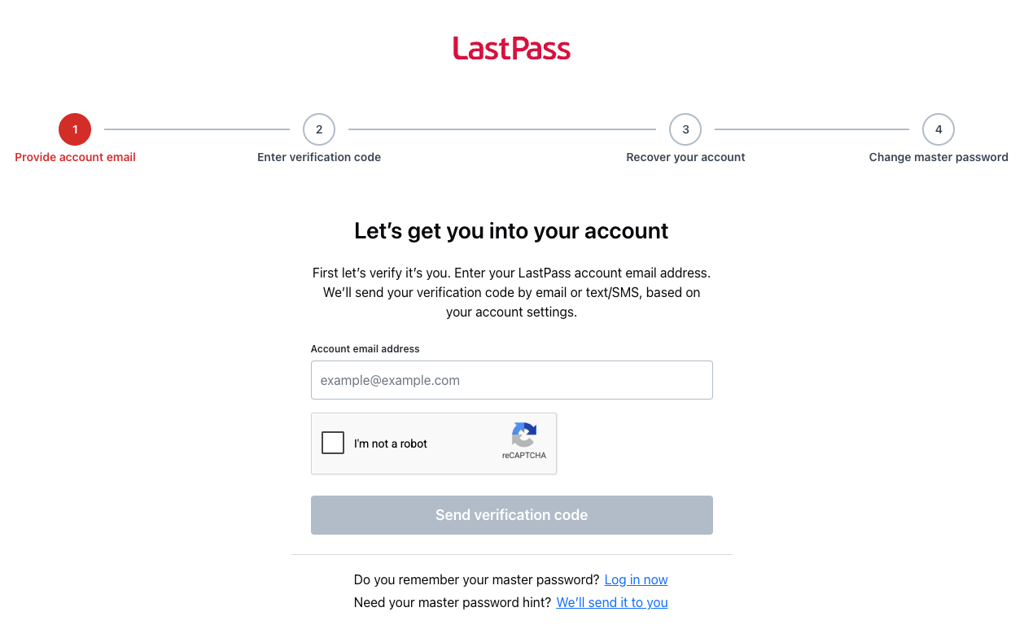
If all of the above methods fail, you’ve reached the end of the road, and it’s time to create a new account. LastPass, too, can’t reset your password.
On the other hand, KeePass has absolutely zero account and password recovery methods. If you’ve forgotten your master password or key file, you might as well forget all about the account and your passwords. Starting anew is your one and only option.
Password generator
LastPass and KeePass both have very versatile password generators to help their respective users create unique passwords.
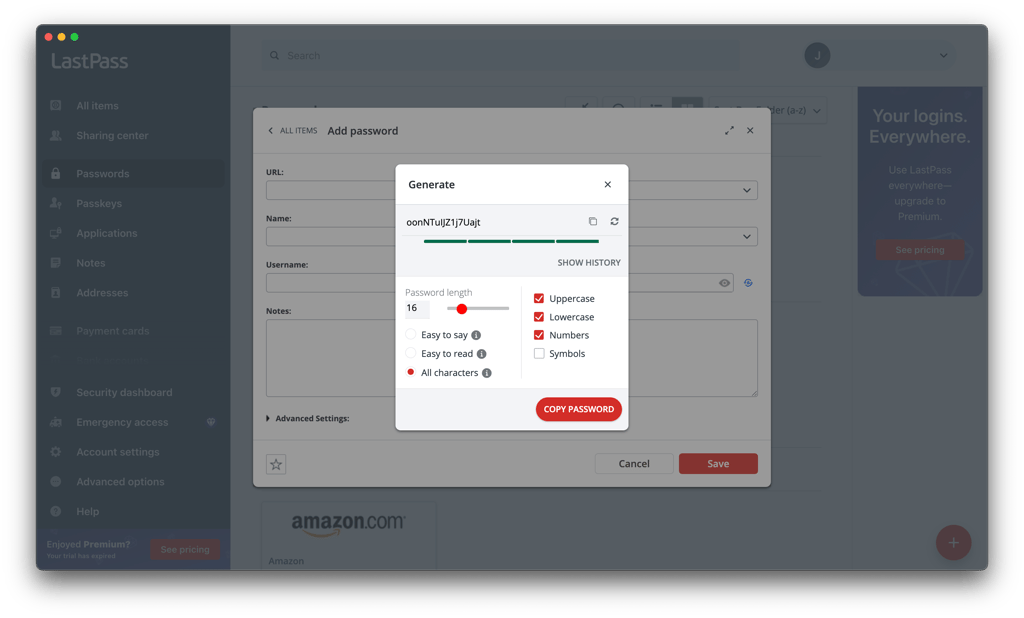
LastPass’ password generator lets you customize things like length, types of characters, and more. You can even adjust the setting to generate only easy-to-say or read passwords.
Similarly, KeePass’ password generator also allows for plenty of customizations. Apart from length, it lets you include/exclude things like upper cases, numbers, underlines, spaces, and special symbols. Alternatively, you can also generate passwords based on patterns or custom algorithms.
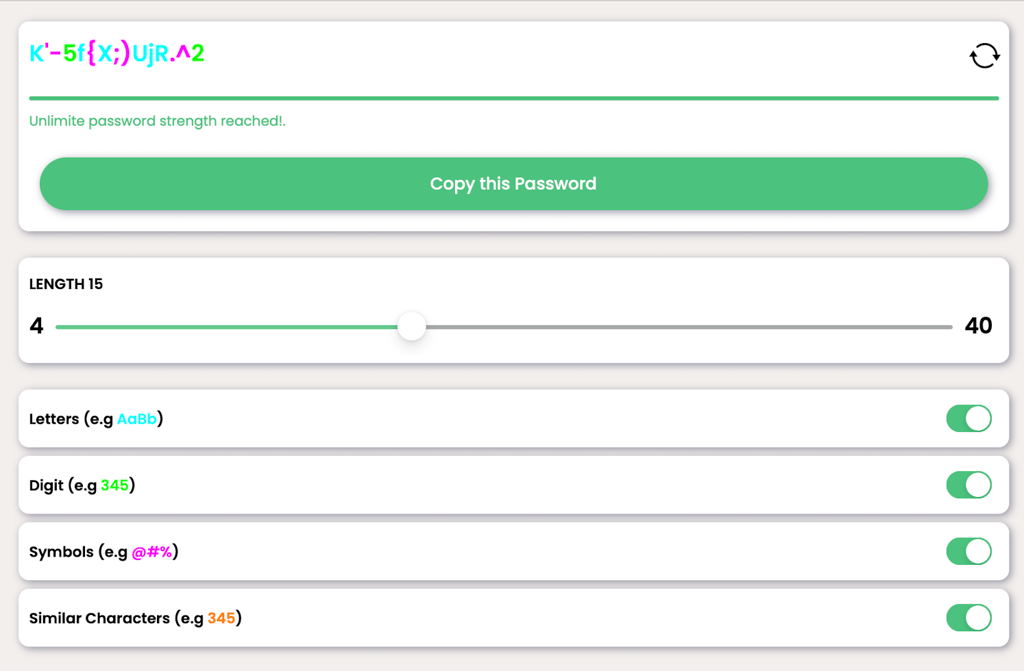
All in all, both password generators will have absolutely no trouble creating strong unique passwords for a more secure login experience. It’s only fair to call a draw to the KeePass vs LastPass match for this round.
Password sharing
LastPass has an easy password-sharing feature in its arsenal. However, the feature comes with some strings attached. For starters, it’s not available to those on its Free and Premium plans, which is a shame.
Meanwhile, those on its Family plan can share passwords among 6 users. Business plans, on the other hand, allow unlimited users, while the Teams plan has the number of users capped at 50.
In glaring contrast, KeePass doesn’t offer any password-sharing feature or tool. Instead, the only band-aid solution here is to set up a shared database and share the master password among the relevant users. Secure, convenient, and easy – it’s none of these things, but it’s your best workaround.
All in all, LastPass comes out ahead. While its password-sharing feature isn’t perfect, it’s still a whole lot better than KeePass’ total lack of secure password-sharing options. If you’re seeking to find the best password manager for your entire household, make sure to check our list of the best password managers for families.
Autofill
LastPass’ autofill feature saves your login credentials and automatically fills them in during logins to speed up the process. It does the same for payment details, personal details, and more.
Plus, very wisely, LastPass also lets you disable the feature for certain sites. This comes in incredibly handy when you’re up against suspicious sites or those that pose a security risk.
As for KeePass, it doesn’t have an auto-fill feature but offers an alternative in the form of auto-type. To initiate the feature, you’ll need to position your cursor precisely and then press the hotkey.
While the entire process isn’t exactly complicated, it’s also not exactly convenient or quick. And perhaps this is precisely why KeePass users have created plugins for auto-fill.
To sum up, LastPass has the advantage here with its significantly more intuitive, user-friendly, and flexible autofill feature.
KeePass vs LastPass: platforms, interface, and ease of use
Both KeePass and LastPass are compatible with all the mainstream operating systems, but LastPass has the upper hand in this round of KeePass vs LastPass. LastPass offers extensions for all major browsers, while KeePass doesn’t have official browser extensions. Plus, LastPass’ mobile apps are highly functional, while KeePass lacks official mobile apps.
| LastPass | KeePass | |
| Supported OS | Windows, macOS, Linux, Android, iOS | Windowsl, Linux and macOS via Mono, with third-party Android and iOS apps |
| Browser extension | Chrome, Safari, Firefox, Opera, Edge | Plugins only |
| Number of users | Up to 6 | Multiple users |
On top of that, LastPass is far more user-friendly thanks to its modern platforms. On the flip side, KeePass’ utilitarian interfaces mean that it’s rather technical and could be difficult to navigate for those who are less tech-savvy.
Desktop apps
LastPass has a clear advantage when it comes to desktop use because it provides official apps, while KeePass requires a more technical setup outside Windows.
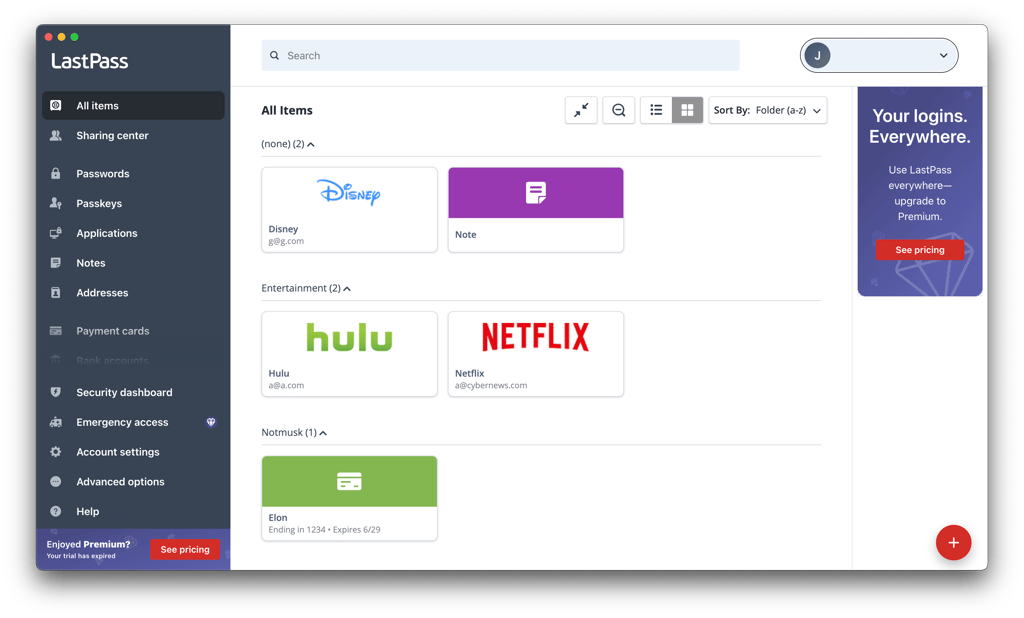
LastPass provides dedicated desktop apps for Windows and macOS. Its macOS desktop app left beta in March 2026, while the redesigned Windows desktop app replaced the older version earlier in the year. In my experience, setup is simple and the interface is clean and easy to navigate.
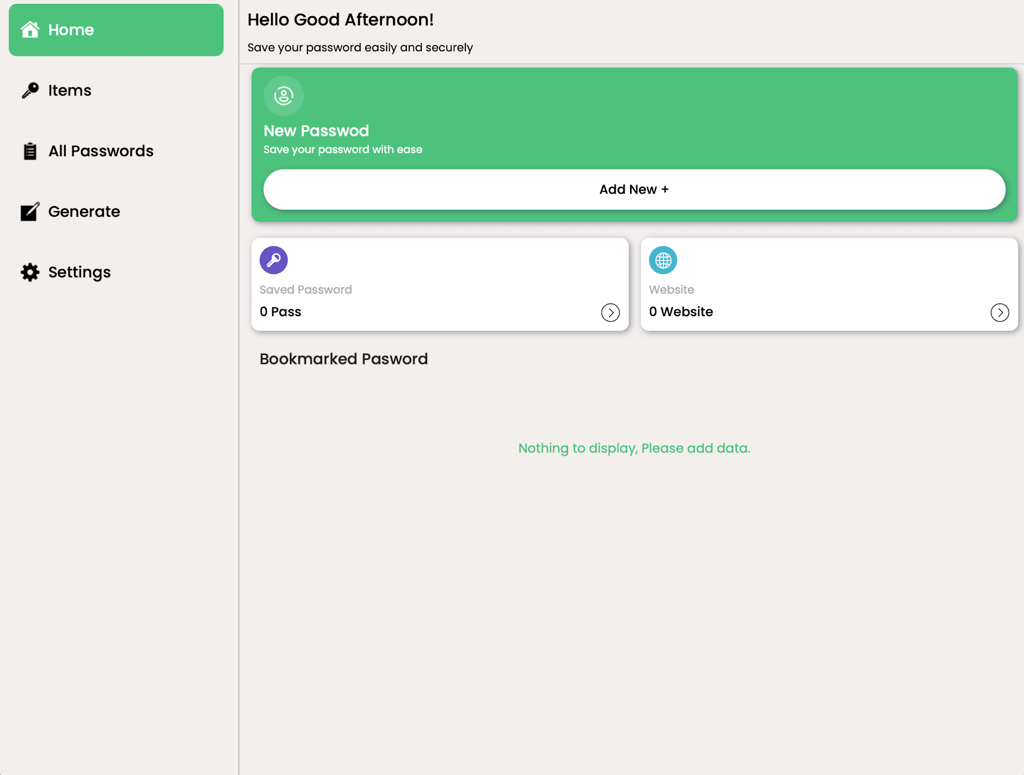
KeePass’ desktop apps, on the other hand, are anything but modern. There’s a menu with all the tools and features, but less tech-savvy users will have a hard time navigating the maze. However, on the other side of the coin, technophiles might find the functional and no-frills layout appealing.
Browser extensions
LastPass’ browser extensions are supported on all the usual names: Chrome, Safari, Firefox, Opera, and Edge. To install, you just need to follow the onscreen instructions and click when prompted.
As for functionality, it isn’t that much different from the other extensions in the market. That is to say, its functionalities are tied to its web app, and you only get core features like autofill, autosave, and password generator.
However, that’s still far better than KeePass, which doesn’t have any official browser extensions. Instead, the closest thing you get here is a bunch of community-created plugins determined to fill the gap. Just bear in mind that you’ll need to be more cautious if you do opt for a third-party plugin.
In brief, it’s clear that LastPass leads this round of KeePass vs LastPass. After all, limited functionalities always trump none.
Mobile apps
Whether you opt for KeePass or LastPass, you can expect an easy mobile app setup. All you need to do is download the chosen app from either the App Store for iOS or the Google Play Store for Android.
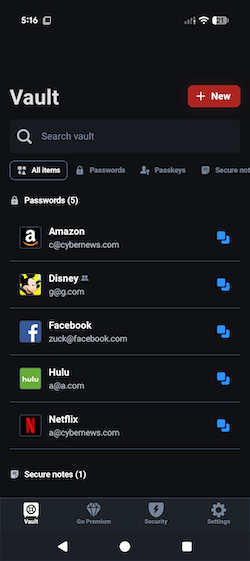
With LastPass, you get very sophisticated mobile apps. Regardless of iOS or Android, LastPass’ mobile apps come with full-fledged features. In fact, you also get some mobile-exclusive items like autofill in apps and a split-screen feature for iPads.
In comparison, KeePass doesn’t have official mobile apps for both Android and iOS. And, just like its browser extensions, KeePass’ user community has to step up to plug the gap.
In the App Store and Play Store, you’ll find a number of apps created by the community. For instance, KeePassDroid, KeePassMob, KeePassium, and MiniKeePass. However, since they’re community-created, you’ll see a vast difference in terms of quality, functionality, and user-friendliness. It falls on you to research and install the best one to suit your needs.
LastPass vs KeePass: customer support
LastPass offers considerably more direct support than KeePass. Both provide self-help resources, but KeePass doesn’t have a dedicated customer support team.
For LastPass, your first stop for help is its Support page. This is home to scores of articles on everything from getting started to FAQs to troubleshooting methods. Each article is detailed, well-written, and very clear. Paid LastPass users also get personal customer support, including email assistance, while some business plans even provide additional 24/7 phone support.
As for KeePass, it doesn’t offer any agent support. Official assistance channels are limited to its FAQ and help center. Otherwise, you could also hit the local KeePass Wiki or the user forum for help.
To sum up, LastPass customer support could be enhanced with more accessible and available channels. That said, it’s still miles ahead of KeePass, which offers zero agent assistance.
Final verdict
LastPass is a better password manager than KeePass. While they go almost neck-and-neck in terms of security, LastPass has richer features, more plan options, and greater user-friendliness. Even though it's not completely free like KeePass, LastPass’ price tags are very reasonable for what you get in return.
Meanwhile, KeePass might make sense if you’re fairly tech-savvy and looking for strong encryption as well as customizable features without spending a single penny.
That said, while LastPass is a significantly better option that KeePass, you should still check the best LastPass alternatives to find an even more suitable password manager for your needs.
FAQ
Is LastPass better than KeePass?
Yes, LastPass is better than KeePass. LastPass offers considerably more features, assorted plans to suit all users and significantly better usability.
Which is better for mobile: LastPass or KeePass?
LastPass is a better password manager for mobile. LastPass’ mobile apps come with a full spectrum of features and a number of mobile-exclusive additions. In contrast, KeePass doesn’t have official mobile apps for both Android and iOS.
Can LastPass import from KeePass?
Yes, LastPass allows import from KeePass, and that’s not all. LastPass also supports import from other password managers as well as web browsers and CSV files.