Squarespace review 2026: honest 5-year test (is it still worth it?)
Our team of experts and researchers rigorously test and evaluate website builders through transparent, in-depth testing procedures and methods using both in-house and industry-approved tools.
Drawing on cybersecurity insights, we provide unbiased, empirical rankings and analysis to help users make informed digital platform choices.
Learn more

I watched Squarespace evolve from a stylish but sometimes clunky builder into one of the most polished website platforms available today. Over the years, I’ve built everything from simple portfolios to small business sites on it, and I’ve seen firsthand how much smoother the whole process has become.
After 5 years of daily use, I tested whether Squarespace is still worth its hype in 2026. I compare it to other big players, such as Wix, Hostinger, and WordPress, and share my latest hands-on experience. In this Squarespace review 2026, I cover templates and design, the AI-assisted tools, pricing tradeoffs, and consider cheaper or more flexible alternatives.
Squarespace review 2026: verdict
Squarespace is a well-known website builder in 2026. It is modern and easy to use for beginners, but it carries a hefty price tag and can be rather inflexible. Still, it is one of the best website builders today – and certainly a great one for small businesses and portfolio sites.
| ⭐ Rating: | |
| 🥇 Overall rank: | #8 out of #37 |
| 💵 Price: | From $16.00/month |
| 🪄 Ease of use: | Perfect for beginners |
| 🎨 Templates: | 199 |
| 🏢 Business features: | Solid in-house eCommerce and marketing |
| 👨💻 24/7 live support: | Yes |
| 🔥 Coupons: | Squarespace coupon 36% OFF |




Our in-house research team and expert writers work hand in hand to regularly test website builders and provide accurate and fact-checked information. Discover the ins and outs of how we test and evaluate website builders.
Squarespace pros and cons
Is Squarespace easy to use?
Since I first started using Squarespace in 2020, the platform has evolved into one of the best website builders on the market. Setup used to be rough, but now I just pick a template, name my site, choose a category, and I’m building in minutes.
Below, I review in detail my experience with Squarespace – from getting started with the builder to publishing a site. I review the editor, the templates Squarespace offers, as well as its marketing features. Read on to find out if Squarespace lives up to its name.
Getting started with Squarespace
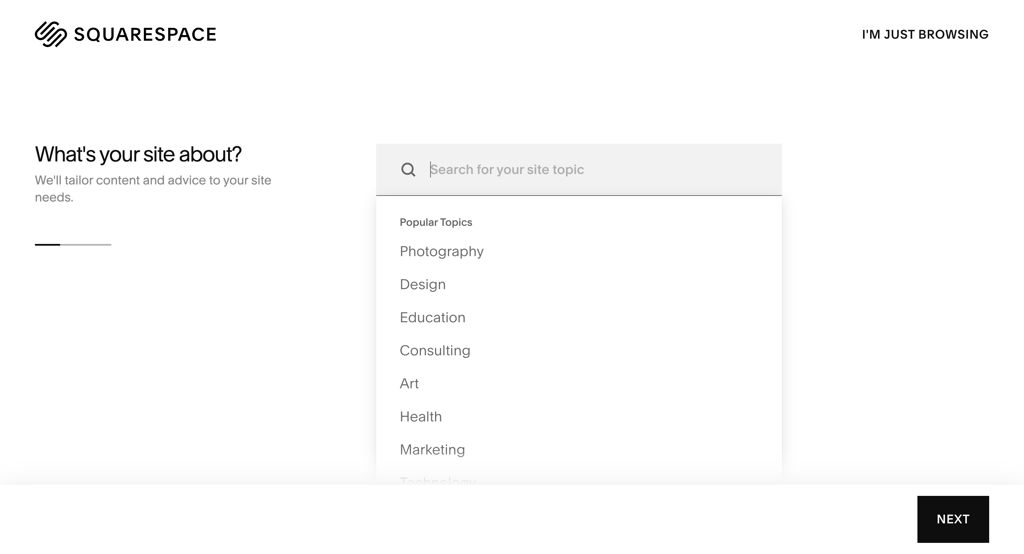
Starting with Squarespace is very easy. The builder asked me to choose my site type, and then I could either go forward with an AI builder or choose a template. I went both ways to see which one I liked more.
The options for the site type were okay. Since I wanted to build a fansite, I felt a bit restricted – it’s neither a portfolio, nor a personal blog, nor an online store. However, I liked that there was an option also for community sites or nonprofits, which is what I chose.
Plus, Squarespace also asks to indicate what the main purpose of the site will be – I think that’s to narrow down the templates it offers in the next steps.
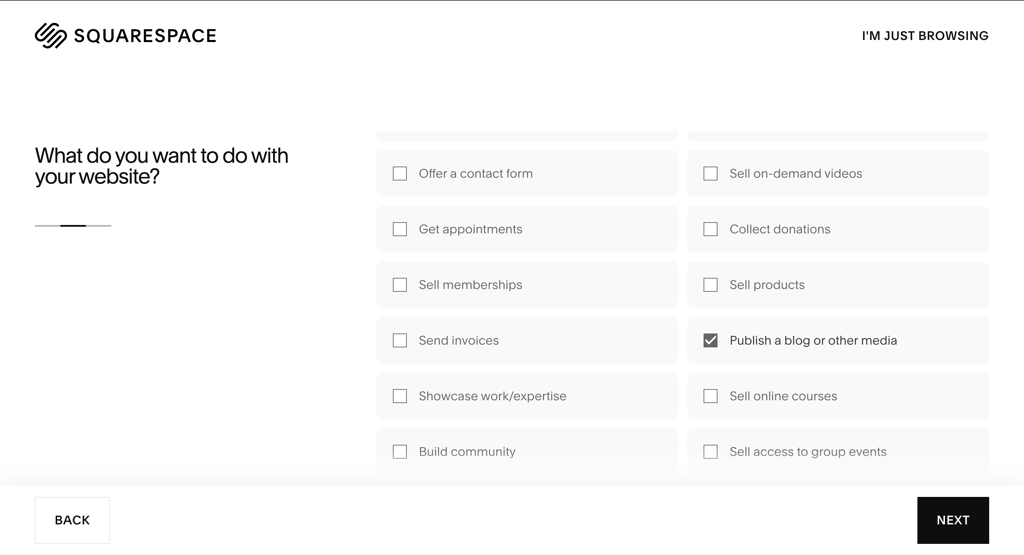
Squarespace offers over 199 designer-made templates to choose from, which are grouped into various categories to make selection easier, such as a blog, portfolio, membership, or donations sites. It’s not very varied at first glance, but all categories include well-made templates. Plus, you always have the option to customize your site however you want later.
I feel like Squarespace seeks to cater to a very specific audience, like small business owners, while other website builders are more friendly towards anyone who wants a website of their own. Wix, by comparison, offers many more free templates – over 2700 – for all kinds of sites.
I discuss Squarespace templates in more depth in this section below. Jump over there for a more detailed review.
Using Squarespace’s Blueprint AI to build a website
I went over and tried the Squarespace site using Blueprint AI. The setup began with a few short questions about my business type, goals, and the overall mood I wanted for the site.
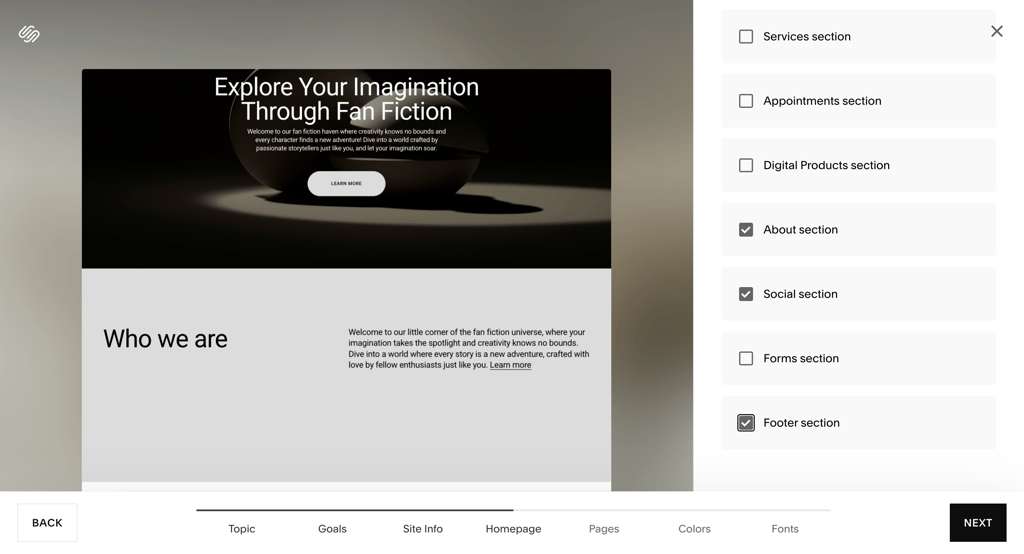
Within minutes, Blueprint AI suggested a homepage, an about section, and even a contact page structure. I liked that I could choose from several options and check off the sections that I wanted included. It didn’t feel complicated, just a few guided steps that made sense.It proposed a few other pages, like a homepage and contact page, along with color palettes, font pairings, and even some draft text and image ideas. Once I finished, Blueprint AI automatically built a layout for me. The preview changed instantly whenever I switched styles, making it easy to test different looks without having to start over.
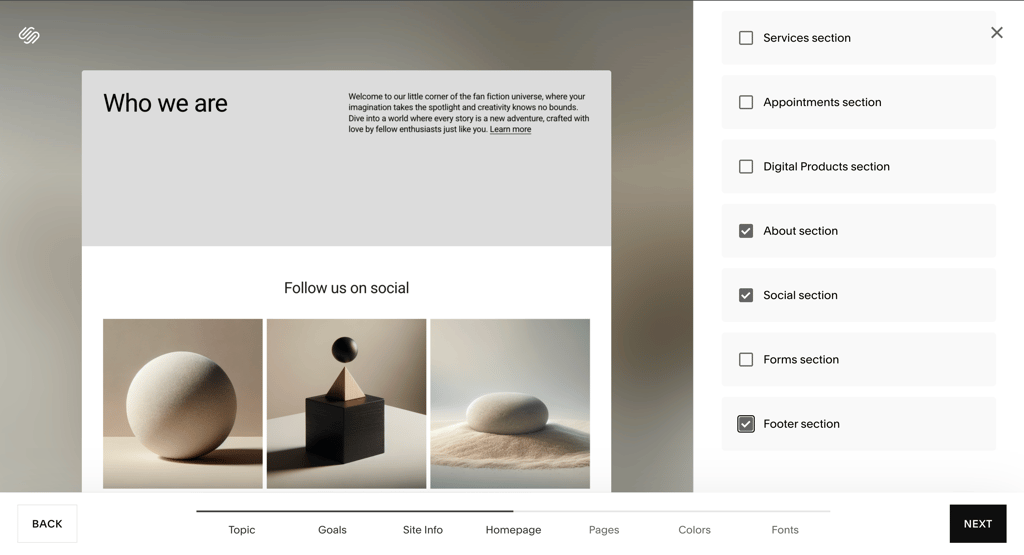
The final site version was nice to look at, and the AI builder even generated some intro text. However, I felt that even with the final product, I would have to do a lot more editing – the background pictures were not what I had in mind, and some of the elements didn’t suit the site I was going for. Nevertheless, if I needed to publish a site quickly, Squarespace’s Blueprint AI is great for the job.
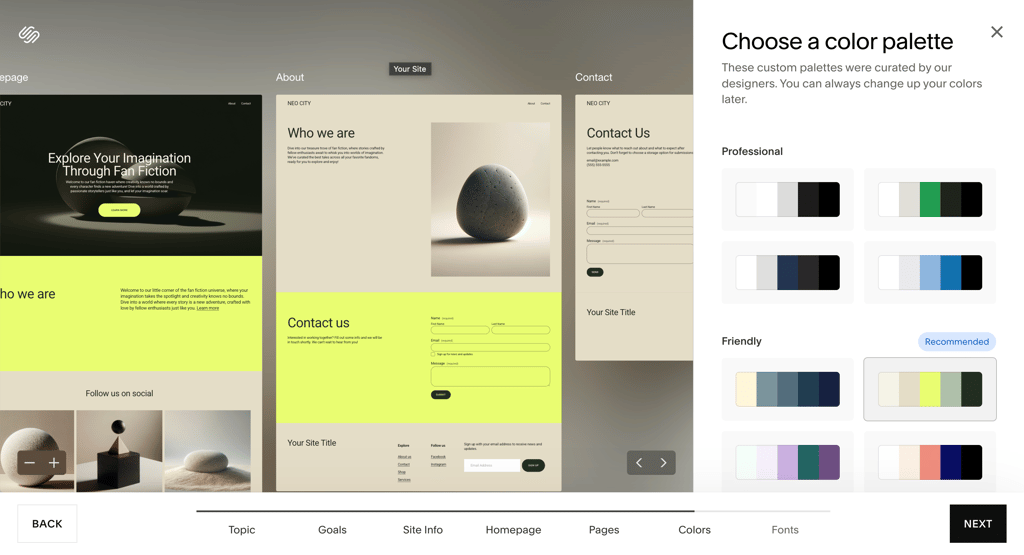
Overall, compared to Wix, Squarespace’s AI features are a bit more hidden but feel cleaner once you find them. Hostinger’s AI builder feels similar in how it guides you, though Squarespace’s output looks more like something a designer would make. The results weren’t wildly different from Squarespace’s usual style, so for a quick, smooth setup, Blueprint AI really made the process straightforward.
Squarespace site editor – simple and straightforward
Editing my Squarespace site was easy because all the tools I needed were located in a side panel next to the live preview, allowing me to see changes instantly.
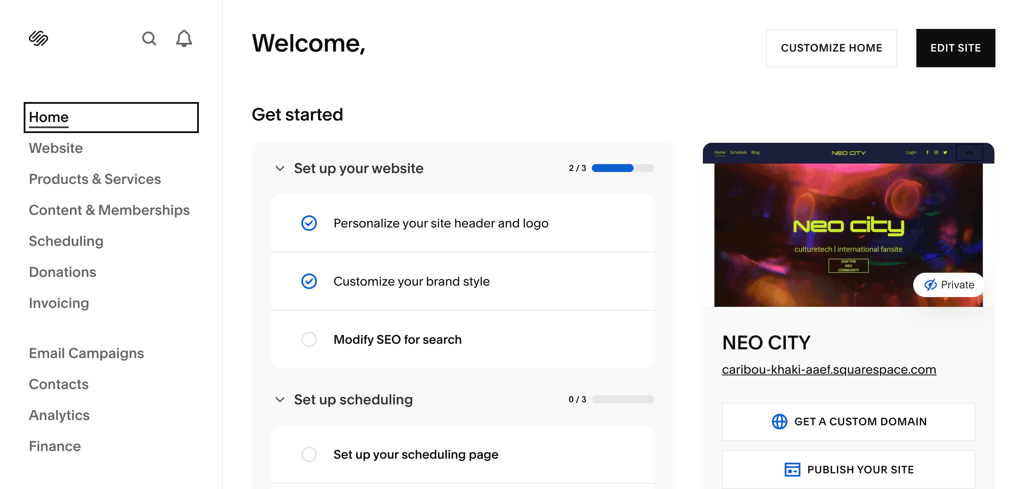
The panel lists things I use most often in clear sections: the home page where I can manage my site, SEO, and domains. The website section includes all things related to editing. In the Products & Services page, I found all I might need to sell my services, including product, order, and discount management, and other selling tools. Other sections include scheduling, analytics, email campaigns, and more.
Squarespace splits design controls into global settings that affect the whole site and page-level editing that lets me tweak individual pages. For global design, Squarespace has a helpful Site Styles editing option. It lets me change buttons, fonts, colors, animations, and more in one place, which makes it quick to keep a consistent look across the site.
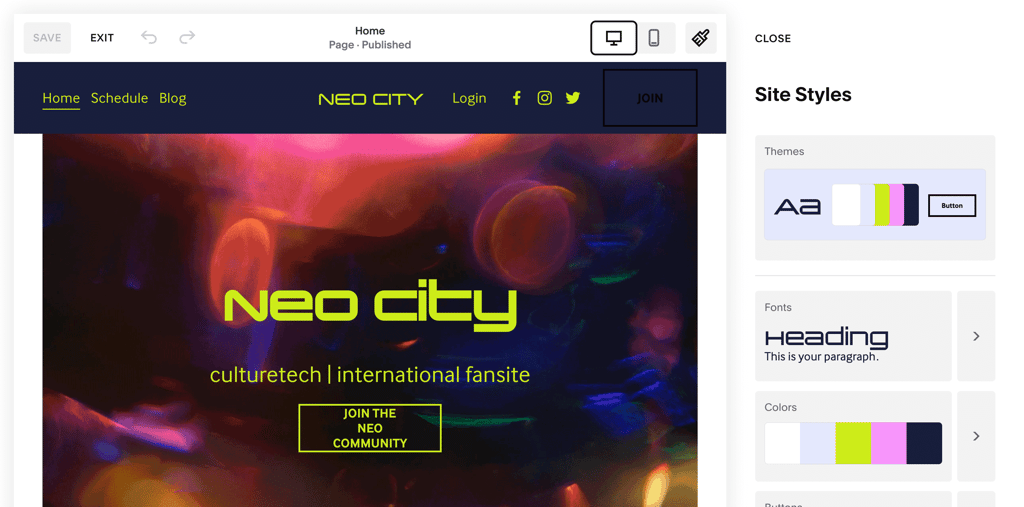
The editor goes fairly deep, since I could set font families and sizes for headings, body text, and buttons, adjust spacing and letter spacing, and pick from preset color palettes or build my own palette right on the spot. This is not a unique feature, as our top providers Wix and Hostinger also allow global website customization. But I can say that with Squarespace it’s pretty simple and straightforward if you’re a total beginner.
Squarespace gives a set of demo pages and sections I can start from, and I can replace, remove, or customize them.
The editor is built around sections and blocks, similar to other builders I’ve used, so if you have experience with Wix or Hostinger, the workflow will feel familiar.
Squarespace lets me drag and drop within a defined grid. I found the strict grid helpful in keeping layouts tidy, but if you prefer more freedom for your creativity, Hostinger or Wix would definitely be a better choice.
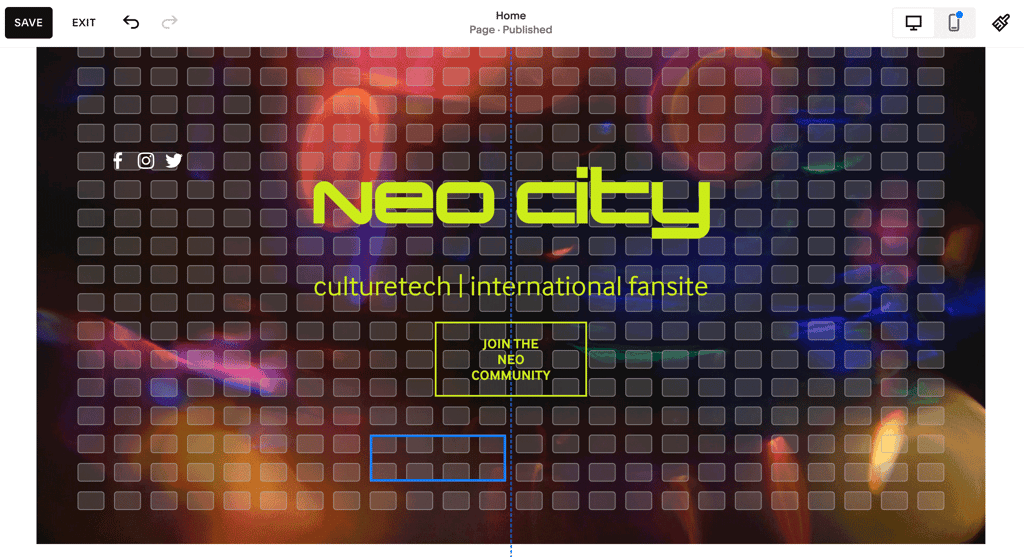
Additionally, the Squarespace grid helps with mobile because layouts adapt predictably. The editor includes a Mobile View toggle so I can preview how pages will look on phones.
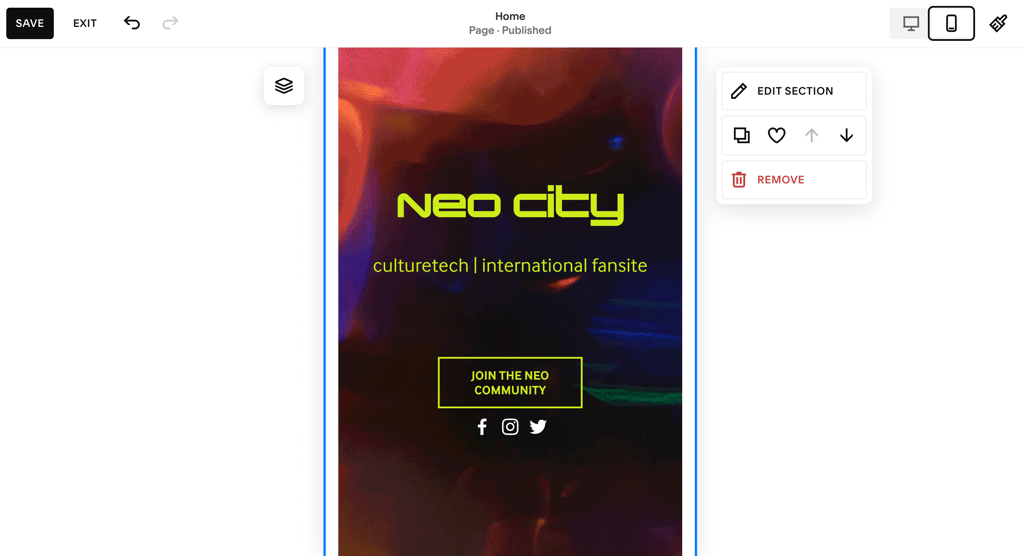
Changes I make on the desktop are reflected in the mobile layout, which keeps things consistent and reduces the number of separate adjustments I have to make.
If you're an experienced designer, both this and the grid building system won't be your favorite. It's simple to use, but quite limiting – whether that's something you look for, is up for you. In case you're looking for something more flexible with similar functionality – see our list of best drag-and-drop builders.
Squarespace templates
Squarespace offers over 199 templates at the time of writing, split up into many different categories including Photography, Local Business, Weddings, Entertainment, and more. All of these templates are completely free to use and edit as you like, no matter which plan you choose.
- How many templates? Squarespace offers over 199 crafted templates divided into 19 categories.
- How do they look? Each theme has its own niche, but none look out of place – this isn’t a website builder offering five great themes and 500 awful ones.
- How much do they cost? Whether you choose the entry-level or top-end plan, you’ll have access to all 199 templates at no extra cost.
I came to love how Squarespace’s templates look and feel. The themes are modern, fresh, and contemporary, following a fully responsive design.
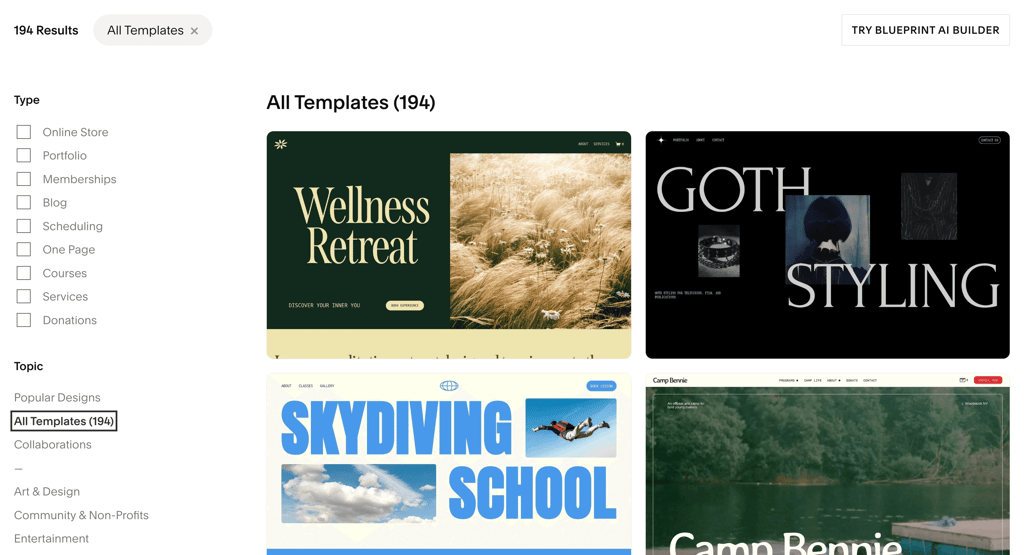
Sometimes templates across different niches look similar, which can feel a bit repetitive. However, there are templates that stray away from the beige-and-minimalist design. You will see bold colors and clunky fonts, too. I enjoyed that there’s a lot of variety, even though it doesn’t seem that way at first glance.
I find the way Squarespace categorizes its templates really handy because each design fits perfectly with its category – nothing feels out of place. In the Media and Podcasts section, for example, there are 9 templates, and every one of them suits its niche very well. No matter what my podcast or livestream show is about – nature or technology – I will find something that suits my topics perfectly.
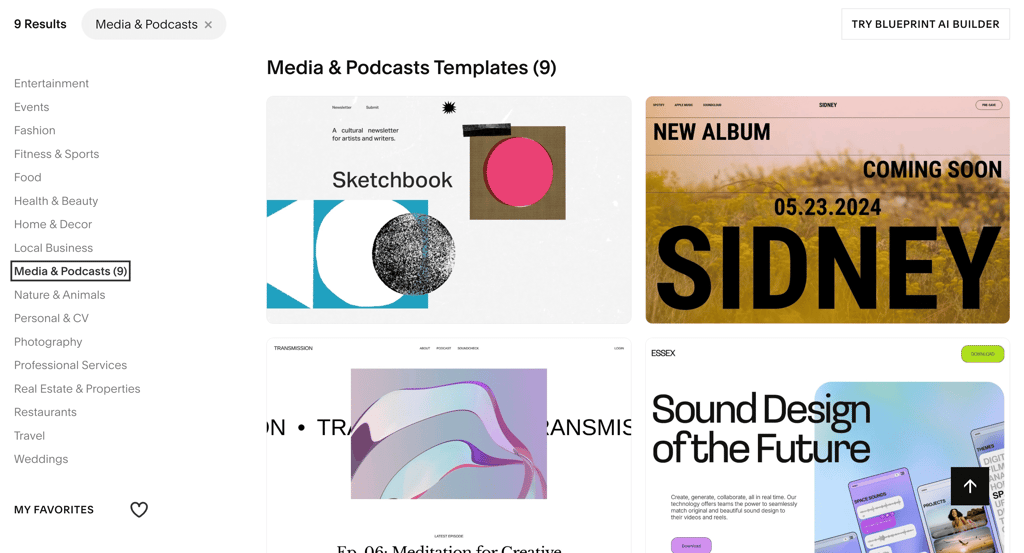
And it’s nice that I don’t have to worry about the website becoming all too similar to other Squarespace users. Since all templates are editable and can be customized further with fonts, pictures, and color schemes, it’s easy to make each one match your unique vision.
Squarespace business features
Squarespace offers a wide variety of business features. eCommerce is especially strong, and it's pretty much the only spot where Squarespace accepts help from third-party integrations. Everywhere else, it uses its own built-in options. They're pretty good, but I found them slightly limiting: either hidden behind a paywall or made to be as simple as possible
Selling online
The dashboard I used for editing my site has a menu for selling, called Products & Services. Squarespace is already optimized for eCommerce, and you can choose what you want to sell physical or downloadable products, services, or gift cards. For selling memberships or content, there’s a separate section.
After clicking add product and filling in the details, I could manage orders, set up discounts, and customize selling tools like customer notifications and product status.
The choices aren't too complex, so it’s easy to navigate. You get the main tools, and it's pretty straightforward. If you need more advanced options, there are some third-party Squarespace commerce tools available, although most of them require payment.
Analytics
On the analytics page, you can check your traffic, engagement, and sales stats. By connecting with Google Analytics, you get even more features, like related keywords.
There's also something called a Purchase Funnel, which shows how customers bought your product: which pages they visited and how long they spent on each page. I really liked this tool because others, even with Google Analytics, can be confusing, especially for beginners.
SEO options
For optimization, Squarespace now has a space for both SEO and AI optimization. This section is accessible through the Website menu. The page is relatively simple, and Squarespace includes a handy checklist on what needs to be done to raise your SEO score. For example, it instructed me to add meta tags and titles to my pages.
A handy addition is the option to use AI for SEO optimization. The AI generates meta titles, tags, and descriptions. I could edit the generated text as well.
However, what is a bit disappointing is that for more advanced technical SEO management, I needed to use third-party tools.
Squarespace pricing
Squarespace's premium options are a bit more expensive than other site builders of similar capabilities. Prices range from $16.00 to $99.00 per month when paid annually, which is a fairly decent price compared to other options on the market.
What's also great is that you can use the Squarespace coupon code CNSQUARESPACE10 to save money and launch your site with a discount.
For comparison, Wix starts at $17.00/month, so the two are fairly similar. However, there are many similar but cheaper options available, such as Hostinger, which starts at around $2.69/month.
With Squarespace, you can choose between four options:
| Plan | Features | Price |
| Basic | Simple option for basic personal websites: Get up to 36% OFF Squarespace | $16.00/month |
| Core | HTML/CSS code optimization, advanced analytics, and basic eCommerce | $23.00/month |
| Plus | eCommerce with no transaction fees for easy selling | $39.00/month |
| Advanced | All-included eCommerce with selling subscriptions and advanced shipping for serious businesses | $99.00/month |
The prices displayed are only valid when paying for an annual plan. If you wish to pay monthly, the costs increase significantly.
Squarespace doesn’t offer a free plan — unlike Wix, which does. However, Wix’s free plan doesn’t allow you to connect a custom domain, so your website will display a Wix-branded URL. Instead of a permanent free plan, Squarespace offers a 14-day free trial that lets you explore all premium features without needing a credit card.
Squarespace also offers a 14-day money-back guarantee on annual plans purchased directly through its website. If you cancel within that period, you’ll receive a full refund. However, monthly subscriptions are non-refundable. In contrast, Hostinger’s web builder provides a 30-day full refund policy, covering both monthly and annual payments.
Squarespace offers a variety of plans, and we’ve created a simple guide to help you understand them: Squarespace pricing: everything you should know. It covers plan options and costs, renewals, discounts, domain and email pricing, refund details, and payment methods, so you can quickly find the best fit for your website.
Customer support
Squarespace offers all the standard customer support avenues, such as live chat, email, and an extensive help center filled with guides. I’ve no complaints about the help center since it has more than enough information to troubleshoot most issues yourself. It includes written guides, videos, webinars, and a community forum if you want to discuss something with fellow Squarespace users.

However, the issues began when I tested the provider’s live chat capabilities. In one instance, I had to wait around 40 minutes to connect to an agent, which is downright unacceptable. This extended wait time could be attributed to high workloads during peak hours. As such, I doubt that these wait times are a common occurrence, but it shows that Squarespace’s customer support isn’t particularly quick to respond.
Video review
Prefer watching instead of reading? Check out our Squarespace review video below, where we break down key features, pricing, and overall value.
Squarespace review: final verdict
Squarespace is a comprehensive and beginner-friendly web builder that allows you to create an attractive and functional website with minimal effort. Its wide range of plans makes it suitable for small personal projects, content-heavy blogs, and eCommerce powerhouses.
| Feature | Rating | Review |
| Pricing | Squarespace is a relatively expensive provider, with plans starting at $16.00/month. There are other site builders with similar functionalities and more features that cost less, such as Wix or Hostinger Website Builder. | |
| Ease of use | Squarespace is incredibly easy to use. The website editor is easy to navigate and especially suitable for beginners. The Blueprint AI builder produces good results, but further edits are still needed for the best outcome. | |
| Templates | Squarespace offers 194 beautifully designed templates for all kinds of websites. They are both minimalistic and bold. However, it seems the templates are mostly geared towards small business owners. | |
| eCommerce, SEO, analytics | Squarespace offers good eCommerce options: you can manage your online store right from the site dashboard. The analytics options are great. However SEO requires third-party tools for more advanced optimizations. | |
| Support | Squarespace offers plenty of great tutorials and guides you through the website building and editing. However, the live chat option takes a long time, and is not the most efficient if you have urgent issues. |
Overall, I recommend Squarespace to newcomers to web building who want to create an aesthetic and functional website that’s easy to manage. It might feel limiting at times, but that’s because the service does all the hard work under the hood, so you won’t have to.
Overall, I recommend Squarespace to newcomers to web building who want to create an aesthetic and functional website that’s easy to manage. It might feel limiting at times, but that’s because the service does all the hard work under the hood, so you won’t have to.
And if you try Squarespace and realize it’s not quite the right fit, you can check out some great Squarespace alternatives to find a builder that better matches your preferences or budget.
FAQ
Do professionals use Squarespace?
Yes, Squarespace is a top choice for professionals and small businesses alike. Even if you're not a coder, you can easily build a website using Squarespace.
Is Squarespace easy for beginners?
Yes, Squarespace is easy for beginners. It’s user-friendly, and I've never had any trouble building different types of websites with it, from creative portfolios to online stores. Squarespace is a great tool to start for anyone anxious about tech stuff.
Is Squarespace.com reputable?
Yes, Squarespace is a reliable and safe choice for various users, whether you're crafting a creative portfolio or launching an online store. If you're new to building websites, I highly recommend Squarespace for its easy-to-use interface and straightforward setup process.
Can I add code to Squarespace?
You can edit CSS, HTML, and JavaScript on your WordPress site. Embed blocks, CSS editor, and basic code blocks are available on all plans, while the more advanced options require the Core plan or higher.