VPN keeps disconnecting: 8 reasons and fixes
Our in-house cybersecurity experts and journalists, renowned for major reports like The Mother of All Breaches, conduct transparent, unbiased VPN testing and in-depth analysis.
With 750+ articles crafted based on real-world research, we empower readers to make informed purchasing decisions through first-hand expertise.
Learn more

A VPN that keeps disconnecting can be frustrating, especially when you are streaming, downloading, or trying to work securely. Frequent dropouts not only interrupt your activities but can also put your data at risk.
In this article, I explain the 8 most common reasons why your VPN keeps disconnecting and offer practical solutions to help you maintain a stable and secure connection.
Why does your VPN keep disconnecting?
One common reason your VPN keeps disconnecting is that you’ve exceeded the allowed number of simultaneous device connections. An easy solution is to set up a VPN on your router, which protects all connected devices through a single connection. Follow our guide on how to install a VPN on a router to get started, or consider switching to a provider that offers unlimited connections.
Of course, hitting the device limit is just one possible reason. In the table below, you’ll find the full list of common VPN disconnection issues and the best ways to fix them.
| Problem | Solution |
| Reaching device limit | Add VPN to your router to cover all your devices |
| Network connection issues | Switch networks (e.g., from Wi-Fi to mobile) or restart your router |
| Other software interferences | Add your VPN connection to a list of permitted software to prevent the firewall from blocking it |
| High connection latency | Change your VPN tunneling protocol or server location to get better connection speeds, and lower latency |
| ISP blocking VPN connection | Use a VPN with obfuscated servers |
| Overloaded VPN servers | Change servers or purchase a VPN with a larger server fleet |
| Device's Power setting interference | Turn off battery saving mode |
| VPN software issues | Change your VPN settings, update the software, or contact customer service for additional help |
Reasons why your VPN keeps disconnecting
The reasons why your VPN keeps disconnecting randomly can range from you joining an overcrowded server to device issues.
Keep reading to discover the most common – and trickiest – reasons why your VPN keeps disconnecting and reconnecting unexpectedly.
1. Reaching device limit
One of the most common reasons why your VPN connection keeps disconnecting is that you possibly have reached the device limit allowed by your VPN provider. Most often you get 5-10 simultaneous connections per subscription. If you exceed this number, then your VPN may start randomly disconnecting.
2. Network connection issues
Your VPN may disconnect because of problems with other parts of your internet connection. Weak Wi-Fi, an unstable mobile data signal, or router issues can all lead to frequent dropouts.
When you have a weak and unstable internet connection, the VPN service will continuously try to reconnect to a server, leading to constant disconnection issues.
3. Other software interference
Some other software on your device can also cause constant VPN disconnects. Often, antivirus or the firewall installed on the same device as the VPN can cause issues.
Firewalls can be configured to block specific IP ranges, restrict the ports used by your VPN, or even interfere with tunneling protocols like OpenVPN or IPsec. This can result in unstable connections and frequent VPN disconnects.
4. High connection latency
Slow connection speed is often the reason for VPN disconnecting. Every ten seconds, a message is sent from your device to the VPN server to maintain a stable and continuous connection. There is a limit of 120 seconds for the server to respond, and if it exceeds it, the VPN tunnel closes, and your client disconnects, which means that the connection to your VPN will be dropped.
5. VPN connection blocked by ISP
If you’re in a country with strict laws and regulations on VPN usage or government surveillance, like China or Iraq, you can often encounter VPN disconnects.
Your ISP (internet service provider) can detect you using a VPN and block your connection. Unless you have a VPN with an obfuscation feature, like our top-rated NordVPN, which makes your VPN connection seem like regular HTTP traffic, your VPN tunnel can be recognized.
6. Overloaded VPN servers
Your VPN may repeatedly disconnect due to the overcrowded servers. If you’re using a VPN with a smaller server fleet, there’s a higher chance of picking an overcrowded server with other users. Consequently, that would lead to your VPN connection dropping.
On the other hand, if you have a VPN subscription that provides a large server fleet, for example, NordVPN, which offers more than 9,500 servers in 149 countries, this certainly wouldn’t be the reason for constant disconnections.
7. Device’s Power settings
Your VPN typically runs in the background while you browse or stream. However, if your device is set to the power saving mode or, by default, prioritizes saving battery life, then it can interfere with your VPN use. In turn, it will close the VPN application, and you’ll have to deal with the issue of your VPN disconnecting.
8. VPN software issues
Your VPN connection can also crash because your VPN software is outdated. If the app isn’t set to update automatically, then you’re the one who has to keep up with the newest updates constantly.
If you missed an update, you might be using the old software, which may lead to constant drops in your VPN connection.
How to fix a disconnecting VPN
There are plenty of ways to fix the issue of your VPN disconnecting. Some of them are as easy as simply updating your VPN app or changing your VPN provider to a more reliable one.
However, in some cases, you’ll need to take some extra steps to fix your VPN connection issues. I have selected some of the most common solutions for you.
1. Changing VPN settings
There is a chance that by changing your VPN configurations, you might fix some of the connection issues you are facing:
- Change VPN tunneling protocol. If your VPN allows choosing a protocol automatically, select this option. Otherwise, I recommend picking reliable WireGuard or OpenVPN protocols. For mobile devices, the best options would be WireGuard and IKEv2 because they remain stable while switching between networks (Wi-Fi and mobile data).
- Change the VPN server. The server you currently use might have some issues or be overcrowded, so switching the server is the simplest solution. The closer the server is to your actual location, the better speed and connectivity you’ll have.
- Enable the obfuscation feature. This solution is helpful in countries with internet or VPN restrictions to prevent ISPs from blocking your connection.
- Change DNS settings. Most VPNs provide their own DNS servers, but some have the option of custom DNS. Changing it has some chances to positively impact your connection.
- Disable the Trusted Network function. Some VPN providers have a Trusted Network feature that disconnects your VPN connection when using a network that is marked as safe.
- Disable the Multi-Hop feature. This advanced feature tunnels your traffic through two servers, and although it provides more robust security and privacy, it also loses some speed and reliability of the connection.
- Change the encryption level. This might not be possible with all the VPN providers, but downgrading the encryption, for example, from AES-256 to AES-128, improves speed and can help prevent issues with your connectivity.
- Update your VPN app. Check when was the last time your VPN software has been updated, and make sure that you have the newest version installed.
- Contact VPN customer support. If nothing helps, customer support should provide a solution.
2. Fixing network problems
The continuous VPN disconnection can be caused by issues with your network. Here are a few ways to fix whatever causes the problem with your internet connection:
- Restart your router. This can improve your internet connection. Just turn it off for a few minutes and then turn it on again.
- Update your router’s firmware. Although most modern routers update their software automatically, some might need to be updated manually.
- Change the port. Changing your device's port to connect to the internet can improve connection stability. Keep in mind that not all VPN providers let you do this.
- Switch to another network. If you use VPN on your mobile device, try switching between Wi-Fi and mobile data. Or if you're using a laptop, try switching between Wi-Fi and ethernet cable. If connecting to another network helps, contact your ISP for help with the original network issues.
- Check your internet speed. You can use the Ookla speed testing tool to check your connection speeds. If your internet speed is much lower than expected, contact your ISP to check for any issues with your internet connection.
3. Fixing device issues
Lastly, the VPN connection issues may not be due to your VPN or the network. Your device itself may be causing issues and disconnecting your VPN connection. Here’s how to fix that:
- Fix the firewall or antivirus from blocking your VPN. Check your firewall logs to determine whether it’s not blocking your VPN connection, and add your VPN to the list of permitted software if needed.
- Disable battery saving mode. It can disrupt your VPN connection, which this mode sees as not actively used, because it’s usually running in the background. You can find how to disable the battery saver in your device’s settings.
- Remove old VPN apps. If you have multiple VPN apps installed on your device, they can conflict with each other and impact your VPN connection.
- Update your network drivers. VPNs use network drivers called TAP adapters, which enable server connections. If the TAP adapter is outdated, this can cause connection problems. You can update the TAP driver by going to Device Manager > Network adapter, right-clicking on the TAP driver, and selecting Update Driver.
- Update your device’s OS. You should make sure that your operating system is frequently updated. This provides a smoother experience with system processes, including a VPN connection.
- Install a VPN on your router. This option is a last resort if nothing helps fix issues related to your device. Installing a VPN on the router ensures that VPN protection is provided to all your devices connected to the router.
VPN keeps disconnecting: most common issues by device
The reasons why your VPN keeps disconnecting may vary depending on what device you use it on. So, in the previous part, I concentrated on general solutions to fix the issue with the unstable VPN connections; here, I break it down based on the device.
- VPN disconnecting on Windows 10 and Windows 11
- VPN disconnecting on iPhone
- VPN disconnecting on Android
- VPN disconnecting on remote desktop
What to do if VPN keeps disconnecting on Windows 10 and Windows 11
Most of the fixes provided above should work on Windows devices. Some additional solutions suggested by Microsoft:
-
Run the Internet Connection Troubleshooter. Click on Start Button, then select Settings > System > Troubleshoot > Other Troubleshooters. From the list, select Network and Internet > Run.
To Run the Internet Connection Troubleshooter on Windows 11, start by running the automated Network and Internet troubleshooter in the Get Help app. It will automatically run diagnostics and attempt to fix most of the problems.
-
Reset TCP IP. Click the Start button and type CMD. Right-click on the Command Prompt and select Run as administrator. At the command prompt, type or copy-paste this command netsh int ip reset and press Enter. Restart your computer.

-
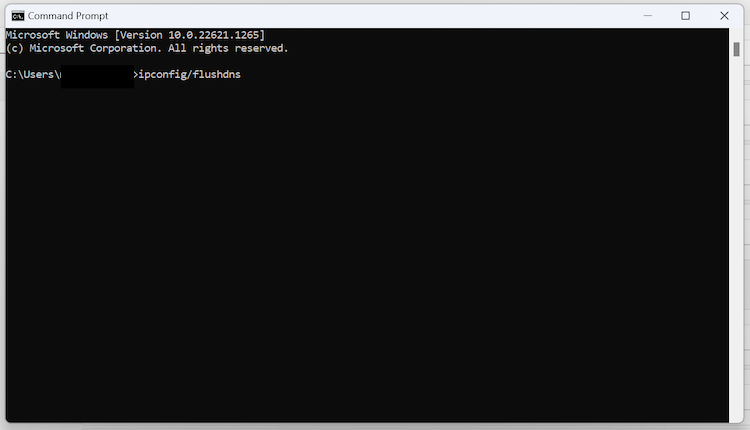
Check DNS settings. Click on Search and type CMD. Right-click on Command Prompt and select Run as administrator. At the command prompt, type or copy-paste this command ipconfig/flushdns and press Enter.

-
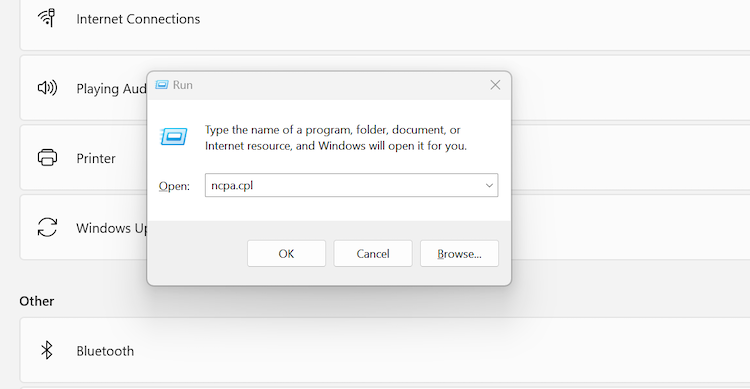
Change the DNS and check if web pages load. Press the Windows logo key + R to open the Run dialog box. Type ncpa.cpl and click OK. Find and right-click on the connection that you are using, and click on Properties. Double-click on Internet Protocol Version 4 (TCP/IPv4). Click on Use the following DNS server addresses and enter 8.8.8.8 and 8.8.4.4.


Why does my iPhone keep disconnecting from VPN: what to do?
Here you’ll find additional solutions to your VPN disconnecting on your iPhone, in case the ones mentioned before didn’t solve the problem:
- Update your OS. Backup your device using iCloud or your computer. Go to Settings > General, then click on Software Update. Tap Install Now.
-
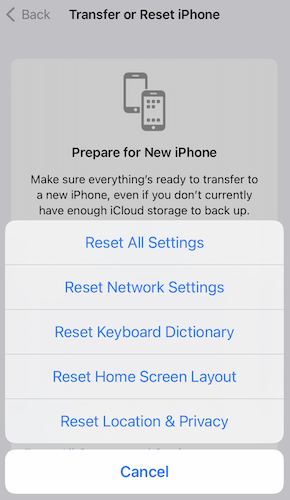
Reset Network settings. Go to Settings > General. Click on Transfer or Reset iPhone, then click on Reset. Select Reset Network Settings and confirm. Restart your device to refresh your internet connection.

-
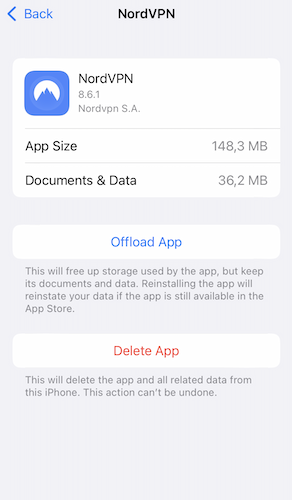
Clear VPN’s cache. Go to Settings > General > iPhone Storage. Find your VPN app and select it. Click Offload App and confirm.

-
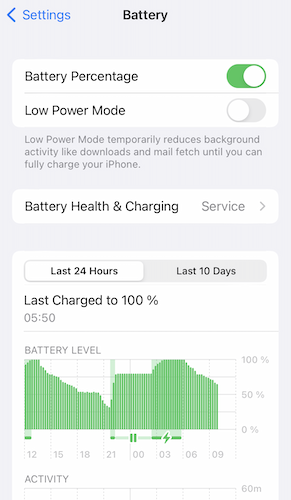
Disable the power saving mode. Go to Settings > Battery. Turn off Low Power Mode. Go back to Settings and select General. Select Background App Refresh and set it to Wi-Fi & Mobile Data.

VPN keeps disconnecting on Android: why and what to do?
If your VPN keeps disconnecting on your Android device, here you’ll find additional solutions to fix the connection issue:
-
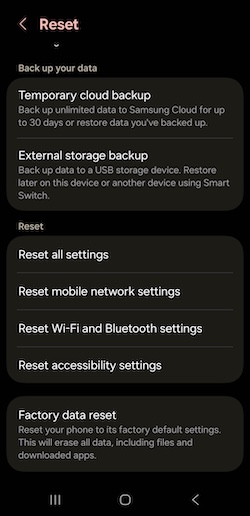
Reset Network settings. Go to Settings > General Management. Click on Reset then Reset Wi-Fi and Bluetooth settings. Restart your device.

- Disable power saving. Go to Settings > Battery. Turn off the power saving mode.
-
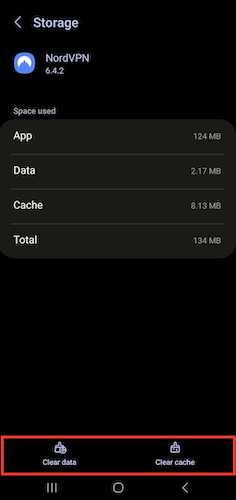
Clear the VPN software’s cache. Go to Settings > Apps > See all apps. Find your VPN and select it. Click Storage > Clear Cache. Test your VPN.

Remote desktop keeps disconnecting over VPN
You might experience your VPN disconnecting whenever you’re connecting through a remote desktop. Check these solutions to improve your connection:
- Install the latest Windows updates. Microsoft addressed recent RDP disconnect issues caused by Windows updates released since January 2025. These were notably fixed with update KB5053656 (March 2025).
-
Disable your VPN’s default gateway. Go to Control Panel > Network & internet > Network and Sharing Center > Change adapter settings. Right-click on your VPN connection and select Properties. Click on the Networking tab, then on Internet Protocol Version 4 (TCP/IPv4), and click Properties. Click Advanced and uncheck Use the default gateway option on the remote network. Repeat the same with the Internet Protocol Version 6 (TCP/IPv6).

-
Check the network connectivity. If the network is unstable, then RDP Connection can frequently drop and keep disconnecting over VPN. Follow these steps: open Settings > Network & internet. You can see the status of your network connection and determine whether your network is accessible.

-
Create an RDP Connection without VPN. You can check if the problem comes from VPN or RDP: go to Settings > Network & internet. Select VPN and then your VPN connection, and click Remove. Search Remote Desktop Connection in the search bar and open it. Enter the IP address and the username, and select Connect.

-
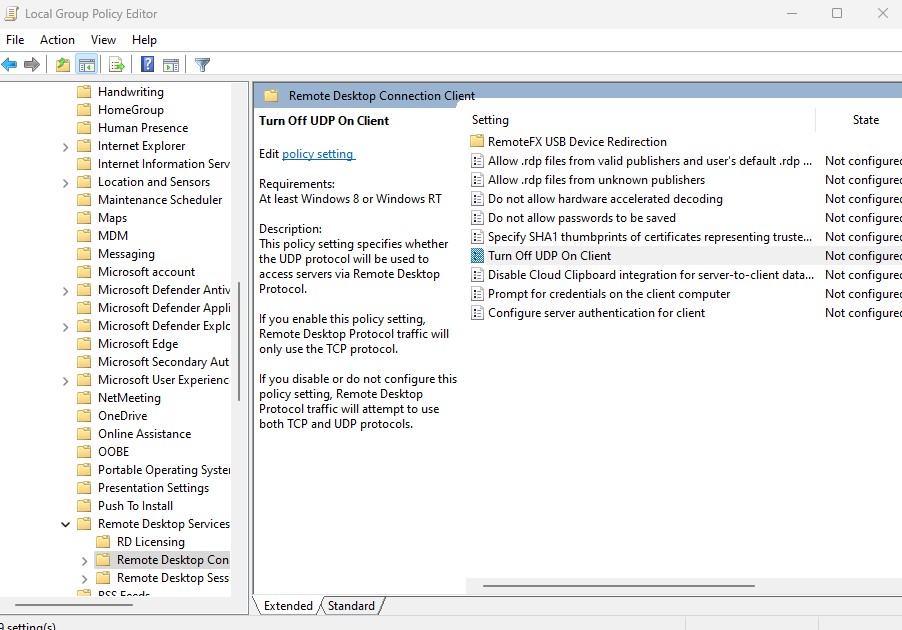
Disable UDP. Press the Windows icon key + R; type gpedit.msc in the Run box, and click OK. Go to Computer Configuration > Administrative Templates > Windows Components > Remote Desktop Services > Remote Desktop Connection Client > Turn Off UDP On Client. Double-click on Turn Off UDP Client, tick Enabled, and then click OK.


Conclusion
If your VPN keeps disconnecting and reconnecting for no apparent reason, there are many ways to address the issue. First, you need to identify the reason for connection interruptions, ranging from overcrowded servers to issues with the VPN software or even your device. Then, you can use one of the solutions in this article to fix the unstable connections.
If the issue lies with your VPN, you will need to adjust the settings of your VPN provider or even upgrade to a more reliable VPN. My top picks are NordVPN and Surfshark.
Otherwise, you’ll have to fix your network settings or device configuration to obtain stable and reliable VPN connections to browse safely and anonymously online.
FAQ
Why does my VPN keep cutting off?
Your VPN can be cutting off for several reasons, starting with overcrowded servers, unstable internet connection, or even because of your device issues. Check our list of all the reasons why you might be experiencing unstable VPN connections.
Why does my VPN keep disconnecting and reconnecting?
The reason may vary for why your VPN keeps disconnecting. It can be because you are connected to an overcrowded server, your VPN software may be outdated, or many other reasons mentioned in this article.
How do I stop VPN from disconnecting?
There are different ways to fix your VPN connection issues, for example, changing your server, tunneling protocol, or even encryption levels. In addition, you might need to tinker with your device settings to fix the issue with the VPN disconnecting. Check out our complete list of ways to fix constant VPN disconnection issues.
How do I stop my VPN from automatically disconnecting?
First, you’ll need to identify why your VPN constantly disconnects; then, you can go through our list of simple ways to fix the unstable connection issue.
How do I stop VPN from turning off on Android?
You can try a few different solutions to fix VPN disconnecting on Android. Start by resetting your network settings or clearing the VPN app’s cache. You can see how exactly to fix the issue in our guide.


