Best password manager for Mozilla Firefox in 2026


Keeping track of passwords across dozens of accounts can quickly become a hassle, especially if you’re using Firefox as your main browser. A good password manager takes that work off your hands, generating strong credentials, storing them securely, and filling them in when you need them.
But not every password manager delivers the same experience in Firefox. Some offer smoother browser integration, while others stand out for their security tools, usability, or extra features. To find the best password manager for Firefox, I tested and compared different options based on their features, ease of use, and Firefox compatibility.
Below, you’ll find my 5 best password managers for Firefox, with a closer look at what each one does well and who it’s best suited for.
Top 5 best Firefox password managers extensions
- NordPass – overall best password manager for Firefox
- 1Password – great password manager for Firefox
- Keeper – best integration with Firefox
- RoboForm – best value-for-money provider
- LastPass – excellent autofill feature
Best password manager vaults for Firefox – our detailed list:
Recycling is for paper and plastic, not passwords. Using individual and complex login credentials can protect your account. But if you're an avid internet user with many accounts, there's a slim chance you can count on your memory to store them. That's why we researched and tested the best password managers for Mozilla Firefox in terms of encryption strength, ease of use, integration with the browser, and overall security features.
If you’re looking to protect your other browsers and devices, check our best password managers in 2026 article.
1. NordPass – the overall best password manager for Firefox

| Extension for Firefox: | Yes |
| Cloud storage: | 3GB (with NordLocker app) |
| Free version: | Yes |
| Current deal: | 🔥Get NordPass, now with 61% OFF🔥 |
The impressive list of features and efficient Mozilla Firefox integration has placed NordPass at the top of this list.
The NordPass Firefox extension covers all the basics in your browser: you can copy and autofill credentials as well as generate strong passwords as you browse.
NordPass is not just a password manager. It encompasses a variety of features you can't simply do without, such as autofill, credit card storage, and password sharing. It makes your life easier with simple imports and password health checks. All of these are incorporated into a sleek and easy-to-use interface.
NordPass puts security at the forefront. It offers a newer and faster encryption model – XChaCha20. For maximum protection, this password manager employs several multi-factor authentication (MFA) methods.
NordPass password manager has a free version (it entails 1 user account, autosave and autofill features, and secure storage), but you can unleash all of its powers for $1.29/month. That includes everything what free version has, plus weak passwords detection, web scanner for data breaches, attaching files to items. If you're not yet convinced that it is worth the money, you can give it a test run with a 30-day-money back guarantee.
Check out our full NordPass review to find out more.
2. 1Password – great password manager for Firefox

| Extension for Firefox: | Yes |
| Cloud storage: | 1-5GB |
| Free version: | 14-day trial |
| Current deal: | 🔥Get 1Password, now up to 25% OFF 🔥 |
1Password is another strong contender for easy access to your login credentials on the Firefox browser. With just one click, 1Password inserts your details and rarely misreads the fields when filling out a form.
Unlike some other password managers, 1Password delivers the most important features in the extension. You’ll be able to save passwords, use autofill, search vaults and generate passwords directly from your browser. Only the additional features are accessed via the app.
1Password protects data with 256-bit AES encryption and 2FA. The vault is also protected with a 34-digit security code stored on your device and nowhere else.
If you're especially worried about weak passwords or duplicates, 1Password's Watchtower feature will find them for you. It also works as a dark web scanner to track leaks on your behalf.
The price of 1Password starts from $2.99/month, billed annually. But if you need more time to commit fully, the provider offers a free 14-day trial with all the premium features for you to test out.
If you want to know more, check out 1Password review.
3. Keeper – best integration with Firefox

| Extension for Firefox: | Yes |
| Cloud storage: | 5GB |
| Free version: | Yes, plus a 30-day trial |
| Current deal: | 🔥Limited-Time offer! Get 50% OFF Keeper Personal and Family plans 🔥 |
Keeper password manager is one of the top picks for Firefox users for its outstanding security and excellent integration.
The first thing to notice is the smooth setup. You can run Keeper directly from the extension without logging into the app first. The extension is capable of autofill, as well as saving and changing credentials. You'll also be able to adjust some settings, but you can only see your full vault from the app.
Keeper keeps the security tight. It uses AES-256 combined with PBKDF2 encryption, which is done locally on the device. The vault is protected with several 2FA methods.
Keeper's UX/UI is just spotless too. The sleek and easy-to-use design is powered with flawless autofill.
You can get the Keeper for $1.79/month and get an unlimited number of licenses, unlimited passwords, web vault access, unlimited mobile device access, and more functionalities. Whether these extras are necessary or not is up to you to investigate. For this reason, Keeper offers a 30-day free trial but without a money-back guarantee. You can also use the Keeper free version, which limits you to 1 mobile device and 10 passwords.
Find out more about its features in Keeper review.
4. RoboForm – best value-for-money provider

| Extension for Firefox: | Yes |
| Cloud storage: | No |
| Free version: | Yes |
| Current deal: | 🔥Get RoboForm, save up to 60%🔥 |
Being one of the oldest providers has its perks – RoboForm is one of the market's most experienced and reputable Firefox password managers.
RoboForm extension has a powerful web app, but there's no need to log into both simultaneously. You can view your credentials directly in the extension. If you click on any of them, you'll be redirected to the website with details pre-filled and ready for login. You can also generate passwords directly in your browser.
Equipped with a variety of features, RoboForm delivers everything you need and more. Among the most notable are unlimited logins, dark web monitoring, secure password sharing, and many others.
The wide variety of features comes with a flawless experience. No bugs, no lags – everything is in order and provided with a clean user interface.
When it comes to safety, RoboForm meets all of the criteria to the letter. If you set a powerful master password, consider your data safe with Roboform's AES256 encryption.
RoboForm comes with a free version that limits the use to only 1 device, although just for $0.99/month, you can unlock all of its benefits – access on unlimited devices, secure shared folders, emergency access, web access, and more functionalities.
Check out RoboForm review to learn more about this provider.
5. LastPass – excellent autofill feature

| Extension for Firefox: | Yes |
| Cloud storage: | 1GB |
| Free version: | Yes, plus a 30-day trial |
| Current deal: | 🔥Get LastPass for just $3.00/month 🔥 |
LastPass delivers good free and premium versions for Firefox users. The best part — all of its main features are right in the extension. So you can save and generate new passwords without downloading the app.
Despite being browser-friendly and free, getting the LastPass app with the premium version is highly recommended. This way, you’ll unlock its best capabilities, like Dark Web monitoring, emergency access, file sharing, and credit card storage, to name a few.
LastPass is a feature-rich provider with a solid free version. However, many of its best capabilities, like Dark Web monitoring, emergency access, and file sharing, are only available in the premium version.
LastPass offers military-grade AES-256-bit encryption to lock its user's vaults. Additionally, users are protected with 2FA, one-time passwords, and country restrictions, among many other security measures.
While LastPass takes security seriously, the provider experienced several data breaches in the past. However, the provider claims no user passwords were affected due to LastPass's zero-knowledge architecture.
You can use LastPass free of charge or try out a premium plan which runs for $3.00/month with a 30-day free trial option.
Read our LastPass review to learn more about this provider.
Comparison of the best password managers for Firefox
See how each of the Firefox password managers compare to each other in terms of functionalities and offerings:
| NordPass | 1Password | Keeper | RoboForm | LastPass | |
| Brand |  |  |  |  |  |
| Rating | |||||
| Firefox extension | ✅ Yes | ✅ Yes | ✅ Yes | ✅ Yes | ✅ Yes |
| Industry-standard encryption | ✅ Yes | ✅ Yes | ✅ Yes | ✅ Yes | ✅ Yes |
| Cloud storage | 3GB | 1-5GB | 5GB | No | 1GB |
| Free version | ✅ Yes | ❌ No | ✅ Yes | ✅ Yes | ✅ Yes |
| Browser plugins | Safari, Chrome, Firefox, Opera, Brave, Vivaldi, and Edge | Chrome, Brave, Firefox, Edge | Chrome, Firefox, Opera, Edge, Internet Explorer | Chrome, Edge, Firefox, Opera | Safari, Chrome, Firefox, Opera, Edge, Edge Legacy |
| Notable features |
|
|
|
|
|
| Starting price | $1.29/month | $2.99/month | $1.79/month | $0.99/month | $3.00/month |

How to choose the best Firefox password manager
There are a few things to consider when choosing a Firefox password manager:
- Functional and well-developed extension. Ensure the provider offers a well-developed and functional extension for Firefox.
- Security features. Ensure that a provider offers zero-knowledge architecture. Encryption is also important. Choose a provider with the highest level of encryption, such as AES 256-bit or, even better, XChaCha20 encryption. This way, you’ll know that your login credentials are safe.
- Additional features. A good provider will get you a bang for your buck with additional feature packs. Look for dark web monitoring, password health, and of course, a strong password generator.
- Emergency access. Don't forget to think about emergencies. Does the provider offer emergency access if a trusted person needs to access your vault?
- User-friendly design. Lastly, consider how easy it is to use. A good provider won't waste your time forcing you to figure out the ins and outs of its service. Thus, intuitive design is a must. So is the easy setup.
- Import feature. Check if the provider offers an import feature from the providers or browsers you've used in the past.
Does Firefox have a built-in password manager?
Yes, Firefox does offer a built-in password manager that stores your credentials and automatically fills them in for you.
It's designed to simplify the process of logging into websites by automatically filling in usernames and passwords when you visit those sites. Some of the main functionalities of Firefox password manager include: credential storage, autofill, password generator, sync across devices, and more functionalities.
Firefox built-in vs third-party password manager
Choosing between the Firefox built-in password manager and a third-party password manager depends on your individual needs and preferences.
- Firefox Built-In password manager. Ideal for users seeking convenience and simplicity. It integrates with the browser, automatically filling passwords and generating secure ones. It's suitable for basic password management and is especially useful if you primarily use Firefox across devices. However, it lacks advanced features like dark web monitoring and emergency access.
- Third-party password managers. These offer more comprehensive features, including dark web monitoring, advanced multi-factor authentication, and password health checks. They are platform-independent and can be used with various browsers. If you prioritize enhanced security and additional functionalities beyond the basics, a third-party manager might be a better fit.
Ultimately, if convenience and basic password management are your main concerns, the Firefox built-in manager is sufficient. For those valuing advanced security and features, exploring third-party options is recommended.
Things to know before transferring to premium password manager
If you're considering moving from the Firefox built-in password manager to a premium password manager, there are a few important steps to consider for a smooth transition:
- Turn off Firefox password manager. Before making the switch, it's advisable to disable the Firefox password manager to prevent any conflicts or duplicate password saving. This will ensure that you're relying only on your chosen premium password manager.
- Export passwords saved on Firefox. Ensure you have a backup of your passwords stored in the Firefox password manager. Most premium password managers offer import features, making it easier to transfer your data. Export your passwords in a format compatible with your chosen manager to simplify the migration process.
- Evalue premium password manager options. Understand the features of a premium password manager. Check if it includes features like dark web monitoring, advanced multi-factor authentication, and password health checks that you may not have had with the Firefox built-in manager.
By following these steps, you can make the transition to a premium password manager from Firefox's built-in solution more efficient and seamless, while also maxing out the benefits of added security and extra features.
How to turn off Firefox password manager
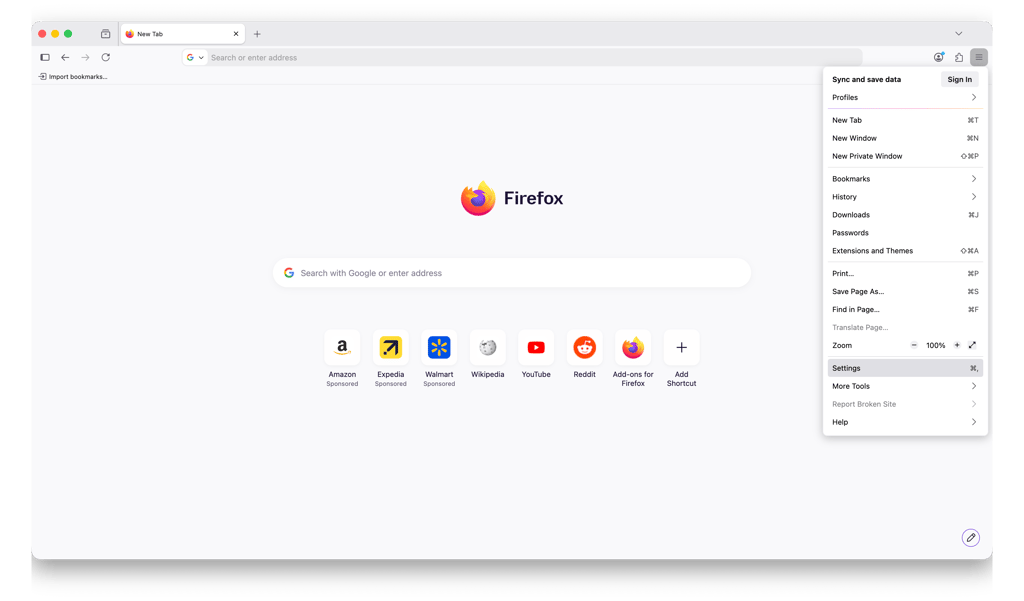
In order to start using a third-party password manager, you’ll need to turn off your Firefox password manager. Here’s how to do it in several simple steps:
- First, open the Firefox browser and click the Firefox Menu in the toolbar
-
Click on Settings
-
On the left, click on Passwords and autofill
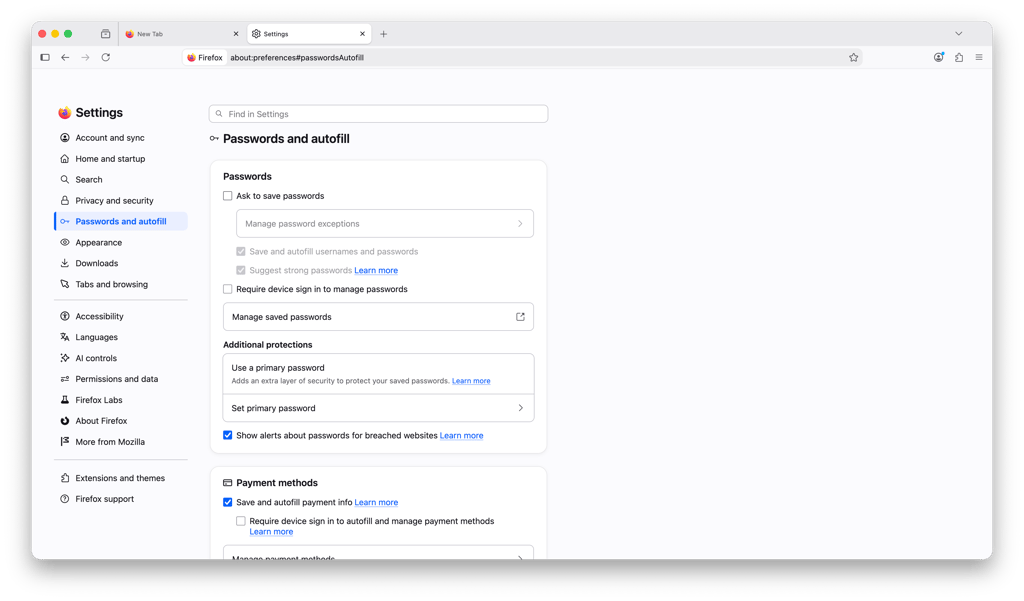
- Uncheck the box next to Ask to save passwords or a similar option. This action will turn off the Firefox password manager's automatic saving of login credentials
How to export passwords saved on Firefox
If you want to export your saved passwords from Firefox, follow these steps:
- Open Firefox browser, click on the three-line icon, and hit Settings
-
From the left side menu, select Passwords and autofill
-
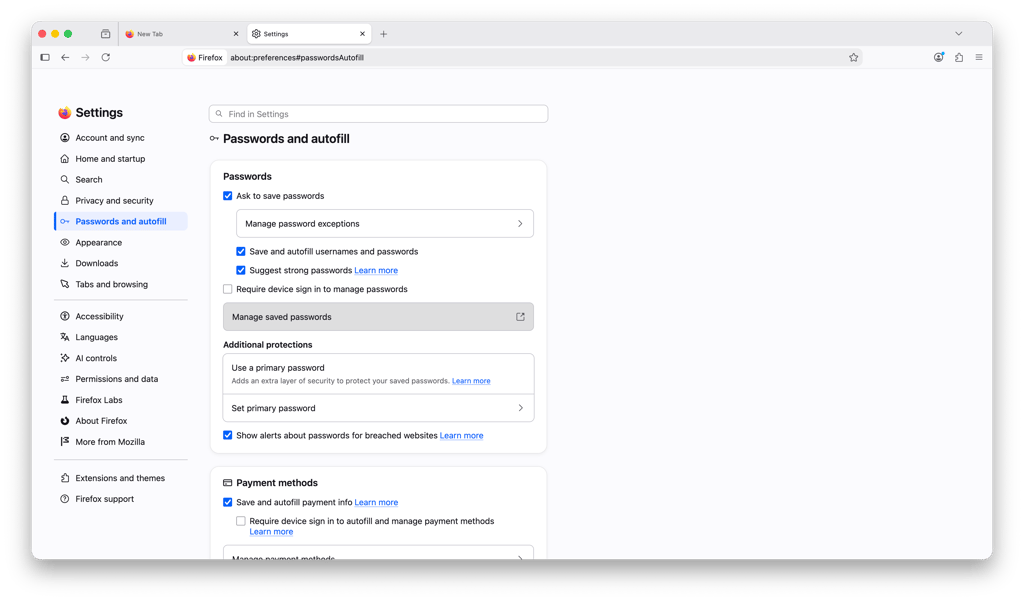
Click Manage saved passwords
-
At the top of the list, you'll find an icon that looks like three dots. Click on it and select Export Passwords
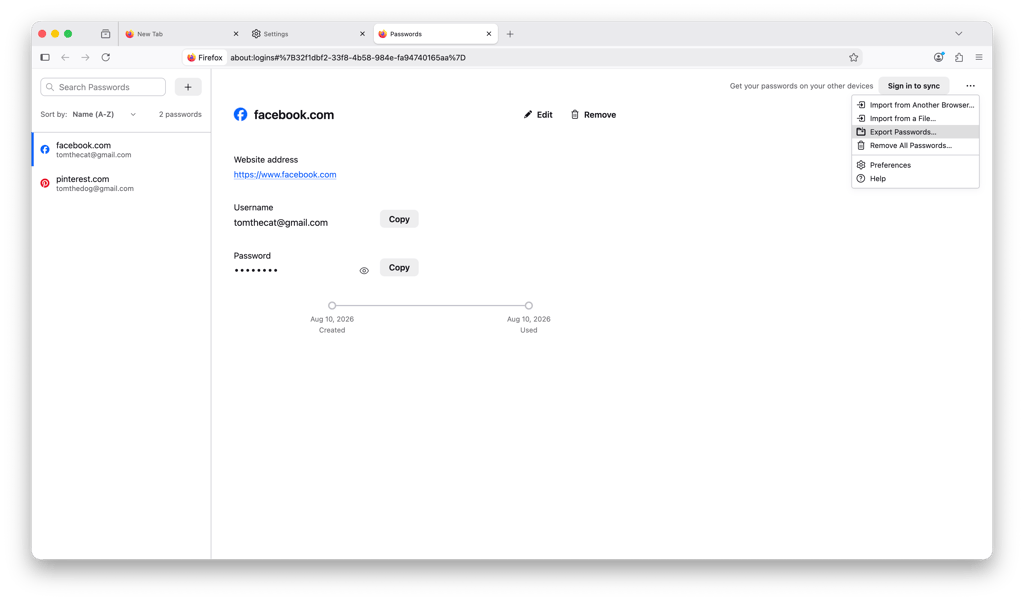
- That’s it! Your password are now exported
How to delete saved passwords from Firefox
Finally, if you want to remove passwords that are saved in Firefox, follow this step-by-step guide:
- On Firefox, head to the menu and choose Settings
- Select the Passwords and autofill submenu
-
Click on the Manage saved passwords option
-
Click the three-dot icon and select Remove All Passwords
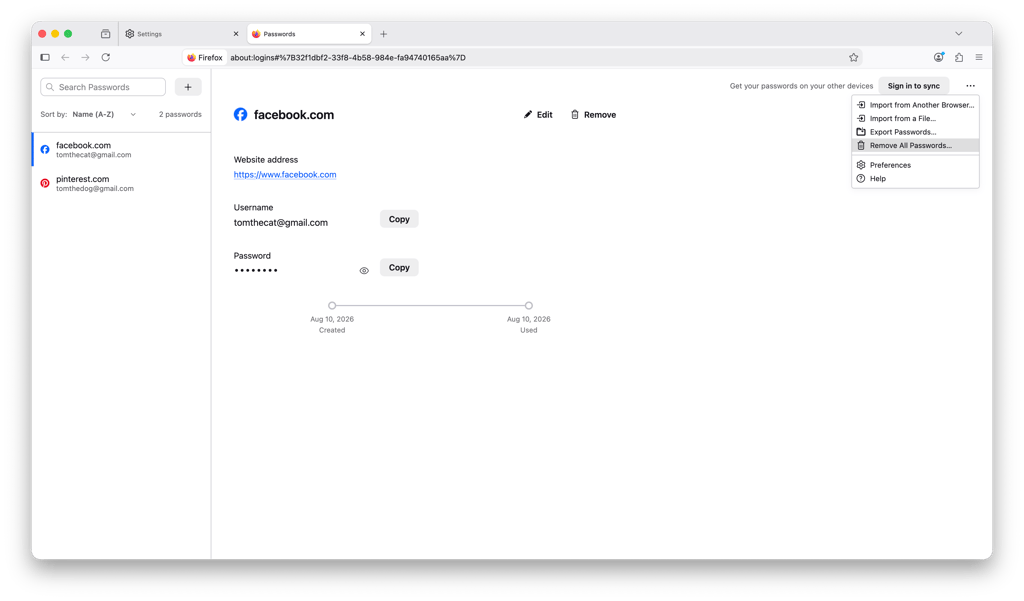
- That's it!
Is Firefox a safe password manager?
No, the Mozilla Firefox password manager is not entirely safe. Mozilla effectively protects users' login credentials with high-level encryption. However, Firefox password manager is not protected with a master password, leaving users exposed to unauthorized access vulnerabilities.
If we ignore this security flaw, we could say that Mozilla Firefox takes security very seriously. It employs safe practices, such as AES-256-CBC encryption and PBKDF2 for derivation, and further hashes data with script on Mozilla servers. The provider has also launched an ongoing Bug Bounty Program. Mozilla also routinely undergoes independent security audits and was recently audited by Cure53.
Due to high-security measures and efficient encryption, it’s safe to say that Firefox password manager is more secure than other browser native managers, such as Chrome password manager. However, it’s not fully secure. If someone gains access to your device, they also gain access to Firefox password manager since a master password does not protect it.
What is the best free password manager for Firefox?
When considering the best free password manager for Firefox, one notable option is NordPass. NordPass offers a freemium service that provides a strong balance between security and convenience.
However, we suggest only trusting the free versions of the paid services. This way, you'll receive a freemium service with the highest standard of security. Lucky for you, there are some great options out there.
We tested many providers, and here are the top two picks for the freemium Firefox password manager:
- NordPass. NordPass freemium eases the pain of having to remember all of your passwords. That's right, storing with NordPass is unlimited. It even generates strong passwords, so you wouldn't have to. NordPass freemium also enables you to store safe notes and credit card information as well as personal information forms. However, by choosing a premium plan for $1.29/month you’ll get a data leak scanner, emergency access, and sharing, just to name a few of its features.
- RoboForm. While RoboForm is one of the cheapest providers, you can also get the password manager for free. Its freemium version is packed with basic but vital features. Form filling, password audit, and sharing, as well as password generator, are guaranteed. But just for $0.99/month, you’ll be able to benefit from password assessment, sharing, 2FA, dark web monitoring, and more.
Conclusion
Even though Mozilla Firefox takes up only 3.29% of the browser market share, it is compatible with some of the best password managers out there. After all, every user should be able to store their passwords safely.
Firefox password managers ensure that users will never forget their passwords, nor do they have to think of complex strings of characters. The best extensions offer password storing managing, autofill, and of course, password generation features.
The overall top contender for Firefox is NordPass. It comes with innovative features and top-notch security. The second on our list is Keeper, notable for its excellent and smooth Firefox integration. Those looking for great monetary value can take advantage of RoboForm and LastPass, which offers excellent free and premium versions. Lastly, if you need more control of your password health, 1Password is a great choice for you.
More password manager reviews from Cybernews:
FAQ
What is the best password manager for Firefox?
NordPass is the best Firefox password manager. It offers flawless integration and great design. Powered with XChaCha20 encryption, NordPass is one of the most secure password managers. While it offers a solid free version, you can unleash its full potential with a relatively cheap premium version.
Is Firefox password manager secure?
Firefox password manager is only partially secure. Just like other good password managers, Firefox employs an efficient level of encryption — AES-256-CBC combined with PBKDF2. So, it should keep your data safe from leaks and breaches. There's also Primary Password to protect your credentials to prevent anyone else from unauthorized access to your device.
Does NordPass work with Firefox?
Yes, NordPass works well with Firefox. In fact, it’s one of the best choices for Firefox integration. We tested the extension ourselves and found no issue whatsoever. The setup is fast, autofill works efficiently, and the security is top-notch.
Are Firefox passwords stored locally?
Yes, Firefox passwords can be stored locally on a user's device. They are encrypted and saved in the browser's profile folder using a master password or the device's built-in security mechanisms. Users can choose to sync passwords across devices using a Firefox account.