Canva website builder: is it good enough?
Our team of experts and researchers rigorously test and evaluate website builders through transparent, in-depth testing procedures and methods using both in-house and industry-approved tools.
Drawing on cybersecurity insights, we provide unbiased, empirical rankings and analysis to help users make informed digital platform choices.
Learn more

Most of us know Canva as a go-to graphic design tool for creating posts, invites, and other professional-looking visual content. A few months ago, I discovered that Canva also offers a website-building tool, and knowing Canva’s design capabilities, I was curious to try it out.
Canva first introduced its website builder back in 2022, but at that time, it was mainly suited for simple one-page websites and landing pages. Since its 2025 update, you can create multi-page sites and add more functionality.
For this Canva website builder review, I built a website and tested it out for 2 months. In this article, I’ll share my genuine insights on its usability and whether it’s worth using.
Canva website builder review: my verdict
From my experience, Canva’s website builder is best for simple, one-page websites, such as portfolio sites, event pages, or quick business presentations. If you already use Canva for other design purposes, it will feel familiar and easy to use.
However, it’s not ideal for complex websites or online stores that need more features like custom code, advanced SEO tools, or additional integrations. For that, I’d recommend checking out more powerful website builders or a CMS.
| ⭐ Rating: | |
| 🥇 Overall rank: | #16 out of #37 |
| 💵 Price: | From $10.00/month |
| 🪄 Ease of use: | Extremely easy to use |
| 🎨 Templates: | 3500+ |
| 🏢 Business features: | Newsletter and business templates, SEO settings |
| 👨💻 24/7 live support: | No |
| 🔥 Coupons: | Website Builder Coupons |




Our in-house research team and expert writers work hand in hand to regularly test website builders and provide accurate and fact-checked information. Discover the ins and outs of how we test and evaluate website builders.
Canva website builder pros and cons
My hands-on experience: what surprised me
I decided to build a simple portfolio site to see how Canva’s builder performs. To my surprise, I had my first few pages ready in under 20 minutes. Dragging and dropping elements felt just like working on a regular Canva project, with no steep learning curve at all.
One feature that really stood out was how easy it was to collaborate. I sent a link to a friend, and they could jump in and make changes without creating an account. Seeing edits appear in real time was also helpful.
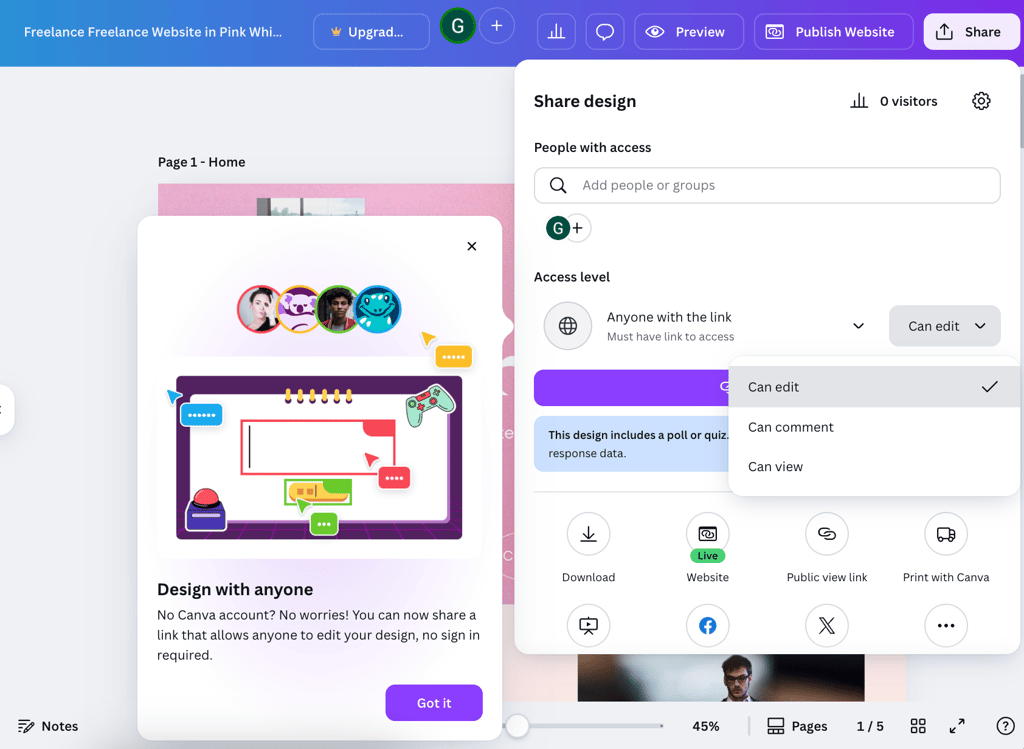
Another highlight was Canva’s AI code generator called Canva Code. I used it to create a fun interactive quiz about my copywriting style, and it worked perfectly on my site right away. Adding it was simple, and it made the portfolio feel much more engaging.
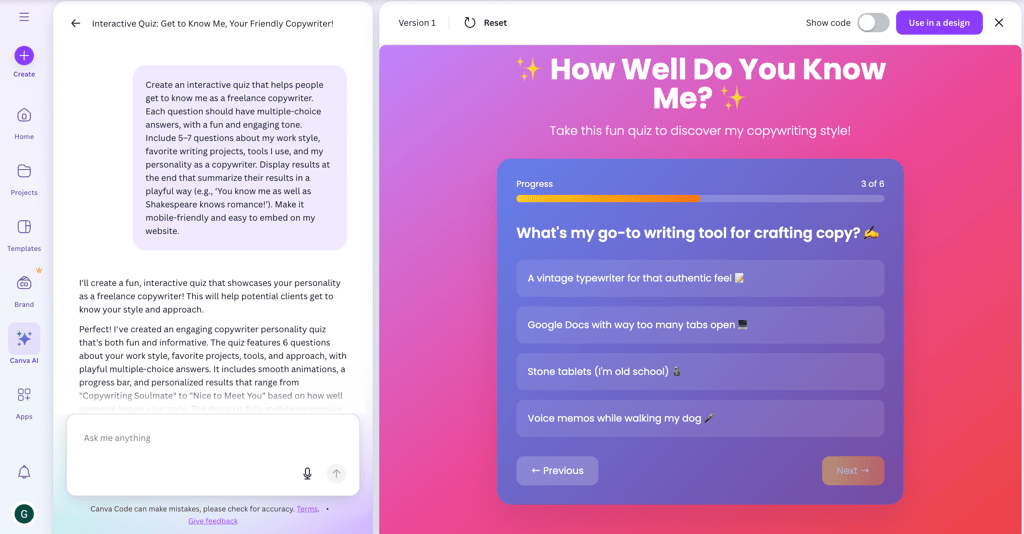
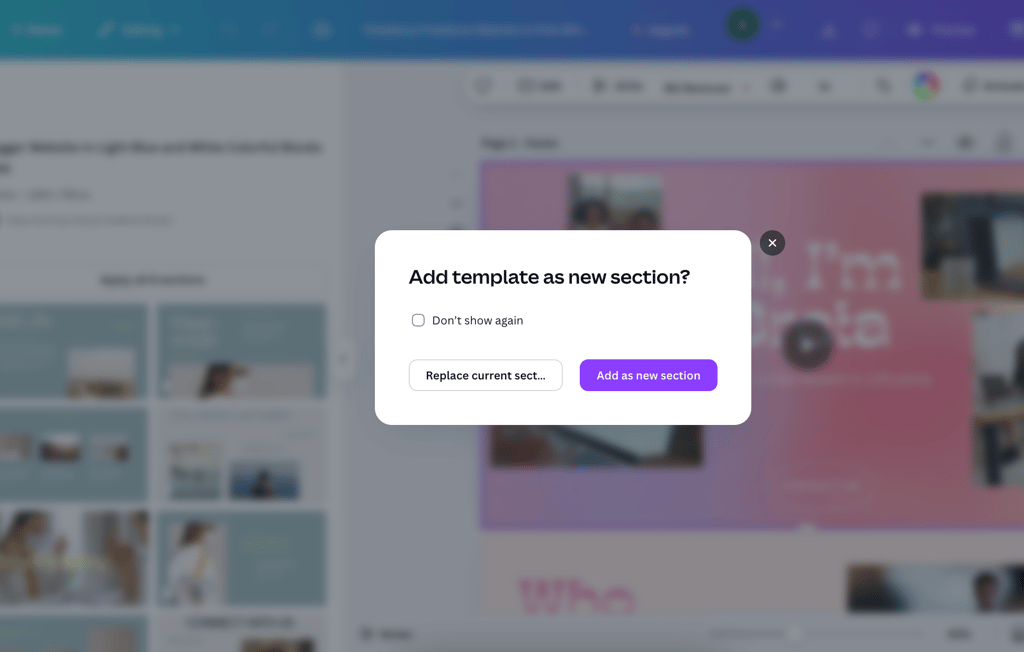
Not everything was smooth though. I quickly ran into some limits, for example, changing templates halfway through meant moving all the content manually. However, for a small website, it was faster and simpler than I expected.
Canva website builder features (tested in 2026)
Testing out Canva’s website builder was interesting because it feels very different from most traditional builders I’ve used. It mostly focuses on design, as everything revolves around visuals, layouts, and creative elements, so building a site here feels almost like creating a presentation or social post in Canva.
One thing I really liked is that it’s possible to work on a website together and share it, making collaboration easy. I was able to ask my friends to collab with me, and I could see their changes in real time.
Below, I’ll share my personal experience with Canva’s key features, what stood out to me the most, and who this builder is best suited for.
Layouts and templates
Canva provides over 800 templates, and all the designs are visually appealing, which makes sense given Canva’s graphic design focus. The templates are categorized by type and can be filtered, so it’s easy to find one for the type of site you want.
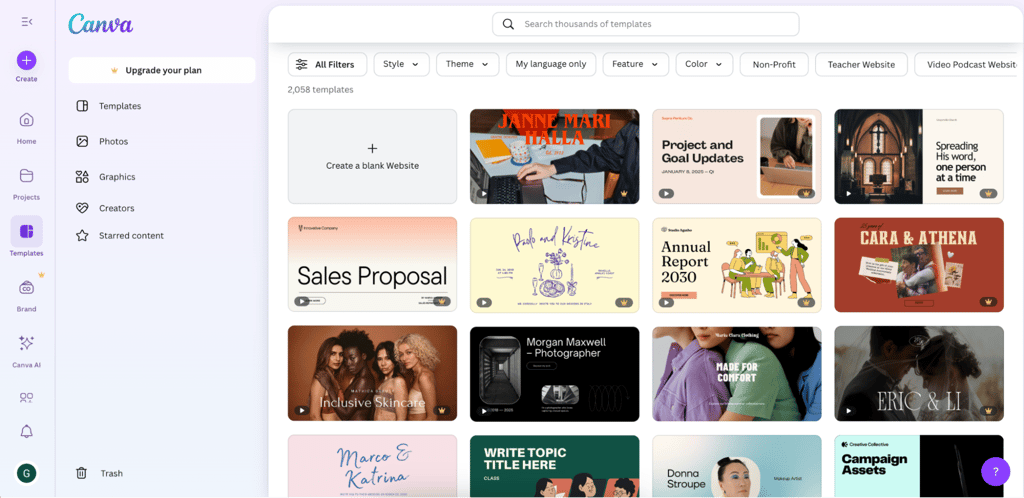
Each template is easily customizable, and you don’t have to stick to the same style for your entire site, as you can apply a different template to each page or even to individual sections. Changing templates later isn’t simple, though. You can add a new one to your site, but you’ll need to transfer all your content yourself.
Overall, the templates make it easy to create a visually strong site quickly, especially if you need something simple, like a portfolio.
Drag-and-drop editing
Canva’s drag-and-drop editor is very intuitive, and adding text, images, videos, or other elements is simple. You have complete freedom in where to place each component, as there are no grid limits.
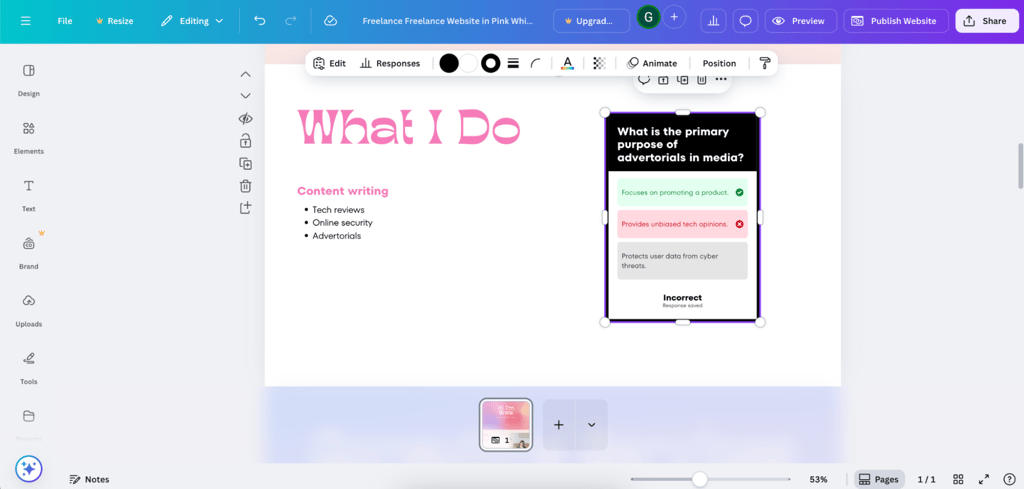
Adding text, images, videos, or other elements was simple, and I was able to move each element exactly where I wanted without any restrictions. It was so easy and familiar that I almost forgot I was editing a website, and it felt more like designing a post than building a whole site.
Mobile optimization
One of the things I liked about Canva is that all the templates are mobile-responsive. There isn’t a dedicated mobile editor, so you first have to edit the site for desktop view. Before publishing, there is an option to choose to resize elements for mobile or keep the same format as the desktop version.
When I checked my site on a phone and tablet, the text had resized well, images stayed in proportion, all the video elements loaded, and sections stacked logically. The only issue I ran into was with my contact details, as they didn’t align correctly in the mobile view at first. I quickly fixed that by grouping the elements, and it looked fine afterward.
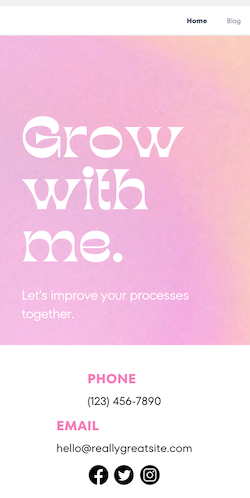
Canva makes it easy to create a website that works well on any device, and you rarely need to worry about mobile optimization.
eCommerce
At first, I wasn’t even sure if Canva would let me build an online store, and in a way, I was right. While it provides the platform, there’s no built-in payment processing or eCommerce system.
I could add buy buttons and link them to an external store or payment page, but that’s as far as it goes. The problem is that sending visitors away like that can lead to a higher bounce rate, and some people might find it suspicious and simply click out.
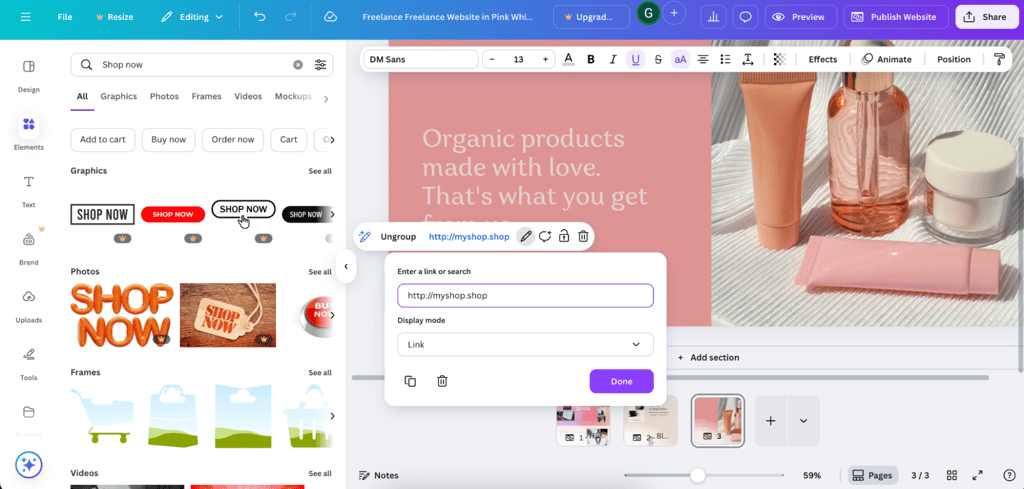
Canva doesn’t have features like a product catalog, shopping cart, or checkout flow. It works if you only want to sell a few items like digital downloads or some handmade products, but not if you’re planning to focus entirely on eCommerce.
Blog capabilities
Canva does let you add posts, but there is no proper blogging system or any blog templates. Each post has to be its own page, and then you link it to your blog page manually. I also had to hide those posts from the main navigation menu so it wouldn’t get overcrowded.

There’s no way for visitors to leave comments or scroll through recent posts. If you want categories, you’d have to link to them manually, which is a hassle. Canva works if you only plan to post a few updates or articles, but running a full blog would be nearly impossible.
Integrations
Canva does have a selection of apps, but the choices are limited. Most of the app integrations are focused on design elements, like AI tools, audio effects, or image imports from services like ShotDeck. Many of these apps are created by other users, and often, they just link you to an external site where you need to register before you can use them.

There are no advanced integrations for tools like email marketing, booking systems, or advanced analytics. For a simple portfolio or static site, the available tools may be enough to improve the visual side of your website. However, if you need advanced functionality, Canva is limited.
Ease of use: who is Canva best for?
Canva is very simple to use, and it can quickly help you create an eye-catching portfolio or landing page. Personally, I had a lot of fun experimenting with the design options – changing colors, tweaking fonts, and dragging elements around felt effortless.
However, it’s best for freelancers, small business owners, event organizers, or anyone who needs a polished, simple site without advanced features. If you already use Canva for your work, it’s even more convenient because all your design assets are in one place.
But if you plan to build a feature-rich online store or a blog with regular content, Canva will feel too restricted. It’s best to use when visuals matter more than functionality.
Canva builder plans and pricing
Canva provides a free plan, which is handy for basic needs. However, if you need more cloud storage or AI tools, consider choosing a paid plan. Below, I prepared an overview of Canva’s plans.
| Plan | Price | Custom domain? |
| Canva Free | Free | ❌ No |
| Canva Pro | $110.00/year | ✅ Yes |
| Canva Teams | $100.00/month (minimum 3 users) | ✅ Yes |
| Canva Enterprise | Custom price | ✅ Yes |
Canva allows publishing a site for free, but it will only be on a Canva subdomain like yourname.my.canva.site. If you want to connect your own domain, you need at least the Pro plan. There’s also a 30-day free trial for Pro and Teams plans, so you can try everything before committing. Canva isn’t the cheapest option if your only goal is to host a website, but it’s good value if you also plan to use its design tools.
Final verdict: should you use Canva website builder in 2026?
Overall, Canva’s website builder is a solid choice if you want a simple, fast way to get a website online without complicated setups. It’s especially appealing for small businesses, personal projects, or anyone who wants to design visually appealing websites.
However, Canva is not the best fit if you need advanced features, such as SEO options or eCommerce tools. Below, I prepared a summary of how Canva’s website builder performs across key areas.
| Feature | Rating | Review |
| Pricing | While not the cheapest, the paid plans provide access to design tools. Canva also has a free plan that allows publishing a website. | |
| Ease of use | Drag-and-drop simplicity and pre-made layouts make it extremely easy to launch a website quickly. | |
| Performance | Sites load fast and handle moderate traffic well; even with multiple animations and videos, there was no lagging. | |
| Security | SSL is included, and Canva holds ISO 27001, SOC 2/3, and PCI DSS certifications, covering essential security. | |
| Features | Canva offers an AI content editor, design elements, templates, and an AI code generator, but lacks advanced features like eCommerce and blogging. |
FAQ
Is Canva website builder free?
Yes, Canva offers a free plan that lets you publish a website on a Canva subdomain, like yourname.my.canva.site. To use your own domain, you'll need a Canva premium plan – either Pro or Teams.
Can Canva replace WordPress?
No. Canva is great for quick, visually appealing sites, but it lacks the advanced features, plugins, and blogging tools that WordPress offers.
Does Canva website builder work for eCommerce?
No, Canva does not include eCommerce features. You can add buy buttons that link to external pages or stores, but there’s no built-in shopping cart, checkout, or product catalog.
Is Canva good for small business websites?
Yes, it can work well for simple business sites, portfolios, or landing pages. But if you plan to grow your site or add eCommerce features, I recommend a different website builder such as Hostinger or Wix.
How secure is Canva website hosting?
Canva provides standard security, including HTTPS, and handles hosting for you. It’s secure enough for basic websites, but you don’t get the same level of control or advanced security features as with dedicated hosting platforms.