Webflow review – advanced features for those willing to learn
Our team of experts and researchers rigorously test and evaluate website builders through transparent, in-depth testing procedures and methods using both in-house and industry-approved tools.
Drawing on cybersecurity insights, we provide unbiased, empirical rankings and analysis to help users make informed digital platform choices.
Learn more

Webflow is a responsive website builder suited for professionals looking to create stunning websites without having to deal with code. It offers two powerful site-building tools, a solid template library, and eCommerce capabilities – all in one platform.
Webflow targets experienced users with advanced editing tools and is well-suited for design-savvy professionals, freelancers, and agencies.
However, Webflow is one of the more expensive solutions on the market. There are plenty of cheaper and more beginner-friendly options available, such as Hostinger, that let you create a website that is just as professional.

If you still want to learn everything about Webflow, continue reading this review. I’ll take you through my experience of building a website, including its ease of use, templates, pricing, and features.
| Top Choice | ||
| Hostinger Website Builder | Webflow | |
| ⭐ Rating: | ||
| 🥇 Overall rank: | #5 out of #37 | #17 out of #37 |
| 💵 Price: | From $2.69/month | From $14.00/month |
| 🪄 Ease of use: | Extremely easy to use | Steep learning curve made very easy |
| 🎨 Templates: | 300 | 7400 |
| 🏢 Business features: | eCommerce functionality, analytic tools, SEO settings | Good in-house eCommerce |
| 👨💻 24/7 live support: | Yes | Yes |
| ✂️ Free domain (first year): | Yes | Yes |
| 🔒 Free SSL certificate: | Yes | Yes |
| 🔥 Coupons: | Hostinger Website Builder coupon 81% OFF! | Webflow AI coupon for 22% OFF |
| Visit Hostinger |


Webflow pros and cons




Our in-house research team and expert writers work hand in hand to regularly test website builders and provide accurate and fact-checked information. Discover the ins and outs of how we test and evaluate website builders.
What is Webflow?
Webflow is a platform allowing to design, build, and manage complex websites. But it looks unlike most other options in the market. That's mostly thanks to the fact that this platform gives you access to two different tools – the Webflow Designer and the Webflow CMS.
You can use these two site-building tools together or just the Designer separately. The Webflow Designer is ideal for creating the structure and layout of your website, while the CMS editor is better suited for managing dynamic content.
Let’s take a closer look at what they do, and how they can help you build and manage a site.
Webflow Designer
The Webflow Designer is Webflow’s flagship feature. It enables you to build a website by editing different elements and layouts, as well as adding custom code. The interface resembles Photoshop and it looks similarly daunting, especially if you’ve never used a similar design tool.
Despite its intimidating appearance, it's a very powerful design tool, letting you make extensive changes to create a completely custom website.

If you have no experience with web design, there will be a learning curve. It's unavoidable – you’ll need to devote some time to get comfortable with this tool.
Webflow CMS Editor
Webflow Editor helps you manage the site and its content without having to deal with the Designer. It’s a lot easier to use when adding an image, changing the website copy, or editing any other dynamic content. The editor allows contributors to edit and add content to the website.
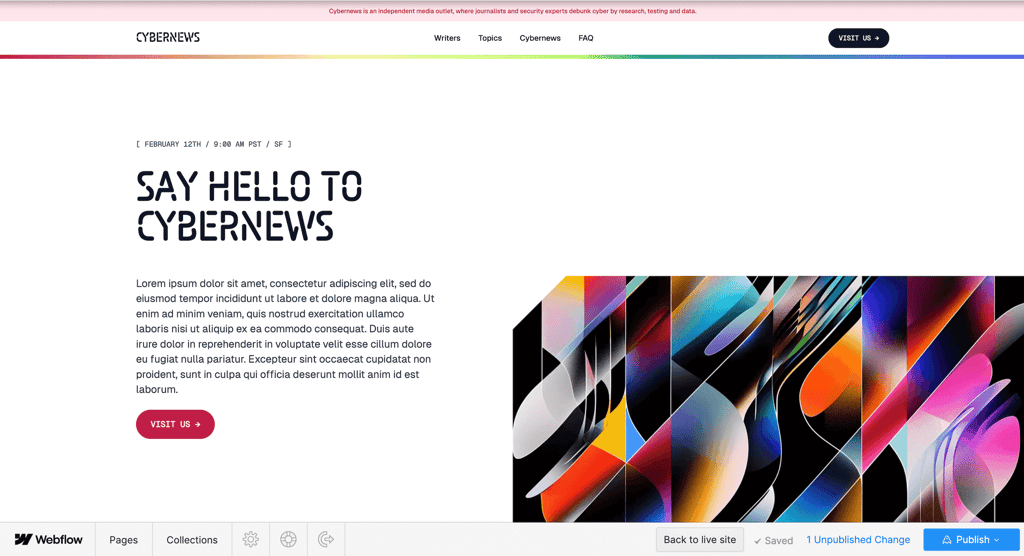
Most of the major changes – blogging, adding additional elements, or managing team members – are done using the Collections in the Editor. A designer uses the Designer to make a new collection and set up a structure for the content. For instance, a blog post may include a title, summary, body text, featured image, or other similar content.

Then, using the Editor, contributors fill in the blanks and can easily add content to the website. Here is how a "Blog Posts" collection with some blog posts will look like from the editor.

If you’re only looking to create a simple website without any need for a content management system, you can do just that with the Webflow Designer. But if you have a big, ever-changing website, and want to make the best out of both design and dynamic content, Webflow has the workflow for you.
What websites is Webflow best for?
No matter how versatile, all builders have their strengths and weaknesses. Let’s take a quick look at the type of websites Webflow is best for.
| Website type | Benefits | Limitations |
| Business website | Customizable, powerful, fast, and very capable for various business needs. | Small business owners might struggle with the learning curve. It’s best for teams with in-house designers. |
| eCommerce site | Built-in eCommerce tools and features for optimizing conversions are easy to use and functional. | Prices start at $14.00/month and have a sales volume limit. |
| Portfolio | Fully customizable design for both visual and text-based portfolios. | The tool is advanced, and small portfolio sites won't make use of all the features. |
| Blog | Powerful and customizable blogging tool, easy to use. | The pricing and time needed to invest for a personal blog might be too high. |
Webflow for a business website
Webflow provides useful tools for building a professional business website. It includes features like secure checkout, product listings, and support for custom development needs. Its flexible plans and add-ons offer plenty of room for customization and business growth.
Webflow for an eCommerce site
eCommerce toolset is one of the greatest advantages of Webflow. It has an in-house platform that makes product and inventory management easy. Other than that, I enjoyed the streamlined process of creating custom discounts, as well as the integration of third-party tools.
Webflow for a portfolio
With all the design possibilities, Webflow is a great choice for a portfolio website. Especially if you’re working in a creative field. There are many professional templates available, and the customization options are great. The only shortcoming is the price associated – Webflow itself is not cheap, and some templates come at an extra cost.
Webflow for a blog
Webflow has a built-in blogging tool in the Collections part of the editor. It’s a highly customizable tool that fits the needs of big and ever-changing blogs and conversion-focused news sites, for example. However, it may be too much and too expensive for small blogs.
Webflow pricing
Webflow is free to start if you want to try out the platform and publish your site to a webflow.io domain with no time limit. It's a great way to get a feel for the builder, experiment with the tools, and even host a simple site with no cost. However, if you want to have more features, higher limits, and use a custom domain, the prices start at $14.00/month. The pricing structure is made a bit difficult because of the 2 different types of plans that you can choose from. Let's look at them in more detail.
Site plans
There are 6 Webflow Site Plans available. All of these plans are for one website each, meaning that you'll need to buy a new Site plan if you decide to build a new Webflow project. 3 plans are for general websites, such as portfolios or blogs, while the other 3 support eCommerce.
| Plan | Features |
| Basic (from $14.00/month) | Allows 150 pages, 10GB bandwidth, and unlimited contact form submissions. It does not include Editor capabilities. |
| CMS ( from $23.00/month) | Includes 50GB bandwidth, Webflow Editor and adds site search functionality. |
| Business ( from $39.00/month) | Can handle 300 pages, 20,000 CMS items, and up to 10 Editor users. |
| Standard (from $29.00/month) | All CMS plan features, 500 products, and 2% transaction fee. |
| Plus (from $74.00/month) | Business plan features, 1,000 products, and 0% transaction fee. |
| Advanced (from $212.00/month) | Business plan features, 3,000 products, and 0% transaction fee. |
For regular sites, Webflow CMS plan is my favorite in terms of value for money. And if you're selling online, the Plus plan is best – mostly thanks to the fact there's no transaction fee.
Get WebflowWorkspace plans
The Workspace plans do not include site hosting. Instead, they focus on letting you build several custom websites – either for yourself or your clients. These plans are excellent for freelancers or designers who build several websites but don't necessarily need hosting. They can still be published, via a webflow.io domain, but a Site plan is required in order to use a custom domain.
| Plan | Features |
| Starter (Free) | 2 staging sites, 2 guests, 1 full seat. |
| Freelancer (from $16.00/month) | 10 staging sites, free guest access, client billing, full CMS access, 1 full seat. |
| Agency (from $35.00/month) | Unlimited staging sites, free guest access, client billing, full CMS access, 1 full seat, advanced roles and permissions, shared libraries. |
| Core (from $35.00/month) | 10 staging sites, unlimited paid hosted sites. |
| Growth (from $49.00/month) | Unlimited staging and hosted sites. |
Whether you're a solo-designer or running an agency, these plans provide flexibility to manage your workflow and expand as needed. It’s worth noting that additional seats will cost extra, starting at $15.00/month per user.
Webflow plans and pricing: final thoughts
Overall, once you get the hang of Webflow’s pricing structure, you’ll come to appreciate the variety of plans available. While the plans can get quite expensive pretty quickly, they offer a decent array of advanced features.
Another thing worth keeping in mind is that the prices here are for annual billing cycles. If you purchase a monthly plan, you’ll end up paying substantially more in the long run. The standard eCommerce plan, for instance, jumps from $29/month on the annual plan to $42/month on the monthly plan - an increase of over 40%.
While Webflow's plans can get quite expensive, we can make it cheaper. That's because we scour the internet, trying to find the best coupons and discount codes. See, if there's a discount for you.
Is Webflow easy to use?
I found Webflow to be pretty easy to use. It's not as easy as many other website builders, it will take a while to learn all the intricacies, but with helpful tutorials and lessons from the Webflow University, I had virtually no issues building my own website. Here's how everything went down:

Getting started with Webflow
After signing up with Webflow, I was thrown immediately into a quick questionnaire, which tried to set everything up, depending on my preferences and experience level. The question are basic, asking about the goals for a website, your experience, and similar:

After all of that is set up, I was offered an opportunity to take part in a quick onboarding tutorial. I heavily suggest you to take part in this tutorial. It's very well-made and helps to understand most of the platform's basics.

And then I was ready to continue this Webflow review by building my website.
Building a Webflow website
A Webflow website is built inside the Webflow Designer interface. It uses a Sections system, in which you can add various Elements.
On the left, there's a row including several site management options.From the selections here, it is possible to add elements, manage pages, view and add various assets, and manage the added content Collections.
On the right are all of your site design options.This is where you can design each and every of your elements, edit their settings, manage styles, and also add various interactions, i.e. what happens what a user hovers on clicks on a specific element.

You can choose either from several pre-made elements to add to your sections or build custom layouts. Alternatively, you can choose from some of the pre-made layouts, to seriously streamline the entire design process.

All of these elements and layouts follow a box style. So, while you can drag and drop them on your site, you will be slightly restricted on where everything could be placed at first. This will look clean and adapt to all devices.
The content itself is edited via an Editor interface. This is where all other website matters will be resolved. It can be accessed by clicking the Webflow icon and picking the Editor option.

I found the editing to be pretty intuitive – changing copy or images, adding links, and doing similar minor stuff was super simple and required no further explanation. Besides, the Editor was also very smooth and had no performance issues, even on my 3-year-old Macbook Air running 3 Chrome windows with 10 tabs each.
The major website changes can be done using the ribbon below. Here the contributors can manage pages, and do things like add password protection, or edit their SEO options.

It's also where editors can manage Collections. That can be blog posts, team members, menus, or similar. This is also where all the blogging will be done from. A separate "Blog Posts" tab will show all of the published posts.
Webflow University
If all of this sounds just a little too complicated – no worries. Simply sign up for Webflow University – an internal tutorial platform that explains all the ins and outs of the system. There you will find quick guides explaining the platform, tutorials to solve specific issues, and even interactive learning courses.

Of course, I do recommend to start with the beginner course, that will explain what Webflow is, and what you can do with it. The videos are short and packed with information. All of them are also transcribed, making them a bit easier to follow step-by-step.

Webflow can get a little tricky to use, and it usually comes from lack of knowledge about the platform or design specifics. Thanks to the excellent learning platform, Webflow can become a lot easier to master.
Webflow templates
Webflow offers a library of over 7400 templates, including more than 70 free ones. The free ones are a bit more basic, but still entirely functional and modern. The premium themes look excellent, and generally cost between $30 and $80.

Overall, I find the templates modern, and quite beautiful. And there's another interesting thing: many of these themes come with additional sections, layouts, and even demo landing pages. By picking a theme, you'll also get a selection of elements that fit within its style.

One of my favorite Webflow templates is Lectio. It immediately caught my eye because of how clean and modern it was. It's not overloaded with content, easy to navigate, and perfectly highlights key areas. While it is paid, it has a lot of features and you can receive support from template developers.

Another template I liked is Boxkit. It has a sleek, professional design and is focused on conversions, making it perfect for promoting a startup, course, or product.

While the free themes aren't quite as striking, they are still perfectly capable. Grit is a free template for online stores, and it has a minimalistic design, well-structured navigation, and enhances allows for a lot of customization.

When it comes to templates, Webflow ticks pretty much all the right boxes. You get a wide variety of nice-looking, responsive templates to choose from and most of them are reasonably priced. I do wish that more of them were free – but that's the only issue here.
To sum it up, Webflow has a learning curve, but it is manageable. The builder tries to streamline every process, and it does pay off in the long run. I definitely advise looking over the tutorials for an easy start.
Webflow eCommerce review
Webflow has an eCommerce tool baked right into the Designer interface.
While the plans that allow it are fairly expensive ($29.00/month with a 2% transaction fee, $74.00/month without), the experience is polished and easy to use. To get started, I just had to go through a couple of mandatory steps in order to properly configure everything.
Think of stuff like adding an address for your business, shipping methods, payment gateways, and the products you want to sell.

Product management
Once you complete the initial store configurations, you can start publishing your products. The eCommerce Collections work just like regular CMS Collections. However, they have some required eCommerce-specific fields such as ‘Price’.

And on the Editor, you can quickly see categories, orders, set discounts, and manage the products as well, such as:
- Add new items with multiple variants
- You can sell both physical items and digital products or services
- Inventory tracking is enabled in one click
- You can set shipping options for each product too

Another thing is discounts and the options here can really make the life of big online store owners easier:
- You can set custom dates and discounts based on the product, its category, or entire orders.
- Discount codes can have usage limits – per customer or applicable only for a limited number of each product.
From the first impressions of the tool, it looks fully capable to handle both small and big operations.
Other eCommerce features include automatic tax calculations, integration with Facebook and Instagram, and multiple payment options. Webflow may not be an eCommerce juggernaut, but honestly, the features provided are enough for building online marketplaces.
Payments
With Webflow, you can set up Stripe and Paypal payment gateways straight from the editor. You’ll be able to accept credit cards, Apple Pay, Google Pay, and other payment options in 200+ countries.

Another cool feature is Web Payments. If your customer has saved the information for Stripe, Apple Pay, Google Pay, or PayPal, there will be no lengthy forms to fill out. All will be automatically set for that quick “Buy Now” button.
Keep in mind that while there are no transaction fees starting with the Plus plan by Webflow itself, the payment providers might have their own fees. This is worth considering when setting budgets.
Marketing and SEO
In terms of marketing and SEO, you’ll get both the tools and flexibility with Webflow. A few general things that you can do include:
- Enable or disable auto-generated sitemap in one click
- Set global canonical URL
- Connect Google Analytics in general settings area
- Integrate Google Optimize, Google Maps, and Facebook pixel from the dashboard
- Set custom SEO settings for each product, page, and category
- Easily create and manage forms and create mailing lists for email campaigns
And that’s just the built-in tools to get you started. They cover the basics needed for all businesses. To add even more tools and up your marketing or SEO game, you can always look at the Integrations section hosting multiple apps.
Analytics
Contrary to many other tools, Webflow does not have an in-house analytics option. However, it encourages the use of Google Analytics.
To set up Google Analytics, all you need to to is create an account and enter your Google Analytics ID in the Settings section in Webflow.

The process is entirely automated from the Webflow point of view. At the same time, once you’re tracking the numbers on GA – it’s your freedom to customize reports and set advanced tracking parameters.
Sure, having a built-in dashboard showing how many visitors are in your store currently is nice. However, Google Analytics is currently the most powerful tool for performance tracking and has few contenders.
Third-party integrations
Webflow has a pretty big community, full of excellent developers. And so, it's no surprise to see that it has a pretty massive third-party integration library. It covers fields such as eCommerce, maps, localization tools, and even music streaming.

In fact, some of those integrations aren't even integrations. For instance, a Shopify integration is nothing but a tutorial showcasing how to use Webflow's platform to seamlessly connect it to Shopify, with no additional piece of software. Some, like Hypotenuse AI, simply sent me to their product's landing page to register.
I did have a bit of an issue with that: I wish it was clearer as to what type of integration each one is. Maybe a review system would've been nice, too. But apart from that, I find the integration market to be a fairly useful tool. Think of it as a knowledge base on how to use certain tools to get specific results.
Webflow eCommerce website examples
I came across several unique online stores that are created with Webflow. It’s both an inspiration and a tribute to the design possibilities of this website builder.
Let's start with an excellent small eCommerce website example – Space Posters.

Even if you have just one product to sell, you can make your online store into a beautiful one-pager. In any case, I’m highly impressed with the design of this site. The dark colors, subtle animations, and easy navigation are all there.
If the previous example is to risky, let me assure you that more standard layouts are possible with Webflow. Just take a look at CLOE CASSANDRO.

A regular clothing/designer store made stylish with great visual and standard categories. It’s one of those “I know where the item I’m looking for is located” stores even if it’s your first time in it. This just shows that Webflow can be very versatile.
Another eye-catching site is Begg. From the animations to fonts and visuals, everything on this site catches attention. The navigation and experience is completely contemporary. So if you want to be different than your competitors – this is the one to get your inspiration.
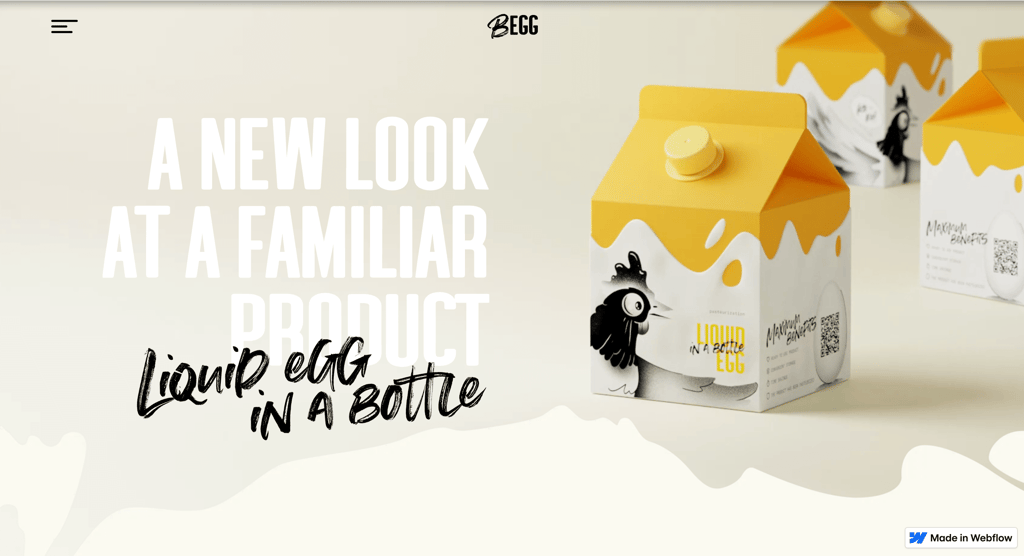
So to sum it all up, Webflow is very much capable in the eCommerce department. From product management and in-house tools to integrations and design possibilities. It really looks and feels like a great tool.
Webflow performance
For this final part of the Webflow review, I checked out the platform's speed with GTMetrix, a tool that measures site speed and platform optimization. These were the results:
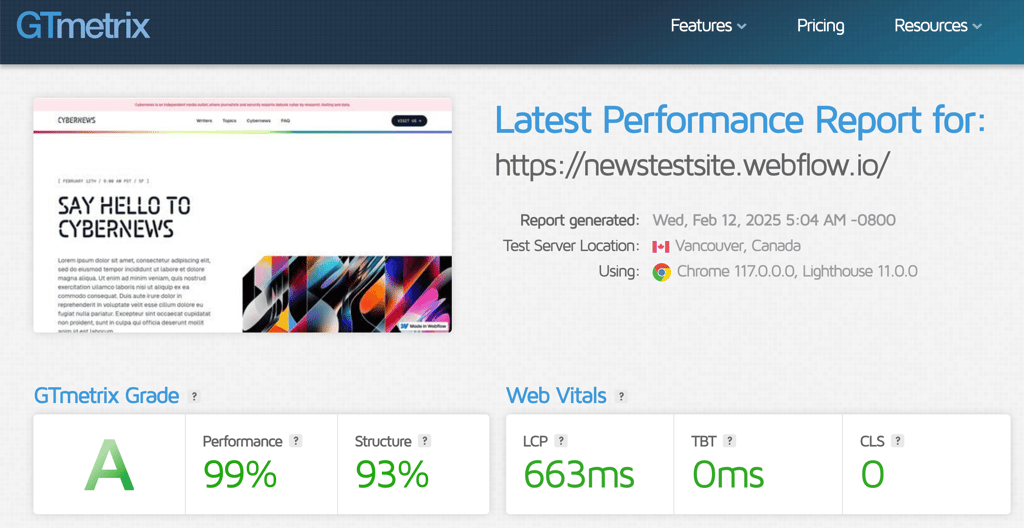
It's worth noting that I tested this on a Webflow template, and although I didn't clean up or optimize for perfect performance, the website was essentially a simple landing page. Since I was using a free plan, I couldn't add more pages to see how that would affect the website's speed. Despite these limitations, the results are quite impressive. I added a few more elements and embedded a video on the page, then ran the test again, but it had almost no negative impact.
Webflow alternatives
Webflow is such a specific and highly advanced tool, that many look for alternatives. Here are a few worth considering:
Hostinger
Hostinger provides a top-notch website builder, especially for beginners. It has a convenient drag-and-drop editor, AI tools, 300, and allows you to make up to 100 websites on its cheapest plan.
Wix
Wix isn't nearly as advanced as Webflow, but for beginners, it comes close. The Wix Editor allows to do pixel-perfect editing, gives custom animations, hundreds of various elements, 2700, free themes, and a massive app store. If you're not feeling confident enough to go with Webflow, Wix is a great option.
Shopify
If you're looking to make a website for your online business, Shopify is an excellent option. It's all about eCommerce, and there are plenty of beautiful themes, that are fully optimized for selling.
Squarespace
If you are a beginner, you should look into how Squarespace compares to Webflow. Squarespace’s editing, as well as SEO features and extensions, are limited, but this editor is extremely easy to use. Squarespace offers decent business and marketing features as well as designer-crafted templates.
Webflow review: conclusion
Webflow is a powerful platform that can be used to create beautiful, professional websites. It has a lovely template library, decent business features, and a capable eCommerce suite.
You'll need some time to get used to Webflow. For this Webflow review, I had to spend a few hours of my time just to understand the very basics, and of course, it's also rather expensive.
However, Webflow's system is genuinely pretty simple to learn, and if you go through the Webflow University and actually try to learn it all, you could easily design a professional website.
Webflow FAQs
Do professionals use Webflow?
Yes, Webflow is widely used by professionals. It's especially popular among designers, developers, and small to medium-sized businesses.
Is Webflow good for beginners?
No, there are easier-to-use alternatives to Webflow. However, if you're willing to put in the time, Webflow's features and tools make it worth the effort.
Is Webflow really free?
You can start using Webflow for free. However, in order to publish a website under your domain, you need to purchase one of the Site plans that start from $ 14.00/month.


