Best password managers by Reddit in 2026
Being behind major reports like The Mother of All Breaches and WhatsApp Data Leak, our in-house cybersecurity experts conduct independent, unbiased testing and thorough analysis of password managers, helping users confidently manage their credentials and sensitive information.
We prioritize transparency by openly sharing detailed descriptions of our in-house testing procedures and methodologies.
Learn more

One of the easiest ways to protect your data online is to use a reliable password manager. With data breaches on the rise and online privacy becoming increasingly important, having a secure vault to store all your passwords can make a big difference.
But not every password manager suits every user. One of the best ways to find out which options are genuinely easy to use is to hear from the people who use them. That’s why we turned to Reddit to see which password managers get the most praise from real users.
Password manager subreddits are full of honest opinions, personal experiences, and discussions about security and features. To save you time scrolling through them, we’ve rounded up the best password managers according to Reddit users in 2026. We’ll look at what Redditors have to say about different password managers, from their security and features to everyday usability.
Top 5 password managers Reddit recommends
- NordPass – best password manager according to Reddit
- 1Password – all-rounded password manager with advanced features
- Keeper – top service for managing passwords
- Dashlane – reliable and flexible password manager
- Bitwarden – secure open-source password vault
Best password managers according to Reddit in 2026
Finding a good password manager that suits your needs can be challenging if you’re a beginner or don’t know the strengths and features each password manager offers. Worry not – we have reviewed Reddit users' recommendations and researched a bunch of password managers ourselves to suit various needs.
In the following detailed list, you’ll find the best password managers Redditors use and recommend.
1. NordPass – best password manager Reddit users like in 2026

| Cloud storage: | 3GB (with NordLocker app) |
| Free version: | Yes |
| Browser plugins: | Chrome, Firefox, Safari, Opera, Brave, Vivaldi, and Edge |
| Current deal: | Get NordPass, now with 56% OFF |
NordPass is the best password manager solution that's recommended by Reddit users. It offers high-level encryption and uses a new generation encryption protocol. Let’s take a look at what NordPass has to offer in more detail.
To start with, NordPass automatically detects passwords stored in your browsers. You can also import them from another password manager. This password manager also makes password sharing between accounts and with non-users easy via email. Reddit users also seem to like NordPass for its usability and the fact that you can be in the same ecosystem as NordVPN.

There are more features to make your life easier – a password generator for strong passwords, multi-factor authentication for added security, a data breach scanner, anonymous payment options, and more.
To protect your vault, NordPass implements next-gen XChaCha20 encryption, which is unbreakable.
What’s more, NordPass has great cross-device compatibility, so you’re able to have your credentials synced on different devices.
NordPass prices start at $1.29/month, and it has a 30-day money-back guarantee.
Visit NordPass review to find out more about the features.
2. 1Password – password manager with an unlimited number of users

| Cloud storage: | 1–5GB |
| Free version: | No |
| Browser plugins: | Chrome, Brave, Firefox, Edge |
| Current deal: | Get 1Password, now up to 50% OFF |
1Password is also a top pick for password managers according to Reddit in 2026. Some Redditors say it has a great user experience, others say it works without any issues.
1Password has robust security – it has biometric login, multiple 2FA options, and AES-256-bit encryption to lock your data and keep it safe. Redditors seem to have appreciated its robust security:

This password manager also has an autofill feature, which makes password sharing super easy. Besides that, 1Password has other quality features users love. One of them is the Watchtower. It tells you about password breaches and other security issues. It also checks whether a website supports 2FA and uses HTTPS. There’s also travel mode – it lets you block access to selected vaults. This can be relevant if you’re transiting high-censorship areas.
And while 1Password doesn’t have a free version, it offers a 30-day money-back guarantee, so you can try the premium version. Its prices start at $2.99/month.
Find out more in our 1Password review.
3. Keeper – reliable password management solution with strong encryption

| Cloud storage: | 5GB |
| Free version: | No, 30-day free trial |
| Browser plugins: | Chrome, Firefox, Opera, Edge, Internet Explorer |
| Current deal: | Limited-Time offer! Get 50% OFF Keeper Personal and Family plans |
Keeper is another great password manager that offers a robust security suite and strong compatibility, along with a 30-day free trial.
Keeper includes 5 private vaults for 5 different users. You can also share passwords between vaults, as Keeper has shared team password folders. Reddit users seem to like it, as it only provides access to encrypted information and works well with web-based interfaces. Here’s what they say:

This password manager also has backup information stored in the cloud in case you lose your passwords. This makes for an easy and worry-free password recovery.
Keeper has apps for Windows, macOS, Linux, Android, and iOS, and an autofill feature (KeeperFill) for Chrome, Firefox, Opera, Edge, and Internet Explorer extensions, making it pretty versatile and compatible with major apps. There’s also a Breach Watch (dark web scanner) and a security audit to evaluate the strength of your passwords.
Besides these features, Keeper has great 24/7 live chat support in case you need help.
Keeper’s prices start at $1.79/month, and even though there’s no free version, you can try Keeper for one month without exposing any payment information.
Take a look at a comprehensive Keeper review to learn more.
4. Dashlane – easy-to-use and budget-friendly password vault

| Cloud storage: | 1–5GB |
| Free version: | Yes |
| Browser plugins: | Chrome, Firefox, Safari, Internet Explorer, Edge |
| Current deal: | Get Dashlane, save up to 25% |
Dashlane is also another great password manager picked by Reddit users. Redditors like that it’s mostly issue-free and has lots of additional features and tools. Let’s take a look.
Dashlane is one of the longest-running password managers in the market. It’s also one of the few that include a VPN (Virtual Private Network). It encrypts your online traffic and lets you bypass numerous online restrictions (geo-blocks, access different streaming platforms). Users seem to be satisfied with Dashlane’s services, especially the family plan and its compatibility:

It also has an integrated password generator. The tool also has the ability to capture your login details on multiple extensions.
All of your data in the password manager is protected with powerful AES-256 encryption, and there’s dark web monitoring implemented as well.
Dashlane has a free version, and it includes most of the password manager features. And if you’d like premium service, prices start at $4.06/month.
Learn more about this provider’s features in our Dashlane review.
5. Bitwarden – safe open-source password management solution

| Cloud storage: | 1GB |
| Free version: | Yes |
| Browser plugins: | Chrome, Firefox, Safari, Edge, Brave, Vivaldi, and Opera |
| Current deal: | Get Bitwarden for just $1.65/month |
Another favorite password management solution of Reddit users is Bitwarden. It’s an open-source password manager that offers strong security and offers all the essential features. Redditors love its freemium version, easy-to-use navigation, and extras like 2FA and a self-hosting option.

This password manager also allows you to autofill, autosave, and share passwords or forms. It also helps you monitor your passwords’ health index with its vault health reports. Like other market-leading password managers, Dashlane also has powerful encryption – you can rest assured no hackers will be able to reach your passwords.
Dashlane uses a zero-knowledge architecture, meaning the master password is known only to you. Additionally, Reddit users exclude the free version of Bitwarden, as it has the core features – you get a personal vault and can manage your data safely from any location or device.
Bitwarden’s premium version has additional features and a $ 10-per-year subscription fee.
Check out our Bitwarden review to learn more about the provider.
Key factors Reddit users rely on when offering the best password manager
There are some key factors to consider before choosing which password vault to use. Each password management solution has variations in features, security, ease of use, and numerous other essentials. Here’s what Reddit users focus on when choosing the best password manager:
- Security. Reddit users prioritize security as their key factor for selecting a password manager. Open source is one of the most frequently mentioned essential features. If a password manager is open-source, users can help identify vulnerabilities and ensure that other security features are implemented correctly. Strong encryption and two-factor authentication also contribute to enhanced security.
- Zero-knowledge architecture. To increase privacy, password managers implement strict privacy policies that guarantee only you can know what you store in your vault.
- UX/UI experience. Some Reddit users mention UX/UI experience, ease of use, or setting up and importing passwords from other managers or browsers. It’s important that the password manager is easy to navigate and has a clean interface. Most of our selected providers offer a versatile, overall great user experience.
- Price. It’s also one of the most important factors, as most of the Redditors choose free and open-source versions. The top picks we’ve mentioned provide great value for money and have flexible subscription plans.
- Intrusive advertising. Redditors also seem to hate brands that adopt aggressive advertising. It’s worth mentioning that ads could be infecting your device with malware if you decide to risk clicking on them.
Are all comments trustworthy on Reddit?
No, certainly not all comments on Reddit are trustworthy. It’s worth reminding that Reddit is a social news website and forum where all content is curated by users. Therefore, there can be lots of opinions and points of view.
Also, there are quite a lot of spammy posts on Reddit about some password managers. It could be that some comments are simply ads or people trying to sell the product intrusively.
Through all the browsing we’ve done, we haven’t encountered many fake accounts or comments with ads. It seems that commenters and Reddit admins try to keep these discussions clean and free of advertising. Generally, there would be quite a few downvotes, maybe some bitter comments from the real user. Here are some of the examples of spammy comments on Reddit:


What's the best self-hosted password manager according to Reddit?
Most of the Reddit users nominate Bitwarden as the best self-hosted password manager. There was a Reddit poll with more than 2.5k votes, and Vaultwarden (Vaultwarden is an unofficial Bitwarden server implementation). It got 1.8k votes, surpassing any other provider by far. Also, there are a lot of comments saying that Bitwarden is the best password manager overall.
Bitwarden is an open-source password manager with a free version that Redditors seem to truly enjoy. It takes very little time to settle and get used to apps and extensions.

Password managers that Reddit users don’t recommend
Generally, Redditors don’t recommend the providers that have been exposed to data leaks or have been hacked before. Such password managers pose a risk to your digital safety, as your personal data can be revealed and compromised. Here are some password management solutions Redditors had mixed thoughts about:
- LastPass is one password manager that has both good and bad comments about it. Some commenters are not recommending this provider because of the hack (leaked source code). Some actually like it more because they are very transparent about the hack. In fact, the password manager was breached again in 2022.

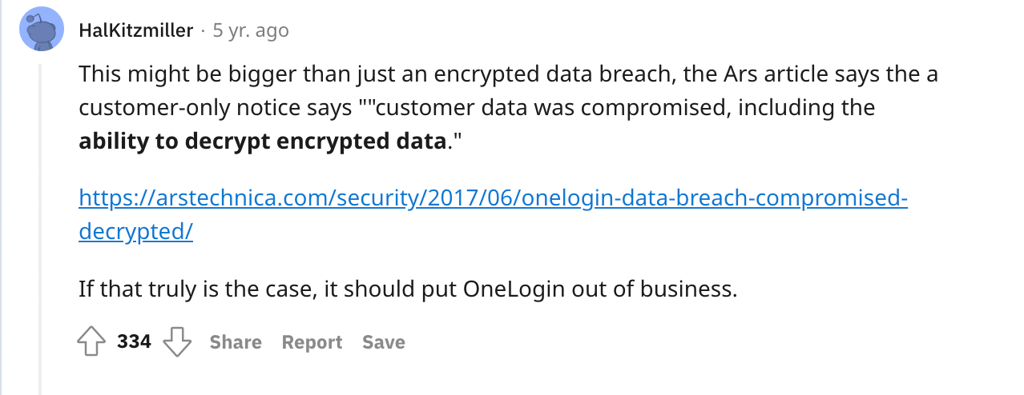
- OneLogin. There are some users who do not recommend it, as it’s been known to be hacked, too. In fact, in 2017, OneLogin was attacked, and customer data was leaked. The user data that was stored in their US data centers was affected.
Does Reddit recommend free password managers?
Yes and no. Reddit users recommend the combination of open-source and free password managers. Also, you can find comments saying that you shouldn’t use free versions of password managers, as you’re more exposed to identity theft and data leaks.
There are some popular free password manager choices on Reddit. Some providers' free versions offer unlimited passwords, unlimited devices, all the core functions except advanced features. Other mentions on free password managers on Reddit are on open-source password management solutions that users find attractive.

Most of the best password managers have a free version for you to try. However, they either limit most of the features, require a large skillset or more of your time to use. Others won’t let you back up your data and deny priority customer support. If you decide that you still want to try a free password manager, we recommend choosing one from our list of our best free password managers in 2026.
Best password manager subreddits to subscribe to
If you’re looking for some more additional information on password managers on Reddit, we’ve picked up some subreddits you might be interested in:
- Active subreddits of Bitwarden and 1Password. In the links, you can find information about these password managers, their features, functionalities, and Reddit discussions about them.
- Everything related to passwords. In this subreddit, you can find data on strong passwords, password managers, and anything related to passwords – whether it would be an uncensored opinion on different password managers, troubleshooting, recommendations, or tips and tricks.
- Additional subreddit – Sysadmin. This one is not password manager-related but has a bunch of useful information on passwords and in-depth app insights. Can be useful if you're tech-savvy or are interested in different systems.
Conclusion
Reddit can be a great user-focused source for finding password manager recommendations. However, keep in mind that every provider has its strengths and weaknesses, and users may have different needs, opinions, and experiences. It’s always worth doing your own research before making a decision.
When looking at Reddit’s favorite password managers, a few priorities stood out: ease of use, strong security, a trustworthy track record, multiple layers of protection, and free options. Based on these factors, one popular choice is NordPass, which offers a fully functional free version. If you’re looking for more advanced premium features, Keeper is another option worth considering.
FAQ
Which password managers are the most secure according to Reddit?
According to most Reddit users, NordPass seems to be the most secure password manager. It ranks high in security as it's an open-source code password manager and has a focus on strong security rather than a nice-looking environment.
What do Reddit users think about using free password managers?
In general, Redditors are not against free password managers. Exclusively liked free password manager version is of Bitwarden. Some say this one has a pretty good free version for beginners – it’s pretty powerful and considered to be very safe.