RoboForm vs Dashlane: comparing 2 leading password managers

RoboForm and Dashlane are two long-established password managers, which makes them difficult to decisively compare. Both cover everyday password management well, though without spoiling too much, RoboForm comes out ahead in core password management capabilities and overall flexibility.
For this RoboForm vs Dashlane comparison, I tested both password managers with the Cybernews research team, focusing on their features, security, usability, pricing, and overall performance. Below, I explain where each one performs better and which password manager is the stronger choice in 2026.
RoboForm vs Dashlane – an overview
Dashlane is focused on an all-in-one, online-first security suite with extras like VPN and dark web monitoring, while RoboForm focuses on streamlined password management with offline access, broader desktop support, and a lower price point.
| RoboForm | Dashlane | |
| ⭐ Rating: | ||
| 🥇 Overall rank: | #3 out of #20 | #5 out of #20 |
| 🔥 Coupons: | RoboForm coupon 60% OFF | Dashlane coupon 25% OFF |
| 💵 Price: | From $0.99/month | From $4.06/month |
| ✂️ Free version: | Yes, plus a 30-day money-back guarantee | No, but there's a free trial and a 30-day money-back guarantee |
| 🔒 Encryption: | AES-256 | AES-256 |
| 🖥️ Platforms: | Windows, macOS, Linux, ChromeOS, Android, and iOS | Web app/browser extension, macOS, Android, iOS |
| 🌐 Browser extensions: | Chrome, Firefox, Opera, Edge, Brave, and Safari | Chrome, Safari, Firefox, Edge, Brave, Opera, Vivaldi |

Recent Updates
Key differences between RoboForm and Dashlane
RoboForm and Dashlane both deliver reliable password management with solid security foundations and competitive feature sets. Where they differ is the overall value and everyday usability, with each platform pulling ahead in different areas depending on what users prioritize most.
| Category | RoboForm | Dashlane |
| Features | Password generator with up to 512 characters, password sharing for all users, emergency access, password audit, autofill, Safenotes, cloud backup, MFA support, bulk password importing, biometric recovery | Password vault, password generator, secure notes, form autofill, password sharing, emergency access, dark web monitoring, VPN (Premium) |
| Pricing and plans | More affordable; free version available, premium plans start at $0.99/month | No free plan; Free 14-day trial available and Premium plan starts at $4.07/month |
| Security | Employs AES-256 encryption, PBKDF2-SHA256, zero-knowledge architecture, and independent audits | Employs AES-256-CBC-HMAC, Argon2d key derivation, zero-knowledge architecture, annual SOC 2 Type II audits, and ISO/IEC 27001 certification |
| User-friendliness | Clean and intuitive desktop apps, easy setup, flexible password sharing, responsive mobile apps | Intuitive interface with browser, mobile, and macOS apps, but no traditional Windows desktop app |
| Customer support | 24/7 ticket support for all users, live chat and priority support for paid plans, phone support, detailed help center and tutorials | Email support, 24/7 live chat, community support (forum), how-to guides/knowledge base, social media support |
Choose RoboForm if:
- You are on a budget. RoboForm is one of the most affordable password managers, with prices as low as $0.99/month.
- You prefer a simple tool. RoboForm focuses on core features like autofill, password generation, and secure storage without an overwhelming number of extras.
- You want more accessible customer support. RoboForm offers a variety of ways to get assistance, including live chat and phone callback options, which can be more convenient than email-only support.
For the full breakdown of the performance, security, and usability, read our RoboForm review.
Choose Dashlane if:
- You prefer managing passwords through your browser. Dashlane no longer has a traditional Windows desktop app, although it still offers mobile apps and a macOS app alongside its browser extensions.
- You want more than a password manager. Dashlane includes useful additional features, such as a VPN, taking your security to the next level.
- You value user-friendly design. Dashlane offers an intuitive interface that works across platforms, while RoboForm’s usability is not as smooth.
Plans and pricing
RoboForm is the victor in the Dashlane vs RoboForm pricing matchup, although Dashlane’s pricing and plans overhaul does spice things up significantly. However, RoboForm offers a completely free plan and its plans are still significantly cheaper.
Feature-wise, RoboForm stuffed its plans with more password-related features, while Dashlane includes a few general security features. In any case, it’s also worth noting that both providers offer 30-day money-back guarantees just in case you change your mind.
| Plan | RoboForm | Dashlane |
| Free | $0.00 | Discontinued |
| RoboForm Premium/ Dashlane Premium | $0.99/month | $4.06/month |
| Family/Friends & Family | $1.59/month (5 users) | $5.62/month (10 users) |
| Business | $3.33/month per user | $8.00/month |
| Try RoboForm | Try Dashlane |
RoboForm pricing
RoboForm has a variety of plans for personal and business users. Personal users have these options:
- RoboForm Free
- RoboForm Premium – $0.99/month for 1 user
- RoboForm Family – $1.59/month for 5 users
- RoboForm for Business – $3.33/month per user
The RoboForm Free plan is great to get a taste of the provider, but it only includes core features and 2FA. You’ll need to spring for Premium to access all of RoboForm’s features. Made for one user, the plan offers unlimited logins, password audit, emergency access, cloud backup, and a secure shared folder.
If you’re sharing with others, RoboForm Family can accommodate up to five users. And you’ll still get the same features as those in the Premium plan.
RoboForm also has a plan for organizations, called RoboForm for Business. With it, you can choose how many users to cover (1-1000+) as well as the duration of the subscription. It offers additional perks such as automated user provisioning, centralized management, reports, password audit, dark web monitoring, and more.
Dashlane pricing
Dashlane has several plans to choose from:
- Dashlane Premium – $4.06/month for 1 user
- Dashlane Friends & Family – $5.62/month for 6 users
- Dashlane Business – $8.00/month
Unlike RoboForm, Dashlane has discontinued its free plan completely and now offers only paid plans, although new users can try Premium for 14 days. Premium can support unlimited devices and comes with unlimited password storage, dark web monitoring, VPN, Secure Notes, and more. However, if you’re sharing with other users, you’ll need to spring for Friends & Family, which can support up to 10 users.
Dashlane Business plan offers the most features without any restrictions. It also offers unlimited encrypted file storage.
Which one is more secure?
The well-matched RoboForm vs Dashlane security battle ends with a tie as the two quality password managers share many similarities – both good and bad. For starters, the providers use 256-bit AES encryption and assorted multi-factor authentication (MFA) methods to shield your vault and its content. The duo’s privacy policies are also pretty standard for the industry.
At the same time, both RoboForm and Dashlane’s storage could be more intuitive as well as generous. That makes this one of the harder categories to separate, and overall, I’d call it a draw.
Encryption
The similarities between RoboForm and Dashlane are especially apparent when you look at their encryption. Both password managers use 256-bit AES encryption, a cipher approved by the National Security Agency (NSA), to protect your vault.
In RoboForm’s case, it uses the 256-bit AES encryption alongside PBKDF2 SHA256 to derive your encryption key. The latter is especially helpful against dictionary and brute force attacks. In addition, RoboForm offers a cypher key with up to 8 million iterations. Along the same vein, Dashlane also uses 256-bit AES encryption in tandem with a ciphering key derived using 10,000 PBKDF2 iterations.
Another thing to know about their data handling is that they’re built on a zero-knowledge architecture. So, all encryption and decryption take place at the device level and only encrypted blobs are sent to their servers. Neither the companies nor their employees have direct access to your data.
In short, both password managers are on a level pegging and very secure in terms of encryption.
Multifactor security
Multi-factor authentication (MFA) functions as a critical additional layer that protects against breaches even if your master password gets exposed. With it, you’ll need to further confirm your identity using other methods after entering your username and password.
In RoboForm’s case, it allows all the common two-factor authentication (2FA) methods on its plans (free and paid). Save for hardware keys like YubiKey, all other main methods such as Google Authenticator, Microsoft Authenticator, and Authy are supported.
Apart from that, RoboForm allows SMS verification, too. However, it’s best to give this a wide berth as SMS verification is the least secure method of 2FA.
Similarly, Dashlane supports authenticator-based 2FA alongside device and email verification. It also supports passwordless login with options such as PINs and compatible security keys.
In this respect, both password managers offer various MFA methods to reduce the risks of compromised passwords.
Data storage
Most password managers double as a secure cloud storage vault for other sensitive data. With RoboForm, you get Safenotes, which is like an encrypted digital notebook. Here, you can store safe combinations, medication lists, insurance policies, and more. Basically, all the information you want to keep away from prying eyes.
However, bear in mind that things like videos and photos aren’t supported on Safenotes. For those items, RoboForm recommends GoodSync instead.
As for Dashlane, only paid plans get data storage – 1GB of encrypted file storage, to be exact. But here’s the catch: each file must be below 50MB in size. While 50MB is sufficient for basic documents, it’s far from enough for resource-intensive items like videos or photos.
In any case, both RoboForm and Dashlane’s data storage could be improved. RoboForm could do with flexible in-house storage, while Dashlane could be less tight-fisted with its storage capacity.
Privacy policy
They might be zero-knowledge solutions, but RoboForm and Dashlane still collect personal data. However, to give them credit, both providers’ data collection and privacy policies are rather standard as far as these things go.
RoboForm logs basic user information, including email addresses, names, operating systems used, and addresses. But, on the bright side, the password manager is quite forthcoming with how and what it collects. Plus, for certain data, you have control over how it's handled and shared.
Likewise, you can expect Dashlane to collect user data, too. Among other things, it logs registration and billing data, personal data, feedback, device and browser data, usage data, behavioral data, and cookies.
If you scroll down Dashlane’s privacy policy, it also spells out how your collected data is used. For instance, the data could be used for verification, service improvement, product promotion, administrative notifications, and marketing and advertising efforts on third-party sites and platforms.
Third-party security audits
Regular independent security audits are vital to keep a password manager in check and up to par. Both RoboForm and Dashlane have undergone third-party security testing.
In RoboForm’s case, I know that it has SOC 2 certification on its servers. And these said servers are located in a secure Tier 1 facility in Virginia, United States. As for the facility, it’s surrounded by armed guards, backup generators, and connections to Internet backbones.
Moreover, RoboForm has undergone an independent audit by a third-party company called Secfault Security, which now proves that the provider is free from security vulnerabilities across all compatible devices.
Dashlane also undergoes annual SOC 2 Type II audits and maintains ISO/IEC 27001 certification. It also provides information about independent penetration testing and publishes considerably more detail about its security architecture than it did in the past.
Security-wise, RoboForm and Dashlane are closely matched, with both relying on strong encryption, multi-factor authentication, zero-knowledge architecture, and third-party security testing. Both also back their security with independent audits. Overall, I’d call this round a draw.
RoboForm vs Dashlane: features overview
While the RoboForm vs Dashlane competition is down-to-the-wire so far, our RoboForm review showed that it has a comfortable lead when I compare their features. Although both password managers provide a range of helpful password management-related features, RoboForm defeats Dashlane thanks to its more functional and flexible features.
Meanwhile, RoboForm's more flexible password management tools, particularly its Emergency Access and password generator, give it the edge overall.
Password importing
To make it easier for users to jump ship and switch to its service, any savvy password manager would offer a smooth and easy password-importing feature. Considering their caliber, it’s no surprise that both RoboForm and Dashlane deliver in this regard.
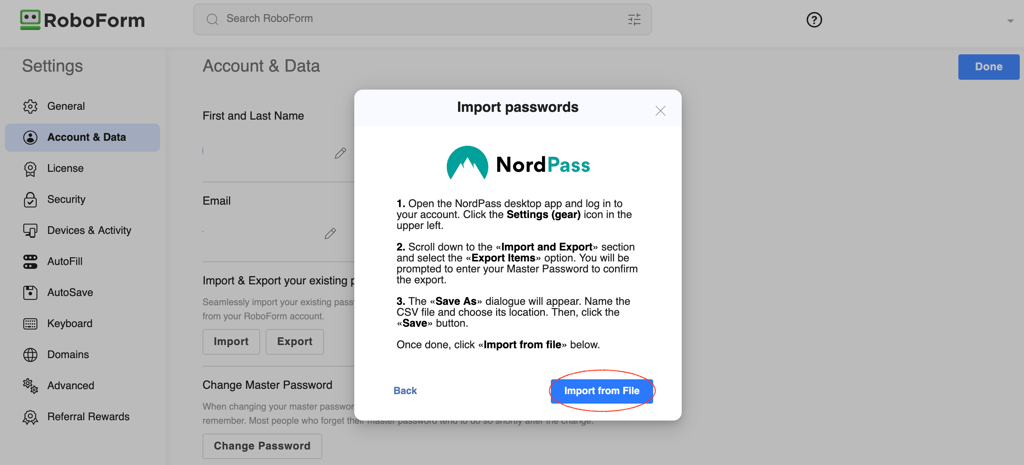
With RoboForm, it allows bulk password importing from an extensive list of apps and platforms. You can count the apps below among those supported:
- Browsers like Chrome, Firefox, Safari, Opera, and Edge
- Other password managers such as Dashlane, NordPass, and Keeper
- CSV files
When reviewing Dashlane, I learned that it too supports easy bulk password importing. However, its list of supported apps is shorter than RoboForm’s. Even then, it allows password-importing from RoboForm, 1Password, and Keeper as well as browsers like Chrome and Edge. Of course, the standard CSV files are accepted, too.
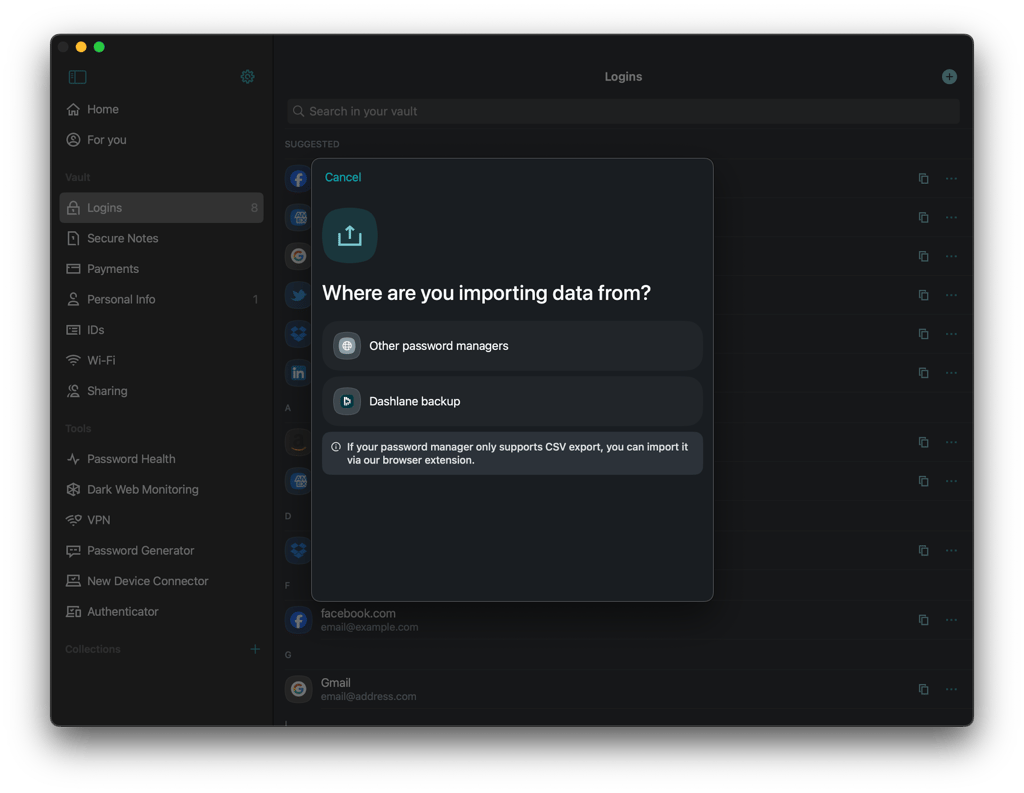
All in all, both password managers make it extremely easy for users to import passwords. That said, RoboForm has the lead here because of its extensive importing options.
Account and password recovery
It’s not uncommon for users to lose or forget their master passwords. If you’re concerned about account and password recovery, it’s worth noting that RoboForm is considerably more forgiving than Dashlane in this regard.
With RoboForm’s paid plans, you can pick an emergency contact who can access your account and download your data. The only condition is that the contact must have a RoboForm account. Otherwise, if you’ve enabled biometrics on your mobile, you can use it to restore your password, too.
Dashlane no longer offers its former Emergency Access feature, but its recovery options are more flexible than before. You can set up an account recovery key to regain access without losing your vault, while biometric recovery is also available. Professional plans additionally support admin-assisted recovery.
Password generator
A textbook feature that’s included in most password managers’ plans, password generators are incredibly helpful for quickly coming up with unique and strong passwords.
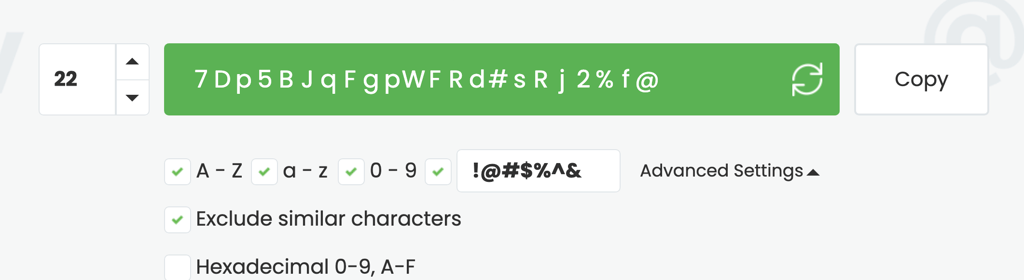
With RoboForm, you get a flexible password generator where you have the option to include or exclude upper and lower case letters, numbers, hexadecimal, and symbols. However, its biggest draw is that you can use it to generate up to 512 characters for each password. This is quite a feat since most password generators max out at around 100 characters.
Dashlane’s password generator also lets you set parameters like including or excluding letters, digits, and symbols. The default length is 16 characters but you can raise the limit to 40 characters.
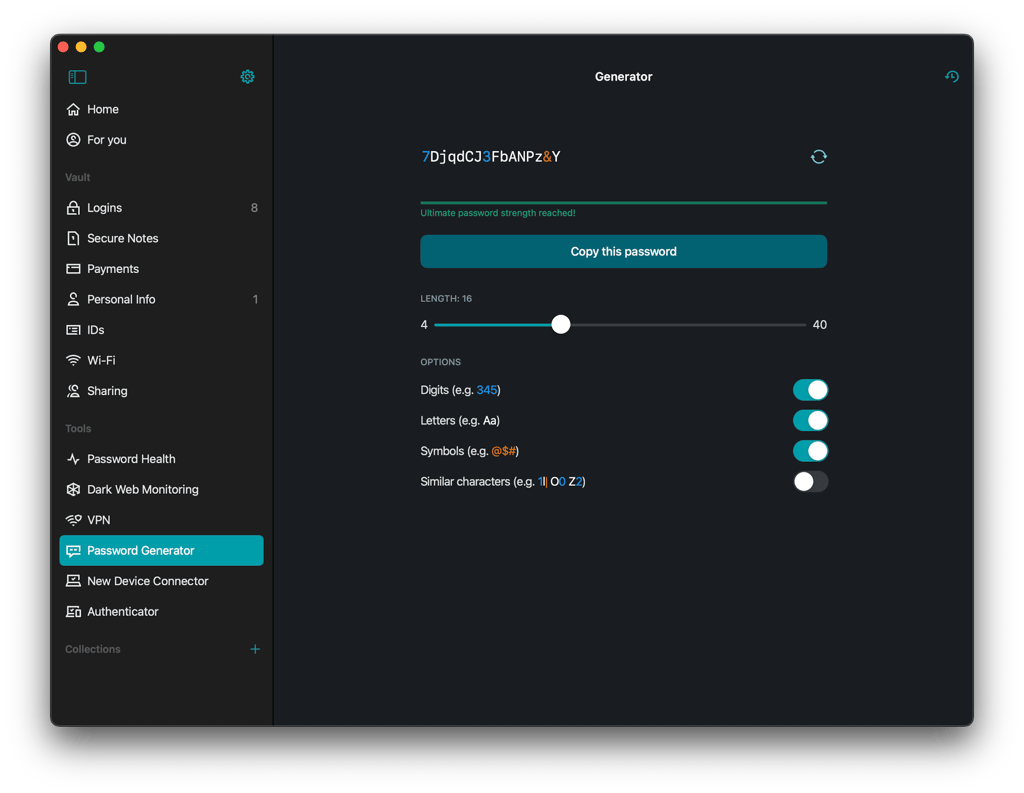
To sum it all up, RoboForm and Dashlane’s password generators will help you to come up with unguessable passwords. But, between the two, RoboForm’s version has the lead because of its higher character limit.
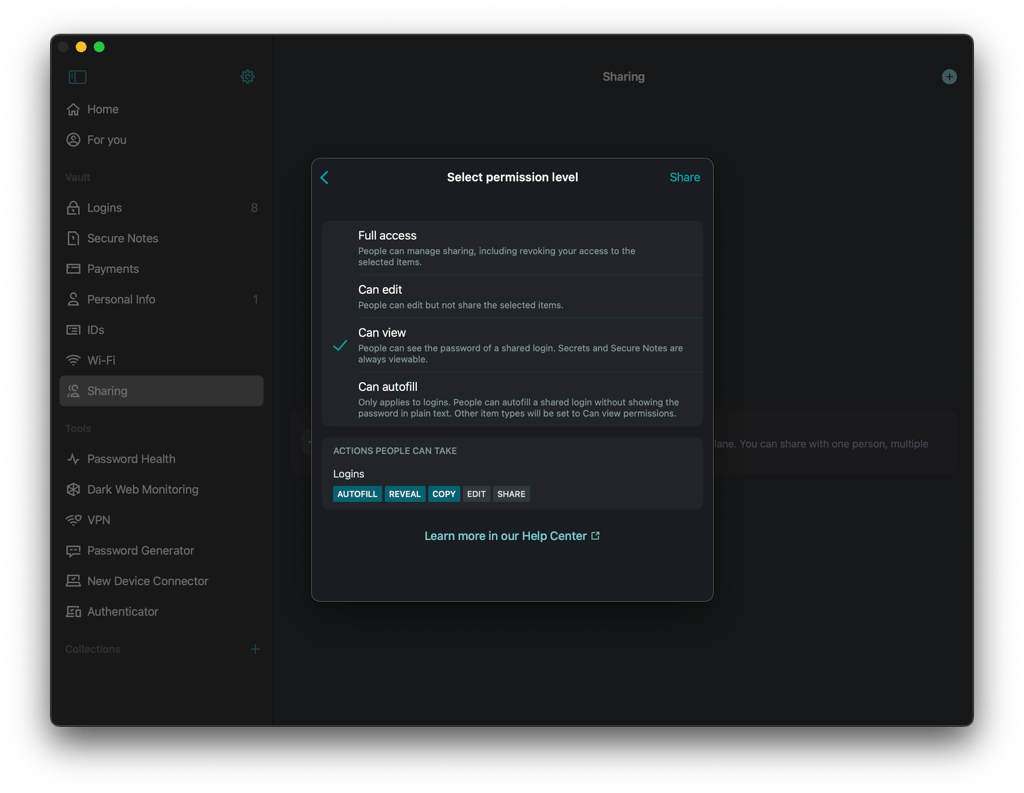
Password sharing
RoboForm and Dashlane are again on a level playing field if I look at their password-sharing feature.
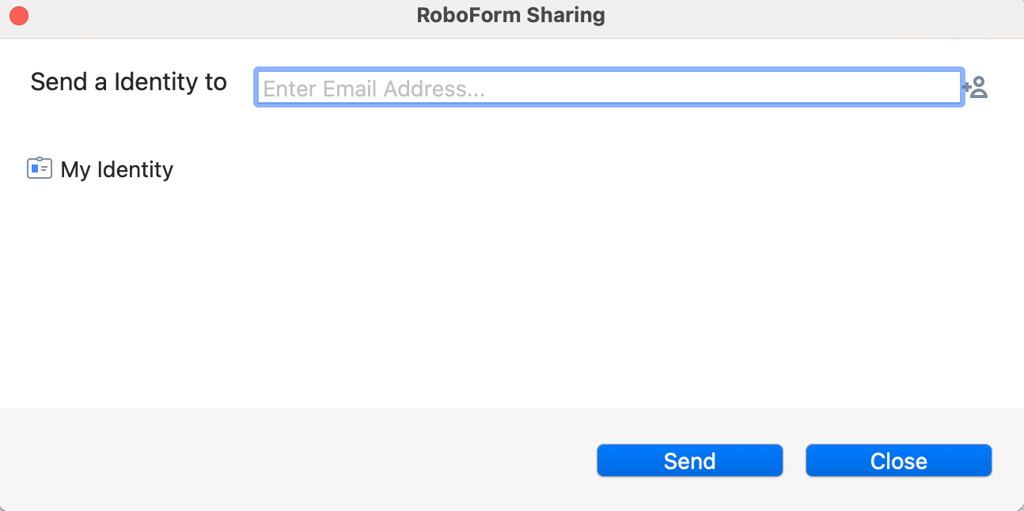
With RoboForm, a link sent via email is all that you need to share passwords or even folders with others. There’s also the option to tweak permissions as well as the ability to revoke access at any time. The one criterion here is that your recipient must have a RoboForm account, which is easy enough since the provider has a free version.
Dashlane’s secure sharing feature bears much resemblance to RoboForm’s version. For instance, you can share an email invite for recipients to access the shared credentials. Plus, you can specify access levels and revoke access whenever you wish. And, just like RoboForm, your recipient must first sign up for a an account before they can access the shared items.
Autofill
RoboForm and Dashlane come with autofill to make login, payment, and other form-filling processes safer, simpler, and quicker. Both password managers’ autofill features are seamless and convenient.
In RoboForm’s case, you just need to click on its icon, and it’ll fill in all the necessary fields and even submit the form on your behalf. The feature works for logins, checkouts, and essentially all other relevant form-filling processes.
Similarly, you can also trigger Dashlane’s autofill feature by clicking on the dark green D icon in the fields. Once clicked, Dashlane will fill in all the saved information – whether it’s username, password, address, or credit card details.
Overall, I’d say that both password managers’ autofill features are very similar. And, they both work perfectly well to make form-filling a breeze for users.
Platforms, interface, and ease of use
The pair works with all mainstream operating systems and web browsers. Ease of use is where the RoboForm vs Dashlane comparison heats up and ends with RoboForm having a narrow advantage. That said, there are some compromises to be made here as both have their pros and cons.
| RoboForm | Dashlane | |
| Supported OS | Windows, macOS, Linux, Android, iOS | Windows, macOS, Linux, Android, iOS |
| Browser extension | Chrome, Safari, Firefox, Opera, Edge | Chrome, Safari, Firefox, Opera, Edge |
| Number of users | Up to 5 | Up to 10 |
RoboForm has excellent desktop and mobile apps as well as browser extensions. However, its mobile apps only come with core features. Meanwhile, Dashlane takes a more browser-based approach on Windows and Linux, although it also offers Android and iOS apps and a macOS app.
Desktop apps
RoboForm has dedicated desktop software for Windows and macOS, while Linux users can access it through supported browser extensions. To install and set up, you just need to click when prompted. You’ll be guided throughout the entire process.
RoboForm’s desktop apps for all the different operating systems are pretty similar. Streamlined, minimalistic, and easy to navigate, you can see that a lot of thought went into making the apps as beginner-friendly as possible.
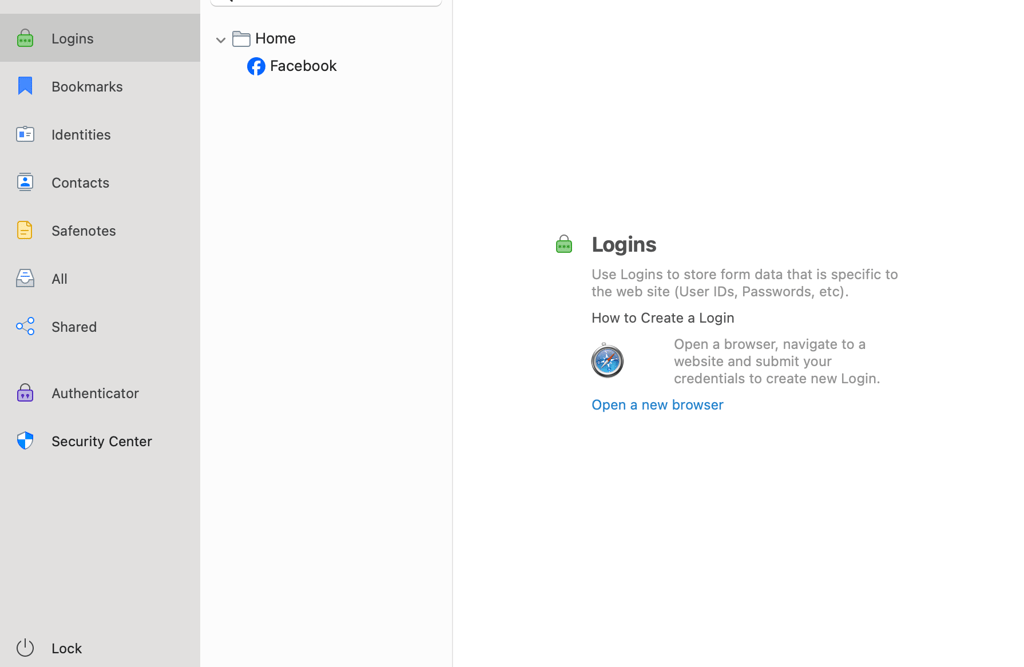
As for Dashlane, it no longer offers a traditional Windows desktop app and instead relies mainly on its browser extension and web app. However, Dashlane still offers a macOS app alongside its Android and iOS apps.
I still prefer RoboForm if you want a traditional desktop password manager, particularly on Windows.
Browser extensions
RoboForm and Dashlane have browser extensions for all the major names like Chrome, Safari, and Firefox. Whether it’s RoboForm or Dashlane, a few clicks here and there are all that’s necessary for setup. It shouldn’t take you more than a minute.
Just like you’d see with most password managers on the market, RoboForm and Dashlane’s functionalities are also heavily tied to their web apps. On the extensions alone, you can access only the basic features. Things like autosave, autofill, and password generator are available, but everything else can only be accessed through their web apps.
Mobile apps
To get your hands on RoboForm or Dashlane mobile apps, you just need to download your app of choice either from the Apple App Store or the Google Play Store.
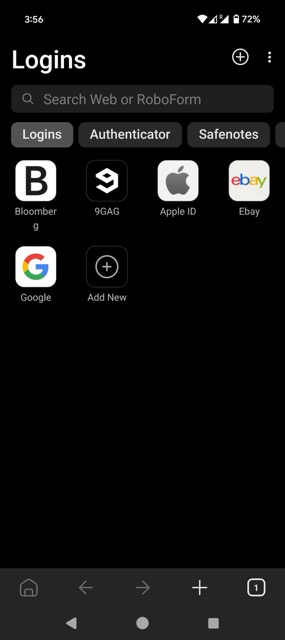
With RoboForm, you won’t find much difference between its iOS and Android mobile apps. Keeping things simple, the apps are sleek, clean, and responsive. All key password management features like autofill, password generator, and password audit are there, but you won’t find other additional features.
In contrast, Dashlane’s mobile app for Android is very functional. You’ll find the majority of the features that are available on its full version, including VPN, Secure Notes, and dark web monitoring.
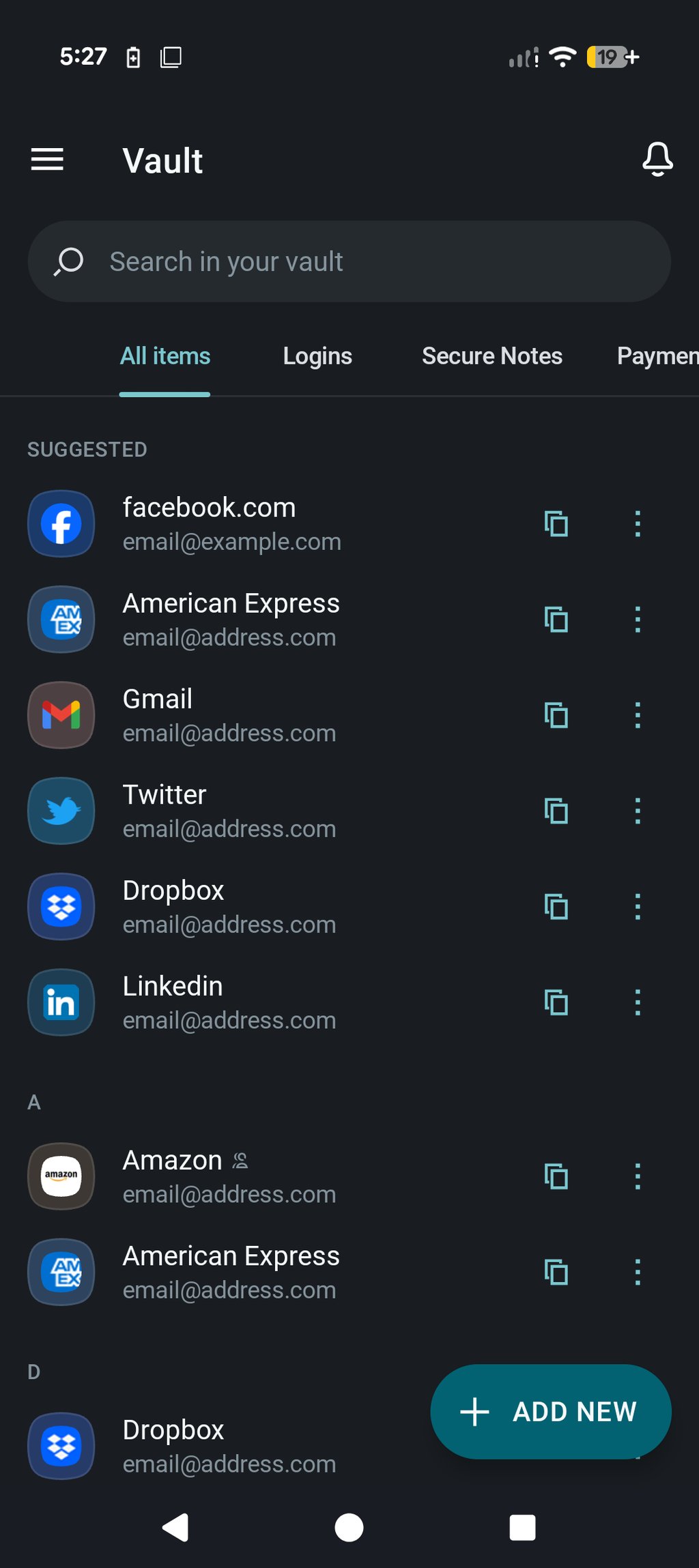
Unfortunately, Dashlane’s iOS version is another thing altogether. While it isn’t exactly a Dashlane’s shortcoming, it’s still worth it to note that the iOS version is much more limited because of Apple’s third-party apps and security restrictions.
Customer support
RoboForm has a marginal advantage when I compare RoboForm vs Dashlane customer support because of its live support.
With RoboForm, all users have access to 24/7 ticket support. Don’t expect immediate replies, but generally, the response time is short, and the agents are efficient. Other than that, paid users also get priority online support and live chat support during business hours.
If you need help outside of business hours, hit up RoboForm’s Help Center, User Manual, and Tutorials. These are all treasure troves that house plenty of well-written articles complemented by step-by-step guides and accompanying images.
Dashlane’s customer support is a close second, with live chat and email support available to paid users. You can also use its extensive knowledge base and other self-service resources to troubleshoot common problems.
RoboForm vs Dashlane – which one to choose?
Overall, RoboForm beats Dashlane as a password manager. It offers more useful features, is easier to use, and comes at a lower price. Plus, its customer support is more available, making RoboForm the better choice for most users.
Meanwhile, Dashlane is far from a write-off. Its higher price may be harder to justify if you only need password management, but its strong security transparency and extras like dark web monitoring and a VPN give it clear advantages for some users. Its browser-based approach on Windows may also be less appealing if you prefer a traditional desktop app.
More password manager comparisons from Cybernews:
FAQ
Is RoboForm better than Dashlane?
Yes, RoboForm is better than Dashlane for most users. It offers more flexible password management features and is also cheaper than Dashlane. However, Dashlane has an advantage in security transparency and includes additional tools like dark web monitoring and a VPN.
Which is better for mobile: RoboForm or Dashlane?
Both RoboForm and Dashlane work well on mobile, but Dashlane’s mobile apps have a narrow edge. Its Android mobile app is more functional since it offers the majority of features that you’d find in the full version. However, its iOS version is more limited because of Apple’s restrictions.
Can RoboForm import passwords from Dashlane?
Yes, RoboForm can import passwords from Dashlane. First, export your Dashlane data as a ZIP file and locate the credentials.csv file inside it. Then, open RoboForm's importer, select Dashlane, and import the file