How to change your IP address on iPhone
Our in-house cybersecurity experts and journalists, renowned for major reports like The Mother of All Breaches, conduct transparent, unbiased VPN testing and in-depth analysis.
With 750+ articles crafted based on real-world research, we empower readers to make informed purchasing decisions through first-hand expertise.
Learn more

Changing your IP address on an iPhone isn’t just a tech trick; it’s a practical step toward protecting your online privacy, improving security, and unlocking content restricted by location. Whether you want to prevent malicious hackers or your internet service provider from tracking your activity, bypass geo-blocks on streaming platforms, or avoid speed throttling, knowing how to manage your IP address can make a big difference.
In this guide, I walk you through the easiest ways to change your iPhone’s IP address, from using trusted VPNs to exploring alternative methods like proxies and the Tor browser. You can also learn how to find both your public and private IP addresses, understand the difference between them, and choose the best tools to stay secure while browsing.
How to change the IP address on iPhone with a VPN in 4 steps

- Choose a secure iPhone VPN provider, my top suggestion is NordVPN, now 75% OFF
- Download the VPN app and follow the installation instructions
- Sign up or log in
- Connect to a server of your choice to change your IP address
How to find your IP address on iPhone?
The process of finding your IP address on an iPhone device depends on which one you need – the public or private one. The public one is assigned to you by your ISP, while a private IP address belongs to your specific device.
Finding your public IP address on iPhone
Your public IP address is easily accessible, regardless of the device you’re using. Since Google uses it for your approximate location, you can simply enter “What’s my IP address?” into its search bar.
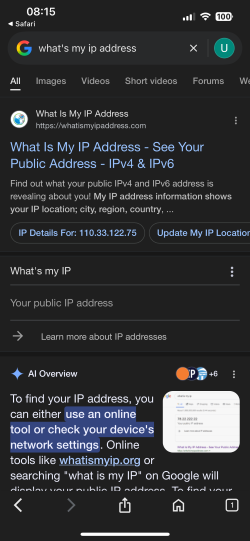
If, for some reason, Google doesn’t display your IP address, you’ll find plenty of other legitimate sites to find your IP address. This includes WhatIsMyIP.com or WhatIsMyIPAddress.com.
Finding your private IP address on iPhone
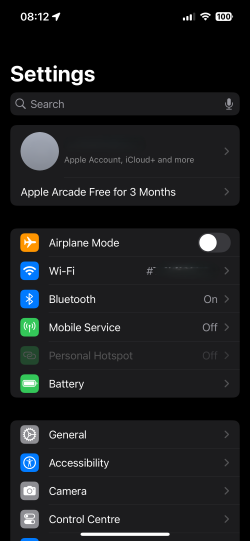
Unlike with a public IP address, you won’t find your private (internal) one on Google. Yet, you won’t have trouble finding it either. Here’s a quick step-by-step guide on where to find your private IP address on iPhone:
-
Head to your iPhone’s Settings and click on Wi-Fi

-
Next to the network you’re currently connected to, you’ll see a lowercase i letter that stands for information; tap on it
-
Scroll down to the IP address section – that’s your iPhone’s IP address


Why would you need to change your iPhone IP address?
Changing your IP address helps to prevent malicious actors, your ISP, and other third parties from surveilling you. Here’s exactly how you would benefit from changing your iOS device IP address:
- Ensure complete privacy online. Getting a new IP address hides your iPhone’s approximate location from websites that want to track you, your ISP, and even hackers.
- Bypass geo-restrictions. If you change your IP address and get one from another country, you’ll be able to bypass geo-blocks on various platforms, streaming services, and more. For example, a TikTok VPN allows access to TikTok in countries where it's restricted, just like a VPN helps unblock Instagram, Netflix, and other services.
- Stop ISP throttling. Some ISPs limit your connection speeds when doing data-consuming activities, such as gaming or streaming. Changing your iPhone's IP address helps avoid speed throttling, letting you enjoy maximum performance.
- Bypass website bans. Some countries restrict access to certain websites, such as torrenting sites or even social media. Changing your iPhone’s IP address lets you access any website freely.
Best VPNs for changing iPhone location in 2026
With many VPNs on the market, it can be quite difficult to find the best VPN for a specific purpose. Together with the research team, I have tested 41 VPNs and selected the top 3 VPNs that are excellent at changing iPhone location.
- NordVPN – the best VPN for changing iPhone location
- Surfshark – feature-rich VPN for changing IP address on iPhone
- Norton VPN Standard – user-friendly VPN for location change on iPhone
Change public iPhone IP address with a VPN: a detailed guide
Changing your IP address with a VPN is an effortless task. Here’s a detailed guide on how to do it:
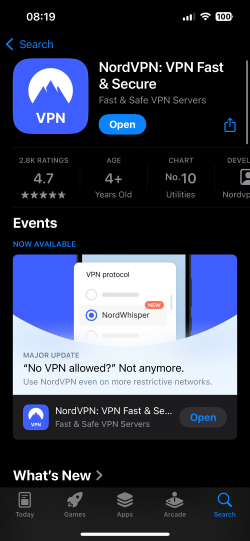
- Pick a reliable VPN for an iPhone device; I recommend NordVPN, now 75% OFF
-
Download the VPN app from the Apple App Store
-
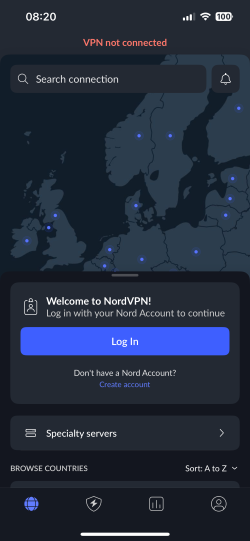
Launch the app and sign up or log in
-
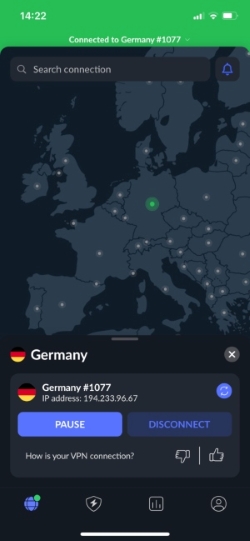
Choose and connect to a server of your choice
- You’ve now changed to a new (public) IP address on your iPhone – you can check it out with any IP address checker
Other methods of changing your iPhone's IP address
Using a VPN isn’t the only way to change the IP address on your iPhone. Here are a few alternative ways you can try:
- Switch to another network. Since public IP addresses are assigned by ISPs, connecting to another network gives you a different IP address.
- Use a proxy. Proxies are similar to VPNs – they’re servers that act as intermediaries between the internet and your computer. Using them gives you a new IP address, but keep in mind that proxies work on the application level only. Plus, they don’t encrypt your personal data, leaving your traffic exposed to your ISP.
- Download the Onion browser. You can use the Tor browser in order to change your IP address, as it reroutes your traffic through a worldwide network of servers. You can get it on the Apple App Store for free. Yet, while it encrypts your data to keep you private, it makes your connection extremely slow for everyday browsing.
- Contact your ISP. Your ISP can change your IP address if you request it. That being said, you won’t have it forever, and it will change again with time. Not to mention that the process may take long since you need to wait for customer support answers.
- Restart your modem. It’s not a guarantee that this will work, but if you unplug your modem for a few minutes, you may get a new IP address. The longer you keep it unplugged, the more likely you’re going to be assigned a new IP address.
Public vs private IP address on iPhone
There are two types of iPhone IP addresses – public and private. They’re also called external and internal IP addresses. Here’s the difference between them:
- Public IP address is used to communicate with online websites and servers and is assigned to your router by your ISP. As the name suggests, it’s public, so various sites and apps can use it to track you. In fact, you wouldn’t be able to access the internet without an IP address.
- Private IP address is used to identify a specific device on a network. It’s assigned by the router itself in order to help it differentiate between devices and find the correct destination to which to send data.
Public IP addresses are paid for since you get one when buying an internet service. Meanwhile, private IP addresses are free of charge because the router itself assigns them.
How to change your private iPhone IP address?
You can change your private IP address on iPhone in the settings of your device. Here’s a tutorial on how to do it:
- Go to your iPhone Settings and select Wi-Fi
- Find the network you’re connected to and navigate to the lowercase i letter, and click it
-
Scroll down to find the IPv4 Address section that includes your current IP address, Subnet Mask, and Router address, click Configure IP

- You can select either Automatic or Manual: for the manual process, you’ll need to enter your new IP address, as well as your subnet mask and router address

How to choose a VPN to change the IP address on iPhone
Choosing a VPN for simply changing your IP address on an iPhone isn’t difficult. Whatever reputable service you choose, it will get the job done. However, there are a few things to keep in mind.
For starters, the service you get should be a VPN for iPhone devices specifically. The app should be simple to use, functional, and have the essentials, such as a kill switch, covered.
Another factor worth noting is that the bigger the server fleet, the more IP addresses you can pick from. So, look for providers with a huge selection of servers, such as NordVPN, which has 9,500+ servers in 149 countries.
A VPN is the best method to change your iPhone’s IP address since it also gives you extra anonymity and security online. That’s why you should also make sure that you opt for services that provide you with the powerful AES encryption.
Conclusion
Switching to a new IP address has its benefits when done with a VPN. It prevents third parties, such as your ISP, from taking a peek at your online activities and other private data. Plus, you can even access platforms and streaming sites that are otherwise blocked in your country.
My best VPN recommendation for changing your iPhone IP address is NordVPN. It has a huge server fleet of 9,500+ servers in 149 countries and provides you with advanced security measures, such as Threat Protection Pro.
As an alternative, you can also change your IP address using a proxy. That is, if you’re willing to sacrifice an extra security layer. You can also try using the Tor browser, which encrypts your traffic, although you may experience slower speeds.
FAQ
How do I force my iPhone to get a new IP address?
You can change the private IP address of your iPhone to a new one by going to the Wi-Fi section in your iPhone’s settings. Then, you should click the lowercase i letter by the network you’re connected to and find the Configure IP section. In terms of a public IP address, you can change it using a VPN, such as NordVPN.
Does resetting the iPhone change the IP address?
No, resetting your iPhone device does not change your IP address. Instead, you can change your private IP address manually or use a VPN to change the public one.
Does my iPhone have an IP address?
Yes, every device that is connected to the internet, including your iPhone, has an IP address attached to it. You can find the private IP address of your iOS device in the settings under the information section of your connected network.
How do I hide my IP address on my iPhone?
You can hide your IP address on your iPhone device by getting a VPN on iPhone, such as NordVPN. It has over 9,500 servers in 149 countries, meaning you’ll have plenty of different IP address choices. Alternatively, you can use proxies or the Onion browser. Yet, while the latter option is very slow, proxies don’t secure your data at all.


