iPhone security settings: finding the sweet spot between safe and sane
When you buy a door, it ships unlocked by default. An iPhone is no different. It's up to the user to decide how much protection they actually want. Complete security is impossible, even if you ditch smartphones for curl commands on Kali Linux virtual machines. Here's what I do to harden my device without losing my sanity – at least, not all of it.

Image by Cybernews.

 Follow us
When you buy a door, it ships unlocked by default. An iPhone is no different. It's up to the user to decide how much protection they actually want. Complete security is impossible, even if you ditch smartphones for curl commands on Kali Linux virtual machines. Here's what I do to harden my device without losing my sanity – at least, not all of it.
The moment you turn on your iPhone, you expose yourself to at least two organizations: Apple and your internet service provider (ISP). They will collect a lot of information about you.
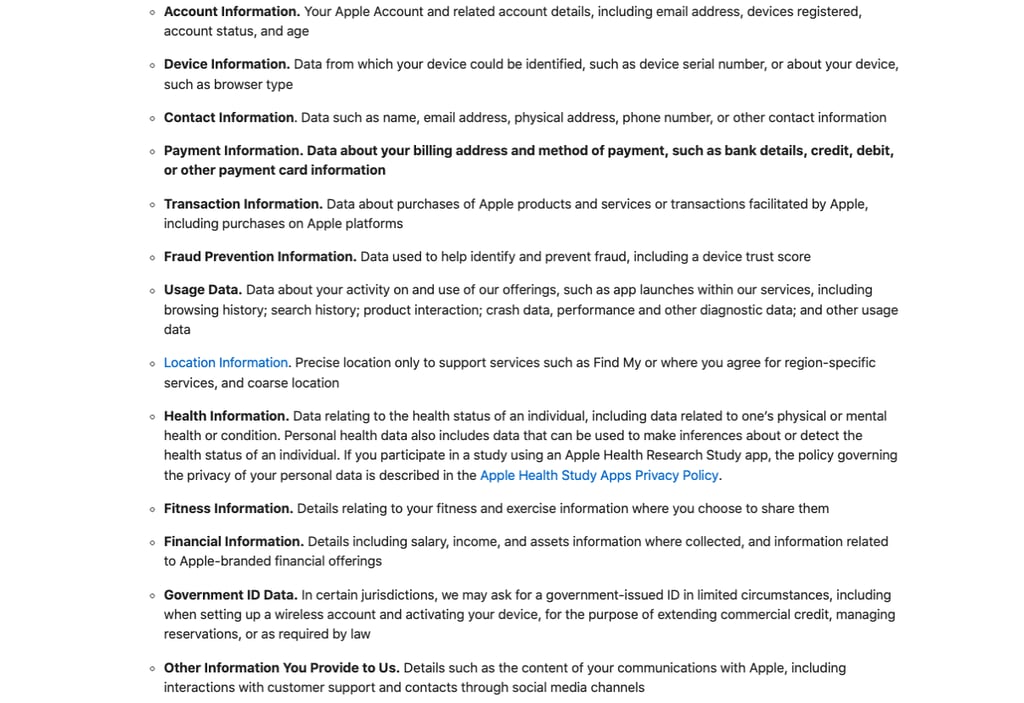
The iPhone has many features enabled by default for your convenience. However, these might be too liberal regarding your privacy and security: your location gets broadcast, Siri listens to your commands, contacts get uploaded to the cloud, and apps share data freely with advertisers.
Even so, the situation is better compared to many Android devices, which come preloaded with third-party services that sometimes can’t even be deleted.




The more services and apps you add to your device, the more you expose yourself. You have some options to limit what they can see and collect about you.
Then come the security threats. Nowadays, most threats will call you, send you an SMS or email, show you a tempting fake ad, or dish out a virus alert. Ultimately, it will be you who responds, clicks, runs, and compromises yourself.
Sure, sophisticated state-sponsored hackers might target someone with spyware. However, these types of attacks are becoming ever harder and mostly target a small number of specific individuals.
In any case, your goal is to limit the data available about you, constrain threat delivery options, limit the impact, and plan potential recovery.
I spent some time tweaking my iPhone's security settings to find a good balance between security and convenience. While not ideal, it might help.
I’ve split all the measures into three categories: unnoticeable or little impact, some compromises and inconveniences, and the settings I tried but abandoned due to overly large quality of life sacrifices.
One egg per basket approach
Advertising-based business models want to extract as much value (and data) from you as possible, and the most straightforward approach is to offer an app that runs on your phone 24/7. Your phone holds your most valuable data and much of your daily attention.
Meanwhile, your goal is likely the opposite – to gain access to services while being extracted from as little as possible.
By choosing your apps, you ultimately grant permission for them to accompany you during your day: they commute with you to work, remain active beside you at night, monitor where and what you eat and purchase, and collect data while you browse the internet together.
We already determined that we can’t avoid exposure to Apple itself. We want to extract as much value as possible from this exposure.
On my iPhone, I use Apple’s native apps for phone-related activities wherever possible. Safari alone replaces dozens of other apps I might otherwise use.
I don’t have any social media apps on my phone – no Facebook, WhatsApp, Instagram, Telegram, TikTok, etc., just the built-in functionality (SMS, calls, FaceTime) and Signal for encrypted communication. I don’t use a single Google or Microsoft app on my phone. If I used Android, I’d likely stick to Google’s app as much as possible.
I still use all the social media services on my other devices, but they’re not constantly with me. If I need to check something on X or respond to Facebook urgently, I use Safari, without exposing my location and other data.
You probably don’t need to be constantly connected, either. Not only does this improve security, but it also gives your mental state a break from useless notifications.
There’s no judgment here. I just like to separate the most data-hungry social media services from a separate stationary device, which helps me control when and how long I use them. It is still too much.
Similarly, I have no Apple apps on my Windows computer, and I keep all my work-related stuff only on my work computer.
This approach has one weakness: the need to sync passwords between all the devices, which adds further exposure. I use Firefox's built-in password manager protected with a master password/Face ID. I understand that my passwords are at greater risk, and I enable passkeys whenever I’m asked. Two-factor authentication is non-negotiable.
Inevitably, more apps will be installed. Keep their number to a minimum, and if you only need them rarely, install them when you need them and remove them after use.
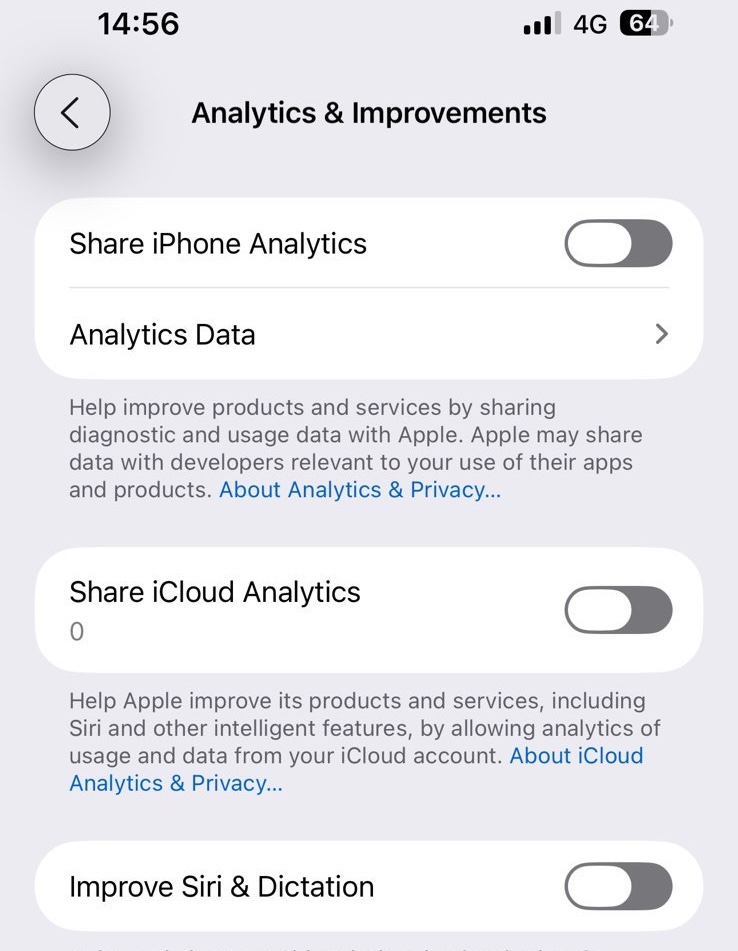
Settings with little to no impact on iPhone usability
First, I use hardened “Privacy & Security” in Settings.
- No “Analytics & Improvements” – unselect all the options.
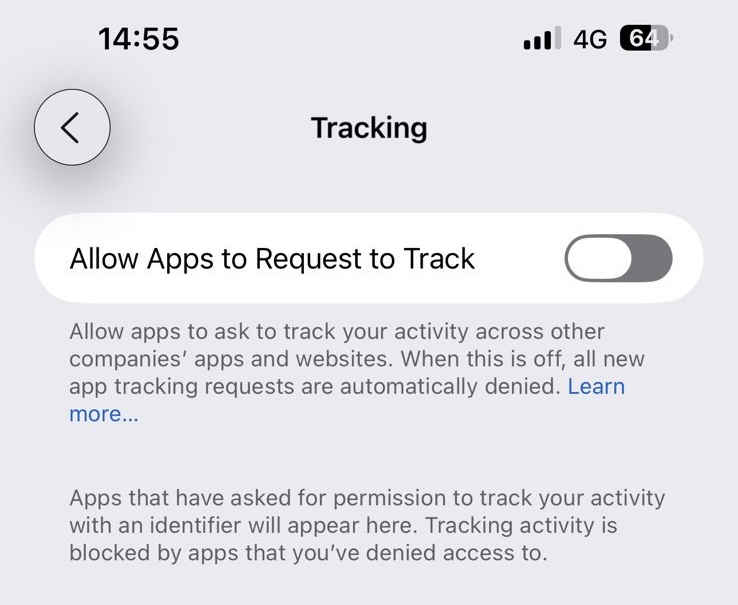
- Turn off tracking across apps: Go to “Tracking” and disable the setting “Allow Apps to Request to Track.” Then, remove this permission from any app that might have obtained it. Cybernews has previously reported that the “Ask App Not to Track” button doesn’t do much. It only hides from the user’s unique Advertising Identifier (IDFA), but doesn’t prevent apps from tracking with dozens of other identifiers and thousands of data points. It’s still better than nothing.
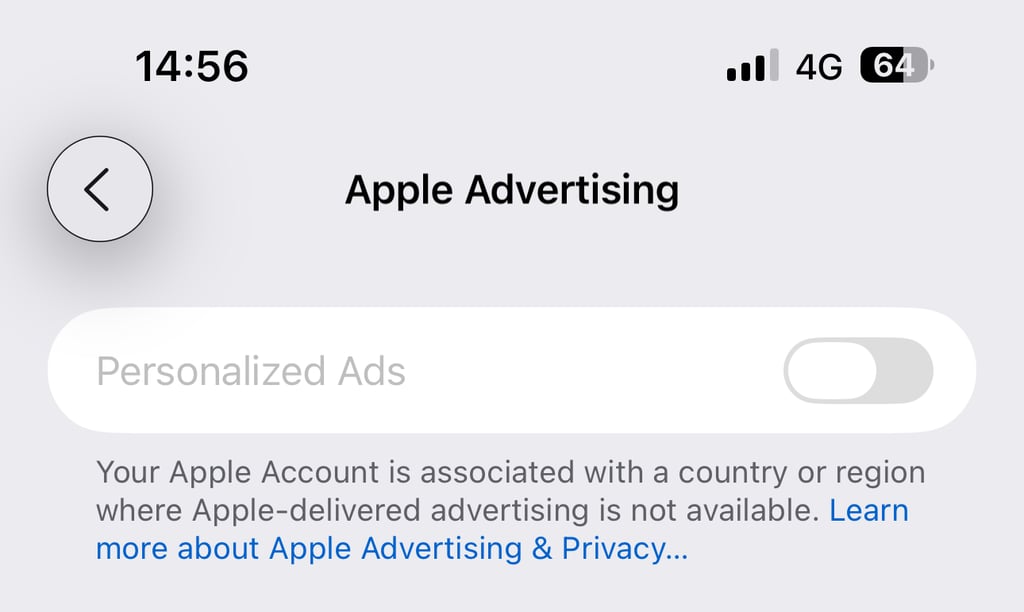
- Disable the “Personalize Ads” option under the “Apple Advertising.”
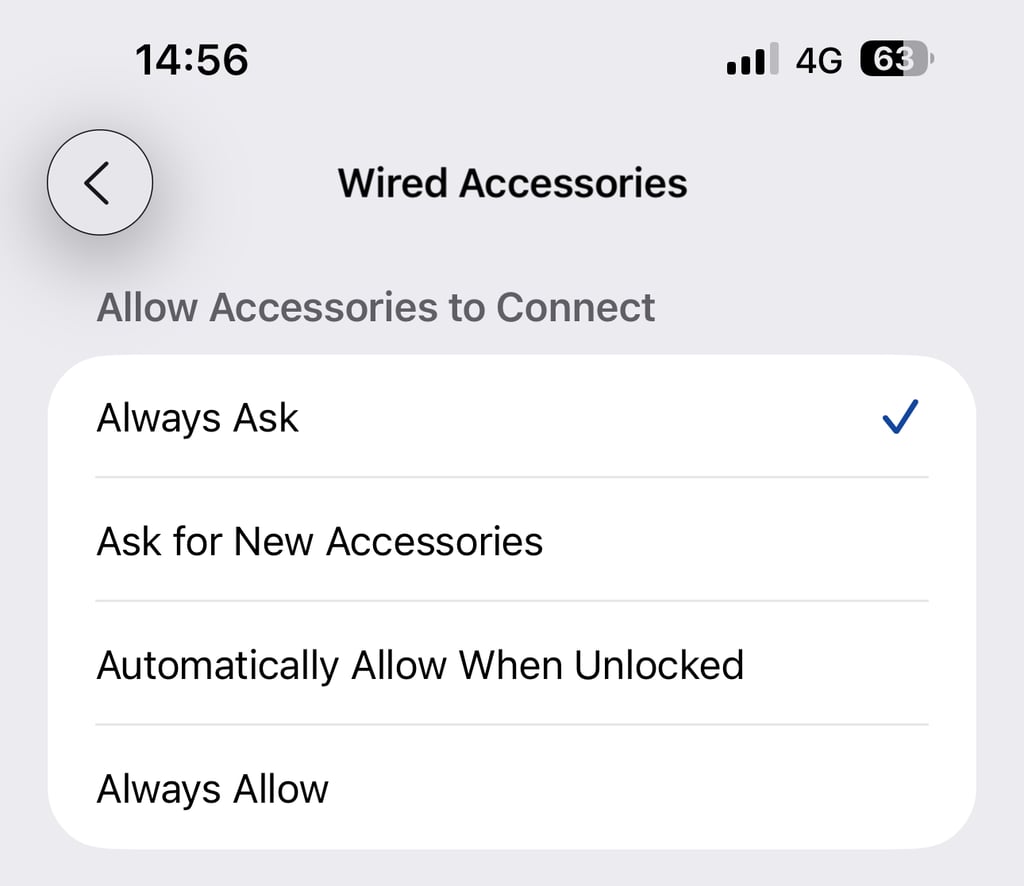
- Disable wired USB access – under the Security tab, choose “Allow Accessories to Connect” and choose “Always Ask.”
- Enable “Stolen Device Protection” if you haven’t already done so.
To harden Safari, go to Settings, choose “Apps”, tap “Safari:
- “Block Pop-ups” should be enabled.
- Scroll down to Privacy & Security to enable “Prevent Cross-Site Tracking.” You might want to enable other features here: “Require Face ID to Unlock Private Browsing,” “Fraudulent Website Warning,” “Not Secure Connection Warning,” and tweak the “Hide IP Address” setting by choosing “From Trackers.”
- In “Settings for Websites,” I deny camera, microphone, and location access on all websites.
- At the bottom of the settings, select “Advanced.” Here, you want to enable “Advanced Tracking and Fingerprinting Protection” for “All browsing.”
- Turn off the feature that allows websites to “Check for Apple Pay.”
- Some websites (including Facebook) don’t offer full functionality for mobile devices, so I “Request Desktop Website” in these cases. This is done from the Safari window. When you visit a website, tap the icon on the left of the address bar (“aA”, or something akin to a square and two lines). Then, select three dots and choose “Request Desktop Website.”
- It also goes without saying: browse using “Private Browsing” for sensitive sessions, and clear history periodically.

Apps
For any other app I use (go to Settings, choose Apps, then select the specific app), I disable “Background App Refresh.” This dramatically reduces app activity (and data transfers) while the app is unused. However, be warned that social media, email, or other messaging apps might not receive real-time notifications/updates.
Some other settings include options to limit tracking. Disable “Allow Tracking” and similar options. Remove unnecessary permissions. I prefer to grant permission once, or “While Using App” if it is really required.
While you’re here, you might also remove or limit notification permissions from the apps using them.
For the “App Store” itself, I disable “In-App Ratings & Reviews,” which removes annoying prompts. I keep app updates enabled but disable “In-App Content,” which runs apps in the background even before I launch them. At the bottom, you’ll find small print to disable “Personalised Recommendations” on your account.

Other basic settings
For the device’s basic settings, I recommend setting auto lock to 30 seconds or 1 minute (Go to “Settings,” then “Display & Brightness,” then “Auto-Lock”). I don’t use “Always on Display.”
Hide notification previews while the phone is locked. This feature might expose your text messages, one-time codes, and sensitive notifications to anyone with physical access to the device. To disable it, go to Settings, choose “Notifications,” select “Show Previews,” and choose “When Unlocked.”
I also don’t like any access to features while the phone is locked. To remove features from the locked phone state, go to “Face ID & Passcode,” and unselect unwanted ones in “Allow Access When Locked.” Keep “Stolen Device Protection” on.
Here, you’ll also find the “Erase Data” option, which wipes the device after 10 failed passcode attempts. I personally don’t use it.
But I have the “Find My” option enabled, which can be used to find, erase, and lock the device if I lose it. (Go to Settings, choose your account name, select “Find My” and enable it).
Of course, keep your device automatically updated.
Settings that might cause minor inconvenience
For me, two vital tools offer a minor but necessary inconvenience: a private encrypted DNS service with filtering and an adblocker. Add a VPN to the mix to hide your traffic from the ISP or attackers in the middle and potentially bypass any geo-blocking measures. Sometimes, a VPN comes as a package combining all three of these tools.
These tools have too many options and features, and too many to cover in one article. While I’ve been using private DNS service NextDNS with almost all filters enabled, you might choose something else. For adblocking, you might choose the Brave browser or extensions for Safari (or Firefox).
Don’t use a free VPN, ridden with ads or even spyware, but choose a reliable vendor.
You want your DNS queries encrypted (hidden from your ISP and other attackers in the middle). You also want to filter all malicious and potentially malicious websites and remove trackers and other unwanted content that attackers use to compromise devices.

Basic filtering shouldn’t interrupt your browsing too much. However, too much filtering might also break some services or websites, requiring a lot of tinkering.
I have enabled Call Filtering, which can be accessed from your Phone app (tap the three-line icon at the top right corner, select Manage Filtering, and then “Unknown Callers”).
Use the call filtering tools provided by your ISP, as you are already exposing your data to it. You might also try third-party apps, such as Hiya. Remember to check logs for any potential false positives.
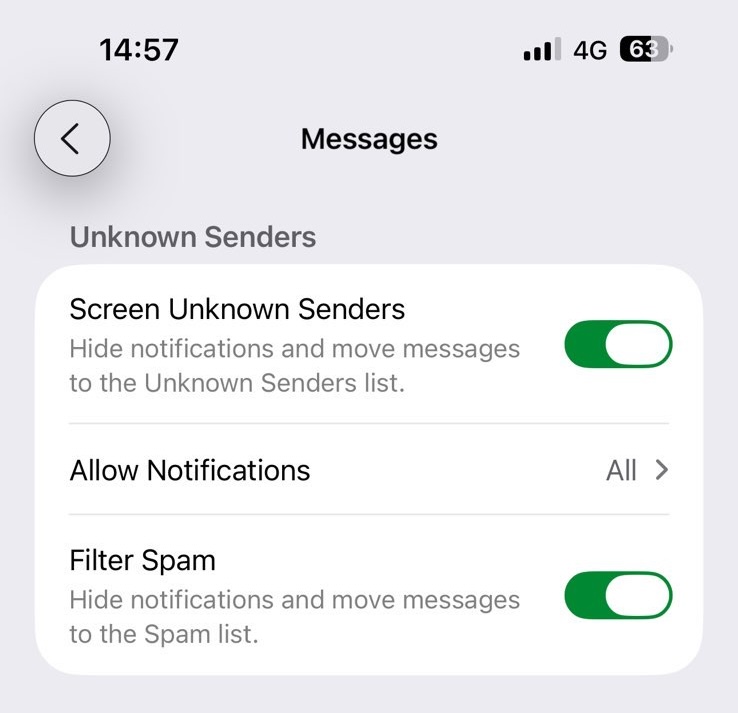
Similarly, in the Messages app, selecting the three lines icon at the top right corner allows you to enable “Filter Spam” and “Screen Unknown Senders.” I have “Send Read Receipts” disabled, I do not “Share Name and Photo,” and I don’t use new AI features, like “Summarize Messages.”
Use iMessages, which are more secure. I have disabled “Send as Text Message” and “MMS messaging” options. I have also disabled “Shared with You” to stop messages appearing in selected apps, but this will require entering one-time passwords manually.
For WiFi networks, I don’t use “Automatic” Auto-Join. Instead, I choose “Off” for “Ask to Join Networks” and “Ask to join” for “Auto-Join Hotspots”. You can find these settings in Settings, then “WiFi.” I periodically clean “Known Networks” list (tap Edit on the top right corner) by removing any unused WiFis, especially public ones.
You should keep AirDrop disabled and enable it when you need it. In the past, it had vulnerabilities that were exploited for remote compromise. I enable it for “Contacts only” when I need it. (Swipe down from the top of the screen to access Control Center, hold the AirDrop icon to choose the corresponding option).
Also, in the Control Center, disable the Personal Hotspot (and other unwanted services) when unused.
I even keep my “Location Services” disabled on the device until I need them. Your location is not private and can be accessed by many services. Apple really doesn’t want you to disable Location services, as there is no setting in the Control Center, and you need to find the switch manually in the Settings under “Privacy & Security.”
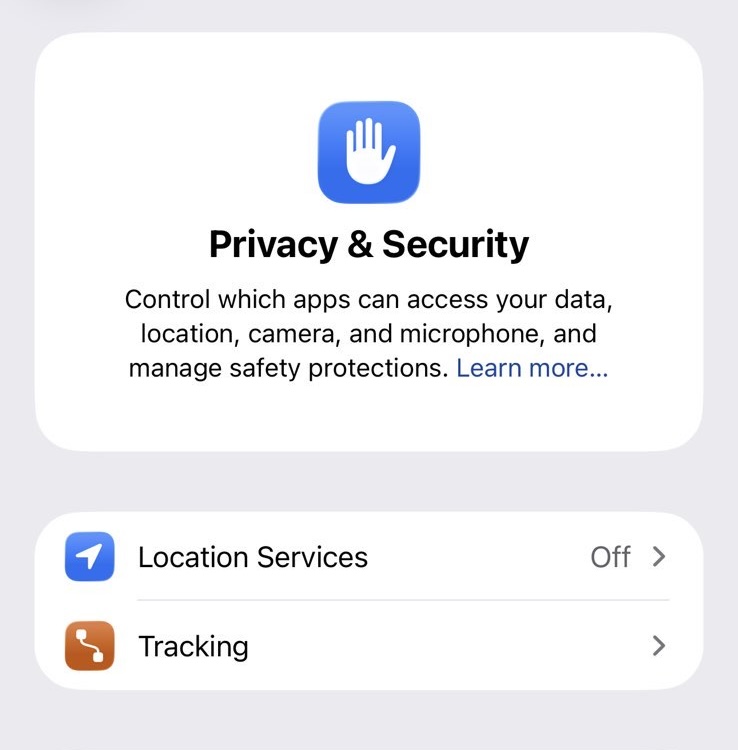
I just use the search bar to access the settings quickly.
I use DockDockGo as default search engine and have disabled “Search Engine Suggestions,” “Safari Suggestions,” Quick website Search” and “Preload Top Hit” in Safari settings.
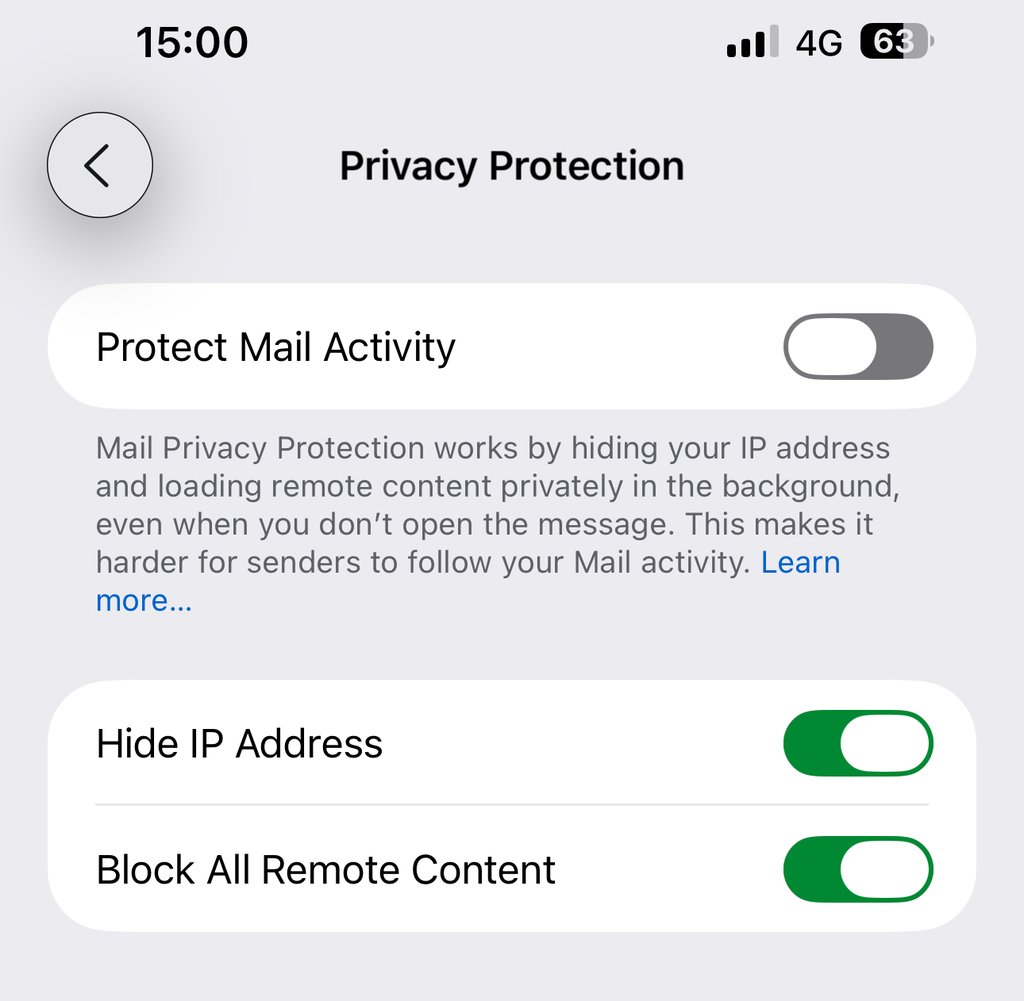
If you use the Mail app (I don’t – I access Gmail and other inboxes via browser), you want to harden its security settings by disabling the loading of remote content. Go to Settings, choose Apps, and select Mail. Go to Privacy protection and enable “Hide IP address” and “Block All Remote Content.” This will ensure that potentially dangerous content won’t reach your app.
Extreme security has a price
There are many more settings that would make your device a lot more secure.
Disabling Bluetooth, for example, will reduce exposure to nearby attackers, but it will also disconnect any smartwatches, headsets, or other Bluetooth devices. These are too important for me.
Or, disabling JavaScript, all cookies, and other features in Safari. This will definitely break many websites and interfere too much with my online activities.

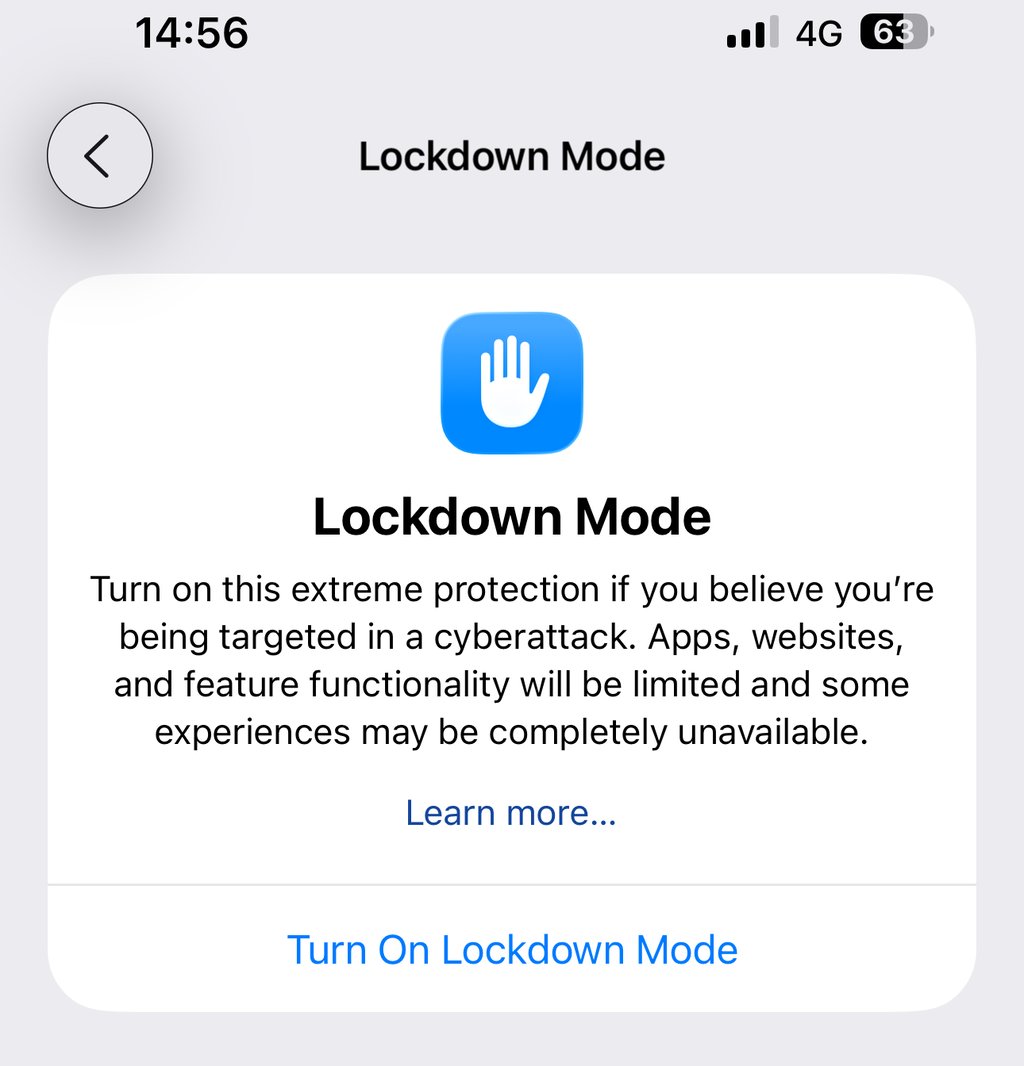
For VIPs, Lockdown Mode is recommended.
“Lockdown Mode is an extreme protection measure that should only be used if you believe you may be personally targeted by a highly sophisticated cyberattack,” iVerify explains.
These attacks mostly target people in high-risk positions, such as politicians, journalists, activists, etc. However, the device in Lockdown Mode will not function as it typically does – it strictly limits, websites and features. I used it for a while, and it’s actually not too bad. But from time to time, minor inconveniences eroded my patience and ultimately i switched it off.
Instead of Face ID and 4-digit Pin, you can likely set a long, hard-to-remember key, but my brain sometimes can’t even recall the master password for all my generated passwords.
This also doesn’t cover data backups, which is another big topic. You probably want to set up a local backup instead of iCloud or at least keep the backups encrypted. I don’t want to lock myself in too much because I’m sure that I might lose the device and access to the encrypted backups with it.






Security purists will want you to do many more things: stop using any apps, don’t grant any permissions, remove all accounts, tape cameras and plug microphones, replace any cloud dependencies with local ones, use “Airplane Mode” as the default mode, keep the device in a Faraday cage just in case, etc.
However, if you need extreme operational security, this article is not for you. Each setting represents a trade-off between your security, privacy, and usability. My sweet spot might already be overkill for many.
Even a few setting changes might make you more resistant to being compromised compared to an easier target, whom hackers will always prioritize. Start with small-impact changes first and gradually work your way up.
Have better suggestions? Share with us in the comments.
Unlock more exclusive Cybernews content on YouTube