Dashlane vs KeePass: which one to pick?
Being behind major reports like The Mother of All Breaches and WhatsApp Data Leak, our in-house cybersecurity experts conduct independent, unbiased testing and thorough analysis of password managers, helping users confidently manage their credentials and sensitive information.
We prioritize transparency by openly sharing detailed descriptions of our in-house testing procedures and methodologies.
Learn more
Dashlane vs KeePass is ultimately a comparison between convenience and customization. Dashlane delivers a polished, beginner-friendly password manager with built-in features and reliable support, while KeePass is a free, open-source solution designed for users who value flexibility and don't mind a more hands-on setup.
For this Dashlane vs KeePass comparison, the Cybernews research team and I evaluated both providers across security, features, pricing, ease of use, compatibility, and customer support to determine which offers the better overall value.
Read on for our full Dashlane vs KeePass comparison to see which password manager offers the better overall experience.

Dashlane vs KeePass – overview
Dashlane and KeePass take very different approaches to password management, with Dashlane focusing on a polished, all-in-one experience and KeePass prioritizing free, open-source flexibility. Overall, Dashlane stands out for its ease of use, built-in features, and accessible pricing plans, while KeePass appeals more to advanced users who value customization but are comfortable relying on plugins and a more technical setup.
| Get NordPass | |||
| NordPass | Dashlane | KeePass | |
| ⭐ Rating: | |||
| 🥇 Overall rank: | #1 out of #20 | #5 out of #20 | #19 out of #20 |
| 🔥 Coupons: | NordPass coupon 56% OFF | Dashlane coupon 25% OFF | Cybernews Password Manager Coupons |
| 💵 Price: | From $1.29/month | From $4.06/month | Free (donations) |
| ✂️ Free version: | Yes | No, but there's a free trial and a 30-day money-back guarantee | Yes (unlimited) |
| 🔒 Encryption: | XChaCha20 | AES-256 | AES-256 |
| 🖥️ Platforms: | Windows, macOS, Linux, Android, iOS | Web app/browser extension, macOS, Android, iOS | Windows |
| 🌐 Browser extensions: | Chrome, Edge, Firefox, Opera, Safari, Brave, Vivaldi | Chrome, Safari, Firefox, Edge, Brave, Opera, Vivaldi | Only with unofficial plugins |
| Top choice |
Key differences between Dashlane and KeePass
Dashlane and KeePass differ mainly in their approach to usability, features, and accessibility. Dashlane is designed as a modern, all-in-one password manager with built-in convenience, while KeePass focuses on being a free, open-source tool that relies heavily on customization and plugins.
Choose Dashlane if:
- You want an easy, ready-to-use experience. Dashlane comes with built-in features like autofill, password sharing, and password importing, so everything works out of the box without setup or plugins.
- You prefer better usability across devices. It offers polished mobile apps and browser extensions, making it more convenient for everyday use compared to KeePass’s limited official support.
- You value strong, built-in security features. Dashlane includes multiple 2FA options, secure recovery methods, and audited security certifications, making protection more user-friendly and accessible.
- You want better customer support. Dashlane provides live chat and email support, along with a detailed help center, unlike KeePass which relies mainly on forums and documentation.
To see how it really performs, don’t miss our full Dashlane review.
Choose KeePass if:
- You want a completely free solution. KeePass is open-source and fully free, making it attractive if you don’t want to pay for a password manager.
- You prefer advanced customization. It supports multiple encryption methods and extensive plugin use, allowing highly flexible setups for technical users.
- You are comfortable with a more manual setup. Features like autofill, sharing, and browser integration require plugins or manual configuration, which gives more control but less convenience.
- You prioritize local control over your data. KeePass stores everything locally and avoids cloud dependency, appealing to users who want full control over their password database.
Learn more in our dedicated KeePass password manager review.
Plans and pricing
Dashlane has a lead in the Dashlane vs KeePass pricing battle as it caters to different users with its range of competitively priced plans and a free trial. The password manager is also liberal with features, and they’re all ready to use right out of the box. Moreover, it has a 30-day money-back guarantee in case you change your mind, too.
| Plan | Dashlane | KeePass |
| Free | 14-day free trial | $0.00 |
| Premium | $4.06/month | – |
| Family | $5.62/month (10 users) | – |
| Try Dashlane | Try KeePass |

Meanwhile, KeePass’ free plan means that it’s accessible to all. However, that one plan certainly wouldn’t be enough to meet every user’s needs. Plus, its bare-bones functionalities also necessitate the use of plugins to extend functionalities. While that customizability is being sold as an advantage, which is true for some users, many others would find it unintuitive and troublesome.
Dashlane pricing
For individual users, Dashlane offers three plans:
- Dashlane Premium – $4.06/month for 1 account, unlimited devices
- Dashlane Friends & Family – $5.62/month for 10 accounts
Dashlane’s free trial is only available with the Premium plan, but unlocks all features for 14 days. It comes with unlimited password storage, dark web monitoring, Secure Notes, a VPN, and more. However, instead of buying the subscription and having to pay for it after 14 days, you have to fill the form to receive the free trial, no credit card required. That means, you don’t have to worry about cancelling it before the 14 days run out in case you don’t like the service.
KeePass pricing
KeePass has two editions, KeePass 1.x and 2.x, and they’re both completely free. That said, you can always donate to “support the development of the project.”
KeePass 1.x is the older version, while KeePass 2.x is a complete rewrite that supports more features. Both editions work on Windows, but KeePass 2.x has the advantage of running on other operating systems like macOS and Linux, too.
In any case, both editions let you extend functionalities with plugins. The provider has 100+ community-created plugins for different purposes, like database backup, password importing, and auto-type.
Dashlane vs KeePass: security comparison
Dashlane and KeePass are evenly matched in terms of security, with each offering strong protection but taking different approaches. Dashlane stands out with user-friendly MFA options and clear privacy practices, while KeePass offers more advanced encryption flexibility with AES-256, ChaCha20, and Twofish support.
Encryption
Dashlane and KeePass go all out to protect your data with the best encryption. However, KeePass has the advantage because of its bigger selection of advanced encryption methods.
In Dashlane’s case, your vault is closely guarded by the unbreakable 256-bit AES encryption. Alongside AES-256, Dashlane uses Argon2d ciphering, which adds latency to protect against brute force attacks.
Additionally, its zero-knowledge architecture means that all encryption/decryption takes place locally, and only encrypted data is sent to Dashlane’s servers. Thus, only you have access to your master password and vault.
As for KeePass, your edition will determine which algorithms are available to you:
- KeePass 1.x – 256-bit AES and Twofish
- KeePass 2.x – 256-bit AES and ChaCha20
All three options are well-regarded, secure encryption algorithms.
Multifactor security
Multi-factor authentication (MFA) adds an extra layer of security that protects against breaches – even if your master password is compromised. To put it simply, the security measure requires that you verify your identity with more than just a username and password.
Dashlane allows a large variety of two-factor authentication (2FA) methods, including:
- Verification code sent to phone number
- Third-party authenticator apps like Google Authenticator and Authy
- Biometric authentication using PIN or fingerprint
In striking contrast, KeePass only supports 2FA using YubiKey. If that’s not an option for you, you’ll need to install third-party plugins to use other authentication methods.
In brief, Dashlane wins this round of KeePass vs Dashlane. Its covenient options for MFA mean that users will have no trouble finding one that suits their preference.
Data storage
It’s common for password managers to also serve as a secure cloud storage vault for other sensitive data.
With Dashlane, all plans get Secure Notes with 1GB of encrypted document storage. You can store important info like Wi-Fi password, confidential files, PINs and share them securely.
KeePass, meanwhile, has an Attachments feature where you can store documents, text files, and images. While that sounds great in theory, the provider is vague about its capacity.
That said, creator Dominic Reichl did confirm that KeePass isn’t designed to store huge attachments, and the maximum file size is about 4GB. True to his words, users have complained about running into various issues when they store larger files.
Overall, both password managers’ data storage could be significantly more generous and flexible.
Privacy policy
Most password managers collect personal user data – whether they’re zero-knowledge solutions or otherwise. Fortunately, both Dashlane and KeePass’ privacy policies are quite standard for the industry. However, between them, KeePass is a smidge more intrusive in its data collection and handling.
Among other things, Dashlane collects registration and billing data, personal data, feedback, device and browser data, and usage data. If you go through its privacy policy, Dashlane also spells out how your data is used.
KeePass collects pretty much the same thing, but it’s a tad more heavy-handed. Some of the data it logs includes:
- Personal data like email addresses, names, and physical addresses
- Device and browser data like types and versions, operating systems used, internet service providers, and IP addresses
- Usage data, such as date and time of access
- Cookies
While that might seem like a lot, it’s pretty standard for the majority of password managers.
Third-party security audits
Frequent independent security audits are important to provide credibility to a password manager’s security claims.
Dashlane has undergone a few audits in recent years. It has now been ISO 27001 and SOC 2 Type II certified. These reports are also publicly available on its trust center.
As for KeePass, it’s more forthcoming on this subject. However, its security audits are on the thinner side. For now, what we do know is that it’s an open-source password manager and OSI-certified. It was audited in the EU-FOSSA 1 project, too. Besides that, the European Commission sponsored bounties for finding security vulnerabilities in KeePass 2.x for the EU-FOSSA 2 project. A few issues were found, but they’ve since been fixed.
Dashlane vs KeePass: features overview
The differences between Dashlane and KeePass really come to light when you compare their features. Dashlane has the upper hand here because of its wide password importing options, helpful recovery methods, a versatile password generator, handy password sharing, and a convenient autofill feature.
In contrast, KeePass relies heavily on plugins for functionalities and, even then, still leaves users hanging with many standard and core features unavailable.
Password importing
It’s just plain business sense for password managers to offer a convenient password-importing feature to make it easier for users to switch to their service. Dashlane and KeePass are no different.
Dashlane allows easy bulk password importing from a variety of sources.
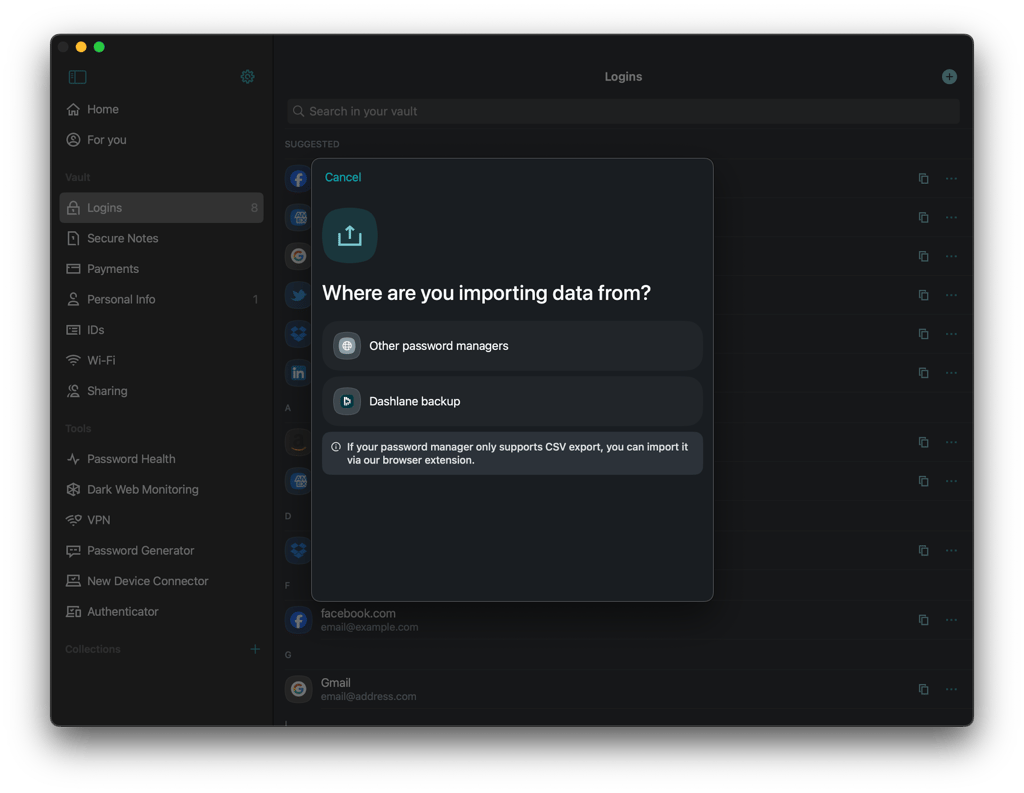
Among them are:
- Browsers like Chrome, Firefox, Safari, and Edge
- Other password managers such as KeePass, Keeper, and RoboForm
- CSV files
With KeePass, your edition will determine the available options. If you’re on KeePass 1.x, your selection is significantly slimmer and limited to just CSV files, CodeWallet, Password Safe, and Personal Vault.
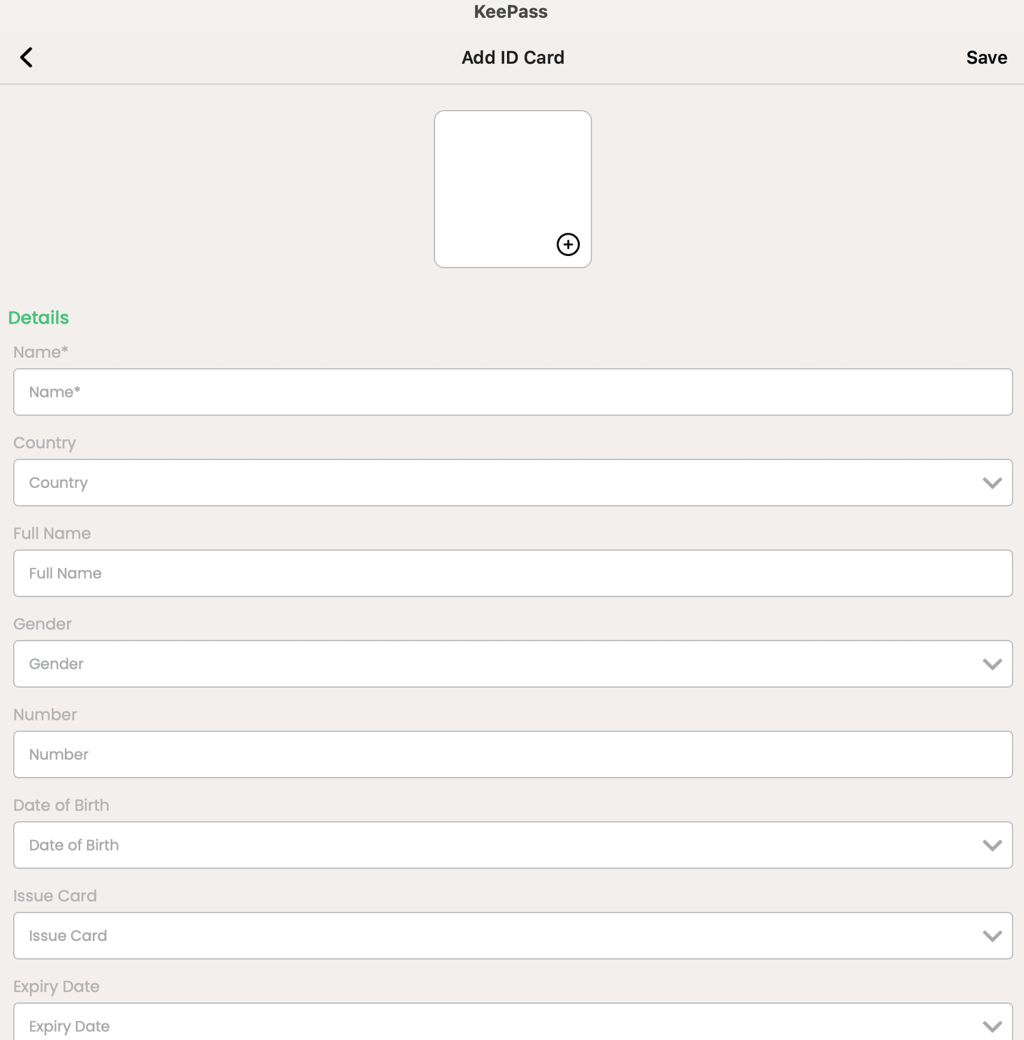
Meanwhile, KeePass 2.x supports far more applications, including:
- KeePass 1.x
- Other password managers like Dashlane, RoboForm, and Keeper
- Google Chrome
- CSV files
However, KeePass’ password-importing process is somewhat tedious. There are guides available, but they’re dry, technical, and for beginners, it can seem complicated.
Account and password recovery
When it comes to lost or forgotten master passwords, Dashlane now offers more recovery options than KeePass, but only if you set them up before you lose access. KeePass, by design, does not provide account-based recovery because your password database is stored and encrypted locally.
Dashlane no longer offers its old Emergency Access feature, but it does provide several ways to regain access in certain situations. Individual users can set up an account recovery key, which allows them to reset their Master Password after verifying their identity. Dashlane also supports biometric recovery on Android and iOS, provided it was enabled in advance. In some cases, users may also be able to reset their Master Password through the Dashlane macOS app.
For work accounts, Dashlane offers admin-assisted recovery on supported professional plans. This allows members of eligible business plans to send a recovery request to an admin, as long as the feature was enabled before the password was forgotten.
KeePass, on the other hand, doesn’t offer a centralized account recovery process. If you forget your master password, lose your key file, or otherwise lose access to the credentials needed to unlock your database, KeePass cannot recover it for you. Your only practical option is to restore from a backup where you still know the credentials, or create a new database.
Password generator
A password generator is a standard tool included in most password managers’ packages, as it’s extremely helpful for quickly creating random and strong passwords.
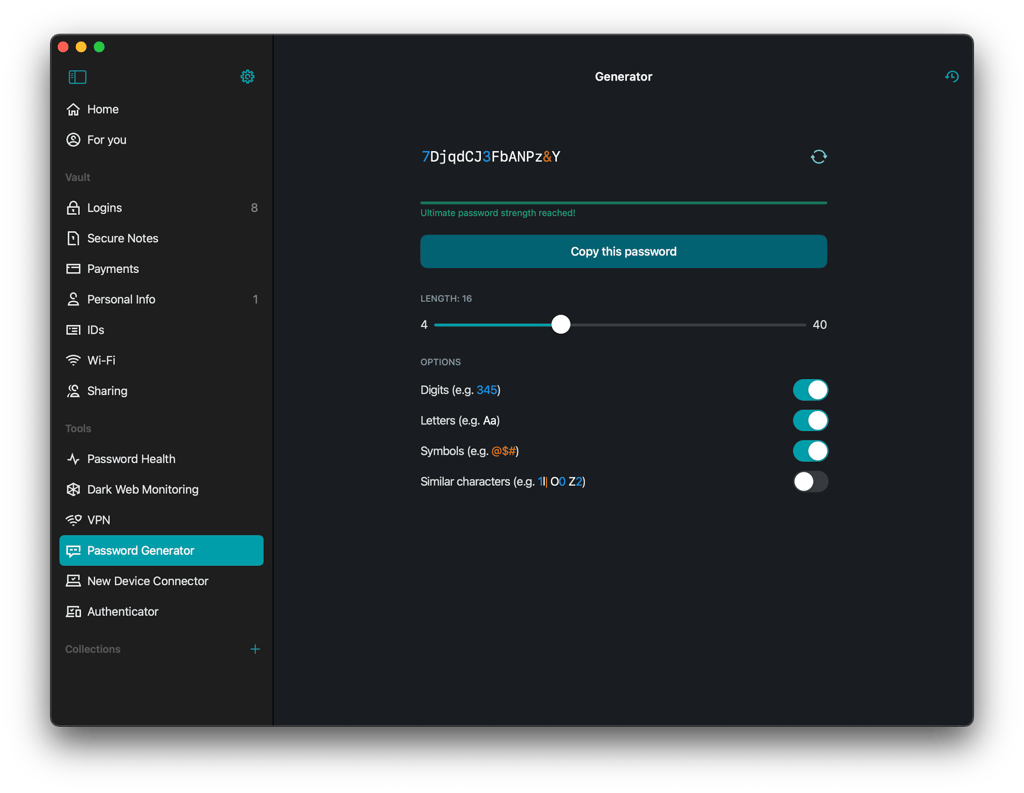
Dashlane’s password generator is modern and easy to use. It allows you to customize by including/excluding letters, digits, symbols, and more. Additionally, you can also tweak the length of the passwords. The default length is 16 characters, but you can go all the way up to 40 characters.
KeePass’ password generator is even more versatile. Besides length, you can choose to include/exclude things like upper and lower cases, numbers, spaces, and special symbols. For more technologically inclined users, you can even generate passwords based on patterns or custom algorithms.
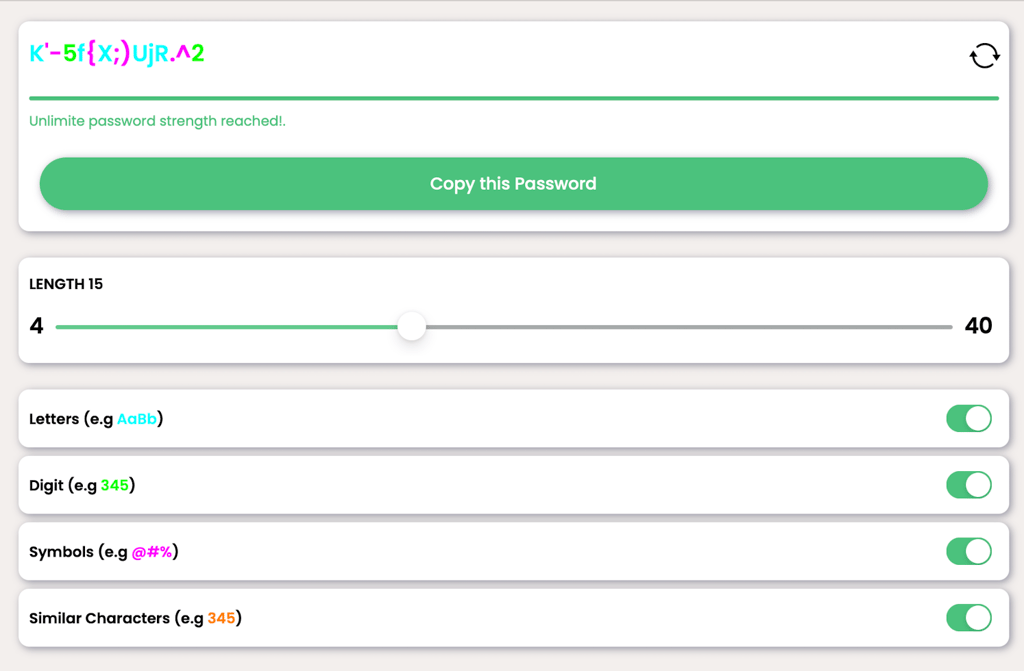
In brief, Dashlane’s password generator is great for those who want an easy-to-use option. Meanwhile, KeePass’ version could be slightly intimidating to some users, but an excellent tool for those looking for a highly customizable password generator.
Password sharing
Dashlane's hassle-free password-sharing feature is a definite win over KeePass’ lack of sharing options and its workaround.
With Dashlane’s sharing feature, you can share passwords with others by sending them an email invite. Before sending the invite, you’re free to configure the access levels. Plus, you can also revoke access at any time. The only condition is that your recipient must sign up for a Dashlane account beforehand, which isn’t too bad considering that there’s a free trial.
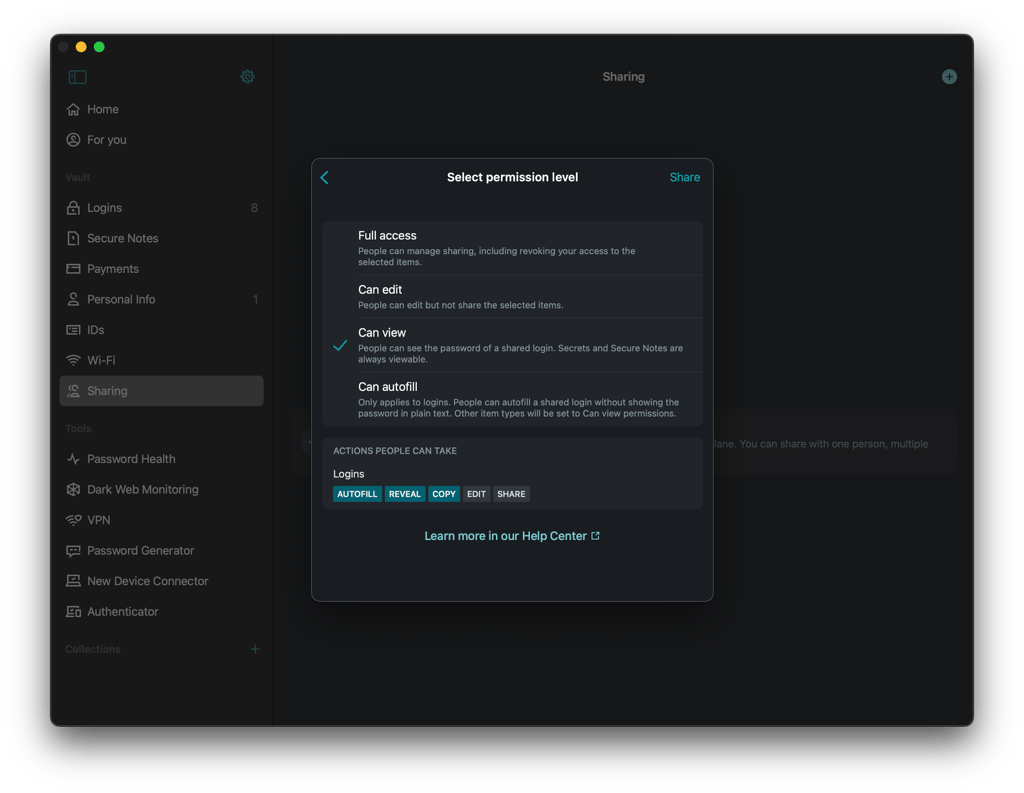
In a glaring omission, KeePass doesn’t offer a password-sharing feature. Your only makeshift solution is to create a shared database and share the master password with those who should have access. Quite obviously, this is a massive compromise in terms of convenience and ease of use. Plus, it’s also far from secure.
Autofill
A well-designed autofill feature speeds up and simplifies form-filling processes. In this aspect, Dashlane nailed it with its convenient autofill feature, while KeePass’ version is clunkier and trickier.
In Dashlane’s case, all you have to do is click on its icon, and it’ll automatically fill in all the necessary fields with your saved credentials. This works for things like usernames, passwords, addresses, credit card details, and more. Quick and easy, you’ll breeze through the form-filling processes.
KeePass, on the other hand, doesn’t offer built-in browser autofill. Instead, it uses an Auto-Type feature that can automatically enter your saved credentials into the active login form. You can configure an Auto-Type sequence, such as entering your username, pressing Tab, entering your password, and pressing Enter. However, setting up and using Auto-Type can be more complicated than Dashlane’s one-click autofill.
It’s not excessively complicated, but it certainly isn’t anywhere close to easy, either. And those less tech-savvy would likely be overwhelmed by its complex process of creating customized sequence associations.
Platforms, interface, and ease of use
Dashlane has a marginal advantage when it comes to usability, but it’s a game of give-and-take, with both password managers falling short in one way or another. To start, Dashlane has no desktop apps, but it does compensate with a very functional mobile app for Android. Plus, it puts ease of use at the forefront of its interfaces.
| Dashlane | KeePass | |
| Supported OS | Windows, macOS, Android, iOS | Windows, macOS, Linux, Android, iOS |
| Browser extension | Chrome, Safari, Firefox, Opera, Edge | Plugins only |
| Number of users | Up to 10 | Multiple users |
While KeePass has desktop apps, they’re rather dated. Its technical nature also makes it less than ideal for beginners and those looking for an easy-to-navigate platform. Additionally, KeePass’ complete lack of official browser extensions is a huge hit on ease of use, too.
Desktop apps
Back in early 2022, Dashlane adopted a “web-first experience” and got rid of its desktop apps for both Windows and Mac. This means that users are left with a slim selection of either using its web app or its mobile apps.
As for KeePass, its desktop apps are archaic and put utility above all else, including ease of use. Hence, tech fans and experienced users are likely to find open-source software a huge playground for customizations. Meanwhile, newbies and casual users run the risk of losing their way or just being overwhelmed by the apparent complexity.

Overall, it’s a case of picking the lesser evil, as KeePass’ desktop apps might be complicated, but they’re still a big step up from Dashlane’s zero desktop apps.
Browser extensions
Dashlane offers browser extensions for all the main ones, like Chrome, Safari, and Firefox. Installation and setup are swift and easy since you only need to click when prompted.
As for functionalities, they’re heavily tied to Dashlane’s web app. So, you only get the core features like autosave, autofill, and password generator on the extensions. All other features will need to be accessed via the web app.
In contrast, KeePass doesn’t have any official browser extensions. Instead, your only options here are a selection of community-created plugins by users who try to plug the gap. Now, whether the convenience of a browser extension is worth the risk of using a third-party plugin is entirely up to you.
Mobile apps
When it comes to mobile apps, Dashlane easily defeats KeePass. With Dashlane’s mobile apps, whether for Android or iOS, you only need to download the app from the Apple App Store or the Google Play Store.
Dashlane’s mobile app for Android is extremely functional and has most of the features that are available in its full version. For instance, Secure Notes, dark web monitoring, and VPN are all accessible on Dashlane’s mobile app. The iOS version, meanwhile, is more restrictive because of Apple’s third-party apps and security restrictions.
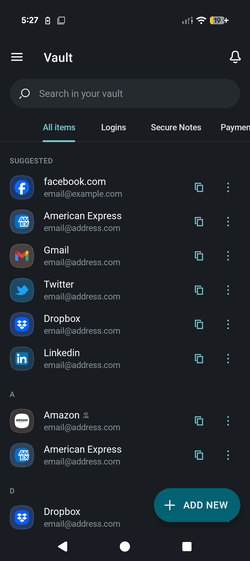
KeePass, on the other hand, skipped out on mobile apps. That said, you can find quite a few apps created by the community, like KeePassDroid, KeePass2Android, KeePassMob, KeePassium, and MiniKeePass. However, they vary wildly in terms of quality and functionality. And, just like the browser extensions, you’re taking a risk by using a third-party app.
To find a suitable option for your needs, check the top-rated password managers for iPhone and the best password manager apps for Android.
Customer support
Dashlane has significantly better customer support than KeePass. Dashlane offers quick and helpful assistance via live chat and email support. The agents are responsive, knowledgeable, and eager to help. The only catch here is that agent assistance is only available during business hours on weekdays.
Fortunately, Dashlane also has a massive knowledge base. This is where you’ll find scores of articles, FAQs, tutorials, and more covering all things related to how password managers work. This should come in incredibly helpful when you need DIY troubleshooting outside of business hours.
In clear contrast, KeePass doesn’t have any agent support. Instead, its official assistance channels are limited to just its FAQ and help center. As a last resort, you could also try the local KeePass Wiki or the user forum for help.
Dashlane vs KeePass: final verdict
Dashlane is the better choice for most users, especially those who want a password manager that is easy to set up and use across their devices. It offers a polished experience with built-in features such as autofill, password sharing, password recovery options, and mobile apps, while also providing strong security and multiple MFA options. You can start using Dashlane without configuring plugins or managing your password database manually, which makes it a much more convenient option for everyday use.
KeePass takes a different approach. It is completely free, open-source, and highly customizable, making it a strong choice for technically experienced users who want more control over how their password database is stored and managed. However, that flexibility comes with a steeper learning curve, and features such as syncing, browser integration, and password sharing may require additional setup or third-party tools.
Overall, Dashlane wins this comparison because it offers a better balance of security, usability, features, and convenience. KeePass is still worth considering if you prioritize being free, open-source, and highly customizable over having a streamlined, ready-to-use experience.
More password manager comparisons from Cybernews:
FAQ
Is Dashlane better than KeePass?
For most users, yes, Dashlane is better than KeePass. Although they’re generally equal in terms of security, Dashlane has considerably better features, user-friendlier interfaces, and more accessible customer support. Plus, its wider variety of plans means that it’d be easier for users to find a plan that suits their needs.
Which is better for mobile: Dashlane or KeePass?
Dashlane is better for mobile than KeePass. Dashlane’s Android mobile app is extremely functional because it comes with almost the full range of features that you’d find in the full version. Even its comparatively more limited iOS version is still a better option. This is because KeePass doesn’t have official mobile apps for both Android and iOS.
Can Dashlane import passwords from KeePass?
Yes, Dashlane can import passwords from KeePass. First, you need to export your data from KeePass as a CSV file. Then, head to Dashlane’s settings, select the Import data option, and then select Get Started. Next, drag and drop the CSV file when prompted and follow the onscreen instructions.